
Work Order Types
Work Order Types
Work Order Types
Program #: 1796
Module: System Administration
Overview
Use Work Order Types (program #1796) to create and define types of work orders. This program contains a sublevel in which you can further define a work order type by attaching translations, Price List Groups, and contract types. A menu of work order types appears in Work Order Type drop-down menu in the Work Orders window. Attach a work order type to each work order. When you close a work order for billing, fields in Contract Master (program #548) and Data Entry Master and Basics (program #559) update based on the attached work order type. For more information on creating work orders, see Work Orders.
Work order types also affect functionality in Commissions, Job costing, and Inventory.
To access this program, select Work Order Types (program #1796) from the main menu of SBN.
The Work Order Types Window
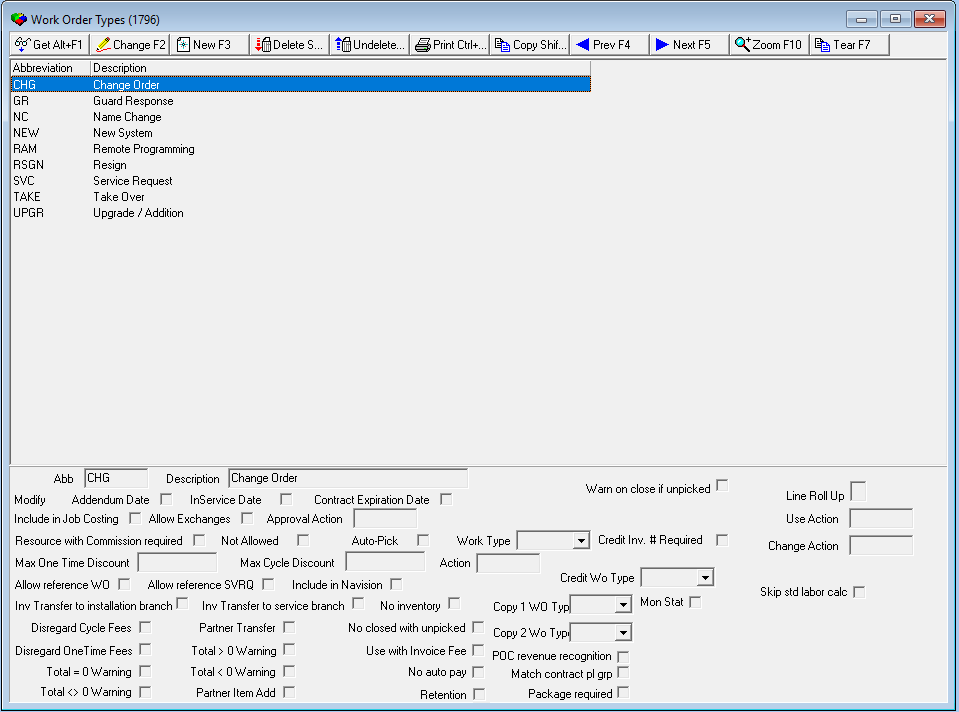
The following graphic shows Work Order Types with information displayed. The columns in the upper pane of the window show all previously defined work order types.
Field/Column Descriptions
The following table describes the fields and columns used in the main window of Work Order Types.
Field/Column |
Description |
Abbreviation |
Company-defined abbreviation to identify this work order type. |
Description |
Text description of the work order type. |
Modify Addendum Date |
If this check box is selected, SBN updates the addendum date on the Contract Master when you close the work order. |
Modify InService Date |
If this check box is selected, SBN updates the in-service date on the Contract Master and in the Customer Since field in the Service/Data Entry Basics tab when you close the work order. |
Modify Contract Expiration Date |
If this check box is selected, SBN updates the contract expiration date on the Contract Master when you close the work order. |
Warn on Close If Unpicked |
Select this check box to display a warning message when a user attempts to close a work order of the selected type that has items that have not been picked in Branch Inventory (program #1757). |
Include in Job Costing |
If this check box is selected, SBN includes work orders with the type selected in the job costing module. O You must enter a flag in this field for work orders with this type to show up on the Work Order Report (program #2002). |
Allow Exchanges |
Select this check box to enable this work order type access to the exchange flag on the work order line items. If you leave this box blank, SBN protects the exchange flag from editing. |
Approval Action |
Type the action required to approve the work order. (These action numbers originate from program #1502). Only individuals whose action profiles include the same action specified in this field can approve work orders with this work order type. O SBN provides five actions specifically for work order approval: l Actions 11-15 - Perform work order approval functions |
Resource with Commission Required |
If this check box is selected, you must attach a sales person, installer, or telemarketer to the work order. |
Resource with Commission not Allowed |
If this check box is selected, you cannot attach a sales person, installer, or telemarketer to a work order. |
Auto-Pick |
If this check box is selected, SBN auto-picks this work order type when you close the work order. This updates inventory and job cost with any items contained on the work order. |
Work Type |
Menu that displays scheduling work types for installations. (This menu originates from program #1526.) |
Credit Inv # Required |
If this check box is selected, SBN requires that you enter a Credit Invoice number on work orders that have the selected work order type. |
Max One Time Discount |
Maximum allowable discount that you can give on one-time fees when you select this work order type. O This field works in conjunction with the maximum discount defined for packages and enforces the least discount defined. |
Max Cycle Discount |
Maximum allowable discount that you can give on cycle fees when you select this work order type. |
Action |
Action required in the users’ action profile to override the maximum discount amounts defined. O Action 292 is a specific action that enables a user to override the maximum discount amounts defined, but you can specify any action number in this field. |
Allow Reference WO |
Available when option in002 is on. Enter a check mark in this box to open a field that enables users to type a reference work order in a work order with this work order type. |
Allow Reference SVRQ |
Available when option in002 is on. Enter a check mark in this box to open a field that enables users to type a reference SVRQ in a work order with this work order type. |
Include in Navision |
If this check box is selected, the Navision export includes work orders of this type. |
Credit WO Type |
You may select a work order type that SBN automatically inserts on credit work orders when you cancel work orders of the selected type, or when you credit invoices for work orders of the selected type. |
Inv Transfer to Installation Branch |
Used in Navision integration. |
Inv Transfer to Service Branch |
Used in Navision integration. |
No Inventory |
Select this check box to exclude work orders of the selected type from inventory. O To prevent work orders from auto picking during close, de-select this check box. If this flag is on, the Auto Pick flag should be off. |
Disregard Cycle Fees |
Select this check box to flag work orders of the selected type to disregard cycle fees. |
Disregard One Time Fees |
Select this check box to flag work orders of the selected type to disregard one-time fees. |
Partner Transfer |
Used for Partner Invoicing for Securitas. |
Total = 0 Warning |
Select this check box to display a warning when work orders of the selected type have a total equal to 0 (zero). |
Total < > 0 Warning |
Select this check box to display a warning when work orders of the selected type have a total less than or greater than 0 (zero). |
Total > 0 Warning |
Select this check box to display a warning when work orders of the selected type have a total greater than 0 (zero). O The warning reads, �Total does not match requirements for selected work order type. Continue?� |
Total < 0 Warning |
Select this check box to display a warning when work orders of the selected type have a total less than 0 (zero). |
Partner Item Add |
Used for Partner Invoicing for Securitas. |
No closed with unpicked |
Select this check box to prevent work orders of the selected type from being closed if all items have not been picked. |
Use with Invoice Fee |
Select this check box to use Invoice Fees with the selected Work Order Type. O Invoices with one-time charges include an invoice fee if at least one of the work orders associated with the invoice has a check mark in this field. |
POC revenue recognition |
This check box is used in Company 105's Percent of Completion calculation. |
No Auto Pay |
Select this check box to use with credit work orders. Credits created with this flagged in the work order type will not automatically apply to an invoice. |
Retention |
Select this check box to indicate that this work order type will use the retention profile linked to the contract or billing account. |
Copy 1 WO Type |
Not yet functional. |
Copy 2 WO Type |
Not yet functional. |
POC Revenue Recognition |
Used for Percent of Completion calculation for Company 105. |
Match Contract PL Group |
Select this check box to indicate that the Price List Group of work orders of the selected type should match the Price List Group of the associated contract. If a user attempts to close a work order of the selected type and the Work Order Price List Group does not match the Contract Price List Group, a warning message appears. |
Package Required |
Select this check box to indicate that an item package should be included in the Details tab of work orders of the selected type. If a user attempts to close a work order of the selected type without a package, a warning message appears. |
Line Roll Up |
Flag used in Work Orders defined by options ba304. If "+", SBN exports the Revenue Group description instead of each line items. If "X", SBN displays a single total for all lines (along with a list of all items) without including pricing for each line item. |
Use Action |
Your action profile in program #1502 must have the action in this field enabled in order to display the selected type in the Work Order Type drop-down menu of a work order. Note: Action 2194 was created for use in this field, but you may enter any action number here. |
Change Action |
Your action profile in program #1502 must have the action in this field enabled in order to change the Work Order Type field on work orders of the selected type. If you do not have this action enabled, the Work Order Type field is protected on work orders of the selected type. Note: Action 2195 was created for use in this field, but you may enter any action number here. |
Skip Standard Labor Calculation |
No functionality currently in SBN. (Specific to Company 204). |
Using Common Functions
See the reference document Common Functions in SBN for more information.
Zooming into the Sublevel
Work Order Types contains a sublevel with three tabs:
The Translations Tab - in which you attach translations to work order types. Work Order Types then appear in SBN in the user’s language.
Note: Actions 1796/21-24 control access to the Translations tab and functions.
The Price Lists Tab - if option ba324 is on, you can use the Price Lists tab to associate price list groups with work order types.
Note: Price List Groups originate from program #1771.
Contract Types Tab - in which you attach contract types to work order types. The menus of Work Order types then display only
q Work Order types valid for the type of contract associated with the work order
q Work Order types not associated with any contract type
Note: Actions 1796/31, 33, 34 control access to the functions of the Contract Types tab.
The Translations Tab
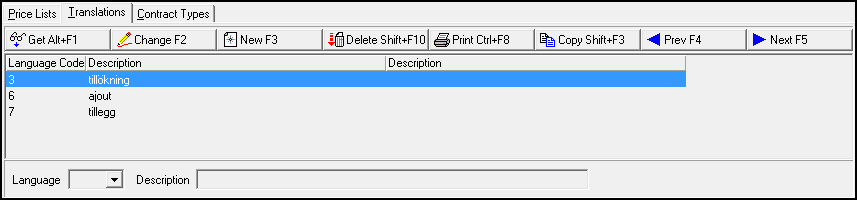
Use the Translations tab to attach translations to work order types. Work Order Types then appear in SBN in the user’s language. The Translations tab displays previously defined translations associated with the selected work order type.
Field/Column Descriptions
The following table describes the fields and columns used in the Translations tab.
Field/Column |
Description |
Language Code |
Code that identifies the language of the associated translation. O Contact IBS before using codes 11-17. |
Description |
Text description, in the associated language, of the selected work order type. |
The Price Lists Tab
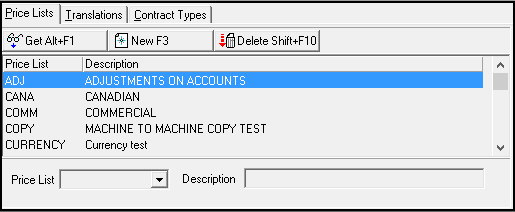
If option ba324 is on, you can use the Price Lists tab to associate price list groups with work order types. The Price Lists tab displays price list groups previously associated with the selected work order type.
Field/Column Descriptions
The following table describes the fields and columns used in the Price Lists tab.
Field/Column |
Description |
Price List |
Identifies the selected price list group. (This menu originates from program #1771.) |
Description |
Text description of the selected price list group. |
The Contract Types Tab
Use the Contract Types tab to associate contract types to work order types. Menus of work order types display
Work order types valid for the type of contract associated with the work order
Work order types not associated with any contract type
Note: Actions 1796/31, 33, 34 control access to the functions of the Contract Types tab.
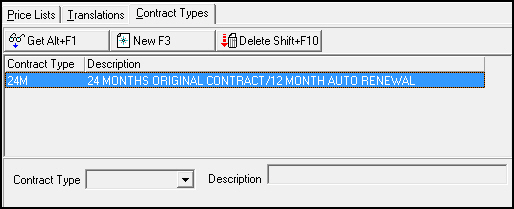
The Contract Types tab displays previously defined contract types associated with the selected work order type.
Field/Column Descriptions
The following table describes the fields and columns used in the Contract Types tab.
Field/Column |
Description |
Contract Type |
Select the contract type to associate with the selected work order type. (This menu originates from program #1531.) |
Description |
When you select a contract type, this field defaults with the description entered in program #1531 for that contract type. |
Button Functions
The following table displays the buttons, describes the shortcut keys, actions, and functionality.
Button |
Name |
Shortcut Key |
Action |
Description |
|
Get |
ALT+F1 |
1796/ 1 |
Get record. |
|
Change |
F2 |
1796/ 2 |
Change selected record. |
|
New |
F3 |
1796/ 3 |
Create new record. |
|
Delete |
SHIFT+F10 |
1796/ 4 |
Delete selected record. |
|
Undelete |
ALT+F10 |
1796/ 5 |
Restore deleted record. |
|
CTRL+F8 |
1796/ 6 |
Print selected records. |
|
|
Copy |
SHIFT+F3 |
1796/ 999 |
Copy selected field. |
|
Zoom |
F10 |
1796/ 999 |
Zoom in/out of sublevel. |
|
Tear |
F7 |
1796/ 999 |
Display selected source description. |
|
Previous |
F4 |
1796/ 999 |
Select last record. |
|
Next |
F5 |
1796/ 999 |
Select next record. |











Modifications and Updates to Work Order Types
The following table lists modifications and updates to the Work Order Types document.
Mod Number |
Date |
Description |
n/a |
08/27/14 |
Images updated. |
07.90.26090, 08.90.11597, 08.90.11596, 07.90.26089 |
01//08/18 |
Added Skip Standard Labor Calculation. No functionality currently in SBN. (Specific to Company 204). Image updated. |