
Branch Profiles
Branch Profiles
Branch Profiles
Program #: 1530
Module: System Administration
Overview
Use Branch Profiles (program #1530) to define and maintain branches in SBN. This information appears throughout SBN in several branch menus. You may define branches as:
Specific physical branches
Reference branches where inventory is contained
Monitoring locations
Branches authorized to perform sales, service, or patrol functions
You can use defined branches to limit user access in all areas of SBN and to route alarms in the alarm queue in monitoring. You can also limit the branches available by zip code using Zip Code (program #1718).
To access this program, select Branch Profiles (program #1530) from the main menu of SBN.
The Branch Profiles Window
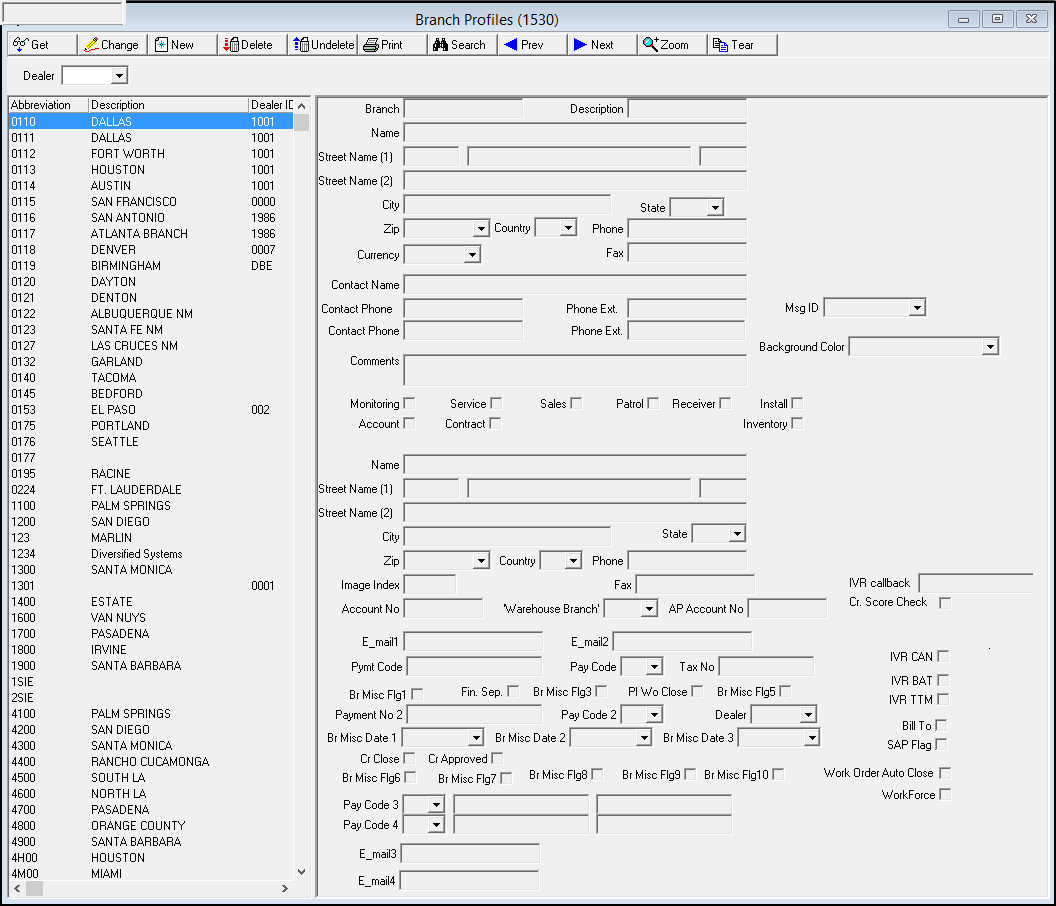
The Branch Profiles window contains three panes:
The upper pane - which contains a single search parameter
The left pane - which displays a list of defined branches
The right pane - which displays specific information about each branch
Branch Profiles also contains a sublevel with three tabs for linking sales, service, and patrol regions.
When you enter Branch Profiles (program #1530), the left pane of the window displays all previously defined branches.
The following graphic shows Branch Profiles as the program opens.
Field/Column Descriptions
The following table describes the fields and columns used in Branch Profiles.
Field/Column |
Description |
Search Parameter |
|
Dealer |
You may search for branch profiles by dealer ID. (This menu originates from program #1537.) O If you leave this field blank, the search includes all dealer IDs. |
Columns |
|
Abbreviation |
Branch ID code to identify the branch throughout SBN. |
Description |
Text description of the branch. |
Dealer ID |
ID of the dealer associated with the branch. |
Detail Fields |
|
Branch |
Branch ID code to identify the branch throughout SBN. |
Description |
Text description of the branch. |
Name |
Name of the branch. |
Street Name (1) |
Street number, street name, and suite number of the branch. |
Street Name (2) |
Additional line for branch address information. |
City |
City where the branch is located. |
State |
State where the branch is located. (This field holds a maximum of 60 characters.) |
Zip |
Zip code for the branch. |
Country |
Country where the branch is located. |
Phone |
Main phone number for the branch. |
Currency |
Currency type for the branch, used to calculate labor costs in the WIP tab of work orders associated with the selected branch. (This menu originates from program #1635.) |
Contact Name |
Contact name for the branch. |
Contact Phone (1) |
Primary phone number for the contact at the branch. |
Phone Extension (1) |
Contact primary phone extension, if necessary. |
Message ID |
The message entered in this field appears in a dialog box when a user creates a new service request in the Service Log tab of Data Entry (program #559) for an installation with the selected branch in the Service Branch field of Data Entry. (This menu originates from program #1828.) |
Contact Phone (2) |
Secondary phone number for the contact at the branch. |
Phone Extension (2) |
Contact secondary phone extension, if necessary. |
Background Color |
Select a color to display in the background of the Installation Branch, Phone, and Phone 2 fields of Data Entry Master (program #559) on installations with the selected branch entered in the Installation Branch field of Data Entry. |
Comment |
Text area for additional comments for this branch. |
Monitoring |
If this field displays a check mark, the branch is authorized to perform monitoring functions. |
Service |
If this field displays a check mark, the branch is authorized to perform service functions. |
Sales |
If this field displays a check mark, the branch is authorized to perform sales functions. |
Patrol |
If this field displays a check mark, the branch is authorized to perform patrol functions. |
Receiver |
If this field displays a check mark, the branch contains the receiver at that location. |
Installation |
If this field displays a check mark, the selected branch appears in the Installation Branch menu in Data Entry. |
Account |
If this field displays a check mark, the selected branch is able to bill accounts. |
Contract |
If this field displays a check mark, the selected branch has a valid contract. |
Inventory |
If at least one branch has this check box selected, the Branch Inventory window (program #1757) displays only the selected branches in the Branch drop-down menu. If no branches have this check box selected, the Branch Inventory window displays all branches in the Branch drop-down menu. |
Name |
Name of the reference branch (where inventory is located) if necessary. |
Street Name (1) |
Street number, street name, and suite number for the reference branch. |
Street Name (2) |
Additional address information for the reference branch. |
City |
City where the reference branch is located. |
State |
State where the reference branch is located. (This field holds a maximum of 60 characters.) |
Zip |
Zip code for the reference branch. Note: When option ba440 is on, SBN validates this field along with the Zip field (above) for the main branch. |
Country |
Country where the reference branch is located. |
Phone |
Reference branch telephone number. |
Image Index |
Index number of the graphic to use in the Contract Master tree view, when displaying by Branch icons. |
Fax |
Reference branch fax number. |
IVR Callback |
Enter a phone number into this field to allow customer callbacks using Interactive Voice Response, if available. |
Account Number |
Account number to which the payment applies. |
Warehouse Branch |
Branch ID for an allocation branch. This code is used by the Work In Process and Inventory programs when the branch uses another location for its central warehouse (inventory location). |
AP Account No. |
The dedicated account for Securitas Partners. This account number must be defined in Chart of Accounts (program #1835). O SBN only updates this field. |
Cr. Score Check |
Click this checkbox to enable a credit check on this profile |
Email 1 |
Primary email address to which SBN sends reports. |
Email 2 |
Secondary email address to which SBN sends reports. |
Payment Code |
Code that identifies the method of payment. |
Pay Code |
Code to designate a special pay code for late charges that the reminder calculation process generates. (This menu originates from program #1528.) |
Tax Number |
Customer’s tax ID or tax-exempt number. |
IVR CAN |
Customer-specific check box for company 156. Select this check box to allow the IVR terminal of the selected branch to process alarm signals of type 'CAN' in Dispatch (program #537). Note: Option ba455 must be on and action 1530/989 must be active to make this check box visible. |
Br Misc Flag 1 |
Company-defined field; used in Partner Invoicing. O When a user creates a work order that is associated with a branch that has check marks in both this field and PI WO Close, SBN q Creates, approves, and closes a Partner work order q Flags the Partner work order for Immediate Invoicing |
Fin Sep |
This field is active when option ba278 is on. Financial Separation; use with Securitas Partner Invoicing. You may type a flag in this field to define whether branches use Financial Separation. l X - Use only accounts associated with branches flagged to use Financial Separation. l % - Use all accounts regardless of the Financial Separation flag for their associated branches. |
Br Misc Flag 2 |
Company-defined field; no functionality in SBN. |
Br Misc Flag 3 |
Company-defined field; no functionality in SBN. |
PI WO Close |
Partner/Immediate Invoice WO Close; used in Partner Invoicing. O When a user creates a work order that is associated with a branch that has check marks in both this field and Br Misc Flag 1, SBN q Creates, approves, and closes a Partner work order q Flags the Partner work order for Immediate Invoicing |
Br Misc Flag 5 |
Company-defined field; no functionality in SBN. |
IVR BAT |
Customer-specific check box for company 156. Select this check box to allow the IVR terminal of the selected branch to process alarm signals of type 'BAT' in Dispatch (program #537). Note: Option ba455 must be on and action 1530/989 must be active to make this check box visible. |
Payment No 2 |
Secondary preferred payment method; for Partner Invoicing functionality. |
Pay Code 2 |
Pay code to identify the secondary payment method. (This menu originates from program #1528.) |
Dealer |
Select a Dealer ID to associate with the selected branch. (This menu originates from program #1537.) |
IVR TTM |
Customer-specific check box for company 156. Select this check box to allow the IVR terminal of the selected branch to process alarm signals of type 'TTM' in Dispatch (program #537). Note: Option ba455 must be on and action 1530/989 must be active to make this check box visible. |
Br Misc Date 1 |
Select the date a Partner becomes a Franchise Partner. |
Br Misc Date 2 |
Select the date a Partner becomes a Franchise Partner. |
Br Misc Date 3 |
Select the date a Partner becomes a Franchise Partner. |
Bill To |
If at least one branch has this check box selected, SBN only displays branches with this check box selected in the Bill To field of Purchasing (program #571). If no branches have this check box selected, then SBN functions as usual; all branches appear in the Bill To field of Purchasing. |
Cr Close |
When option bl135 is on, this field defaults with a check mark. When this field displays a check mark and a user - whose profile contains the selected branch - chooses Credit Invoice [Shift+F4] in Invoice Status, SBN automatically closes the credit work order. Remove the check mark from this field to prevent users from a selected branch from using the functionality of option bl135 while allowing other branches to use it. |
Cr Approved |
When option bl136 is on, this field defaults with a check mark. When this field displays a check mark and a user - whose profile contains the selected branch - chooses Credit Invoice [Shift+F4] in Invoice Status, SBN automatically approves the credit work order. Remove the check mark from this field to prevent users from a selected branch from using the functionality of option bl136 while allowing other branches to use it. |
Br Misc Flag 6 |
Company-defined field; no functionality in SBN. |
Br Misc Flag 7 |
Company-defined field; no functionality in SBN. |
Br Misc Flag 8 |
Company-defined field; no functionality in SBN. |
Br Misc Flag 9 |
Company-defined field; no functionality in SBN. |
Br Misc Flag 10 |
Company-defined field; no functionality in SBN. |
Work Order Auto Close |
If a branch has this check box selected and option ba492 is on, background job #60 approves and closes work orders on an installation with the branch if a work order meets the following conditions: If a work order is on an installation with a subscriber type that has the Subscriber Type Misc Flg 1 check box selected in program #1534 and:
If a work order is on an installation with a subscriber type that does not have the Subscriber Type Misc Flg 1 check box selected in program #1534 and:
|
Pay Code 3 |
Pay code to identify the third payment method. (This menu originates from program #1528.) |
Account
Number/ Payment No 3 |
Third preferred payment method account number; field supports 30 characters. |
Routing
Number/ |
Third preferred payment method ABA/routing number; field supports 30 characters. |
WorkForce |
If option sv086 is enabled in the Service/Data Entry program (program #$559), this checkbox allows Click Service to apply to this Branch. |
Pay Code 4 |
Pay code to identify the third payment method. (This menu originates from program #1528.) |
Account
Number/ |
Fourth preferred payment method account number; field supports 30 characters. |
Routing
Number/ |
Fourth preferred payment method ABA/routing number; field supports 30 characters. |
Searching for Branch Profiles by Dealer ID
Use the following steps to search for branch profiles by Dealer ID:
1. In Branch Profiles, select the Dealer ID for which you want to find associated branch profiles.
2. Choose Search.
‰ SBN displays the search results in the columns below the search parameter.
Zooming into the Sublevel of Branch Profiles
The Branch Profiles program contains a sublevel with three tabs for defining branch regions for
Sales Regions
Service Regions
Patrol Regions
Sales Regions Tab
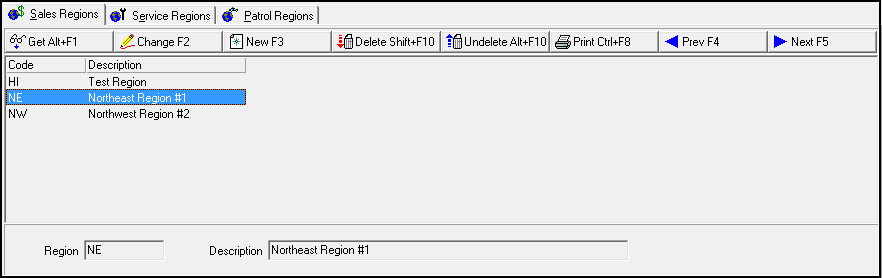
Use the Sales Regions tab to define specific sales regions for the branch to use in Marketing (program #562). The following graphic shows the Sales Regions tab with information displayed.
Field/Column Descriptions
The following table describes the fields and columns used in the Sales Regions tab.
Field/Column |
Description |
Code |
Sales Region ID code. |
Description |
Text description of the sales region. |
Region |
Sales Region ID code. |
Description |
Text description of the sales region. |
The Service Regions Tab
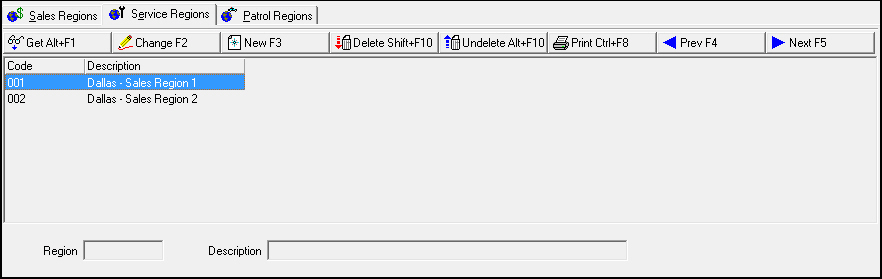
Use the Service Regions tab to define specific sales regions for the branch to use in Service/Data Entry (program #559). The following graphic shows the Service Regions tab with information displayed.
Field/Column Descriptions
The following table describes the fields and columns used in the Service Regions tab.
Field/Column |
Description |
Code |
Service Region ID code. |
Description |
Text description of the Service Region. |
Region |
Service Region ID code. |
Description |
Text description of the Service Region. |
The Patrol Regions Tab
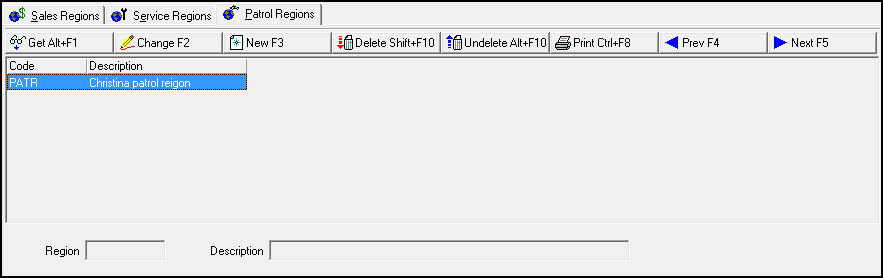
Use the Patrol Regions tab to define specific patrol regions for the branch to use in Service/Data Entry (program #559). The following graphic shows the Patrol Regions tab with information displayed.
Field/Column Description
The following table describes the fields and columns used in the Patrol Regions tab.
Field/Column |
Description |
Code |
Patrol Region ID code. |
Description |
Text description of the Patrol Region. |
Region |
Patrol Region ID code. |
Description |
Text description of the Patrol Region. |
Button Functions
The following table displays the buttons, describes the shortcut keys, actions, and functionality.
Button |
Name |
Shortcut Key |
Action |
Description |
|
Get |
ALT+F1 |
1530/ 1 |
Get record. |
|
Change |
F2 |
1530/ 2 |
Change selected record. |
|
New |
F3 |
1530/ 3 |
Create new record. |
|
Delete |
SHIFT+F10 |
1530/ 4 |
Delete selected record. |
|
Undelete |
ALT+F10 |
1530/ 5 |
Restore deleted record. |
|
CTRL+F8 |
1530/ 6 |
Print selected records. |
|
|
Search |
F6 |
1530 |
Search for branch by dealer. |
|
Zoom |
F10 |
1530 |
Zoom into the sublevel. |
|
Tear Away |
F7 |
1530 |
View selected branch in separate tab. |
|
Previous |
F4 |
1530/ 999 |
Select last record. |
|
Next |
F5 |
1530/ 999 |
Select next record. |










Modifications and Updates to Branch Profiles
The following table lists modifications and updates to the Branch Profiles document.
Mod Number |
Date |
Description |
07.80.23266, 08.80.09586, 07.80.23260, 08.81.09584, 07.80.23247, 07.80.23245, 07.80.23236, 08.80.09572, 08.80.09521, 07.80.23155, 07.80.23153, 08.80.09520, 07.80.23146, 08.80.09518 |
4/02/14 |
Added IVR Callback and Cr. Score Check checkboxes. |
09470, 07.79.23063, 08.79.09453, 07.79.23028 |
4/3/14 |
Added Workforce checkbox. |
07.80.23235, 07.80.23228, 07.80.23227, 07.80.23186, 07.80.23185, 07.80.23154, 08.79.09458, 07.79.22994, 07.79.22909, 08.79.09384 |
4/16/14 |
Added new IVR Callback field. |