
Certificate Standards
Certificate Standards
Certificate Standards
Program #: 1655
Module: Utilities
Overview
Use Certificate Standards (program #1655) to define abbreviations for standards that determine how alarm system installation should take place. Attach standards to certificates in the Certificates tab of Data Entry (program #559).
Navigating to Certificate Standards
Use the following steps to access the Certificate Standards program:
1. From the main SBN toolbar, select Menu.
2. From the drop-down menu, select Go To.
3. In the Go To Program dialog box, type in "1655" and press ENTER.
w The Certificate Standards window opens.
The Certificate Standards Window
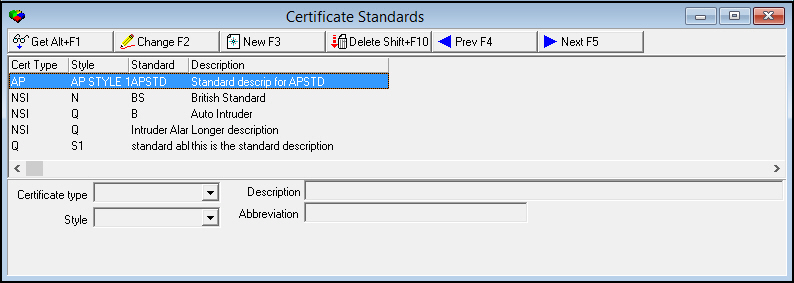
The following graphic shows Certificate Standards as the program opens.
Field/Column Descriptions
The following table describes the fields and columns used in Certificate Standards.
|
Field/Column |
Description |
|
Certificate Type |
Certificate type assigned to the standard. (This menu originates from program #1653.) The selected standard only appears in the menu of the Standard field in the Certificates tab of program #559 for certificates of the selected type and style. |
|
Style |
Certificate style assigned to the standard. (This menu originates from the Styles tab of program #1653 for the selected certificate type.) The selected standard only appears in the menu of the Standard field in the Certificates tab of program #559 for certificates of the selected type and style. |
|
Standard/Abbreviation |
Certificate standard ID. |
|
Description |
Text description of the standard. |
Viewing Details of a Certificate Standard
Use the following steps to view certificate standard details:
1. Select the certificate standard you want to view.
2. Choose Get Record.
w The certificate standard details appear in the fields in the lower pane.
Creating a Certificate Standard
Use the following steps to create a new certificate standard:
1. Choose New Record.
w The fields in the lower pane open for changes.
2. Enter details for the certificate standard.
3. Choose Save.
w The new certificate standard appears in the list in the upper pane.
Changing a Certificate Standard
Use the following steps to change the description of a certificate standard:
1. From the upper pane, select the certificate standard you want to change by double-clicking or choosing Get Record.
w The certificate standard details appear in the lower pane.
2. Choose Change Record.
w The Description field in the lower pane opens for changes.
3. Change the description as necessary.
4. Choose Save.
Deleting a Certificate Standard
Use the following steps to delete a certificate standard:
1. From the upper pane, select the certificate standard you want to delete by double-clicking or choosing Get Record.
w The certificate standard details appear in the lower pane.
2. Choose Delete Record.
w A confirm dialog box opens: "Are you sure?"
3. Choose Yes.
4. SBN removes the certificate standard from the list in the upper pane.
Button Functions
The following table displays the buttons, describes the shortcut keys, actions and functionality.
|
Button |
Name |
Shortcut Key |
Action |
Description |
|
|
Get Record |
alt+f1 |
1655/ 1 |
View details of selected certificate standard. |
|
|
Change Record |
f2 |
1655/ 2 |
Change details of selected certificate standard. |
|
|
New Record |
f3 |
1655/ 3 |
Create new certificate standard. |
|
|
Delete Record |
shift+f10 |
1655/ 4 |
Delete selected certificate standard. |
|
|
Previous Record |
f4 |
1655/ 1 |
Go to previous certificate standard. |
|
|
Next Record |
f5 |
1655/ 1 |
Go to next certificate standard. |






Modifications and Updates to Certificate Standards
The following table lists modifications and updates to the Certificate Standards document.
|
Mod Number |
Date |
Description |
|
n/a |
8/28/14 |
Images updated. |