
Invoice Status
Invoice Status
Invoice Status
Module: Accounting
Overview
Use Invoice Status to view or change invoices on one account or contract. This program displays the following information about invoices:
Current status
Balance
Reminder status
SBN can display up to 1,000 invoices for one account.
To access this program, select Contract Master (program #548) from the main menu of SBN and then choose the Invoice Status tab.
Invoice Status Options
You may use options to control aspects of Invoice Status. For detailed information on an option and its default setting, see SBN Options.
Option ba258 - controls whether you must select a credit reason for negative totals on work orders or when you credit invoices
Option ba273 - when this option is on, SBN does not validate the reference WO for those customers whose contract number begins with the prefix 'INT.' (This option is for Protectron only.)
Option bl032 - controls the default view of the Invoice Details pane
Option bl087 - defines the default view of several columns in the Invoice Details pane
Option bl133 - controls whether you can credit a partially paid invoice
Option bl135 - controls whether SBN automatically closes a credit work order when you choose Credit Invoice (branch restrictions apply)
Option bl136 - controls whether SBN automatically approves a credit work order when you choose Credit Invoice (branch restrictions apply)
Option bl164 - This option is dealer-based. When on and there is an overpayment on an invoice, SBN automatically applies the remaining credit to another invoice with a balance on the same billing account. When off and there is an overpayment on an invoice, SBN credits the whole payment to the specified invoice, creating a credit balance (-) for that invoice.
Option bl171 - when on, a Work Order Type field appears in the Credit Reason dialog box so that you can choose the type of work order to create
Option bl187 - when on, SBN does not change the due date of an invoice when a user sets up scheduled payments. When off, SBN changes the due date of an invoice to the date of the last scheduled payment when a user adds scheduled payments.
Option bl188 - when on, the tax rate of a credit invoice matches the tax rate of the invoice being credited regardless of the invoice date entered for the credit in Invoice Manager (program #1557)
Option bl199 - when on, a warning message appears when a user attempts to remove the Print flag from an invoice that another user has flagged to print.
Option bl204 - when on, SBN prints the internal invoice number when you print an invoice, even if the invoice has an external invoice number. SBN also uses the internal invoice number in the entry it generates in the Communication Log (program #1888) when you print an invoice and this option is on. When this option is off, SBN prints the external invoice number (if defined) when you print an invoice.
Option blinvsho - controls the display of the main window of Invoice Status to either all invoices or unpaid invoices.
Option callurl - The value of this option holds both the URL to be called in the Invoice Status and Payment Status tabs as well as a list of parameters that SBN passes to the URL.
You may include the following parameters as part of the option value:
@clientcode@
@acct_no@
@acct_bal@
@acct_name@
@terminal@
Option insinvsh - controls availability of a third view (Installation Invoices) of the main window of Invoice Status. Installation Invoices shows only installation invoices for the selected account.
The Invoice Status Tab
The following graphic shows the Invoice Status tab as the program opens. The fields in the left pane show account information about the customer. The columns in the right pane show a history of invoices on this account.
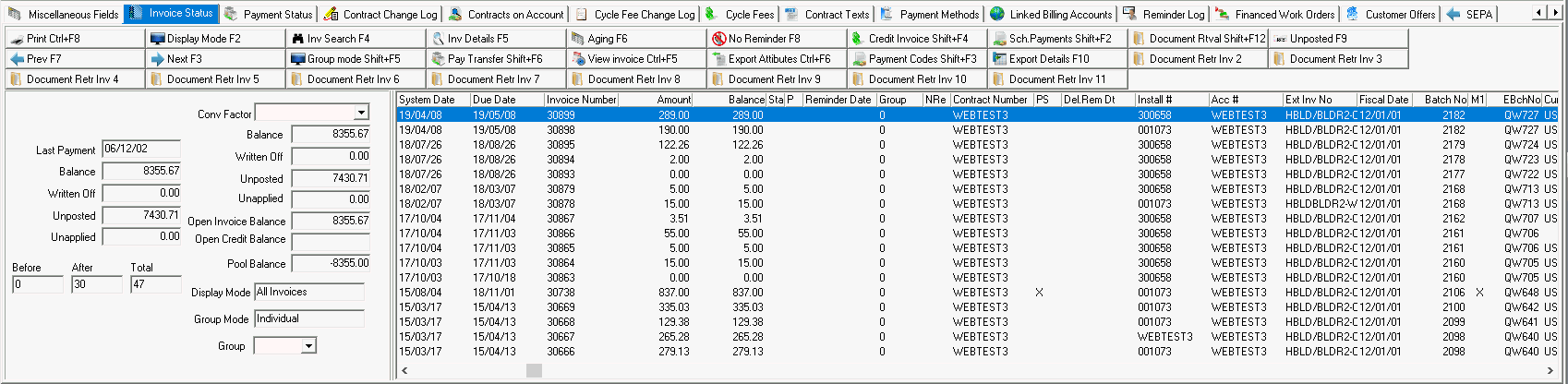
Note: When action 548/58 is enabled, SBN puts the selected (highlighted) invoice number in the clipboard, allowing you to paste it into external applications or other SBN programs (such as the Communication Log, program #1888).
Note: When action 548/45 is enabled the Export Details button displays in the Invoice Status main screen.
Field Descriptions — Account Information
The following table describes the fields used in this pane.
Field |
Description |
Last Payment |
Last date a payment was entered for this account. |
Balance |
Unpaid balance on this account. |
Written Off |
Total amount previously written off of this account. |
Unposted |
Total amount of any unposted payments for this account. |
Unapplied |
Total amount of unapplied payments for this account. |
Conversion Factor |
Use this field to convert one currency value to another. (This menu originates from program #1635.) |
Balance |
Unpaid balance on this account in the converted currency amount. |
Written Off |
Total amount previously written off of this account in the converted currency amount. |
Unposted |
Total amount of any unposted payments for this account in the converted currency amount. |
Unapplied |
Total amount of unapplied payments for this account in the converted currency amount. |
Open Invoice Balance |
Amount of unpaid invoice balance. |
Open Credit Balance |
Amount of credit applied to invoice. |
Pool Balance |
Floating amount which has not yet been allocated to pay the invoice. |
Before |
Total number of invoices on the pages before the one you are viewing for this display mode. |
After |
Total number of invoices on the pages after the one you are viewing for this display mode. |
Total |
Total number of invoices for this display mode. |
Display Mode |
Identifies the display mode you are currently viewing. Note: See Column Descriptions —— Invoice History for more details. |
Group Mode |
Identifies the Group Mode you are currently viewing. Note: You may only view a Group Mode when you are in Unpaid Invoices display mode. Note: Action 548/39 controls access to this field. Note: Use this field only when option ba361 is defined and one of the following options are on: l ba358 l ba359 l ba360 |
Group |
Displays the revenue groups that match the value of option ba361. You may select a revenue group to narrow the display of grouped invoices. Note: Actions 548/37-38 control access to this menu and to the Previous / Next arrows to use to navigate through the menu of revenue groups. Note: When you select a new account, SBN resets this menu. |
Column Descriptions — Invoice History
The following table describes the columns used in this pane.
Column |
Description |
System Date |
Date this invoice was created. |
Due Date |
Date this invoice payment is or was due. |
Invoice Number |
SBN-assigned number for this invoice. |
Amount |
Amount billed on this invoice. |
Balance |
Any unpaid portions of the invoice amount. |
Status |
Current status of the invoice. The field displays a c if this invoice has been sent to collections. |
Print Flag |
If this column displays an X, the invoice is set to print when a user exports from Invoice Manager (program #1557) or runs Invoice Print (report #2171). |
Reminder Date |
Last date a reminder notice was printed for this invoice. |
Group |
Code for the last reminder group text printed. |
No Reminder |
Flag that indicates if reminders print: l w —— No reminder, pay normal, with date l X —— No reminders print l - —— reminders do not print and any payments posted are applied to this invoice last l + —— reminders print but any payments posted are applied to this invoice last. l * —— reminders print, but are delayed until the specified date l M —— No reminder / Never Pay (Manual pay only) |
Contract Number |
Contract number to which this invoice applies. |
Payment Scheduled |
If this column displays an X, this invoice has scheduled payments. |
Delayed Reminder Date |
Displays the delayed reminder date set in the No Reminder field. |
Instal # |
Installation number attached to the invoice. |
Acc # |
Billing account number attached to the invoice. |
Ext Inv No |
External invoice number. |
Fiscal Date |
Displays the fiscal date of the selected invoice. |
Batch No |
Displays number of the invoice batch that included the selected invoice. |
Ext Batch No |
Displays the external batch number total for a payment. |
Currency |
Primary currency type of the account. |
Line Item Currency |
Currency type of the line item. |
Line Item Currency Amount |
Amount of the line item in the selected currency of the line item. |
Primary Currency Amount |
Amount of the line item in the primary currency of the account. |
Export Count |
Number of times that the invoice has been exported using Invoice Manager (program #1557). |
Export Date |
Date on which the invoice was last exported using Invoice Manager (program #1557). |
Expected Pay Date |
Date on which payment is expected on the invoice. Note: This date changes when a payment is rejected. |
Flagging an Invoice for Print
In the Invoice Status tab, choose Print to flag an invoice for print when you export an invoice from Invoice Manager (program #1557) or run Invoice Print (report #2171). You cannot print an invoice directly from the Invoice Status tab.
Once a user prints the invoice using one of these methods, the Print Flag resets.
Note: When option bl204 is on, SBN prints the internal invoice number when you print an invoice, even if the invoice has an external invoice number assigned. SBN also uses the internal invoice number in the entry it generates in the Communication Log (program #1888) when you print an invoice and this option is on. When option bl204 is off, SBN prints the external invoice number (if defined) when you print an invoice.
Use the following steps to set the Print Flag for an invoice:
1. Select the invoice you want to flag for print.
2. Choose Print.
Note: When option bl199 is on, a warning message appears when a user attempts to remove the Print Flag from an invoice that another user has flagged to print.
w The Print Flag dialog box appears.
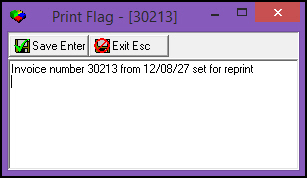
3. Choose Save.
w An X appears in the Print Flag column for the selected invoice.

Changing the Display Mode
In the Invoice Status tab you may choose Display Mode to toggle the view of invoices between:
All Invoices
Installation Invoices
Unpaid Invoices
Overdue Invoices
Note: Use options blinvsho and insinvsh to control the view of the Invoice Status tab.
Viewing Group Mode and Groups
To use the Group Mode feature, turn on one of the following options and define option ba361:
ba358
ba359
ba360
In the Unpaid Invoices display mode, you may choose Group Mode to toggle the view between Individual invoices and Grouped invoices.
Note: Action 548/39 controls access to the Group Mode button.
Searching for an Invoice
From the Invoice Status tab, you can search for a specific invoice for any customer account or contract.
Use the following steps to search for an invoice:
1. Choose Invoice Search.
‰ The Invoice Number Search dialog box appears.
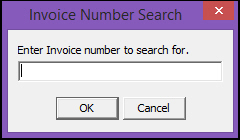
2. Type the full number of the invoice for which you want to search.
3. Choose OK.
4. The invoice appears in the columns to the right of the window.
Note: If you type an invalid invoice number, SBN displays the closest invoice for this account in the columns.
Working in the Invoice Details Window
From the Invoice Status tab, you can view more details about any invoice, including invoices on accounts with no active contracts. You can view information about past actions taken on each invoice.
Note: Use option bl032 to define the default view of the Details window.
To access the Invoice Details window from the Invoice Status tab, choose Invoice Details.
The Invoice Details Window
The following graphic shows the Invoice Details window after you choose an invoice to view. The fields in the left pane show details about this invoice. The columns in the right pane show revenue and work order information for this account. The columns in the lower pane of the window show information about payments applied to this account.
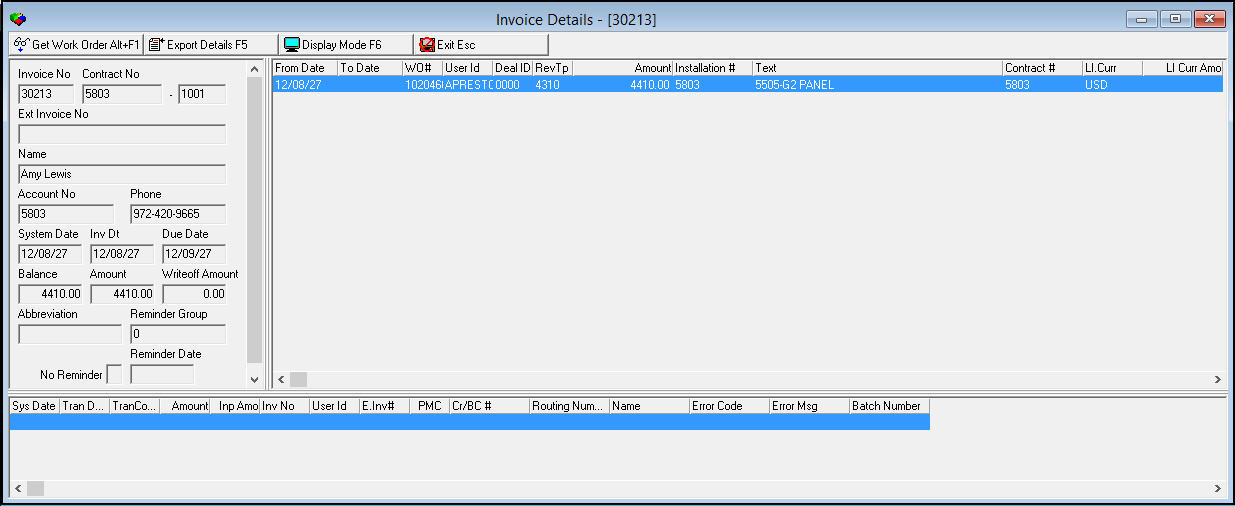
Field Descriptions - Invoice Details
The following table describes the fields used in the Invoice Details (left) pane of the Invoice Details window.
Field |
Description |
Invoice No |
Invoice number of the selected item. |
Contract No |
Contract number associated with this invoice. |
Dealer ID (No label) |
Dealer ID number attached to this contract. |
Ext Invoice No |
External invoice number associated with the selected item. |
Name |
Full name of the contact person on this billing account. |
Account No |
Account number associated with this invoice. |
Phone |
Phone number of the contact person on this billing account. |
System Date |
Date this invoice was created. This date is not always the same as the Invoice Date. |
Inv Dt |
Invoice date for this invoice. This date is not always the same as the System Date. |
Due Date |
Date the payment is due for this invoice. |
Balance |
The unpaid balance on this invoice. |
Amount |
Total amount originally owed on this invoice. |
Writeoff Amount |
Total amount previously written off of this invoice. |
Status |
Current status of this invoice Note: If this field displays a C, the invoice has been sent to a debt collection agency. |
Reminder Group |
Code for the last reminder group text sent for this invoice. |
No Reminder |
Flags that indicate if reminders printed: l x — reminders print l - — reminders do not print and any payments posted are applied to this invoice last l + — reminders print but any payments posted are applied to this invoice last l * — reminders print, but are delayed. |
Reminder Date |
Last date a reminder notification was sent about this invoice. |
Column Descriptions - Revenue and Work Order Information
The following table describes the columns used in the revenue pane and work order (right) pane of the Invoice Details window.
Note: Use options bl032 and bl087 to define the default views of the Invoice Detail pane of this window.
Column |
Description |
From Date |
Start date for this work order. |
To Date |
Finish date for this work order. |
Work Order Number |
Work order number associated with this invoice. |
User ID |
ID of the user closing this work order. |
Dealer ID |
ID of the dealer associated with the installation to which this work order is attached. |
Revenue Type |
Code for the type of revenue for this work order. |
Amount |
Total amount owed on this work order in the primary currency of the account, as selected in Contract Master (program #548). |
Installation Number |
Number of the installation attached to this work order. |
Text |
Displays the descriptions of items attached to this invoice. (This column originates from the Description field in program #1535.) Note: These descriptions appear in the user's language. Attach a translation to items in the Translation tab of Items (program #1535). |
Contract Number |
Contract number associated with this invoice. |
Line Item Currency |
Currency type of the line item. (If the line item has the same currency type as the account's primary currency, this column is blank.) |
Line Item Currency Amount |
Amount of the line item in the line item currency. (If the line item has the same currency type as the account's primary currency, this column is blank.) |
Column Descriptions - Payment Transfer
The following table describes the columns used in the Payment Transfer (lower) pane of this window. This pane displays information about payments applied to this account.
Column |
Description |
System Date |
Date this payment was due. |
Transaction Date |
Date this payment was made. |
Transaction Code |
Identifies the type of transaction for this payment. |
Amount |
Amount paid in this transaction. |
Input Amount |
Original amount sent by customer. O This amount may be applied to more than one invoice. |
Invoice Number |
Invoice number this payment was made to. |
User ID |
ID of the user who entered this payment. |
External Invoice Number |
External invoice number (if any) associated with this payment. |
Payment Code |
Payment code associated with this payment. |
Credit/Bank Card # |
Credit or bank card number used for this payment. |
Routing Number |
Financial institution routing number used for this payment. |
Name |
Name on the bank account or card used for this payment. |
Error Code |
Reject code that identifies the reason this payment was returned from the financial institution. (Reject codes are defined in program #1726.) |
Error Message |
Text description of the reject code for this payment. |
Batch Number |
Payment batch number this payment was included in. (Create payment batches in program #1577.) |
Working with Invoice Details
You can perform many functions from within the Invoice Details window:
View additional information on a work order on this account
View details about export items
Change the display of the Invoice Details window
You can switch between line item view and revenue view of the Invoice Details window by choosing Display Mode.
Getting Work Order Information
From the Invoice Details window, you can view additional information about any work order on this account. For more information, see Work Orders.
Use the following steps to view a work order:
1. From the Invoice Details window, select the work order for which you want more information.
2. Choose Get Work Order.
The Work Orders window appears.
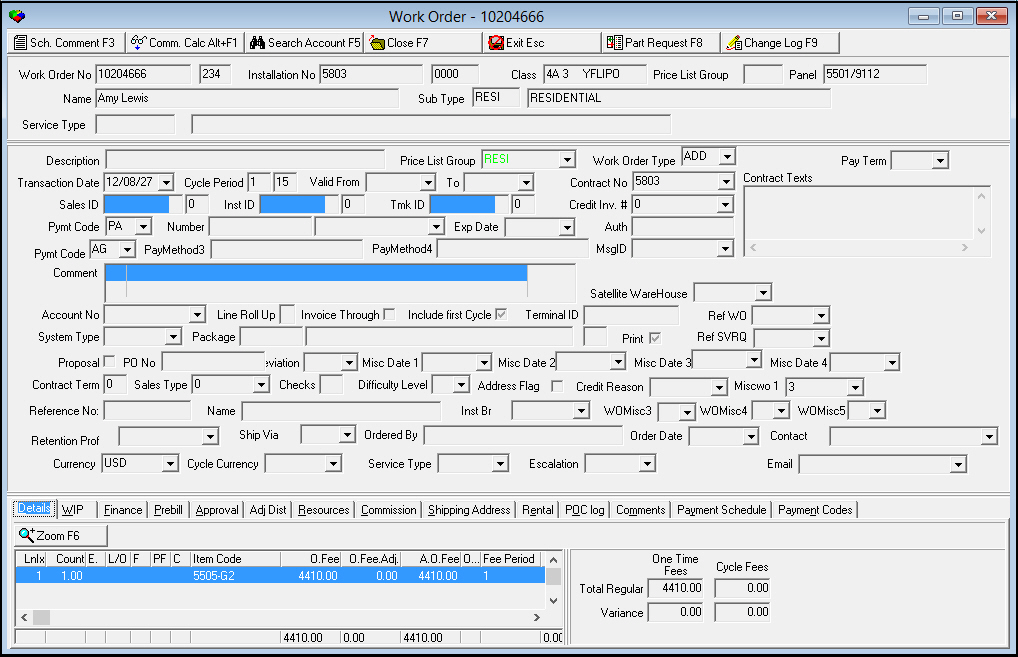
3. Choose Exit to return to the Invoice Details window.
Viewing Export Details
From the Invoice Details window, you can view details about exports for this account. This is a read-only window.
Use the following steps to view export details:
1. Choose Export Details.
The Export Details window appears.
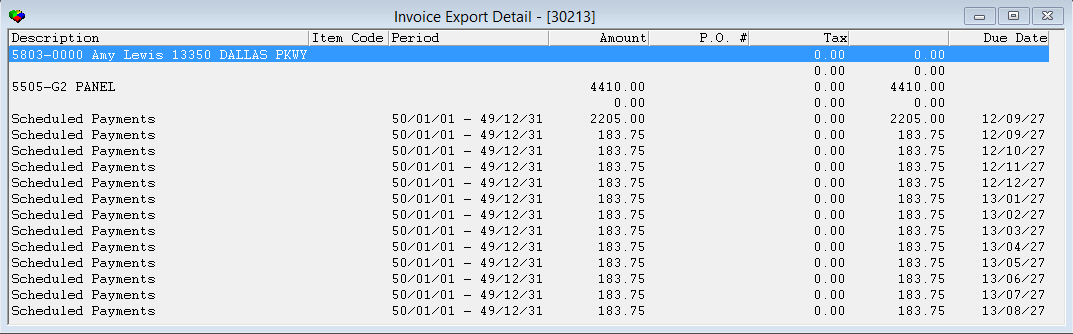
2. Choose x or ESC to return to the Invoice Details window.
Viewing Aging
From the Invoice Status tab, you can view the current status of invoices and payments on this account or contract. The Aging dialog box shows payments owed by this customer in two different formats:
By account number
By contract
Use the following steps to view aging:
1. Choose Aging.
The Aging Contract dialog box appears.
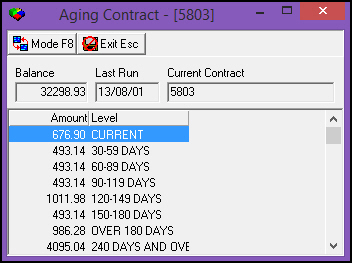
Note: You can use Toggle to view aging information by Contract or by Account.
2. Choose Exit.
Setting the No Reminder Flag
From the Invoice Status tab, you can set the No Reminder flag for any invoice to indicate if reminders print for customers who are late with an invoice payment.
The following table describes the different reminder flags available.
Reminder Flag |
Description |
Function |
w |
No Reminder / Pay Normal (with date) |
Reminders do not print, but you may select a Delayed Reminder date. When you select this status, a date field appears for selecting the date. This date is for display purposes only and appears in the Delayed Reminder Date column of Invoice Status. Note: If you leave the date blank, SBN sets the Delayed Reminder Date according to option defremdt. Note: SBN includes invoices with this reminder flag in payment batches. |
X |
No Reminder / Pay Normal |
Reminders do not print. |
- |
No Reminder / Pay Last |
Reminders do not print and any payments posted are applied to this invoice last. |
+ |
Generate Reminder / Pay Last |
Reminders print but any payments posted are applied to this invoice last. |
* |
Reminder Delayed |
Reminders print, but are delayed a certain amount of time. When you select an * in this field, you may select a Delayed Reminder date. The date selected appears in the Delayed Reminder Date column of Invoice Status. Note: If you leave the date blank, SBN sets the Delayed Reminder Date according to option defremdt. Note: You can change the date of the delayed reminder without changing the flag. (Follow the steps below, and choose the * flag again and select the new date.) |
Use the following steps to set the No Reminder flag:
1. Select the invoice for which you want to set the No Reminder flag.
2. Choose No Reminder.
‰ The No Reminder Flag dialog box appears.
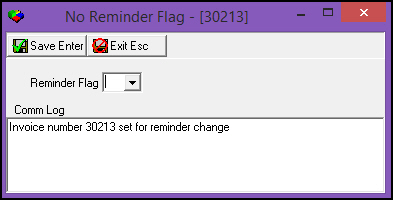
3. Choose the status for the No Reminder flag from the Reminder Flag menu.
‰ If you select either w or *, a date field appears from which you may select a date for a delayed reminder.
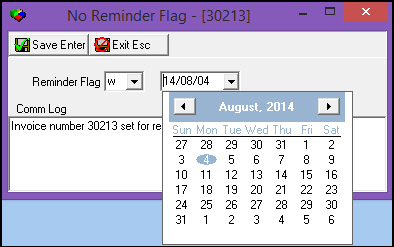
4. Select a date for the reminder date, if applicable.
5. Choose Save.
Crediting an Invoice
From the Invoice Status tab, you can apply a credit to an invoice and adjust the cycle date of all cycle fees on an invoice back to the original cycle date before the invoice was created. When you generate credit invoices, SBN applies the credit directly against the account number from the original work order. If you select the Adjust Cycle Fees check box in the Credit Reason dialog box, SBN changes the cycle date of all cycle fees on the selected invoice back to the original cycle date before a user created the invoice.
You may credit an invoice for multiple contracts/installations associated with a single account number if your action profile includes action 548/301.
When you create a credit work order in Invoice Status and the invoice being credited is the only invoice associated with the original work order, the Ref WO from the original work order defaults into the credit work order.
If you use Partner Invoicing and your action profile includes action 250/123, when you create a credit work order by choosing Credit Invoice, the Ref WO from the original work order defaults into the credit work order. However, SBN does not validate the Ref WO.
Action 548/54 allows you to credit cycle fees and action 548/55 allows you to credit one time fees. If either of these actions are not active in your action profile, SBN displays messages to notify you if any fees will not be credited when you attempt to credit an invoice.
Note: If option ba273 is on, turn off action 250/123 for all users.
Credit Invoice Options
Option ba258 — controls whether you must select a credit reason for negative totals on work orders or when you credit invoices
Option ba273 — when this option is on, SBN does not validate the reference WO for those customers whose contract number begins with the prefix 'INT.' (This option is for Protectron only.)
Option bl133 — controls whether you can credit a partially paid invoice
Option bl135 — controls whether SBN automatically closes a credit work order when you choose Credit Invoice (branch restrictions apply)
Option bl136 — controls whether SBN automatically approves a credit work order when you choose Credit Invoice (branch restrictions apply)
Option bl150 — when on, the credit invoice defaults to include comment.
Option bl171 — when on, a Work Order Type field appears in the Credit Reason dialog box so that you can choose the type of work order to create
Option bl188 — when on, the tax rate of a credit invoice matches the tax rate of the invoice being credited regardless of the invoice date entered for the credit in Invoice Manager (program #1557)
Option bl205 — when on, SBN uses the internal invoice number in the Comment dialog box of the Credit Invoice process. When you select the Include Comment check box in the Comment dialog box, SBN includes the internal invoice number in the Comment field of the credit work order. When option bl205 is off, SBN uses the external invoice number (if defined) in the Comment dialog box of the Credit Invoice process.
Crediting an Invoice
Use the following steps to credit an invoice:
1. Select the invoice you want to credit.
Note: You can select Credit Invoice on an invoice for which the amount equals zero.
2. Choose Credit Invoice.
‰ If option ba258 is on, a dialog box appears.
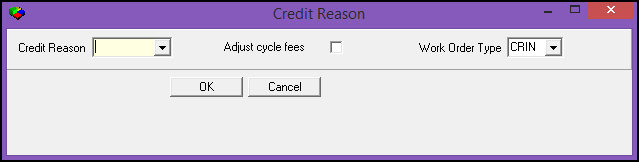
3. Select a credit reason.
4. You may select the Adjust Cycle Fees check box to change the cycle date of all cycle fees on the selected invoice back to the original cycle date before a user created the invoice.
Note: If one or more cycle fees on the selected invoice have been invoiced again since the selected invoice was created and their cycle date has changed, SBN displays an error message when you choose Save: "One or more cycle fees could not be reset."
5. You may select a Work Order Type for the credit work order. If you leave the Work Order Type field blank, SBN uses the Credit Work Order Type defined for the work order type of the original work order in program #1796.
Note: The Work Order Type field only appears if option bl171 is on.
Note: The auto-generated entry in Communication Log (program #1888) will show this work order type in the ComCode field.
6. Choose OK.
Note: If this customer usually pays by direct debit, SBN displays a warning.
‰ SBN asks you to confirm that you want to add a credit to the selected invoice.
7. Choose YES.
‰ SBN asks if you want to print a copy of the credit.
8. Choose YES if you want to print a copy of this transaction; choose No if you do not want to print a copy of this transaction.
‰ If multiple contracts/installations are associated with the selected account number and your action profile does not include action 548/301, SBN prevents the credit and displays an error message.
‰ SBN confirms that it created a work order for this credit and displays the work order number. If multiple contracts/installations are associated with the selected account number and your action profile includes action 548/301, SBN creates multiple work orders.
Note: When you create a credit work order, both the Currency and Cycle Currency fields of the work order must contain the primary currency type of the billing account. This is the only way SBN will allow you to create a credit invoice in program #1557.
9. Choose OK.
‰ A dialog box appears in which you may type comments to enter in the Communication Log and the Work Order Comments field.
Note: If option bl205 is on, SBN uses the internal invoice number in the Credit Invoice Comment dialog box. When you select the Include Comment check box in the Comment dialog box, SBN includes the internal invoice number in the Comment field of the credit work order. When option bl205 is off, SBN uses the external invoice number (if defined) in the Credit Invoice Comment dialog box.
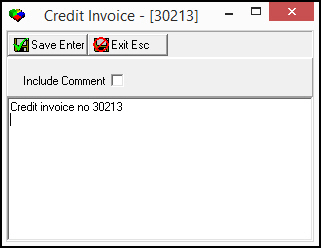
10. Type text.
11. In Include Comment —— enter a check mark to have the comment appear in the Comment field of the associated work order.
Note: Text typed in this dialog box appears on the work order created for the credit in the Comments box. This comment prints on the credit invoice or invoices (if a consolidated invoice) produced. This text also appears in the Communication Log. You can access the Communication Log by choosing program #1888 or by choosing [CTRL+W] from anywhere in SBN.
12. Choose Save.
Making Payments or Adding Credits to an Invoice
With the View Invoice button, you can make payments, add credits to, or view an invoice. Options callURL and holdid must be on for you to link to a credit card/ACH processor outside of SBN.
Use the following steps to make payments, add credits to, and view an invoice:
1. Select the invoice you want to credit.
2. Choose View Invoice.
‰ A window to an external credit card/ACH processor displays.
3. Follow the instructions on the processor to continue with the selected invoice.
Note: If option holdid is on, the client or company ID transfers to the external payment processor.
Scheduling Payments for an Invoice
You can view, change, or add payments that have been promised by a customer for any invoice.
When option bl187 is on, SBN does not change the due date of an invoice when a user sets up scheduled payments. When option bl187 is off, SBN changes the due date of an invoice to the date of the last scheduled payment when a user adds scheduled payments.
Note: When you write off an invoice with scheduled payments in Write-off Batches (program #1579), SBN invalidates the entire payment schedule by flagging all remaining scheduled payments as Refused.
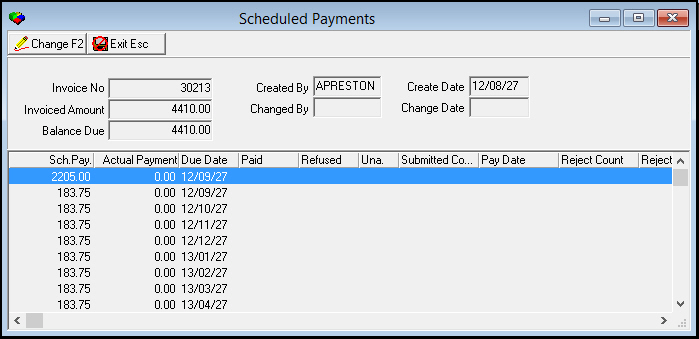
The following graphic shows the Scheduled Payments window with scheduled payments displayed.
Field/Column Descriptions
The following table describes the fields and columns used in the Scheduled Payments window.
Field/Column |
Description |
Invoice No |
SBN-assigned number for this invoice. |
Invoice Amount |
Amount billed on this invoice. |
Balance Due |
Any unpaid portions of the invoice amount. |
Created By |
User who created the scheduled payments for this invoice. |
Changed By |
User who made changes to the scheduled payments for this invoice. |
Create Date |
Date the user created the scheduled payments for this invoice. |
Change Date |
Date the user changed the scheduled payments for this invoice. |
Scheduled Payment |
Amount of the scheduled payment. |
Actual Payment |
Amount the customer actually paid. |
Due Date |
Date the scheduled payment is due. |
Paid |
Indicates the status of the payment.
|
Refused |
Indicates whether the payment was refused. When a user enters a negative payment amount in program #1577 or writes off a payment in program #1579, an X appears in this column. |
Unavailable |
Indicates whether the payment is in a batch that has not been posted. |
Submitted Count |
Number of times payment has been submitted. |
Pay Date |
Date on which payment was posted. |
Reject Count |
Number of times payment has been rejected. When a user posts a negative payment batch in program #1577 for this invoice, SBN considers the payment rejected. |
Reject Date |
Date on which payment was rejected. |
From Date |
Beginning date of the payment schedule. SBN populates this column for invoices that have automatic payment schedules; if defined, the payment schedule cannot be changed. |
To Date |
Ending date of the payment schedule. SBN populates this column for invoices that have automatic payment schedules; if defined, the payment schedule cannot be changed. |
Tax |
Indicates whether scheduled payments include tax. |
Change Mode Fields |
|
# of Payments |
Number of payments customer wants to schedule. |
Start |
Date the first scheduled payment is due. |
First Payment |
Amount the customer will pay by the first scheduled payment due date. |
Viewing Scheduled Payments
Use the following steps to view scheduled payments on an invoice:
1. Select the invoice for which you want to view scheduled payments.
2. Choose Scheduled Payments.
‰ The Scheduled Payments window appears.
3. Choose Exit.
Changing Scheduled Payments
Use Schedule Payments to change or add scheduled payments to an existing invoice on this account. You must have action 548/34 in your action profile to change scheduled payments. When you choose Recalculate, SBN calculates evenly distributed monthly payments. After you calculate scheduled payments, you can edit the amount and due date for each scheduled payment. If you choose to edit the calculated payments, remember that:
Due Dates must be listed in increasing order
The sum of all the scheduled payment amounts must be less than or equal to the Invoice Balance
Each payment must have both an Amount and Due Date defined
Use the following steps to change a scheduled payment:
1. From the Invoice Status tab, select the invoice for which you want to add or change the payment schedule.
2. Choose Scheduled Payments.
‰ The Scheduled Payments window appears.
3. Choose Change.
‰ The fields and payment grid open for changes.
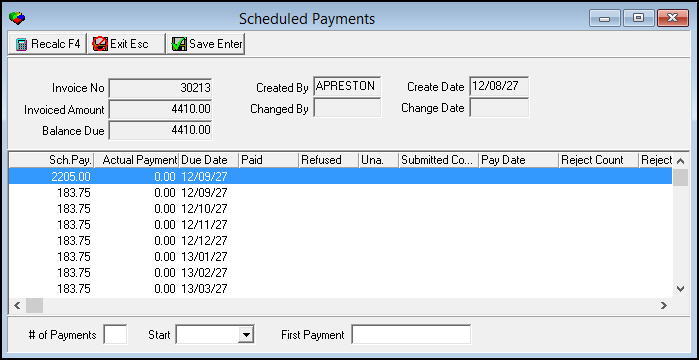
4. To recalculate all of the monthly payments, complete the fields and choose Recalculate.
5. To edit individual scheduled payments, click in the Scheduled Payment or Due Dates columns.
6. Choose Save.
‰ SBN saves the scheduled payments and takes you back to the Invoice Status tab.
Document Retrieval
Use Document Retrieval to pass search parameters to a third-party software application to find documents related to the installation. When option docretr is on, the Document Retrieval button uses the application path entered in the Search Application Inv field of SBN Client Document Retrieval Options to retrieve related invoice documents. For more information, see Configuring Document Retrieval Options.
Viewing Details of Unposted Payments
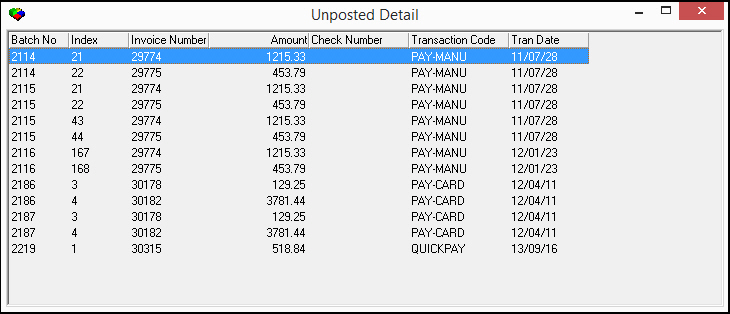
Choose View Unposted Details to view a list of unposted payments for a contract and the batches that include those payments.
The Unposted Detail window displays the following information for each payment:
Batch number
Index
Invoice Number
Amount
Check number
Transaction Code
Transaction Date
Changing Export Attributes
Choose Export Attributes to change the Expected Pay Date and Pay Method information for an invoice.
Use the following steps to change the Export Attributes for an invoice:
1. Select the invoice you want to change.
2. Choose Export Attributes.
The Export Attributes window opens, displaying payment information for the invoice.

3. Change payment information as necessary.
4. Choose Save.
Export Details
On the Invoice Status tab you can view details about exports for an account. This is a Read-Only window.
Use the following steps to view the export details:
1. Choose the Export Details button on the Invoice Status main screen.
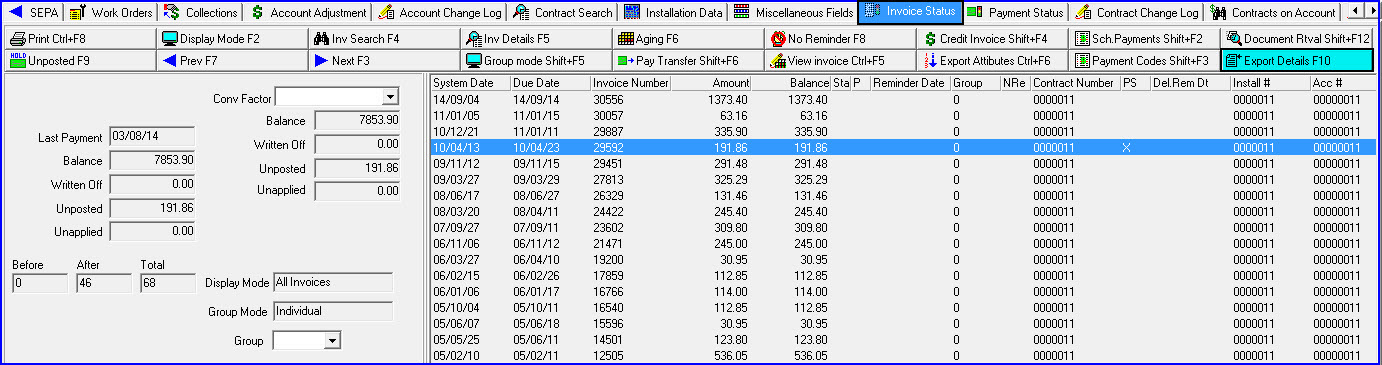
The Invoice Export Detail window display for the selected invoice.
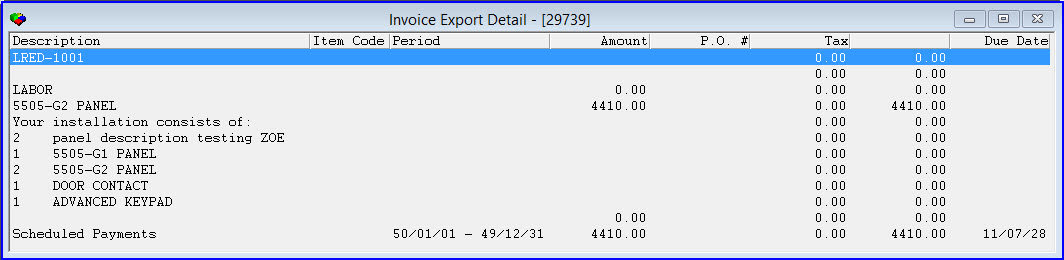
2. Click the X or Esc to close the window and return to the Invoice Status main screen.
The Invoice Export Detail window can also be access from the Invoice Details window.
Button Functions
The following table displays the buttons, describes the shortcut keys, actions, and functionality.
Button |
Name |
Shortcut Key |
Action |
Description |
|
Print selected records |
ctrl+f8 |
548/21 |
Print selected records. |
|
Display Mode |
f2 |
548/23 |
Toggle the view of invoices. |
|
Invoice Search |
f4 |
548/24 |
Search for an invoice. |
|
Invoice Details |
f5 |
548/25 |
Access Invoice Details window. |
|
Aging |
f6 |
548/28 |
View current status of invoices and payments on selected account. |
|
No Reminder Flag |
f8 |
548/30 |
Indicate if reminders print for customers who are late with an invoice payment. |
|
Credit Invoice |
shift+f4 |
548/32 |
Apply a credit to an invoice. |
|
Scheduled Payments for Invoice |
shift+f2 |
548/33 |
Change or add scheduled payments to an existing invoice on selected account. |
|
Document Retrieval |
shift+f12 |
548/35 |
Pass search parameters to a third-party software application to find documents related to the installation. |
|
View unposted details |
f9 |
548/36 |
View a list of unposted payments for a contract and the batches that include those payments. |
|
Previous Record |
f7 |
548/37 |
Go to previous record. |
|
Next Record |
f3 |
548/38 |
Go to next record. |
|
Group Mode |
shift+f5 |
548/39 |
Toggle the view between Individual invoices and Grouped invoices. |
|
Pay Transfer |
shift+f6 |
548/41 |
Transfer a payment. |
|
View Invoice |
CTRL+f5 |
548/52 |
Access an external credit card/ACH processor. Note: Options callURL and holdid along with action 548/53 allow you to link to a credit card/ACH processor outside of SBN. |
|
Export Attributes |
CTRL+f6 |
548/56 |
Change the Expected Pay Date and Pay Method information for the selected invoice. |
|
Invoice Report |
CTRL+F7 |
548/59 |
Generate Invoice Export Report (report #2134) for the selected invoice. |
|
Export Details |
F10 |
548/45 |
View details about exports for an account. |
|
Document Retrieval Invoice 2-11 |
548/65-69 548/90-93 |
Pass search parameters to a third-party software application to find documents related to the installation via a URL. |
|
|
Recalculate |
f4 |
548/34 |
Calculate or recalculate scheduled payments for the selected invoice. |
|
Exit without saving |
esc |
Exit without saving changes to selected record. |
|
|
Save Existing Record |
enter |
Save changes to selected record. |






















Modifications and Updates to Invoice Status
The following table lists modifications and updates to the Invoice Status document.
Mod Number |
Date |
Description |
08.79.09234, 08.79.09230 |
08/05/13 |
Added option callurl |
07.78.22531, Open Batches08.79.09193, 07.79.22600, 07.79.22618, 07.79.22638 |
11/06/13 |
Added Invoice Report button |
n/a |
8/05/14 |
Images updated. |
07.84.24460, 08.84.10332, 08.84.10327, 07.84.24448 |
11/19/15 |
Added Export Details button to the Invoice Status tab, to view export details on an account. |
07.91.26325, 08.91.11784, 07.91.26331, 08.91.11785 |
01/13/20 |
Nine additional Document Retrieval buttons added. Image updated. |
07.91.26300, 07.02.00014, 08.91.11772 |
01/14/20 |
Two new fields added within Account Information pane: Open Invoice Balance and Open Credit Balance. Images updated. |
F1 Help
| Delphi Forms | rbnksumform |
| Program Numbers | 2134 |