
SQL Processes
SQL Processes
SQL Processes
Program #: 1767
Module: Utilities
Overview
Use SQL Processes (program #1767) to view all processes that are currently running on the server.
To access this program, select SQL Processes (program #1767) from the main menu of SBN.
The SQL Processes Window
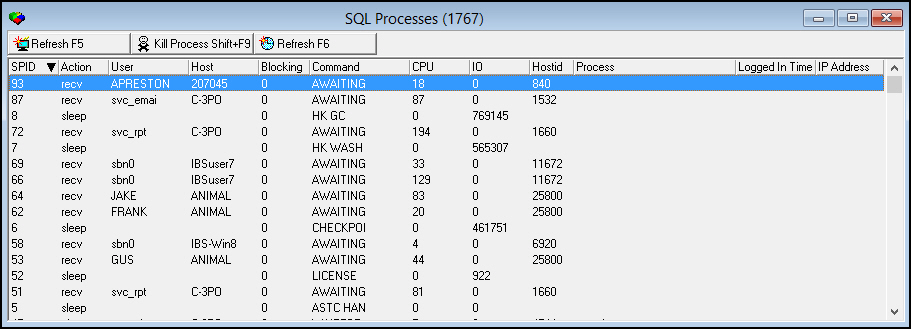
The following graphic shows SQL Processes as the program opens.
Column Descriptions
The following table describes the columns used in SQL Processes.
|
Column |
Description |
|
SPID |
The process ID number. |
|
Action |
Description of the action occurring in the process. |
|
User |
User ID for the person whose system requested the action. O If you run SBN on a MSSQL server, SBN converts NT logins to display SBN username. |
|
Host |
Name of the program in SBN or process running. Host can also contain the Report Queue number when running reports. O Sybase ASE version 12.5 (or earlier) displays up to 10 characters in this column. O Sybase ASE version 15 displays up to 30 characters in this column. |
|
Blk |
Blocking. l = no blocking l # = process number blocking this action |
|
Command |
Command state. O Sybase ASE version 12.5 (or earlier) displays up to 16 characters in this column. O Sybase ASE version 15 displays up to 30 characters in this column. |
|
CPU |
System CPU being used. |
|
IO |
System physical IO number. |
|
Hostid |
Process host ID/terminal ID number. |
|
Process |
Displays the process ID of the stored procedure that is currently running. |
|
Logged In Time |
Date and time of user's login. |
|
IP Address |
Internet Protocol (IP) address of the host server. |
Refreshing the Window
You can manually refresh the window by choosing Refresh.
Setting the Refresh Rate
Use the following steps to set the refresh rate:
1. Choose Refresh Interval.
2. Select a number of seconds from the menu.
Stopping a Process
You can stop any process currently running by choosing Kill SQL Process.
Helpful Hint: Commands
Three command states are important to understand: AWAITING, SELECT, and BLK.
-
AWAITING - This state means that the user is not hitting any keys; this is the most common command state.
-
SELECT - Your command state will always be in SELECT; occasionally, you will see another user stuck in SELECT.
-
BLK - This state means that a user is blocking the server. When this occurs, an hourglass will display on all of the users' screens. From SQL Processes (program #1767), you can see which SPID is blocking. To fix the problem, go to the appropriate program and choose Kill SQL Process. The system should rarely have blocking; however, problems occasionally occur. Users may be blocking the server if they are developing a new report with Quick Report or if they are running invoice batches.
Note: If there is a process blocking operators, kill the process immediately. After killing the process, you can search for the problem; you never want operators to be blocked.
Button Functions
The following table displays the buttons, describes the shortcut keys, actions and functionality.
|
Button |
Name |
Shortcut Key |
Action |
Description |
|
|
SQL Refresh |
f5 |
Manually refresh window. |
|
|
|
Kill SQL Process |
shift+f9 |
Stop any currently running process. |
|
|
|
Refresh Interval |
f6 |
Set interval for automatic refresh. |



Modifications and Updates to SQL Processes
The following table lists modifications and updates to the SQL Processes document.
|
Mod Number |
Date |
Description |
|
07.79.22570 |
07/16/13 |
Added the Logged In Time and IP Address columns. |
|
n/a |
09/03/14 |
Images updated. |