
Activity Types
Activity Types
Activity Types
Program #: 1672
Module: System Administration
Overview
Use Activity Types (program #1672) to define activity types that affect other programs, such as Branch Profiles (program #1530) and Scheduling (program #563). To access this program, select Activity Types (program #1672) from the main menu of SBN.
The Activity Types Window
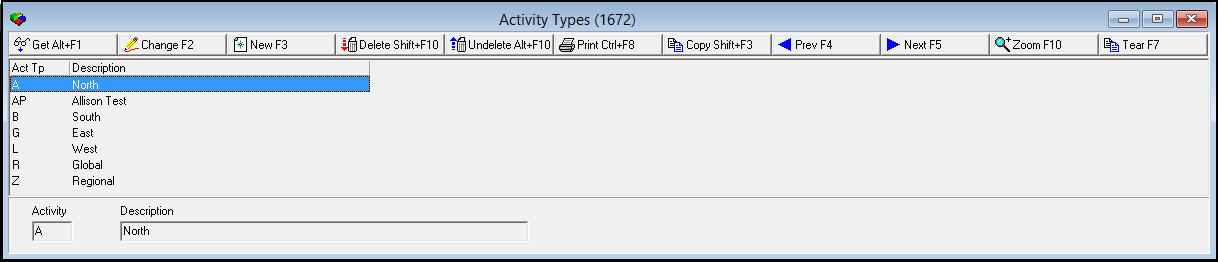
The Activity Types window contains one pane, which contains the Activity Type and Description columns. Activity Types also contains a sublevel with two tabs for activity details and translations.
The following graphic shows Activity Types as the program opens.
Field/Column Descriptions
The following table describes the fields and columns used in Activity Types.
Field/Column |
Description |
Activity Type |
A four-letter code for the particular activity type. |
Description |
A description of the activity type. |
Activity |
The current letter code for the activity type. This information may be changed. |
Description |
The current description of the activity type. This information may be changed. |
Creating a New Activity Type
Use the following steps to change an activity type:
1. In Activity Types, choose the New button.
2. Enter the Activity Type letter code in the Activity field. This field can accept up to four characters.
Note: You cannot enter a letter code that has been saved within Activity Types.
3. Enter a description of the Activity Type within the Description field. This field can accept up to 60 characters.
4. Choose Save to save your changes or Exit to close without saving changes.
Changing an Activity Type
Use the following steps to change an activity type:
1. In Activity Types, select the Activity Type you wish to change and choose the Change button.
2. Enter the new Activity Type letter code in the Activity field. This field can accept up to four characters.
Note: You cannot enter a letter code that has been saved within Activity Types.
3. Enter a new description of the Activity Type within the Description field. This field can accept up to 60 characters.
4. Choose Save to save your changes or Exit to close without saving changes.
Zooming into the Sublevel of Activity Types
The Activity Types program contains a sublevel with two tabs for cataloguing:
Activity Types Details - in which you define drop-down menus for details on activity types.
Translations - in which you attach translations to the drop-down menus of activity types. The menus appear in the user's selected language.
Activity Types Details Tab
Use the Activity Types Details tab to define specific details for the activity type. The following graphic shows the Activity Types Details tab:.

Field/Column Descriptions
The following table describes the fields and columns used in the Activity Types Details tab.
Field/Column |
Description |
ID |
The four-letter code describing the Activity Type detail. |
Text |
A more detailed description of the Activity Type detail |
Problem |
A dropdown menu containing a list of possible problems. This list is populated from Problem Codes (program #1522). |
The Translations Tab
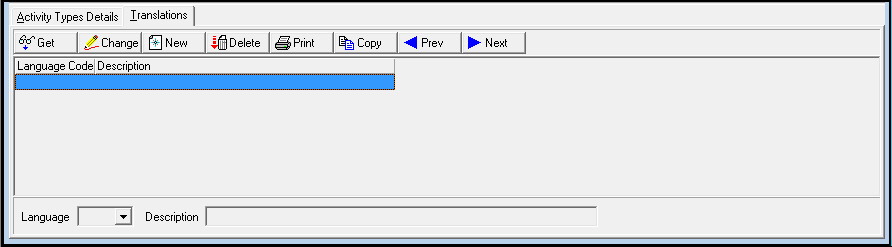
Use the Translations tab to attach translations to the drop-down menus of activity types. The following graphic shows the Translations tab.
Field/Column Descriptions
The following table describes the fields and columns used in the Service Regions tab.
Field/Column |
Description |
Language Code |
The language code assigned to the translation. |
Description |
The text description of the language assigned to the translation. |
Language |
A dropdown menu containing the currently available language translations. |
Description |
A text field for including a description of the language. This field can accept up to 60 characters. |
Defining a Language in the Translations Tab
Use the following steps to define a language for menu translation for an activity type:
1. In the Translations tab, choose New.
2. The Language drop-down menu opens. Select a language code: selections 12 through 17 are for previously reserved languages other than those on the default list.
3. Enter a text description of the language in the Description field. This field can accept up to 60 characters.
4. Choose Save to save your changes or Exit to close without saving changes.
Button Functions
The following table displays the buttons, and describes the shortcut keys, actions, and functionality.
Button |
Name |
Shortcut Key |
Action |
Description |
|
Get |
ALT+F1 |
1672/ 1 |
Get record. |
|
Change |
F2 |
1672/ 2 |
Change selected record. |
|
New |
F3 |
1672/ 3 |
Create new record. |
|
Delete |
SHIFT+F10 |
1672/ 4 |
Delete selected record. |
|
Undelete |
ALT+F10 |
1672/ 5 |
Restore deleted record. |
|
CTRL+F8 |
1672/ 6 |
Print selected records. |
|
|
Copy |
SHIFT+F3 |
1672/ 3 |
Copy the selected record's information for a new record. |
|
Previous |
F4 |
1672/ 1 |
Select last record. |
|
Next |
F5 |
1672/ 1 |
Select next record. |
|
Zoom |
F10 |
1672/ 10 |
Zoom into the sublevel. |
|
Tear Away |
F7 |
1672/ 10 |
View selected Activity Type and Translation in separate tabs. |











Modifications and Updates to Activity Types
The following table lists modifications and updates to the Activity Types document.
Mod Number |
Date |
Description |
08.79.09470, 07.79.23063, 08.79.09453, 07.79.23028 |
04/03/14 |
Created document |
n/a |
08/14/14 |
Images updated. |