
Copy Trace
Copy Trace
Copy Trace
Module: System Administration
Overview
Use Copy Trace (program #554) to view the status of the synchronization between machines and to view information on specific copy/download functions.
To access this program, select Copy Trace (program #554) from the main menu of SBN.
The Copy Trace Window
The following graphic shows Copy Trace as the program opens.
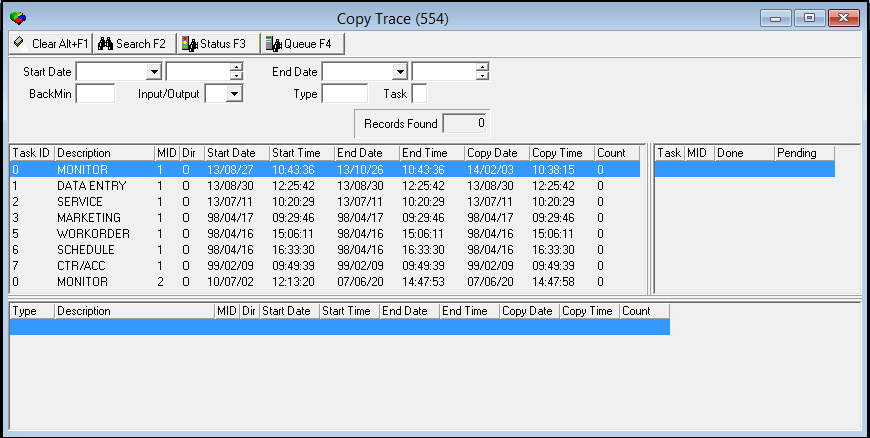
The Copy Trace window contains four panes:
-
The upper pane - contains fields for selecting search parameters
-
The middle left pane - displays previously defined copy task processes
-
The middle right pane - displays the copy trace queue, which shows the number of records to be copied by the copy task.
-
The lower pane - displays complete/incomplete copy tasks
Field/Column Descriptions
The following table describes the fields and columns used in Copy Trace.
|
Field/Column |
Description |
|
Start Date |
You may select a beginning date to include in the search. |
|
Start Time |
You may select a beginning time to include in the search. |
|
End Date |
You may select an ending date to include in the search. |
|
End Time |
You may select an ending time to include in the search. |
|
Back Min |
You may select the number of minutes the search should cover. |
|
Input/Output |
You may select the status to include in the search: l I = Inbound l O = Outbound |
|
Type |
You may type a valid SQL wildcard specification. |
|
Task |
Identifies the copy task: l 0 = Monitoring l 1 = Data Entry l 2 = Service l 3 = Marketing l 5 = Work Order l 6 = Schedule l 7 = Contract Master/Accounting |
|
Records Found |
Displays the number of records that match your search parameters. |
|
Task ID |
Identifies the task. |
|
Description |
Text description of the task. |
|
Machine ID |
Machine ID on which the copy task is running; SBN supports up to 4 machine IDs. |
|
Direction |
Identifies the status for this machine: l I = Inbound l O = Outbound Note: There are Inbound and Outbound tasks for each machine. |
|
Start Date |
Start date in the last copy. This data only relates to Monitoring tasks. |
|
Start Time |
Start time in the last copy. This data only relates to Monitoring tasks. |
|
End Date |
End date in the last copy. This data only relates to Monitoring tasks. |
|
End Time |
End time in the last copy. This data only relates to Monitoring tasks. |
|
Copy Date |
Date the last copy was performed. |
|
Copy Time |
Time the last copy was performed. |
|
Count |
Identifies the size of the copy: l Monitoring - displays the number of entries in the alarm log l Data Entry - displays the number of accounts l Service - displays the number of service requests |
|
Done |
Displays the number of rows completed. |
|
Pending |
Displays the number of rows pending. Note: Don't do a scheduled witch when you have items pending. |
Viewing the Copy Trace Queue
Use the following steps to view the copy trace queue:
1. Choose Queue Lookup.
‰ The middle right pane of the window displays the Copy Trace Queue.
2. To refresh the data while a process is running, choose Status Refresh.
Searching for Copy Trace Records
To view the status of copy tasks, you can search for copy trace records. Use the machine to which records are copied to search for copy trace records.
You may use a combination of search parameters; for example:
-
Start date and End date - specifies a period to include in the search.
-
Start date and Backmin - specifies the beginning of a period and the number of minutes forward to search.
-
End date and Backmin - specifies the end of a period and the number of minutes backward to search
Use the following steps to search for copy trace records:
1. Select your search parameters.
Note: If you leave the search parameters fields blank, the Copy Trace search defaults to the last 5 minutes.
2. Choose Search.
‰ The lower pane of the Copy Trace window fills with the records that match your search parameters.
3. To refresh the data while a process is running, choose Status Refresh.
helpful hint: copy tasks in specific programs
Users will often look at the End date/End time and think that the copying is caught up or that there is nothing left to copy. For example, you may have changes that span from 12:00 to 12:05. This does not mean the copy task is caught up to that time; it means that the last change included something as late as that End date/End time. For purposes such as Monitoring, this is fine. However, for other functions such as Data Entry and Service, this information is not reliable. For these functions, you have to look at the queue grid by choosing Queue Lookup. The remaining tasks then appear in the middle left pane.
Button Functions
The following table displays the buttons, describes the shortcut keys, actions, and functionality.
|
Button |
Name |
Shortcut Key |
Action |
Description |
|
|
Clear Search |
ALT+F1 |
554/ 1 |
Clears the search fields. |
|
|
Search |
F2 |
554/ 2 |
Searches tasks based upon the entered parameters. |
|
|
Status Refresh |
F3 |
554/ 3 |
Refreshes the listed information in order to display the newly entered task. |
|
|
Queue Lookup |
F4 |
554/ 4 |
Lists all in queue within a right-hand side pane. |


Modifications and Updates to Copy Trace
The following table lists modifications and updates to the Copy Trace document.
|
Mod Number |
Date |
Description |
|
n/a |
8/15/14 |
Images updated. |