
Open Close Schedule
Open Close Schedule
Open/Close Schedule
Module: Account Management
Overview
Use the Open/Close Schedule tab to manage schedules for installations for which you want to monitor open/close times. Schedules contain operational information such as hours, holidays, and temporary schedules for individual installations. You can create multiple schedules for seasonal, weekend, or holiday hours. You can also create temporary one-time schedules.
Attach Open/Close schedules to zones for the installation in the Zones tab. These schedules allow operators to manage signals from open/close zones in Dispatch (program #537).
You can also use open/close schedules to manage access control in the Access Control tabs.
This document covers the following topics:
Navigating to Open/Close Schedule
Viewing the Open/Close Schedule Details Window
Creating a New Open/Close Schedule
Navigating to Open/Close Schedule
Use the following steps to navigate to the Open/Close Schedule tab:
1. From the main SBN toolbar, select Menu.
2. From the drop-down menu, select Go To.
3. In the Go To Program dialog box, type in "559" and press Enter.
w Data Entry Master and Basics opens.
4. Choose the O/C Schedule tab in the lower pane of Data Entry.
Open/Close Schedule Options
The settings of the following options control different aspects of the Open/Close Schedule tab and how it relates to other tabs and programs. For detailed information on an option and its default setting, see SBN Options.
Option ba137 - When on, a UL grade is not required in the Details window.
Option oc001 - Use to define the number of days to include in the Composite Log of the Open/Close Schedule tab.
Option oc004 - When on, SBN generates an Open/Close Trouble alarm when open/open or close/close conditions occur.
Option oc012 - When on, SBN automatically selects the EO and MC exception check boxes when you choose New. When off, all of the exception check boxes are clear in New mode.
Option tmp105co - When on, SBN selects the group with an open/close schedule different from the main group. This option is used only by Company 105.
Option tmp105g1 - When on, SBN conducts a pattern match for any text in the Count schedule. This allows access to the Count schedule, beginning two hours before the open of business and ending one hour after the close of business. Entry outside of this timeframe will generate an alarm. This option is used only by Company 105.
Option 105ma - When on, SBN conducts a pattern match for any text in the main schedule. If the main schedule is armed for the night, the Count schedule will not be accessible, and entry into the Count schedule will generate an alarm. This option is used only by Company 105.
The Open/Close Schedule Tab
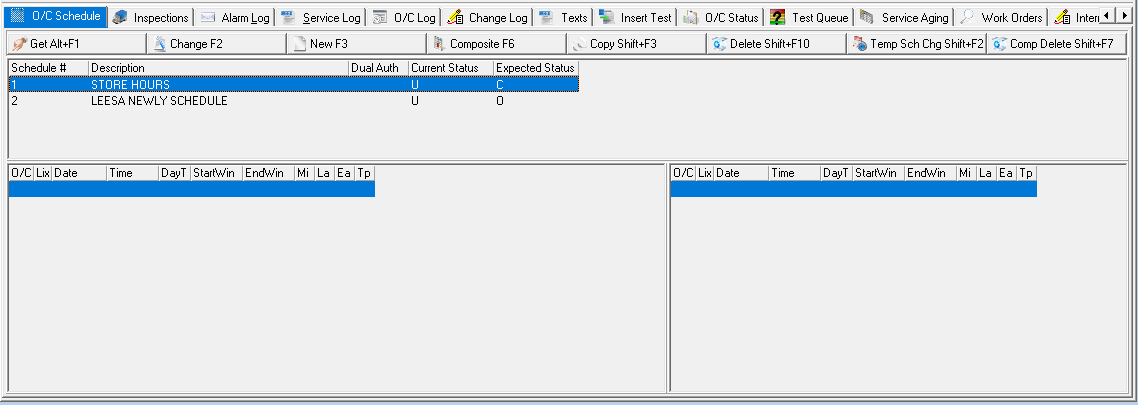
The Open/Close Schedule tab displays basic information about schedules for installations. The upper pane of the tab lists the schedules and the lower pane of the tab displays a composite schedule view for the selected schedule.
The following graphic shows the Open/Close Schedule tab with account information displayed.
Column Descriptions - O/C Schedule Tab
The following table describes the columns used in the upper pane of the Open/Close Schedule tab.
Column |
Description |
Schedule # |
Schedule number assigned to the selected schedule. |
Description |
Manually entered schedule description. |
Dual Authorization |
If this column displays an X, the schedule requires authorization from two passcard holders (within a 4 hour period) to change the schedule. |
Current Status |
Status currently reported to SBN. |
Expected Status |
Status SBN expects in accordance with the schedule. |
The Composite Schedule View
A composite schedule is the running schedule’s current and upcoming status. The current composite schedule appears in the lower left pane of the tab. Information in this pane is for reference only. A red highlighted bar in the upper pane of the tab identifies the composite schedule you are currently viewing. A red highlighted bar in the schedule detail indicates the next expected status.
Note: Option oc001 controls the number of days after the current date that you can view in the composite schedule.
To view the composite schedule, choose View Composite Schedule.
w SBN displays the current composite schedule.
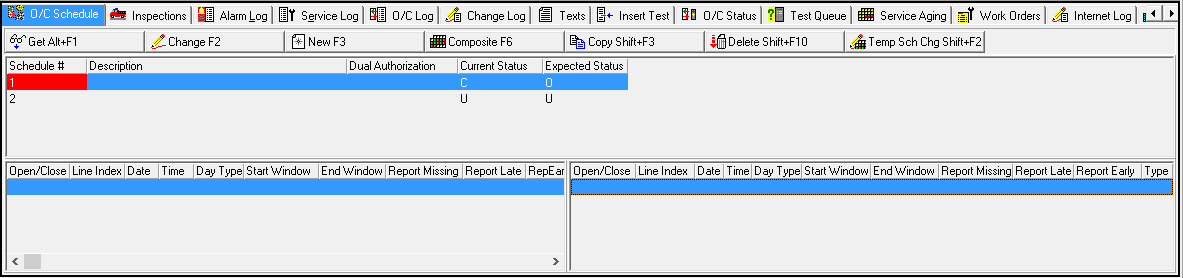
Note: When you change the schedule, the previous schedule moves into the lower right pane of the tab, and the new current schedule displays in the lower left pane of the tab.
w SBN displays the composite schedule after changes.
Column Descriptions - Composite Schedule
The following table describes the columns used in the Composite Schedule.
Column |
Description |
O/C |
Status: Open or Close. |
LnIx |
Line index determines from where the displayed times come: l Lines 1-20 are from the schedule grid. l Lines 101-120 are from the first special periods grid. l Lines 201-220 are from the second special periods grid. |
Date |
Date for schedule. |
Time |
Time on open/close schedule. |
DayType |
Day of the week. |
StartWindow |
Start of the open/close window. |
EndWindow |
End of the open/close window. |
Report Missing |
If this column displays an X, exceptions are set to report missing open/close. |
Report Late |
If this column displays an X, exceptions are set to report late open/close. |
Report Early |
If this column displays an X, exceptions are set to report early open/close. |
Type |
This column displays changes to the regular schedule: l M - Manual temporary changes (Temporary schedule button). l A - System changes |
Viewing the Open/Close Schedule Details Window
Use the Open/Close Schedule Details window to record hours and options for the open and close of an installation. You can create multiple open/close schedules for a premises and manage all information for a schedule.
The Open/Close Schedule Details window contains four major panes:
Schedule Grid
Exceptions
Holidays and Special Days
Special Periods
The following graphic shows the Detail window of the Open/Close Schedule tab.
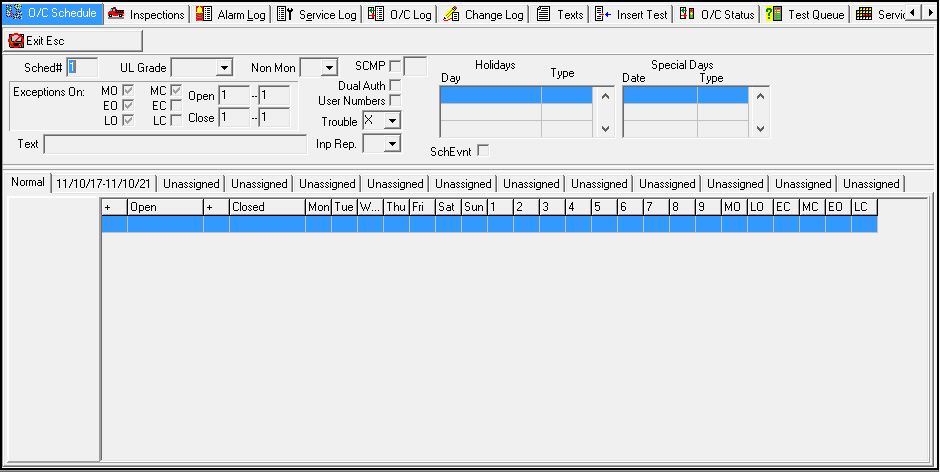
Note: You can add up to 50 rows in the Open/Close Schedule Details window.
Field Descriptions - Details
The following table describes the fields in the Details window.
Field |
Description |
Sched # |
Schedule number. |
UL Grade |
Displays Security/UL grades. (This menu originates from program #1732.) Note: When option ba137 is on, UL Grade is not a required field. |
Non Mon |
Non-monitored access status.
|
SCMP |
If you select this check box, SBN allows an authorized person to open the premises (outside of the open window) with a code without generating an alarm. The field to the right displays the time, in minutes, at which SBN inserts an automatic close after the unscheduled authorized open. To use this check box, first you must have a check in the EO Exception box (below). Note: "Authorized Person" in this sense refers to a user defined in the Action Plan with a passcard/Line Index number with an authority level of 1 or 2. |
SCMP Time (No label) |
Type the number of minutes after an unscheduled authorized open that SBN inserts an automatic close. SBN has a hardcoded 3-hour window around the selected opening time. For instance, if the opening is scheduled for 10:00 a.m. and the authorized user comes in at 8:00 a.m., the SCMP is not used and SBN adheres to the normal expected closing time. If the authorized opening is outside this range, the entry in the composite log will show that a closing is expected at the time established by the number of minutes entered in this field. Note: "Authorized Person" in this sense refers to a user defined in the Action Plan with a passcard/Line Index number with an authority level of 1 or 2. |
Exceptions |
Six boxes available for identifying the exceptions for the schedule. These exceptions define the defaults, but you can override the defaults in the temporary schedule window and the schedule grid. For more information, see Exceptions. MO - Occurs when the current status is closed, the expected status is open, and no open signal occurs within the open time range. LO - Occurs when the current status is closed and an open signal occurs after the open time range. EC - Occurs when the current status is open, no close is expected, and a close signal occurs. MC - Occurs when the current status is open, the expected status is close, and no close signal occurs within the close time range. EO - Occurs when the current status is closed and an open status occurs before the open time range. LC - Occurs when the current status is open and a closed signal occurs after the closed time range. Note: Exceptions are reported by system-generated signals that you can tie to defined zones in the systemzone table. These defined zones can be either regular, template, or global zones. |
Open/Close |
Range of minutes that a signal can arrive before or after the scheduled time. If a signal arrives outside of the range, SBN takes action according to the exceptions selected. Note: These fields accept numbers up to four digits, including negative numbers; however, the negative (-) symbol counts as one digit. For example, a range of close times could be 0 to -120. |
Dual Authority |
If you select this check box, the schedule requires authorization from two passcard holders (within a 4 hour period) to change the schedule. |
User Numbers |
If you select this check box, the schedule requires user numbers for all openings at the premises. |
Holidays |
Day menu contains holidays to select. (This menu originates from program #1746.) Type contains a menu to select the type of schedule to use on the holiday selected. Note: For more information, see Holidays and Special Days. |
Special Days |
Date contains a calendar to select the date. Type contains a menu to select the type of schedule to use on the date selected. |
Text |
Text description that appears on the Open/Close Log when an open/close occurs. |
Trouble |
Menu displays choices for the trouble check status:
|
Invalid Passcard Reporting (Inp Rep.) |
Menu displays choices for reporting invalid user numbers:
|
Scheduled Event |
Select this check box to indicate the selected schedule is for a special scheduled event. You may link the selected schedule to a zone in the Zones tab with a particular action plan that includes instructions for the special event. When an incident occurs on the zone, the instructions for the special event appear for the operator in Dispatch (program #537). Open/Close event type 'SCHD' appears in the Alarm Log when the special scheduled event occurs. Note: When you select this check box, SBN disables the Close Exception check boxes, the Close fields, the SCMP, Dual Auth, and User Numbers check boxes, and the Trouble and Inp Rep fields. |
Normal (Default Schedule Grid) |
Grid that records all day and time information for regular schedule.
Note: For example, the open occurs at 17:00 Wednesday, and the close occurs at 3:00 Thursday. When you select a plus before the 3:00 time, SBN recognizes that time with the Wednesday O/C schedule.
|
Special Periods Tabs 1-12 |
Displays special periods of time that need specific hours of operation. Used for schedule changes for multiple days, which differ from the permanent Open/Close schedule. You can schedule up to twelve special periods. For more information, see Special Periods. |
Viewing an Open/Close Schedule
Use the following steps to view an open/close schedule:
1. In the Open/Close Schedule tab, select the open/close schedule you want to view.
2. Choose Get Record.
w The Detail window appears and displays the details of the selected open/close schedule.
Creating a New Open/Close Schedule
You can create a new Open/Close schedule by choosing New. You can work with several different areas of the Open/Close Schedule Details window in New Mode:
Use the following steps to create a new open/close schedule:
1. Choose New Record.
w The Detail window appears and the fields open for changes.
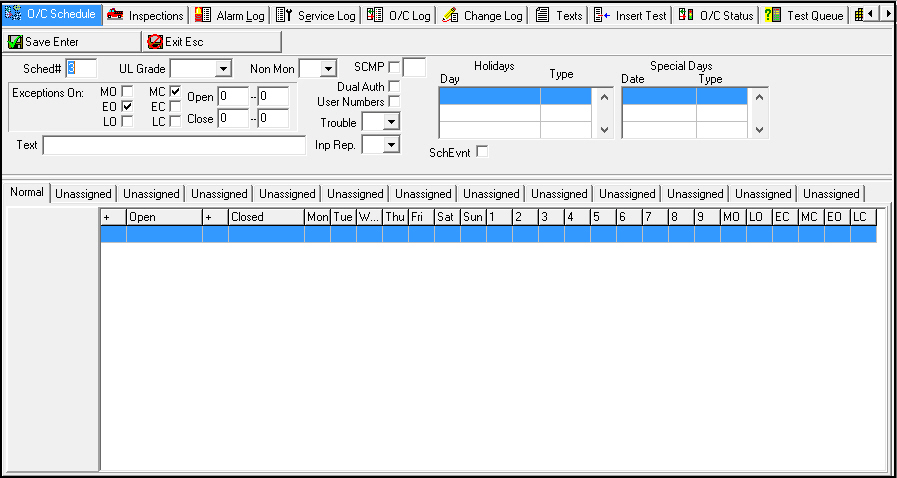
2. Select open/close times and days in the lower pane.
3. Select any exception check boxes to define exceptions for the schedule.
4. Select holidays and special days from the respective grids.
5. Create any special periods in the unassigned schedule tabs in the lower pane.
6. Choose Save.
Note: To set up a user so that SBN does not generate an Unscheduled Open or Close signal when the user opens or closes outside of the schedule, you must select the SCMP checkbox in the O/C Schedule tab of Data Entry (program #559) and set options ocoplx and ocople according to the user's authority level.
The Schedule Grid
When you start a new schedule, only one line for schedule information appears. After you enter data in the first two lines, another line appears (up to a maximum of 50 lines).
Use the following steps to enter information in the Schedule Grid of the Details window:
1. In New mode, click in the Open and Closed columns to display the time arrows in the appropriate cell.
w The time arrows appear to enter open and close times.
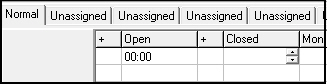
2. Select days and exceptions by double-clicking in a column.
w An X appears in the corresponding cell.

3. Click a third time to enter a - in the exceptions cells.
w A - appears in the corresponding cell.

Exceptions
Use Exceptions boxes to enter which type of signals you want reported for each schedule. When checked, SBN generates an alarm based on the action defined by the exception type. You may tie the system-generated signals that report exceptions to defined zones in the systemzones table. (See the Zones document for more information, and contact IBS to configure your systemzones table.)
The following graphic shows the exception check boxes.

Note: When option oc012 is on, SBN automatically selects the EO and MC exception check boxes when you choose New.
Overriding a Schedule Exception
You may override an exception for a schedule by:
Entering a + in an exception column for the specific line of the schedule.
Entering a - in an exception column for the specific line of the schedule.
Note: If you leave the exception cell blank, the schedule line follows the defined exceptions for the entire schedule.
Holidays and Special Days
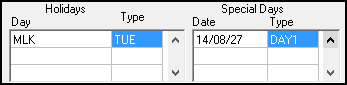
Use Holidays and Special Days to create one-day schedule changes. Holidays and Special Days assign special hours or closed status to company-defined holidays or company-specific calendar days. You can create up to fifty holidays and special days for each schedule. Define holiday menu choices in Scheduled Holidays (program #1746).
To select holidays and day types, select Holidays from the drop-down menu. To select Special Days, select a Date from the pop-up calendar.
The following graphic shows a close-up of the Holidays and Special Days grids of the Detail window.
Special Periods
Special Periods allow for extended schedule changes for a range of dates. You may create up to twelve special period schedules. The Special Periods section contains fields for ranges of dates and the same grid for hour and day information as the Schedule Grid.
To select the dates for the special period, select the down arrow to access the calendar.
The following graphic shows a close-up of a Special Periods tab. Each tab displays the heading 'Unassigned' until you define a Special Periods date range. The tab then displays the selected date range.

Displaying the Special Period entries in the Composite Schedule
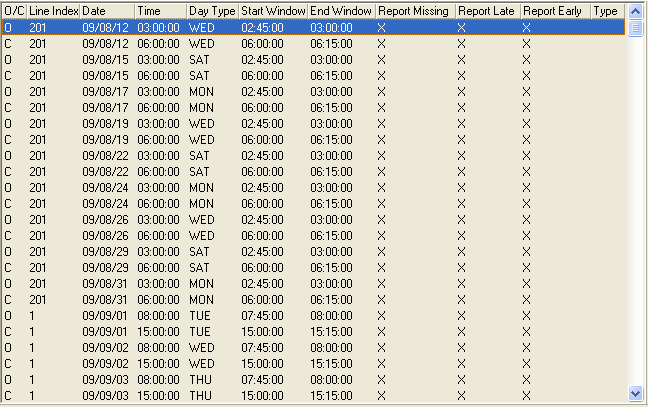
The Composite Schedule lists the Line Index number of the special period entry. The Line Index indicates the tab number and line number of the special period schedule. For example, if the Line Index column displays 201, the Composite Schedule line refers to the first line of the second tab in the Open/Close Schedule Details window (as shown above).
The Normal tab has a line index of 1. The following graphic displays an example of multiple special periods.
Changing an Existing Schedule
You can make changes to nearly every aspect of an open/close schedule, but once you have created a schedule, you cannot change the Schedule #.
Use the following steps to make changes to an existing open/close schedule:
1. In the Open/Close Schedule tab, choose Change.
w The Open/Close Schedule Details window appears with the fields open for changes.
2. Enter changes, as necessary.
3. Choose Save.
w SBN saves your changes and goes back to the Open/Close Schedule tab.
Creating a Temporary Schedule
You can create a temporary schedule change from the Open/Close Schedule tab. Users typically use this function to create a schedule change for one day only. If you need to make a schedule change for longer than a 24 hour period, use the Special Period section of the Open/Close Schedule.
The exceptions you choose in the temporary window override any exceptions contained in the Normal schedule.
The following graphic shows the Temporary Schedule Change dialog box.
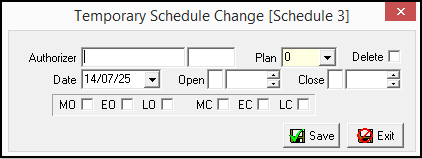
Note: When you have looked up an account by passcard, SBN defaults information into the Passcard and Passcard Extension fields in the dialog box for Temporary Schedule Change.
Field Descriptions - Temporary Schedule Change
The following table describes the fields used in the Temporary Schedule Change dialog box.
Field |
Description |
Authorizer / Extension |
Passcard number and extension of person authorizing temporary change. |
Plan |
Action plan number used for this schedule. |
Delete |
Select this check box to delete a schedule entry. |
Date |
Date for temporary schedule. |
Open |
If the open is to occur the following day, type a + in this field. |
Open Time (No label) |
If the open is to occur the following day, select the time of the opening. |
Close |
If the close is to occur the following day, type a + in this field. |
Close Time (No label) |
If the close is to occur the following day, select the time of the closing. |
Exceptions |
Select the exception check boxes to enter exceptions, as needed. Note: These exceptions temporarily override the exceptions set on the Normal schedule. |
Entering a Temporary Schedule
Use the following steps to create a temporary schedule:
1. Choose Temporary Schedule Change.
w The dialog box for a Temporary Schedule Change appears.
2. Complete the fields, as needed.
3. Choose Save.
w The schedule change becomes active on the date you entered in the dialog box.
Examples of Schedule Entries
The following examples illustrate a few of the different combinations you can create for Open/Close schedules.
Example 1
The following graphic shows an example of a regular schedule for a restaurant.
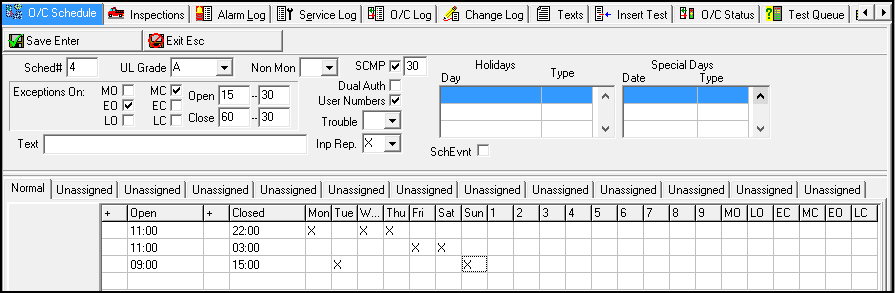
This example shows the following schedule for the restaurant:
Monday |
Open from 11:00 a.m. to 10:00 p.m. for lunch and dinner. |
Tuesday |
Closed. |
Wednesday |
Open from 11:00 a.m. to 10:00 p.m. for lunch and dinner. |
Thursday |
Open from 11:00 a.m. to 10:00 p.m. for lunch and dinner. |
Friday |
Open from 11:00 a.m. to 3:00 a.m. for lunch and dinner (with extra hours for later closing and extra cleanup time.) |
Saturday |
Open from 11:00 a.m. to 3:00 a.m. for lunch and dinner (with extra hours for later closing and extra cleanup time.) |
Sunday |
Open from 9:00 a.m. to 3:00 p.m. for brunch. |
Example 2
The following graphic shows a schedule for a retail store with special holiday hours and extended hours for special sales.
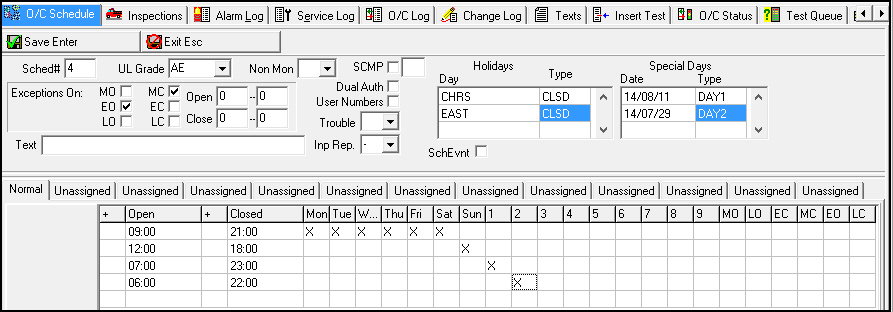
The example shows the following schedule for the store:
Monday |
Open from 9:00 a.m. to 9:00 p.m. |
Tuesday |
Open from 9:00 a.m. to 9:00 p.m. |
Wednesday |
Open from 9:00 a.m. to 9:00 p.m. |
Thursday |
Open from 9:00 a.m. to 9:00 p.m. |
Friday |
Open from 9:00 a.m. to 9:00 p.m. |
Saturday |
Open from 9:00 a.m. to 9:00 p.m. |
Sunday |
Open from 12:00 noon to 6:00 p.m. |
Special Day 1 |
Open from 7:00 a.m. to 11:00 p.m. (Defined in the Special Days grid as August 11, 2014.) |
Special Day 2 |
Open from 6:00 a.m. to 10:00 p.m. (Defined in the Special Days grid as August 29, 2014.) |
Related Programs
The following table lists programs related to the Open/Close Schedule tab.
Program |
Number |
Document Link |
Description |
Scheduled Holidays |
1746 |
Define and maintain holidays to use in schedules. |
|
Open/Close Status Tab |
N/A |
View the status of open/close zones. |
|
Data Entry Master and Basics |
559 |
The program from which you can access the Open/Close Schedule. View installation information for selected alarms. |
|
Dispatch Tab |
537 |
Operators handle alarms from zones on the installation. |
|
Zones Tab |
N/A |
Attach an open/close schedule to a zone to monitor open/close times for installations. |
|
Open/Close Log Tab |
N/A |
Records activity from open/close zones. |
|
Alarm Log Tab |
N/A |
Records activity from open/close zones. |
Button Functions
The following table displays the buttons, describes the shortcut keys, actions, and functionality.
Button |
Name |
Shortcut Key |
Action |
Description |
|
Get Record |
Alt+F1 |
559/141 |
Get record. |
|
Change Record |
F2 |
559/142 |
Change selected record. |
|
New record |
F3 |
559/143 |
Create new record. |
|
View Composite Schedule |
F6 |
559/144 |
View the composite schedule. |
|
Copy current record |
shift+F3 |
559/145 |
Copy current record. |
|
Delete Record |
shift+F10 |
559/146 |
Delete selected record. |
|
Temporary Schedule Change |
shift+F2 |
559/147 |
Create a temporary schedule. |
|
Composite Delete |
shift+F7 |
559/148 |
Delete a day on the composite schedule. |
|
Exit |
Esc |
559 |
Exit without saving. |
|
Save |
Enter |
559 |
Save existing record. |










Modifications and Updates to Open/Close Schedule
The following table lists modifications and updates to the Open/Close Schedule document.
Mod Number |
Date |
Description |
n/a |
08/04/09 |
document rewritten |
07.02.20629, 08.03.08146 |
02/25/11 |
Added SchEvnt check box to O/C Schedule details. |
08.78.09075 |
03/05/13 |
Modified Open/Close Schedule Details pane to include up to 50 rows. |
07.80.23182 |
03/25/14 |
Modified SCMP details to note the 3-hour window around a scheduled opening.. |
n/a |
07/25/14 |
Images updated. |
n/a |
09/19/14 |
Included new information about setting up a schedule so SBN does not generate an Unscheduled Open or Close signal. |
07.81.23443, 07.81.23442 |
09/29/14 |
Added Options tmp105co, tmp105g1, and tmp105ma. |
08.91.11713, 07.91.26200, 07.91.26210, 08.91.11723 |
06/28/19 |
New Composite Delete button added. This allows the ability to delete a day on the Composite Schedule. Images updated. |