
Payment Methods
Payment Methods
Payment Methods
Module: Accounting
Overview
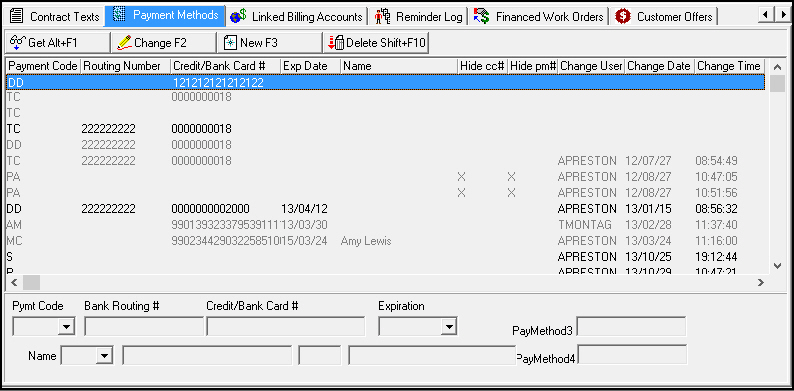
Use the Payment Methods tab to view and enter bank account and credit card information for a customer. Any payment information you enter in this tab is subject to validation rules, which are based on the selected payment code.
When option bl212 is on and your local hard drive contains the necessary DLL and certificate files, SBN creates tokens for credit card numbers entered in this tab. Obtain the following files from IBS and install them on your local hard drive to enable credit card tokenization. Contact IBS for complete installation instructions:
-
RootCaTokenize.cer
-
tempClientcert.cer
-
tempClientcert.pfx
-
TKSInterface.dll
-
TKSApi.dll
Also when option bl212 is on, entries in the Payment Methods tab older than 14 months are grayed out, cannot be edited, and do not appear in the Pay Method drop-down menus of Contract Master for the account.
To access this program, select Contract Master (program #548) from the main menu of SBN, and then choose the Payment Methods tab.
The Payment Methods Tab
The following graphic shows the Payment Methods tab. The columns show previously entered payment methods for this account.
Field/Column Descriptions
The following table describes the fields and columns used in this tab.
|
Field/Column |
Description |
|
Payment Code |
Code that identifies the method of payment. |
|
Routing Number |
Bank routing and transit number, if any. Note: SBN supports Portuguese bank accounts if IBS Message Group IPAYMT message #375 is set to 04 in program #1610. |
|
Credit/Bank Card # |
Bank account or credit card number. Note: When option bl212 is on and your local hard drive contains the necessary DLL and certificate files, SBN creates tokens for credit card numbers entered in this field. (Contact IBS for these files and installation instructions.) |
|
Expiration Date |
Date the credit card expires. |
|
Pymt Code |
Code to identify the method of payment for this entry. |
|
Name |
Name of the person this method of payment belongs to. |
|
Hide CC# |
An X in this column indicates that the Hide CC check box is selected in program #1528 for the payment method. |
|
Hide PM# |
An X in this column indicates that the Hide PM check box is selected in program #1528 for the payment method. |
|
Change User |
User ID that last exported an invoice batch or imported a payment batch containing the selected payment method. |
|
Change Date |
Date on which a user last exported an invoice batch or imported a payment batch containing the selected payment method. |
|
Change Time |
Time at which a user last exported an invoice batch or imported a payment batch containing the selected payment method. |
|
Bank Routing # |
Bank routing or transit number. |
|
Credit/Bank Card # |
Bank account or credit card number. |
|
Expiration |
Date the credit card expires. |
|
Name |
Name of the person this method of payment belongs to. |
|
PayMethod3 |
Information only field. |
|
PayMethod4 |
Information only field. |
Using Common Functions
See the reference document Common Functions in SBN for more information.
Note: If you add a direct debit payment method you must type information in both the routing number and credit/bank card number fields. If you add a credit card payment method you must type valid numbers in the both the credit/bank card number and expiration fields.
Button Functions
The following table displays the buttons, describes the shortcut keys, actions, and functionality.
|
Button |
Name |
Shortcut Key |
Action |
Description |
|
|
Get Record |
alt+f1 |
View details of selected record. |
|
|
|
Change Record |
f2 |
Change details of selected record. |
|
|
|
New Record |
f3 |
Create new record. |
|
|
|
Delete Record |
shift+f10 |
Delete selected record. |
|
|
|
Exit without saving |
esc |
Exit without saving changes to selected record. |
|
|
|
Save Existing Record |
enter |
Save changes to selected record. |






Modifications and Updates to Payment Methods
The following table lists modifications and updates to the Payment Methods document.
|
Mod Number |
Date |
Description |
|
n/a |
8/06/14 |
Images updated. |