
Collections
Collections
Collections
Module: Accounting
Overview
Use Collections (program #601) to manage the collection of past due balances on customer accounts. Collections produces the next account from the queue that you need to contact regarding a past due balance. Collections also provides a method to record payment promises or other information received from the customer. Collections users can select a date to follow up with customers for further collection efforts. Once you have taken an assignment from the collections tab, it then belongs to you and keeps returning to you until it has been resolved.
To use the Collections tab, you must be set up as a collection user in program #1730. Programs #1825, and #1793 also work closely with the Collections tab.
To access this program, select Contract Master (program #548) from the main menu of SBN and then choose the Collections tab.
The Collections Tab
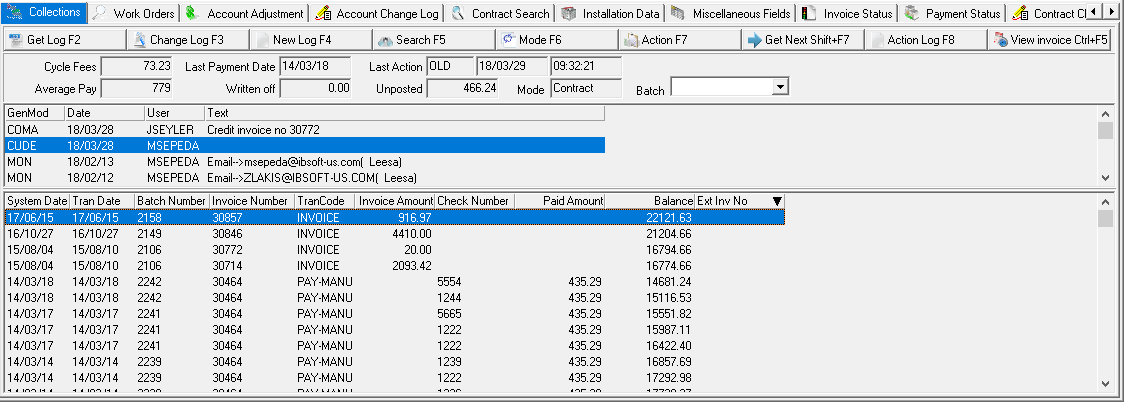
The Collections tab contains three panes:
The upper pane - which displays details about this account to assist in the collections effort
The middle pane - which displays the most current collection/communication log records for this account
The lower pane - which displays invoice and payment history records for this account
The following graphic shows the Collections tab as the program opens.
Field Descriptions - Details
The following table describes the fields used in the Details pane of the window.
Field |
Description |
Cycle Fees |
Total monthly cycle fees for this contract or installation. |
Last Payment Date |
Last date a payment was applied to this account. |
Last Action |
Code for the call type of the last collection action taken on this account. |
Last Action
Date |
Date the last action was taken on this account. |
Last Action
Time |
Time the last action was taken on this account. |
Average Pay |
Calculated average payment days for this contract or installation. SBN calculates the average payment days based on the difference between the invoice system date and the payment system date for all fully paid invoices. If no payment has been received, a row of asterisks displays. |
Written Off |
Total of any previous amounts written off of this account. |
Unposted |
Total of any unposted payments for this account. |
Mode |
Current view of the collections tab. You can change between contract and installation by choosing Toggle Mode.
|
Batch |
You may select an invoice batch to limit the History pane display to only those transactions included in the batch. (This menu originates from program #1557.) |
Column Descriptions - Current
The following table describes the columns used in the middle pane of the window.
Column |
Description |
Generating Module |
Generating source for the log entry. |
Date |
Date the log entry was entered. |
User |
User that last entered information in this log entry. |
Text |
Any information that was entered for this log entry. |
Column Descriptions - History
The following table describes the columns used in the Invoice and Payment History pane of the window.
Field/Column |
Description |
System Date |
Date this transaction was entered into SBN. |
Transaction Date |
Date this transaction is to occur. |
Batch Number |
Batch number in which this transaction was included. |
Invoice Number |
Invoice number for this transaction, if this is an invoice. |
Transaction Code |
Code to identify the type of transaction for this line. |
Invoice Amount |
Amount invoiced to the customer, if this is an invoice. |
Check Number |
Check number of the payment received, if this is a payment. |
Paid Amount |
Amount paid in this transaction, if this is a payment. |
Balance |
Remaining balance after this transaction was entered. |
External Invoice Number |
Customer-defined external invoice number. (The range of external invoice numbers originates from program #1620.) |
Using Common Functions
See the reference document Common Functions in SBN for more information.
Note: From the Collections tab, you can change information that was previously entered in the Communication Log about the selected customer. From the middle pane of the Collections window, select the Communications Log entry that you want to change.
Viewing Entries in the Communication Log
From the Collections tab you can view information that was entered in the Communication Log (program #1888) about correspondence with this customer.
Use the following steps to view entries in the Communication Log:
1. In the middle pane of the Collections window, select the entry in the Communication Log that you want to view.
2. Choose Get Log Entry.
‰ The Communication Log appears.
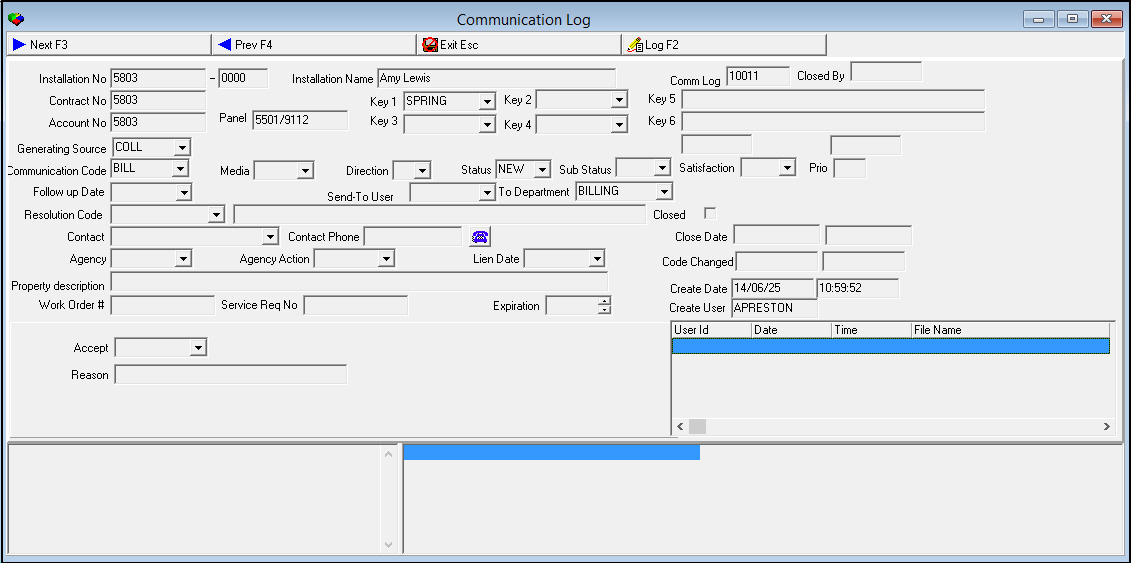
3. Choose Exit to return to the Collections window.
Creating New Entries in the Communication Log
From the Collections tab, you can create a new entry in the Communication Log (program #1888) to record new correspondence with the customer. This information is important when you contact the customer in the future.
Use the following steps to create a new entry in the Communication Log:
1. Choose Create New Log Entry.
‰ The Communication Log appears.
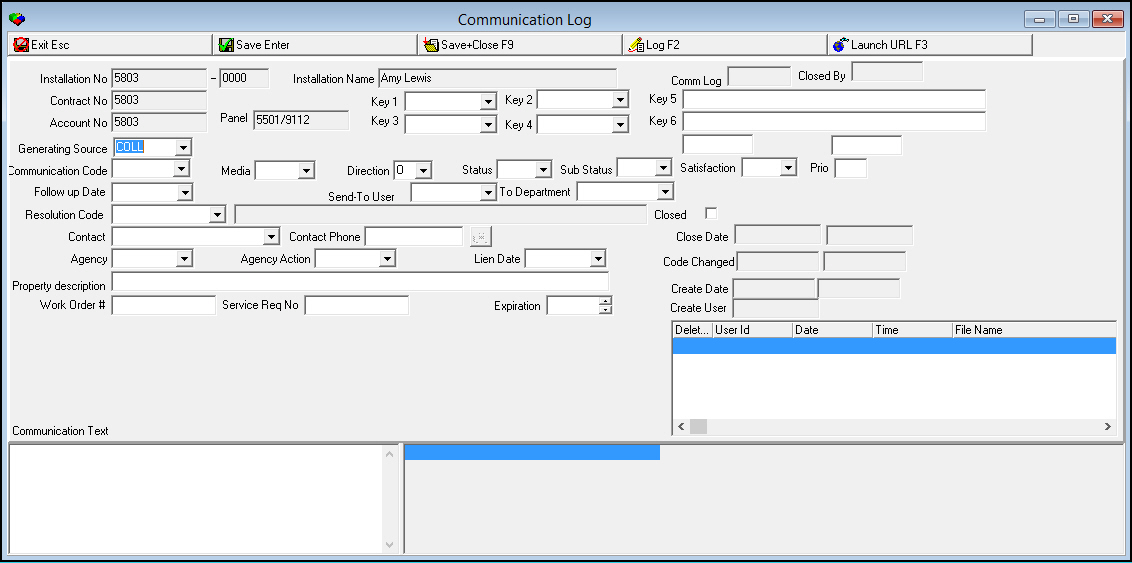
2. Complete the fields.
3. Choose Save.
Searching for Entries in the Communication Log
From the Collections window, you can search for a specific entry or group of entries in the Communication Log (program #1888). You can search for an entry using a range of dates or other known information about the entry.
Use the following steps to search for an entry in the Communication Log:
1. Choose Search.
‰ The Communication Log search dialog box appears.
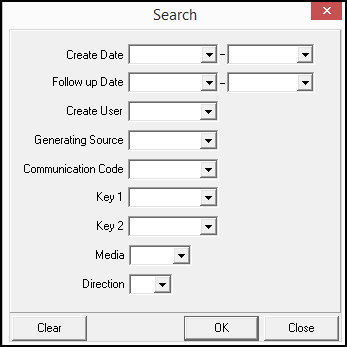
2. Select search parameters.
3. Choose OK.
Note: Choose Clear to clear the search parameters and start over or choose Close to exit the dialog box.
Changing the View of the Window
Choose Toggle Mode to change the view of the window between Contract mode and Installation mode.
Logging Collection Actions
Use Collection Actions to log telephone conversations between the customer and your company in regard to collections. Use this feature to log the last action taken and the date and time to follow up on this account. The follow up date determines when SBN next presents this record to a collector for more actions. The menu of Collection Actions originates from program #1793.
Note: When a collector takes an action on an account that has not been previously assigned, SBN automatically assigns that account to that collector.
Use the following steps to log a collection action:
1. Choose Collection Action.
‰ The Collection Log Action dialog box appears.
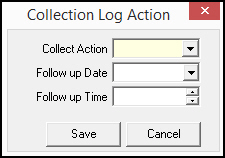
2. Complete the fields.
3. Choose Save.
Getting the Next Collection Record
Use the Get Next Record button to view the next account in the queue that you need to contact regarding a past due balance. If you enter a number in the Batch field, choosing Get Next Record displays the next collection account in that batch. Your user profile in Collection Users (program #1730) determines which accounts SBN displays when you choose Get Next Record.
Viewing the Action Log
The Account Action Log stores and displays each collection action that has been performed in the Collections window. You cannot change information about past collection actions, but you can use the information as a reference for future contact with the customer. SBN uses information from the Account Action Log to calculate the number of calls for the Collector Productivity Report (report #2136).
Use the following steps to view the Action Log:
1. Choose Show Action Log.
‰ The Account Action Log appears.
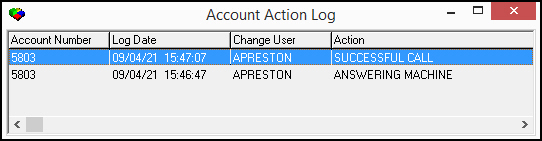
2. Choose Close to close the window.
Button Functions
The following table displays the buttons, describes the shortcut keys, actions, and functionality.
Button |
Name |
Shortcut Key |
Action |
Description |
|
Get Log Entry |
f2 |
601/ 1 |
View details of selected entry. |
|
Change Log Entry |
f3 |
601/ 2 |
Change details of selected entry. |
|
Create New Log Entry |
f4 |
601/ 3 |
Create a new entry in Communication Log. |
|
Search |
f5 |
601/ 4 |
Search for an entry. |
|
Toggle Mode |
f6 |
601/ 5 |
Change the view of the window between Contract mode and Installation mode. |
|
Collection Action |
f7 |
601/ 6 |
Log the last action taken and the date and time to follow up on this account. |
|
Get Next Record |
shift+f7 |
601/ 7 |
Go to next record. |
|
Show Action Log |
f8 |
601/ 8 |
View Action Log, which displays each collection action that has been performed in the Collections window. |
|
View Invoice |
SHIFT+F5 |
601/10 |
Opens an external application defined by option callURL and sends parameters to it that are also specified by the value of option callURL. |
|
Exit without saving |
ESC |
Exit without saving changes. |
|
|
Save New Record |
ENTER |
Save existing changes to record. |











Modifications and Updates to Collections
The following table lists modifications and updates to the Collections document.
Mod Number |
Date |
Description |
08.79.09280, 07.79.22734 |
07/01/13 |
Added View Invoice button to Collections tab. |
n/a |
08/1/14 |
Images updated. |
07.88.25784, 07.88.25795 |
04/19/18 |
External Invoice Number column added within the Invoice and Payment History pane of the window. Image Updated. |