
Account Adjustment
Account Adjustment
Account Adjustment
Module: Accounting
Overview
Use the Account Adjustment tab to make billing adjustments to an account. You must define several parameters before the Account Adjustment tab functions properly:
Define option adj_prc
Define option adjwotp
Define the items within the price list as Ncnt (no count) to allow for variable adjustment amounts
After you define these parameters, the Price List Group and Work Order Type fields in the Work Order that SBN automatically creates default based on the data entered in the Account Adjustment tab.
To access this program, select Contract Master (program #548) from the main menu of SBN and choose the Account Adjustment tab.
The Account Adjustment Tab
The following graphic displays the Account Adjustment tab with adjustment information entered. Use the fields to the left to enter information to create an adjustment. Use the grid to the right to add items to this adjustment.
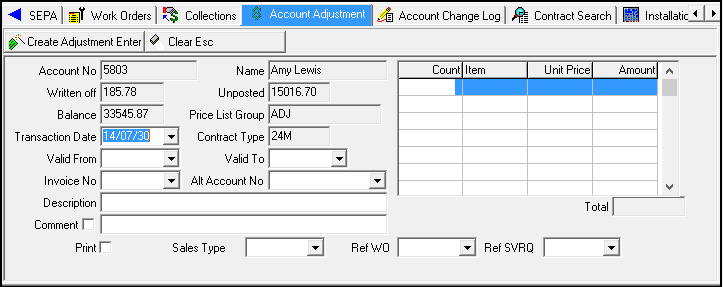
Field Descriptions
The following table describes the fields in this tab.
Field |
Description |
Account No |
Primary billing account number to which the adjustment is applied. |
Name |
Name of the primary person on the billing account to which the adjustment is applied. |
Written Off |
Total of all amounts previously written off of this account. |
Unposted |
Total of any unposted payments for this account. |
Balance |
Any outstanding balance for this account. |
Price List Group |
Default price list group; used for the work order created when you save an account adjustment. (Option adj_prc defines this field.) |
Transaction Date |
Date that this account adjustment was entered and the work order was automatically created. Defaults to today’s date but you can override the default. |
Contract Type |
An abbreviation for the contract type on this billing account, which was entered when the contract was created. |
Valid From |
The beginning cycle fee date to cover with this adjustment. |
Valid To |
The ending cycle fee date to cover with this adjustment. |
Invoice No |
List of all invoices belonging to this account. You can select one from the list to have the credit apply to the original invoice and to age at the same time as the original invoice. |
Alternate Account No |
Choices for the alternate one-time or cycle fee accounts attached to this account. You may select an account from this list and the entries in this window then change to display information regarding the revised account. SBN posts the adjustment against the account selected in this field. |
Description |
Text description of the adjustment. This information also displays as the work order description. |
Comment |
If this box displays a check mark, comments typed in the Comment field appear on the customer’s work order and invoice. |
Comment |
Type general comments regarding this adjustment. Note: Include the comments on the customer’s work order and invoice by entering a check mark in the Comment box. |
If this box displays a check mark, SBN automatically creates a work order and sets the print flag on the work order. Note: This box is for user information only. |
|
Sales Type |
Sales Type. (This menu originates from program #1704/47.) |
Ref WO |
Menu of work orders to reference for current account. |
Ref SVRQ |
Menu of service requests to reference for current account. |
Count |
Quantity of the item on this line for the adjustment. l If the adjustment is a credit, precede the quantity with a minus (-) sign. l If the item is flagged as a no count item, type the actual adjustment amount in this field. |
Item |
Code for the item on this line for the adjustment. (This menu originates from program #1535.) |
Unit Price |
Unit price for the item selected; based on the price list that defaults from option adj_prc. Note: SBN fills this field based on the Item field. |
Amount |
Amount of the line item for this adjustment. Note: SBN fills this field based on the Item field. |
Total |
Total adjustment to apply to this account. Note: SBN fills this field from entries made in the Item Adjustment List. |
Creating an Adjustment
Use the Account Adjustment tab to create an adjustment in billing for any account. When you enter information for the adjustment you can enter specific information that SBN includes in the automatically-created work order. When you enter the Account Adjustment tab, SBN fills some of the fields.
Use the following steps to create an adjustment:
1. In the Account Adjustment tab complete the fields, as needed.
2. Enter adjustment items in the Item Adjustment grid.
3. Choose Create Adjustment to start the adjustment process and to create a new work order for this adjustment.
w SBN confirms that it created the adjustment.
4. To clear adjustment information before you begin a new adjustment, choose Clear.
Button Functions
The following table displays the buttons, describes the shortcut keys, actions, and functionality.
Button |
Name |
Shortcut Key |
Action |
Description |
|
Create Adjustment |
enter |
548/51 |
Create work order for an adjustment. |
|
Clear |
esc |
Clear adjustment information. |


Modifications and Updates to Account Adjustment
The following table lists modifications and updates to the Account Adjustment document.
Mod Number |
Date |
Description |
n/a |
7/30/14 |
Images updated. |