
Items
Module: System Administration
Overview
Use Items (program #1535) to define, change, and delete all items used in Inventory, Billing, and Service. If your user profile contains dealer restrictions, you only see the items associated with the same dealers included in your profile and items not associated with any dealer.
Note: Deleting an item removes it from all inventory. If the item being deleted has a quantity listed in Branch Inventory (program # 1757) as 'on hand', 'on order' or 'defective’, the delete function will produce an error. This error message states, "Item has balance in inventory. Cannot Delete!" To view the number of items in each branch, go to Branch Inventory, perform a search on any branch ID, select an item and choose Availability. The Availability window opens and displays the totals of the selected item for all branches.
Note: Deleting an item requires that all counts in inventory, for all branches and all satellites, must be zero.
Use Items to define choices for the Item Code menu that appears in:
Work Orders
Contract Master Adjustment tab
Contract Master Cycle Fee tab
Branch Inventory
Service Requests
Purchase Orders
Invoice Fee Profiles
Several report parameters
Items contains a sublevel with additional tabs for entering specific codes and information for each item.
Navigating to Items
Use the following steps to navigate to Items:
1. From the main SBN toolbar, select Menu.
2. From the drop-down menu, select Go To.
3. In the Go To Program dialog box, type in "1535" and press Enter.
w The Items program opens.
The Items Window
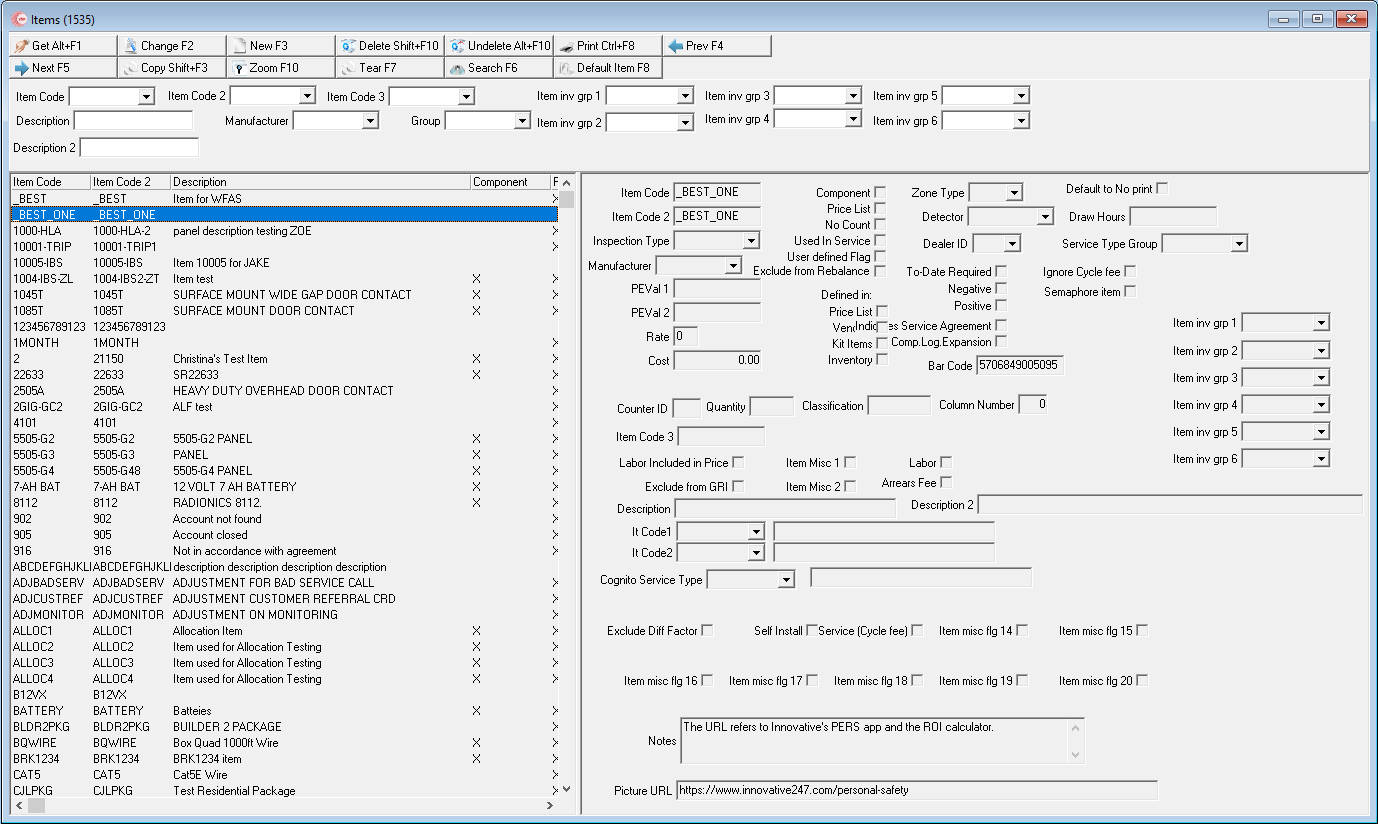
The following graphic shows the Items window as the program opens. The window displays previously defined items.
Field Descriptions
The following table describes the fields used in the upper and right panes of the Items window.
Field |
Description |
Search Parameters |
|
Item Code |
Item identifier. |
Item Code 2 |
Additional item identifier. |
Item Code 3 |
Additional item identifier. |
Description |
Text description of the item. |
Description 2 |
Text description of the item. |
Manufacturer |
Manufacturer of item. (This menu originates from program #1538.) |
Group |
Inventory group. (This menu originates from program #1764/08.) |
Item Inv Grp 1-6 |
Item Inventory Group 1-6 (Defined in program 1764 Miscellaneous Inventory fields -abbr 21-26). |
Item Details |
|
Item Code |
Item identifier used throughout SBN in Item drop-down menus. (This field holds a maximum of 12 characters.) |
Item Code 2 |
Additional item identifier. |
Inspection Type |
Used to identify the frequency and type of inspection required by the inspection authority. (This menu originates from program #1833.) |
Manufacturer |
Manufacturer of item. (This menu originates from program #1538.) |
PE Val 1 |
Earnings value used to calculate earnings per piece. |
PE Val 2 |
Piece rate used to calculate earnings per piece. |
Rate |
Number between zero and nine to correspond to tax rate. Zero indicates non-taxable. Note: Information in this field populates the Tax Rate column on the Work Order Details window. |
Cost |
Cost of the item. |
Description |
Text description of the item. |
Counter ID |
Enter a counter type from program #1601 that determines what SBN counts for the selected item. For example, if you enter type 23 in this field, SBN counts alarm signals for variable cycle fees. Type 21 counts SMS messages and type 22 counts email notifications. |
Quantity |
Number of credits of each Counter ID type added when invoiced for the cycle for Internet access. |
Classification |
Ten character text field used for item classification. No SBN functionality. |
Column Number |
Designate which column number the item data displays in for the Dealer Layout of Invoice Print (report #2171). |
Item Code 3 |
Additional item identifier. |
Service Type Group |
You may select a service type group that determines the item cycle fee for a particular dealer, branch, and/or subscriber type as defined for the service type group in the Family tab of program #1692. (This menu originates from program #1692.) |
Labor Included in Price |
Flag used to determine how to calculate labor costs. When this box displays a check mark, the item includes labor costs. |
Exclude from GRI |
Select this check box to remove the selected item from a global rate increase. |
Item Misc 1 |
Select this check box to identify the item as a kit item. O This miscellaneous box replaces options ba295, ba296, and ba305. Options ba295 and ba296, when on, triggered the creation of an Immaterial W/O when a user defined a kit item with the given value. Option ba305, when on, enabled users to add new kit items. |
Item Misc 2 |
Select this check box to bypass the disregard one-time attribute in the work order. |
Labor |
Select this check box to flag the selected item as a Labor item. Define the Standard Labor of the item in the sublevel Inventory tab. O If an item on a work order is flagged as Labor, SBN calculates the labor rate in the WIP and Approval tabs of the work order based on the defined Standard Labor of the item. If an item is not flagged as Labor, SBN does not calculate the item labor in the WIP and Approval tabs. |
Arrears Fee |
Select this check box to indicate that the selected item is subject to arrears cycle fee billing. |
Flags |
|
Component |
Select this check box to identify the item as a component. O Components are accessible from the Component Log in Contract Master. Components are included in invoice export programs. |
Price List |
Select this check box to attach the selected item to a price list. |
No Count |
Select this check box to display the item on invoices without a count. O The price will be carried as one and you will type the count as the true price. |
Used in Service |
Select this check box to indicate that you offer service on the selected item. |
User Defined Flag |
Customer-defined field; no functionality in SBN. |
Exclude from Rebalance |
Select this check box to indicate that SBN will not include the selected item in work order rebalance calculations when you select the Adjust Total on Work Order button in the Work Order Details tab. |
To-Date Required |
If this box displays a check mark, SBN requires you to enter a Valid-To date in Change or New mode of the Cycle Fee tab in program #548. |
Negative |
Select this check box to indicate that SBN makes the count you enter for this item in the Work Order Details tab a negative number. |
Positive |
Select this check box to indicate that SBN makes the count you enter for this item in the Work Order Details tab a positive number. |
Comp Log Expansion |
Select this check box to make each item appear on a separate line in the Installed Components tab of program #559 when you invoice a work order for the installation with more than one of the selected item on it. Note: Users can only edit this check box when the Component check box is selected. |
Defined in: |
|
Price List |
If this box displays a check mark, the selected item has entries in the sublevel tab of Price Lists. |
Vendors |
If this box displays a check mark, the selected item has entries in the sublevel tab of Vendors. |
Kit Items |
If this box displays a check mark, the selected item has entries in the sublevel of Kit Items. |
Inventory |
If this box displays a check mark, the selected item has information defined in the sublevel Inventory tab. |
Zone Type |
Select the type of zone to attach to the selected item. (This menu originates from program #1733.)
|
Detector |
Select the type of detector to attach to the selected item. (This menu originates from program # 1827.)
|
Dealer ID |
ID of the dealer associated with this item. When you associate an item with a dealer ID, this item only appears to users who have the dealer ID included in their dealer access profile. If this field is blank, this item appears to all users. |
Bar Code |
Barcode for the selected item.
|
Description2 |
Additional description field. |
ItCode1 |
Additional Item Code drop-down. (This list originates from program #1764/16.) Note: This field is customer-defined and has no functionality in SBN. |
(No Label) |
Description defined with ItCode1. |
ItCode2 |
Additional Item Code drop-down. (This list originates from program #1764/17.) Note: This field is customer-defined and has no functionality in SBN. |
(No Label) |
Description defined with ItCode2. |
Exclude Diff Factor |
Exclude Difficulty Factor when selected on the item will be excluded from the base difficulty and the standard labor will not be multiplied with a difficulty factor. (Subject to Line Item override.) If your work order has a "Difficulty Level" selected, the item will not have the labor rated changed. |
Self Install |
Specific item can be self installed. |
Service (Cycle Fee) |
Company specific. (Company 162) |
Item misc flg 14-20 |
No functionality. Reserved for future development. |
Notes |
Notes field allows for additional notes to be place that are specific to the Item selected. |
Picture URL |
This field holds the URL that can be tied to the specific Item selected. |
Column Descriptions
The following table describes the columns used in the left pane of the Items window.
Column |
Description |
Item Code |
Item identifier. |
Item Code 2 |
Additional item identifier. |
Description |
Text description of the item. |
Component |
If this column displays an X, the selected item is a component. O Components are accessible from the Component Log in Contract Master. Components are included in invoice export programs. |
Price List |
If this column displays an X, the selected item is attached to a price list. |
No Count |
If this column displays an X, the selected item appears on invoices without a count. |
Used in Service |
If this column displays an X, you offer service on the selected item. |
Item Code 3 |
Additional item identifier. |
LabInc |
If this column displays an X, labor is included in the price of the selected item. |
Manufacturer ID |
Identifies the manufacturer of the selected item. |
Searching for an Item
You can search for a specific item by
Item Code
Description
Manufacturer
Group
Use the following steps to search for an item:
1. In Items, select an Item Code, Manufacturer, or Group from the menus in those fields, or type a description of the item for which you want to search.
2. Choose Search.
‰ The items that match your search parameters display in the left pane of the window.

Using Common Functions
See the reference document Common Functions in SBN for more information.
Using a Template Item
You can create and define a template item and then associate the template item with specific price lists in your dealer profile in Price Lists (program #1533). Later, when you add any new item in Items (program #1535) SBN automatically adds that new item to all price lists in your dealer profile associated with the template item. Use one of the following methods to create a template item:
Creating a Template Item (by System Administrator)
Use the following steps to create a template item:
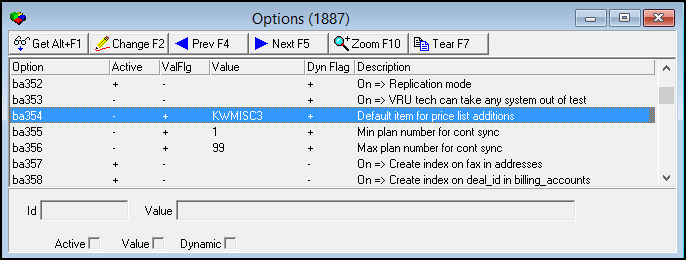
1. In Options (program #1887), define the template item in option ba354. For more information on defining an option, see Changing Dynamic Options.
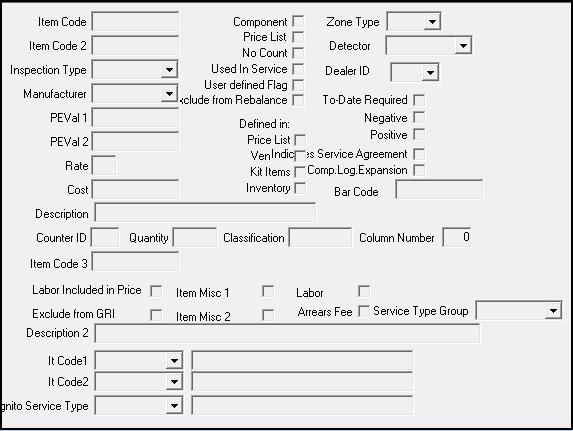
2. In Items, add the template item.
Choose New Record.
Complete the following fields:
q In Item Code - type the code for the template item.
q In Price List - enter a check mark.
q In Description - type a description of the template item.
Complete additional fields, as necessary.
Choose Save.
3. Repeat steps 1-2 for as many template items as your company uses.
4. In Price Lists (program #1533), add each template item to the price lists to which you want to associate it. For more information on adding items to a price list, see
Creating a Template Item (by User)
Your system administrator may grant you access to the Default Item function in Items (program #1535) so that you can create template items. Use the Default Item function to define option ba354 without accessing Options (program #1887).
Note: Action 1535/7 controls access to Default Item.
Use the following steps to create a template item:
1. In Items (program #1535), choose Default Item.
‰ A dialog box opens. Item Code defaults with the current template item defined in option ba354.
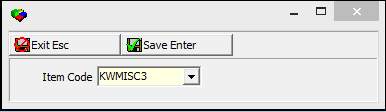
2. In Item Code, type a new item code to use as the template item.
3. In Items (program #1535), add the template item.
Choose New Record.
Complete the following fields:
q In Item Code - type the code for the template item.
q In Price List - enter a check mark.
q In Description - type a description of the template item.
Complete additional fields, as necessary.
Choose Save.
4. Repeat steps 1-3 for as many template items as needed.
5. In Price Lists (program #1533), add each template item to the price lists to which you want to associate it. For more information on adding items to a price list, see
Using a Template Item
After you define a template item, SBN adds any new item that you define with a check mark in the Price List to all price lists associated with the template item.
Example:
1. You use one of the methods to define a template item as TMPLT_ITEM.
2. You add and define the parameters of the template item, TMPLT_ITEM, in Items (program #1535).
Note: The parameters of the template item, TMPLT_ITEM, include a check mark in the Price Lists field.
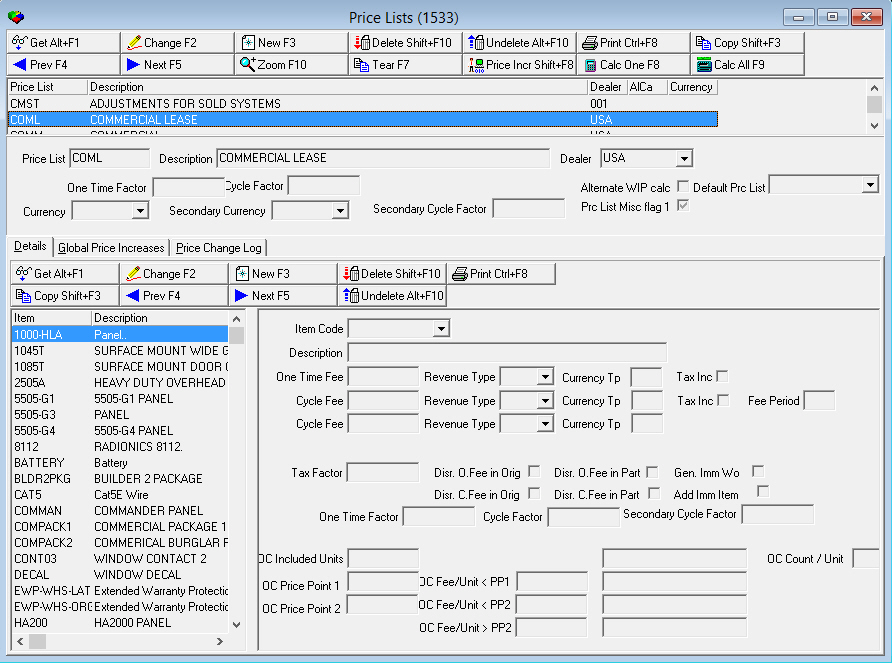
3. You add TMPLT_ITEM in the Commercial Lease price list in Price Lists (program #1533) and define the parameters for that item in the selected price list.
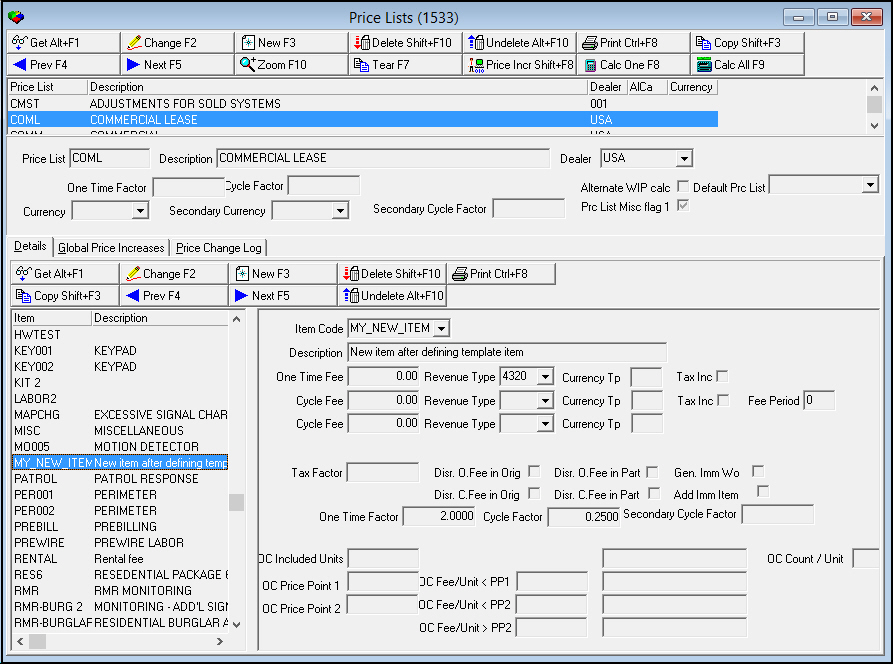
4. You add a new item, MY_NEW_ITEM, in Items (program #1535).
Note: The parameters of the new item, MY_NEW_ITEM, include a check mark in the Price Lists field.
‰ SBN adds MY_NEW_ITEM to the Commercial Lease price list in Price Lists (program #1533) and applies the parameters defined in the Details tab of Price Lists for the template item, TMPLT_ITEM.
Note: You may change the price list parameters for the new item in the Details tab of Price Lists (program #1533).
Copying Item Data
In some cases, you may wish to make a new item comprised of information from a previous item.
Use the following steps to copy an Item:
1. From Items (program #1535), select an existing item from the left pane.
2. Click Copy from the top row. This will clear the Item Code field in the right pane and highlight it.
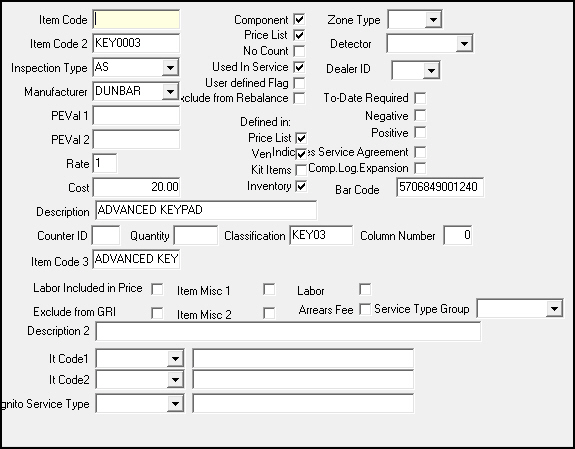
3. Enter a new price list name into the Item Code and Item Code 2 fields. Make sure that this new price list name does not match any Item Code or Item Code 2 already listed in the left pane.
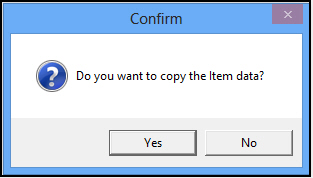
4. Click Save. This will open a popup window asking "Do you want to copy the item data?" Click Yes to copy the item data.
5. The new Item Code now appears in the left pane. All of the item information from the original item will now be visible in the new item.
Zooming into the Sublevel of Items
Items contains a sublevel with nine tabs in which you can specify many different aspects of how items are used in SBN or view the history of items:
Item Price Lists
Item Vendor
Item Kit
Inventory
Translations
Price Change Log
Item Change Log
Communication Log
Payment Methods
Consolidated Change Log
Item Price List Tab
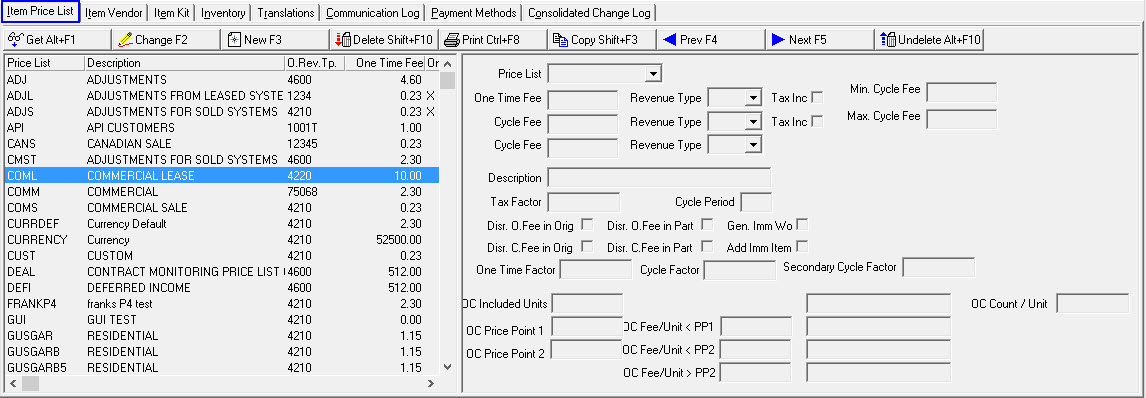
Use the Item Price List tab to attach the item to one or more price lists. (To attach one or more items to a particular price list use Price Lists (program #1533).) The left pane displays all previously defined price list entries for the selected item and the right pane contains the fields for defining and changing item price list details.
The following graphic shows the Item Price List tab with information displayed.
Field/Column Descriptions
The following table describes the fields and columns used in the Items Price List tab.
Field/Column |
Description |
Price List |
Price list attached to item. (This menu originates from program #1533.) |
One Time Fee |
One time fee for the item for this price list. (This fee can also originate from program #1533.) |
One Time Revenue Type |
Revenue type for the one time fee. (This menu originates from program #1512.) |
Tax Inc. |
If this box displays a check mark, the one time fee includes tax. This causes SBN to reduce the revenue by the amount of tax calculated. |
Cycle Fee (Primary) |
Primary recurring fee for the item. (This fee can also originate from program #1533.) Note: If a primary currency is defined for this price list (in the Currency field of program #1533), the amount of this cycle fee is in the primary currency. |
Cycle Fee Revenue Type (Primary) |
Revenue type for the primary recurring fee. (This menu originates from program #1512.) |
Tax Inc. |
If this box displays a check mark, the cycle fee includes tax. This causes SBN to reduce the revenue by the amount of tax calculated. |
Min. Cycle Fee |
This field sets a minimum limit on the cycle fee amount entered in the Cycle Fees tab of program #548 for the selected item on the selected price list. |
Max. Cycle Fee |
This field sets a maximum limit on the cycle fee amount entered in the Cycle Fees tab of program #548 for the selected item on the selected price list. |
Cycle Fee (Secondary) |
Secondary recurring fee for the item. (This fee can also originate from program #1533.) Note: If a secondary currency is defined for this price list (in the Secondary Currency field of program #1533), the amount of this cycle fee is in the secondary currency. |
Cycle Fee Revenue Type (Secondary) |
Revenue type for the secondary recurring fee. (This menu originates from program #1512.) |
Description |
Text description of price list. |
Tax Factor |
Tax markup factor. The item is tax free when tax factor equals zero. |
Cycle Period |
Period, in months, covered by the cycle fee entered. |
Disr. O.Fee in Orig |
If this box displays a check mark, the billing procedure disregards one-time fees for this item. O Use with Securitas Partner Invoicing. |
Disr. O.Fee in Part |
If this box displays a check mark, the work order creation procedure disregards one-time fees for this item in the Partner invoice. O Use with Securitas Partner Invoicing. |
Gen. Imm Wo |
SBN creates an immaterial work order if any item in the originating work order has a check mark in this box. O Use with Securitas Partner Invoicing. |
Disr. C.Fee in Orig |
If this box displays a check mark, the billing procedure disregards cycle fees for this item. O Use with Securitas Partner Invoicing. |
Disr. C.Fee in Part |
If this box displays a check mark, the work order creation procedure disregards cycle fees for this item in the Partner invoice. O Use with Securitas Partner Invoicing. |
Add Imm Item |
If this box displays a check mark, SBN adds the item to the immaterial work order. O Use with Securitas Partner Invoicing. |
One Time Factor |
Cost factor for one-time fees for the selected item on the selected price list. O When you choose Save Existing Record, SBN fills the One Time Factor field - in the Details tab of Price Lists (program #1533) for the selected item in the selected price list - with the same value. |
Cycle Factor |
Cost factor for primary cycle fees for the selected item on the selected price list. l When you choose Save Existing Record, SBN fills the primary Cycle Factor field - in the Details tab of Price Lists (program #1533) for the selected item in the selected price list - with the same value. |
Secondary Cycle Factor |
Cost factor for secondary cycle fees for the selected item on the selected price list. Note: When you choose Save Existing Record, SBN fills the Secondary Cycle Factor field - in the Details tab of Price Lists (program #1533) for the selected item in the selected price list - with the same value. |
Using Common Functions in the Sublevel
See the reference document Common Functions in SBN for more information.
Item Vendor Tab
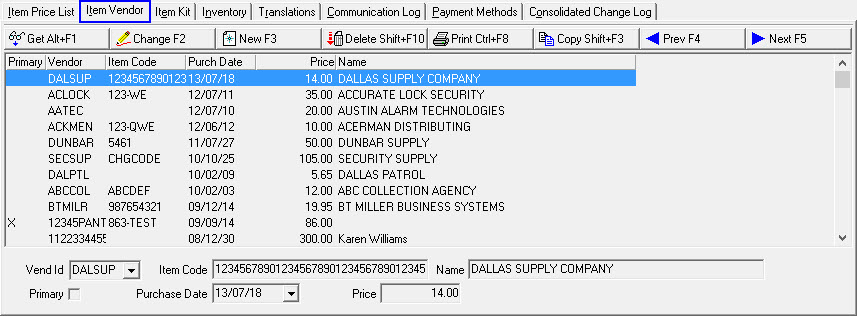
Use the Item Vendor tab to identify the vendors from whom you purchase this item.
Note: When you enter new purchase orders with new vendors, SBN automatically updates this table with the information supplied in the purchase order. Also, when you convert requisitions to purchase orders, SBN incorporates the last price paid for the specified vendor.
The following graphic shows the Item Vendor tab with information displayed.
Field/Column Descriptions
The following table describes the fields and columns used in the Item Vendor tab.
Field/Column |
Description |
Primary |
If this box displays a check mark, the selected vendor is the primary vendor of the item. An x appears in the Primary column. Note: Designate only one vendor as the primary vendor for a particular item. Saving a check in the Primary box for one vendor automatically removes the primary check from all other vendors associated with the item. |
Vendor ID |
Vendor identifier. (This menu originates from program #1758.) |
Item Code |
Vendor’s item number for the product. |
Purchase Date |
Last date item was purchased from this vendor. SBN updates this field for new purchase orders entered with this item/vendor. |
Price |
Last price paid to vendor for this item. SBN updates this field for new purchase orders entered with this item/vendor. |
Name |
Vendor name attached to the Vendor ID. |
Item Kit Tab
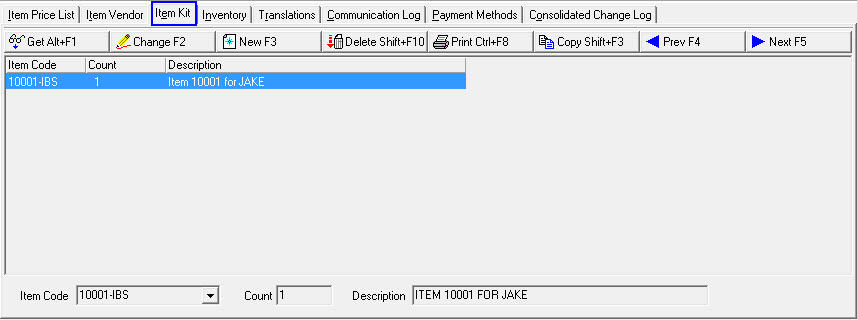
You can combine multiple items to create a kit. This eases data entry and kits list individual items for pulling inventory. Use the grid to add and change items contained in the kit.
Note: When you add items to a kit, SBN automatically calculates Standard Labor, Standard Cost, and Average Cost of the kit by adding the amounts from the individual items in the kit. If option ba265 is off, SBN does not roll up the labor with the kit and you can change the labor for this item.
The following graphic shows the Item Kit tab with information displayed.
Field/Column Descriptions
The following table describes the fields and columns used in the Item Kit tab.
Field/Column |
Description |
Item Code |
Code for individual items. |
Count |
Quantity of the item included in the kit. |
Description |
Text description of the item. |
Inventory Tab
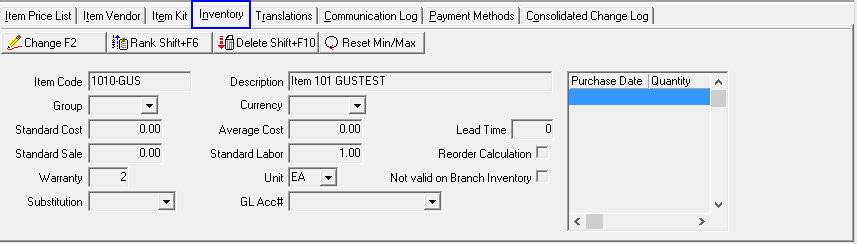
Use the Inventory tab to enter additional information for managing items in inventory. You may also enter information in this tab for items not maintained in inventory as long as you check the Not Valid on Branch Inventory box.
The following graphic shows the Inventory tab with information displayed.
Field/Column Descriptions
The following table describes the fields and columns used in the Inventory tab.
Field/Column |
Description |
Item Code |
ID of item selected in the upper pane of Items. |
Description |
Text description of the item selected. |
Group |
Inventory group code. (This menu maintained by group eight in program #1764.) |
Currency |
Currency type of the standard cost for the item. (This menu originates from program #1635.) |
Standard Cost |
Standard cost for the item. SBN updates this price when running year-end inventory close. O SBN calculates standard cost at inventory close by using average price paid per part, not average of price paid per purchase. O If the selected item is flagged as a Labor item and the item is used in a work order, SBN calculates the labor rate in the WIP and Approval tabs of the work order based on the standard cost of the labor item. O When option bl039 is off, SBN calculates the One Time Fee - in the Details tab of Price Lists (program #1533) - based on (Standard Cost) * (One Time Factor). |
Average Cost |
SBN-generated average cost of the item. SBN updates this cost each time it receives a purchase order. O When option bl039 is on, SBN calculates the One Time Fee - in the Details tab of Price Lists (program #1533) - based on (Average Cost) * (One Time Factor). O Cost computation uses a weighted average. |
Lead Time |
Average time in days to receive the item. |
Standard Sale |
Standard overhead units for this item. |
Standard Labor |
Standard installation units for this item. |
Reorder Calculation |
If this box displays a check mark, SBN includes the item in reorder calculations. |
Warranty |
Period of time, in months, of the warranty for the item. |
Unit |
Unit of measure for the item. (This menu originates from program #1764/9.) |
Not Valid on Branch Inventory |
If this box displays a check mark, SBN excludes this item from branch inventory use. |
Substitution |
Number of item to substitute when the selected item is out of stock. |
GL Acc# |
General ledger account number used for this item. If option bl058 is off, this field displays a menu of GL accounts flagged for inventory use. (This menu originates from program #1835.) |
Purchase Date / Quantity |
Displays a rolling 12-month history of purchases for this item based on the purchase order creation date. |
Viewing Inventory Rank
Use the following steps to view the inventory rank:
1. In the Inventory tab, choose Rank Inventory.
‰ The Inventory Rank dialog box opens.
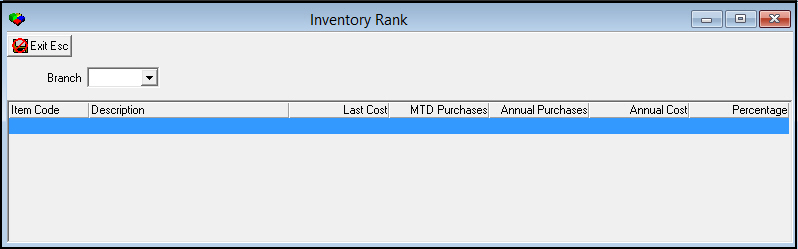
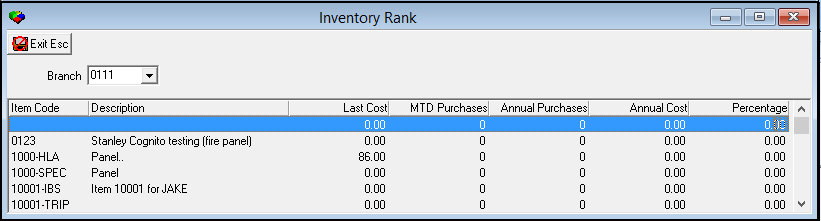
2. In Branch - select the Branch for which you want to view the inventory rank.
‰ The inventory rank for that branch displays.
Translations Tab
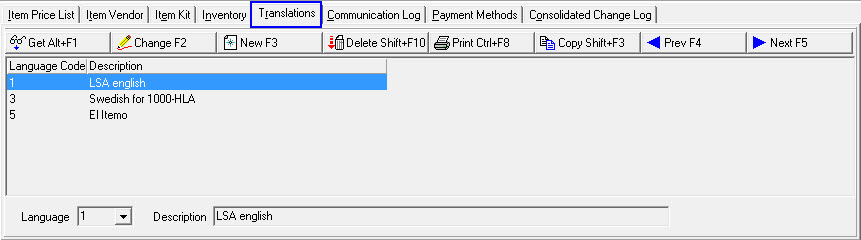
Use the Translations tab to attach translations to each item. The following graphic shows the Translations tab. The tab displays previously defined translations of the selected item.
Field/Column Descriptions
The following table describes the fields and columns used in the Translations tab.
Field/Column |
Description |
Language Code |
Menu that displays choices of ten languages. O Contact IBS before using language codes 11-17. |
Description |
Text translation of item description; you may use both upper and lower case letters. |
Consolidated Change Log
Price Change Log Tab
Use the Price Change Log tab to view changes made to the Price List.
Note: Action 1535/60 controls access to this tab.
The following graphic shows the Price Change Log tab.
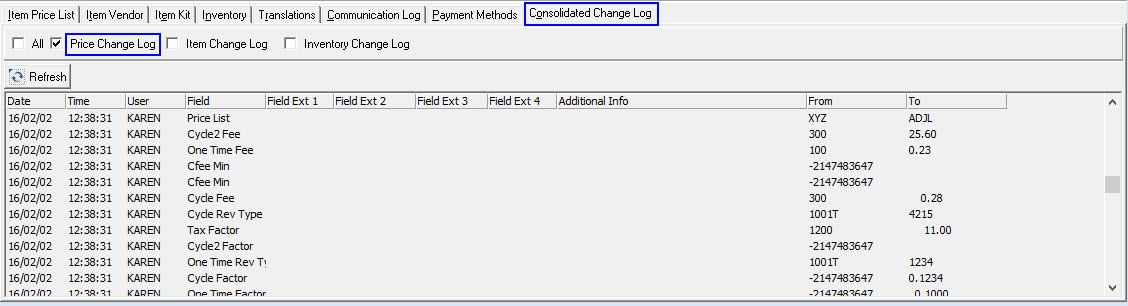
Column Descriptions
The following table describes the columns used in the Price Change Log tab.
Column |
Description |
Date |
Date the price of the selected item was changed. |
Time |
Time the price of the selected item was changed. |
User ID |
ID of the user who changed the price of the selected item. |
Item Code |
Identifies the selected item. |
Price List (1) |
Price list to which the selected item was attached before it was changed. |
Price List (2) |
Price list to which the selected item was attached after it was changed. |
Include (1) |
If this column displays an X, the price included tax before it was changed. |
Include (2) |
If this column displays an X, the price included tax after it was changed. |
One-Time Fee (1) |
Amount of one-time fee included in the price before it was changed. |
One-Time Fee (2) |
Amount of one-time fee included in the price after it was changed. |
One-Time Revenue Type (1) |
The revenue type for the one-time fee before the price was changed. |
One-Time Revenue Type (2) |
The revenue type for the one-time fee after the price was changed. |
One-Time Fee Tax Included (1) |
If this column displays an X, the price included the tax on the one-time fee before it was changed. |
One-Time Fee Tax Included (2) |
If this column displays an X, the price included the tax on the one-time fee after it was changed. |
Cycle Fee (1) |
Amount of the cycle fee included in the price before it was changed. |
Cycle Fee (2) |
Amount of the cycle fee included in the price after it was changed. |
Cycle Revenue Type (1) |
The revenue type for the cycle fee before the price was changed. |
Cycle Revenue Type (2) |
The revenue type for the cycle fee after the price was changed. |
Cycle Fee Tax Included (1) |
If this column displays an X, the price included the tax on the cycle fee before it was changed. |
Cycle Fee Tax Included (2) |
If this column displays an X, the price included the tax on the cycle fee after it was changed. |
Factor (1) |
Tax factor for the item before it was changed. |
Factor (2) |
Tax factor for the item after it was changed. |
Item Change Log Tab
Use the Item Change Log tab to view changes made to the Items List.
Note: Action 1535/70 controls access to this tab.
The following graphic shows the Item Change Log tab.
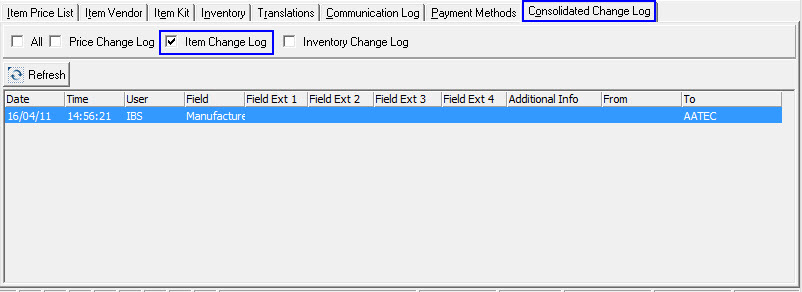
Column Descriptions
The following table describes the columns used in the Item Change Log tab.
Column |
Description |
Date |
Date the selected item changed. |
Time |
Time the selected item changed. |
User ID |
ID of the user who changed the selected item. |
Item Code 2 (1) |
Additional identification of the selected item before it was changed. |
Item Code 2 (2) |
Additional identification of the selected item after it was changed. |
Item Code 3 (1) |
Additional identification of the selected item before it was changed. |
Item Code 3 (2) |
Additional identification of the selected item after it was changed. |
Component (1) |
If this column displays an X, the item was a component before it was changed. |
Component (2) |
If this column displays an X, the item became a component after it was changed. |
Price List (1) |
Identifies the price list to which the item was attached before the item was changed. |
Price List (2) |
Identifies the price list to which the item was attached after the item was changed. |
No Count (1) |
If this column displays an X, the item appeared on invoices without a count before it was changed. |
No Count (2) |
If this column displays an X, the item appeared on invoices without a count after it was changed. |
Service Flag (1) |
If this column displays an X, service was available for the item before it was changed. |
Service Flag (2) |
If this column displays an X, service became available for the item after it was changed. |
Manufacturer ID (1) |
Identifies the manufacturer of the item before the item was changed. |
Manufacturer ID (2) |
Identifies the manufacturer of the item after the item was changed. |
Delete Flag (1) |
If this column displays an X, the item was deleted before it was changed (undeleted). |
Delete Flag (2) |
If this column displays an X, the item was deleted from the items list. |
Rate (1) |
Tax rate that corresponded to the item before the item was changed. |
Rate (2) |
Tax rate that corresponded to the item after the item was changed. |
Inspection Type (1) |
Identifies the frequency and type of inspection required by the inspection authority for the item before the item was changed. |
Inspection Type (2) |
Identifies the frequency and type of inspection required by the inspection authority for the item after the item was changed. |
PEVal 1 (1) |
Earnings value used to calculate earnings per piece for the item before the item was changed. |
PEVal 1 (2) |
Earnings value used to calculate earnings per piece for the item after the item was changed. |
PEVal 2 (1) |
Earnings rate used to calculate earnings per piece for the item before the item was changed. |
PEVal 2 (2) |
Earnings rate used to calculate earnings per piece for the item after the item was changed. |
User Defined Flag (1) |
If this column displays an X, the User Defined flag was set before the item was changed. |
User Defined Flag (2) |
If this column displays an X, the User Defined flag was set when the item was changed. |
Counter ID (1) |
Value of the counter ID before the item was changed. |
Counter ID (2) |
Value of the counter ID after the item was changed. |
Quantity (1) |
Value of the Quantity before the item was changed. |
Quantity (2) |
Value of the Quantity after the item was changed. |
Classification (1) |
Company-defined classification; no functionality in SBN. |
Classification (2) |
Company-defined classification; no functionality in SBN. |
Labor Included in Price (1) |
If this box displays a check mark, the item price includes labor. |
Labor Included in Price (2) |
If this box displays a check mark, the item price includes labor. |
Communication Log Tab
Use the Communication Log tab to enter details for entries that SBN creates in the Communication Log (program #1888) when users delete cycle fees for the selected item. SBN creates a Communication Log entry when a user deletes a cycle fee from any area of SBN including the Cycle Fees tab of Contract Master (program #548) and the Cancel Contract window in Contract Master, or if they use the inet_cycle_fee_del ATOM procedure.
The following graphic shows the Communication Log tab.
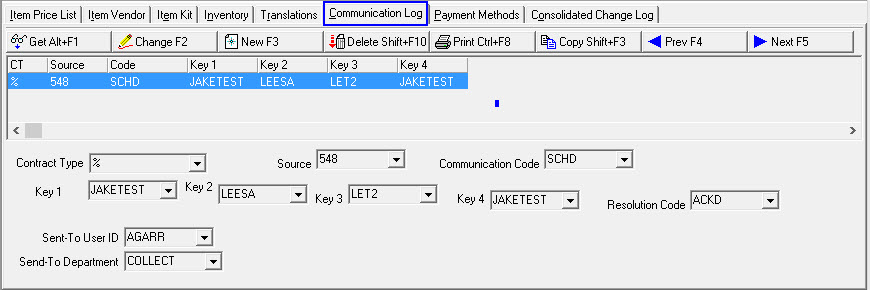
Field/Column Descriptions
The following table describes the fields and columns used in the Communication Log tab.
Column |
Description |
Contract Type |
When a user cancels a cycle fee for the selected item on a contract of the type in this field, SBN creates an entry in the Communication Log (program #1888). (This menu originates from program #1531.) |
Source |
SBN enters the code in this field in the Generating Source field of the Communication Log entry that SBN creates when a user cancels a cycle fee on the selected item. (This menu originates from program #1518.) |
Communication Code |
SBN enters the code in this field in the Communication Code field of the Communication Log entry that SBN creates when a user cancels a cycle fee on the selected item. (This menu originates from program #1517.) |
Key 1 |
SBN enters the code in this field in the Key 1 field of the Communication Log entry that SBN creates when a user cancels a cycle fee on the selected item. (This menu originates from program #1519.) |
Key 2 |
SBN enters the code in this field in the Key 2 field of the Communication Log entry that SBN creates when a user cancels a cycle fee on the selected item. (This menu originates from program #1519.) |
Key 3 |
SBN enters the code in this field in the Key 3 field of the Communication Log entry that SBN creates when a user cancels a cycle fee on the selected item. (This menu originates from program #1519.) |
Key 4 |
SBN enters the code in this field in the Key 4 field of the Communication Log entry that SBN creates when a user cancels a cycle fee on the selected item. (This menu originates from program #1519.) |
Resolution Code |
SBN enters the code in this field in the Resolution Code field of the Communication Log entry that SBN creates when a user cancels a cycle fee on the selected item. (This menu originates from program #1877.) |
Send To User ID |
SBN enters the user ID in this field in the Send To User field of the Communication Log entry that SBN creates when a user cancels a cycle fee on the selected item. |
Send To Department |
SBN enters the department in this field in the Send To Department field of the Communication Log entry that SBN creates when a user cancels a cycle fee on the selected item. (This menu originates from program #1590/28.) |
Payment Methods Tab
Use the Payment Methods tab to define the payment codes that appear in the drop-down menus of the Pymt Code fields on work orders with the selected item and dealer.
The following graphic shows the Payment Methods tab.
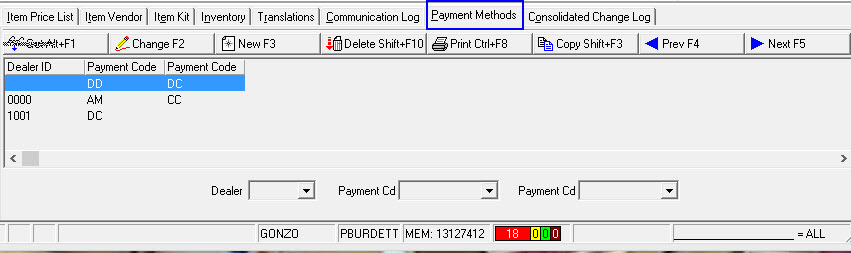
Field/Column Descriptions
The following table describes the fields and columns used in the Payment Methods tab.
Column |
Description |
Dealer ID |
Select a dealer ID for which SBN displays the selected payment codes in the drop-down menus of the Pymt Code fields on work orders with the selected dealer. (This menu originates from program #1537.) |
Payment Code (1) |
Select a payment code that SBN displays in the drop-down menu of the Pymt Code (1) field on work orders with the selected dealer. (This menu originates from program #1528.) |
Payment Code (2) |
Select a payment code that SBN displays in the drop-down menu of the Pymt Code (2) field on work orders with the selected dealer. (This menu originates from program #1528.) |
Consolidated Change Log Tab
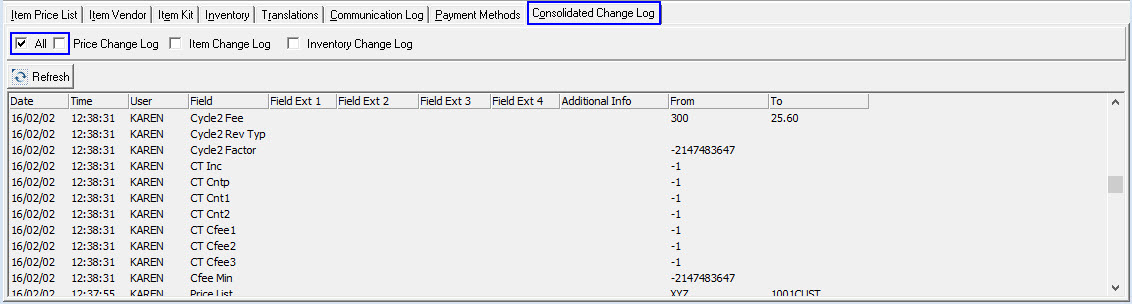
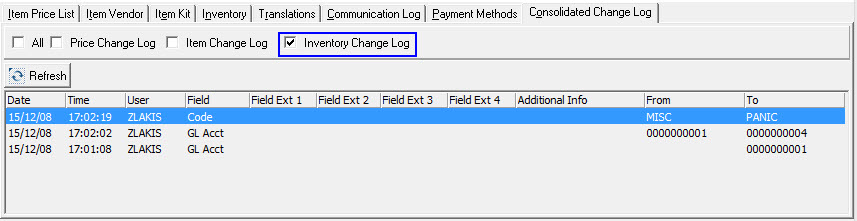
Consolidated Change Log tab added to better sort Items within Inventory, Billings, and Service based off Price Change Log, Item Change Log, Inventory Change Log, or All.
Inventory Change Log
Use the Inventory Change Log to track changes made on the Inventory tab.
Note: Action 1535/100 determines whether this tab appears.
Column Descriptions
The following table describes the columns used in the Inventory Change Log tab.
Column |
Description |
Check Boxes |
|
All |
Displays all criteria. |
Price Change Log |
Displays only items within Price Change Log. |
Item Change Log |
Displays only items within Item Change Log |
Inventory Change Log |
Displays only items within Inventory Change Log.
|
Window Pane |
|
Date |
Date the change was made to the Inventory tab. |
Time |
Time the change was made to the Inventory tab. |
User |
User who made the change to the Inventory tab. |
Field |
Field that was changed on the Inventory tab |
From |
Previous value in the specified field in the Inventory tab. |
To |
Current value in the specified field in the Inventory tab. |
Button Functions
The following table displays the buttons, describes the shortcut keys, actions, and functionality.
Button |
Name |
Shortcut Key |
Action |
Description |
|
Get |
ALT+F1 |
1535/1 |
View item details. |
|
Change |
F2 |
1535/2 |
Change selected item. |
|
New |
F3 |
1535/3 |
Create new item. |
|
Delete |
SHIFT+F10 |
1535/4 |
Delete selected item. |
|
Undelete |
ALT+F10 |
1535/5 |
Restore deleted item. |
|
CTRL+F8 |
1535/6 |
Print selected records. |
|
|
Previous |
F4 |
1535 |
Select last record. |
|
Next |
F5 |
1535 |
Select next record. |
|
Copy |
shift+f3 |
1535 |
Copy the selected item. |
|
Zoom in/out of Sublevel |
f10 |
1535 |
View the sublevel tabs. |
|
Tear Away |
f7 |
1535 |
Tear away selected item and view in a separate window. |
|
Search |
f6 |
1535/ |
Perform a search based on the parameters. |
|
Default Item |
F8 |
1535/7 |
Sets the selected item as default. |
|
Reset Min/Max |
|
1535/45 |
(In the Inventory tab) Resets the Min and Max fields to zero for a selected branch or for all branches in Branch Inventory (program #1757). |













Field Additions and Widths
Additional fields were added across several screens (including Items in program 1535, program 1680, unit-of-measure handling, and the SIM-card and price-list areas), and the phasing group code was widened.
Modifications and Updates to Items
The following table lists modifications and updates to the Items document.
Mod Number |
Date |
Description |
07.79.22728, 08.79.09278 |
07/08/13 |
Added the Min. Cycle Fee and Max. Cycle Fee fields to the Item Price List tab. |
08.79.09239, 07.79.22650 08.79.09224, 07.79.22616 |
07/08/13 |
Added the Reset Min/Max button to the Inventory tab of Items. |
n/a |
08/19/14 |
Images updated. |
08.85.10709, 07.85.24960, 08.83.10107, 07.83.24104 |
10/11/17 |
Updated new Consolidated Change Log tab. |
08.88.11313, 07.88.25751, 08.88.11312, 07.88.25750, 08.88.11308, 07.88.25746 |
04/05/18 |
Added new Description 2 field and Item Inv Grp 1-6. Added Excluded Diff Factor and Item Misc Flg 12-20 (No functionality). Updated image to show new fields. |
08.89.11439, 07.89.25927 |
08/07/18 |
Changes within the Item Vendor and Item Kit tabs are now logged under Consolidated Change Log tab. |
07.91.26349, 08.91.11802, 08.91.11803, 07.91.26350, 07.91.26351, 08.91.11804, 08.91.11805, 07.91.26352, 07.91.26355, 08.91.11809 |
01/27/20 |
Misc Field 12 relabeled to "Self Installed." Images updated. |
07.93.26704, 08.93.12014, 07.93.26706, 08.93.12015 |
10/08/21 |
New Notes and Picture URL fields added. Images updated. |
07.92.26546 |
12/07/21 |
Misc Flag 13 updated to Service (Cycle Fee). Specific to Company 162). |