
ASAP Setup
Everything that must be configured before an installation address can be verified by an agency and before an alarm incident can be sent to a PSAP. Work through the sections in order: central station setup is done once, agency setup is done once per agency, and installation eligibility applies to every account you expect to appear in the queue.
For an overview of what ASAP is and how the pieces fit together, see ASAP - Getting Started. When something does not appear or does not send, see ASAP Troubleshooting.
Central station setup
Done once, before any agency is onboarded.
Onboarding with ASAP
Contact ASAP to begin onboarding. ASAP issues a nine-digit code for each agency you will exchange messages with. You cannot configure an agency in SBN until you have that agency's code.
Options
Set the following in Options (program #1887). Full descriptions of each option are in the SBN Options documentation.
| Option | Purpose |
|---|---|
| asap | Must be on to use the ASAP Address Verification Queue (program #1675) and eDispatch in Dispatch (program #537). Static option — the stored procedures listed under it in the Options documentation must be recompiled after you change it. |
| asapupd | Controls ASAP GEO address updates, which let an agency return corrected latitude and longitude for an installation. Static option — requires a recompile after you change it. |
| asapevt | The monitoring event SBN records in the Alarm Log for ASAP activity. This option must have a value before the eDispatch Chat button can be used; an operator who selects Chat while it is blank gets a message saying so. |
| asapadrs, asapadrv, asapadri | Event extensions recorded when an address is submitted, verified, and rejected. |
| asapalms, asapalma, asapalmr | Event extensions recorded when an incident is submitted to a PSAP, accepted, and rejected. |
| asapdisp, asaparrv, asapclos | Event extensions recorded when the agency is dispatched, arrives, and closes the incident. |
| asapmsgi, asapmsgo, asapmsgr | Event extensions recorded for inbound, outbound, and reply chat messages. |
| asaptmot | Event extension recorded when an incident sent to a PSAP times out. |
A static option only takes effect after the stored procedures that depend on it are recompiled. Until that recompile is done, ASAP behaves as though the option were still off even though the option screen shows it on.
APIEngine
APIEngine carries every ASAP message in both directions.
- APIEngine must be hosted in a public-facing web environment with HTTPS enabled, because the broker sends inbound messages to it directly.
- The certificate provided during onboarding must be installed so the broker can verify your traffic.
- The ASAP block in the APIEngine settings must be filled in with your central station identifiers, the broker address, and the certificate path and password. The field-by-field reference is on the APIEngine ASAP page.
- The broker must be given valid credentials for your APIEngine so its inbound messages are accepted.
Dispatch Service
The Dispatch Service is the only background task ASAP needs. It runs in the SBN Service Manager, wakes on its timer, and hands the queued work to APIEngine. Nothing reaches an agency while it is stopped.
Install it inside your monitoring center and point it at the APIEngine above. Its properties are described on the eDispatch Service page.
Primary database
ASAP processing runs only against the primary database. On a system that has been switched to a backup host, addresses and incidents stay where they are and no messages are sent or received. This is silent — the queue simply stops moving. Confirm you are on the primary before investigating anything else.
Agency setup
Done once per agency, in Police Agencies (program #1546), Fire Agencies (program #1547), or Medical Agencies (program #1552).
Only police, fire, and medical agencies participate in ASAP. Other agency types have the same fields on screen, but an address type of ASAP on them has no effect.
| Field | Value |
|---|---|
| Address Type | ASAP, in uppercase. |
| Address 3 | The nine-digit code ASAP issued for this agency. It must be exactly nine characters. |
| Addr ID (1) | How many addresses are sent to this agency per interval. Left blank, SBN uses 5. |
| Addr ID (2) | The interval in minutes. Left blank, SBN uses 60. |
Addr ID (1) and Addr ID (2) throttle how fast verified addresses leave the queue, so a large agency fills in gradually rather than all at once.
Submitting the agency's addresses
Enter the nine-digit code in Address 3 first, then change Address Type to ASAP and save. On that save SBN asks whether you want to submit all addresses serviced by this agency for validation. Choose Yes.
The prompt appears only when Address Type changes to ASAP during the save. If Address Type was already ASAP before you entered the code, no prompt appears and nothing is submitted. To recover, clear Address Type, save, set it back to ASAP, and save again.
Choosing Yes records one submission request for the agency. It does not write the individual installation entries. The Dispatch Service picks the request up on its next pass and expands it into one entry per eligible installation, so program #1675 stays empty for a short interval after the save and then fills in.
Each agency can be submitted once. Repeating the Address Type change on an agency that has already been submitted does not submit it again, and no prompt appears. From that point on, installations are added individually as described under Installation eligibility.
Installation eligibility
An installation is submitted for verification only when all of the following are true. Each is checked silently — an installation that fails any one of them is skipped with no message and no entry in program #1675.
- The agency is on the installation's action plan, as the police, fire, or medical dispatch agency. Installations whose action plan does not reference the agency are not submitted.
- The installation's monitoring status has Include in PSAP selected in Monitoring Status (program #1540). Installations on a monitoring status without this check box are skipped.
- The installation has an address. An account with no address on file cannot be submitted.
When installations are added after onboarding
Once an agency has been submitted, individual installations are added to the queue as they become eligible:
- The installation's monitoring status changes.
- An ASAP-capable agency is added to the installation's action plan as the police, fire, or medical agency.
If you edit the address of an installation that is already in the queue, SBN resubmits it so the agency can verify the new address.
Zone Type setup
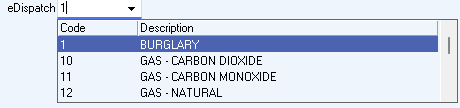
For an alarm incident to be eligible for eDispatch, the zone type of that incident must have a value in the eDispatch field in Zone Types (program #1733). Incidents on zone types with an empty eDispatch field are never offered to the operator.
What must be true before an incident can be eDispatched
When an operator handles an incident in Dispatch (program #537), SBN offers the eDispatch prompt only when all of these hold:
- Option asap is on.
- The incident's zone type has an eDispatch value in program #1733.
- The agency for that dispatch type is on the incident's action plan and has Address Type ASAP with a nine-digit code.
- The installation's address has reached Verified status for that agency in program #1675.
- The incident is not already in the ASAP queue.
A permit number on the installation is sent with the incident when one is present. It is not required.
Checking your setup
- Open Options (program #1887) and confirm option asap is on, then confirm with your database administrator that the stored procedures listed for it have been recompiled.
- Open the SBN Service Manager and confirm the Dispatch Service is running.
- Open the agency in program #1546, #1547, or #1552 and confirm Address Type is ASAP and Address 3 holds the nine-digit code.
- Open Monitoring Status (program #1540) and confirm the monitoring statuses used by the accounts you expect to see have Include in PSAP selected.
- Open a test installation in Data Entry (program #559) and confirm the agency appears on its action plan as the police, fire, or medical agency.
- Open the ASAP Address Verification Queue (program #1675), select the Ready to Process check box, and choose Search. The queue opens with Failed selected, so newly submitted addresses do not appear under the default filter.
If the queue is still empty, work through ASAP Troubleshooting.