
Asset Management
Asset Management
Asset Management
Program #: 603
Module: Accounting
Overview
Use Asset Management (program #603) to search for and view rental contract assets. Rental contract assets appear in the search after a user invoices the initial work order on a rental contract. Use the Jump to Data Entry and Jump to Contract Master buttons to view installation and contract details related to the assets.
This document contains the following topics:
Navigating to Asset Management
Jumping to Data Entry or Contract Master
Navigating to Asset Management
Use the following steps to access the Asset Management program:
1. From the main SBN toolbar, select Menu.
2. From the drop-down menu, select Go To.
3. In the Go To Program dialog box, type in "603" and press [Enter].
w Asset Management opens.
The Asset Management Window
The following graphic shows Asset Management after a search. The Asset Management window contains three panes:
The upper pane, in which you select search parameters for rental contract assets
The middle pane, which displays the results that match your search parameters
The lower pane, which displays information about selected rental contract assets
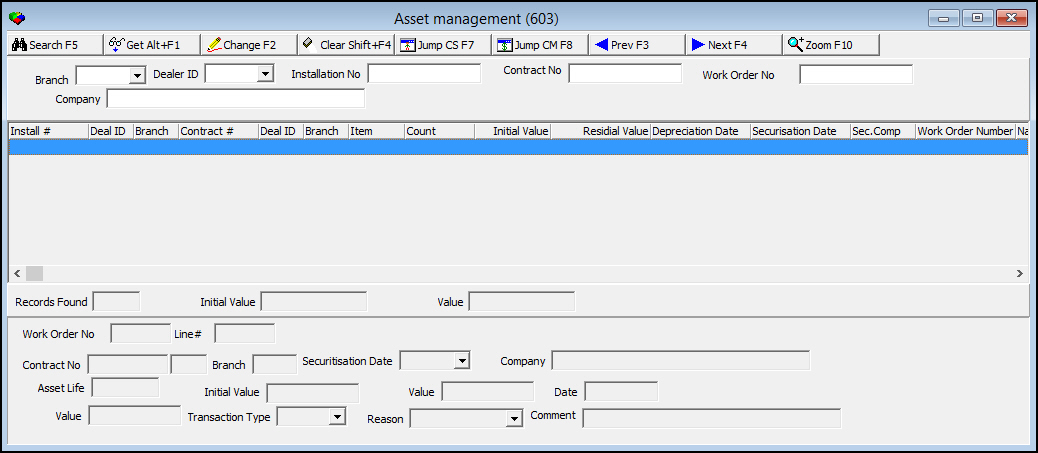
Field Descriptions - Search Parameters
The following table describes the search parameters you may use in the search parameters pane of the Asset Management window.
Field |
Description |
Branch |
You may search for rental contract assets by branch associated with the contract. (This menu originates from program #1530.) |
Dealer ID |
You may search for rental contract assets by dealer associated with the contract. (This menu originates from program #1537.) |
Installation Number |
You may search for rental contract assets by installation number. |
Contract Number |
You may search for rental contract assets by contract number. |
Work Order Number |
You may search for rental contract assets by work order number associated with the contract. |
Company |
You may search for rental contract assets by securitization company name. |
Column Descriptions - Search Results
The following table describes the columns in the search results pane of the Asset Management window.
Column |
Description |
Installation Number |
Installation number of the rental contract asset. |
Dealer ID |
Dealer associated with the installation of the rental contract asset. |
Branch |
Branch associated with the installation of the rental contract asset. |
Contract Number |
Contract number of the rental contract asset. |
Dealer ID |
Dealer associated with the rental contract. |
Branch |
Branch associated with the rental contract. |
Item |
Item code a user included in the rental contract. |
Count |
Quantity of the item a user included in the rental contract. |
Initial Value |
Initial value of the item in the rental contract. |
Residual Value |
Residual value of the item as of the current date. |
Depreciation Date |
Date a user created the initial rental contract work order. |
Securitization Date |
Customer-defined field. (This field has no SBN function.) |
Securitization Company |
Customer-defined field. (This field has no SBN function.) |
Work Order Number |
Rental contract work order number. |
Name |
Customer name on the rental contract. |
Monthly Depreciation |
Amount the asset value depreciates each month. |
Contract Status |
Current status of the rental contract. |
Start Date |
Rental contract start date. |
End Date |
Rental contract end date. |
Primary Term |
Number of months in the primary contract term. |
Field Descriptions - Asset Details
The following table describes the fields in the details pane of the Asset Management window.
Field |
Description |
Records Found |
Number of asset records SBN found in the last search. |
Initial Value |
Sum of all the initial values of the assets currently displayed in the results pane. |
Value |
Sum of all the residual values of the assets currently displayed in the results pane. |
Work Order Number |
Work order associated with the selected rental contract asset. |
Line Number |
Line index number where the selected asset appears on the rental contract work order. |
Contract Number |
Contract number of the selected rental contract asset. |
Dealer
ID |
Dealer associated with the selected rental contract. |
Branch |
Branch associated with the selected rental contract. |
Securitization Date |
Customer-defined field. (This field has no SBN function.) |
Company |
Customer-defined field. (This field has no SBN function.) |
Asset Life |
Primary term of the associated rental contract. |
Initial Value |
Initial value of the selected item in the rental contract. |
Value |
Residual value of the selected item as of the current date. |
Date |
Date a user created the initial rental contract work order. |
Asset Value Adjustment Note: These fields open in Change mode for assets with a value greater than 0. |
|
Value |
New value of the selected item. |
Transaction Type |
Transaction type of the value adjustment. (This menu originates from program #1586. This field becomes required when you enter a new value for an item.) |
Reason |
Reason for the value adjustment. (This menu originates from program #1590/60. This field becomes required when you enter a new value for an item.) |
Comment |
Comment text about the value adjustment. |
Searching for Assets
The Asset Management window displays rental contract assets after you perform a search.
Use the following steps to search for rental contract assets:
1. Select your search parameters.
2. Choose Search.
w The middle pane of the window displays the search results.
3. To perform another search, choose Clear Search Screen to clear the search parameters.
4. Repeat Steps 1-2.
Viewing Asset Details
After you perform a search, you may view the details of a specific rental contract asset by highlighting an asset in the Search Results pane and choosing Get Record. The details of the selected asset appear in the lower pane of the program window. You may also view asset details by choosing Previous Record or Next Record to scroll through assets in the Results pane.
Changing Asset Details
You can change the securitization date and company name associated with any asset in the Asset Details pane. You can adjust the value of assets with a value greater than 0. (See the following section, Changing the Value of an Asset.)
Use the following steps to change the details of an asset:
1. After performing a search, select an asset in the Results pane and choose Get Record.
w SBN displays the details in the Asset Details pane.
2. Choose Change Record.
w Some fields in the details pane open for changes.
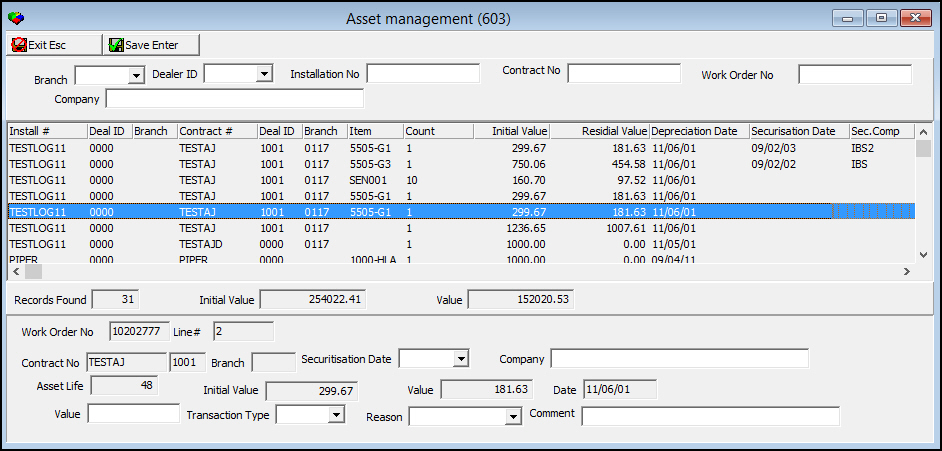
3. Change the asset details as necessary.
4. Choose Save.
Changing the Value of an Asset
You can adjust the value of an asset with a value greater than 0. The Asset Value Adjustment fields do not open in Change mode for assets with a negative value.
Use the following steps to change the value of an asset:
1. After performing a search, select an asset in the Results pane and choose Get Record.
w SBN displays the details in the Asset Details pane.
2. Choose Change Record.
w Some fields in the details pane open for changes.
3. Enter a new amount for the asset in the Value field.
4. Select a Transaction Type and Reason for the asset value change.
5. Enter a Comment for the value change if necessary.
6. Choose Save.
w You may view asset value changes in the Log tab.
Jumping to Data Entry or Contract Master
You may access installation and contract details related to an asset using the Jump to Data Entry and Jump to Contract Master buttons. When you choose Jump to Data Entry, Data Entry Master (program #559) opens with the Work Orders tab selected and displays the details of the installation associated with the selected rental contract asset. When you choose Jump to Contract Master, Contract Master (program #548) opens with the Work Orders tab selected and displays the details of the rental contract associated with the selected asset.
Zooming into the Sublevel
You can access the Log tab in the sublevel of Asset Management by choosing Zoom In/Out of Sublevel.
The Log Tab
The Log tab displays the value adjustment history of the selected rental contract asset.
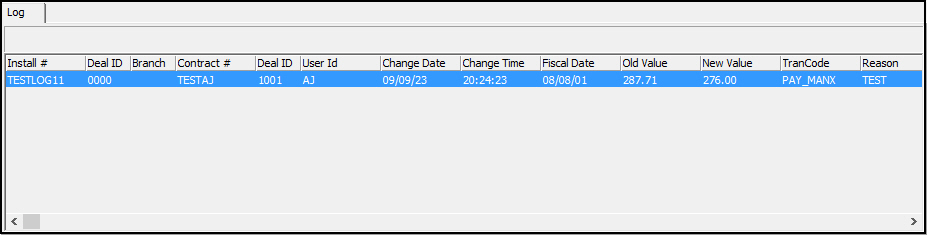
Column Descriptions - Log Tab
The following table describes the columns in the Log tab of the Asset Management window.
Column |
Description |
Installation Number |
Installation number of the rental contract asset. |
Dealer ID |
Dealer associated with the installation of the rental contract asset. |
Branch |
Branch associated with the installation of the rental contract asset. |
Contract Number |
Contract number of the rental contract asset. |
Dealer ID |
Dealer associated with the rental contract. |
User ID |
User who changed the asset value. |
Change Date |
Date on which a user changed the asset value. |
Change Time |
Time at which a user changed the asset value. |
Fiscal Date |
Fiscal date of the rental contract. |
Old Value |
Value of the rental contract asset before the change. |
New Value |
Value of the rental contract asset after the change. |
Transaction Code |
Transaction code associated with the asset value change. |
Reason |
Reason associated with the asset value change. |
Comment |
Comment entered for the asset value change. |
Button Functions
The following table displays the buttons, describes the shortcut keys, actions, and functionality.
Button |
Name |
Shortcut Key |
Action |
Description |
|
Search |
f5 |
603/ 5 |
Search for rental contract assets. |
|
Get Record |
alt+f1 |
603/ 1 |
View the details of rental contract assets. |
|
Change Record |
f2 |
603/ 2 |
Change the details of rental contract assets. |
|
Clear Search Screen |
SHIFT+f4 |
Clear search parameters. |
|
|
Jump to Data Entry |
f7 |
603/ 3 |
Access installation details related to a rental contract asset. |
|
Jump to Contract Master |
f8 |
603/ 4 |
Access rental contract details related to an asset. |
|
Previous Record |
f3 |
View the details of the previous rental contract asset in the Results pane. |
|
|
Next Record |
f4 |
View the details of the next rental contract asset in the Results pane. |
|
|
Zoom In/Out of Sublevel |
f10 |
603/10 |
View the sublevel Log tab. |
|
Exit without saving |
ESC |
Exit without saving changes. |
|
|
Save Existing Record |
ENTER |
Save existing changes. |










Modifications and Updates to Asset Management
The following table lists modifications and updates to the Asset Management document.
Mod Number |
Date |
Description |
| n/a | 7/31/14 |
Images updated. |