
Standard Text
Program #: 1828
Module: System Administration
Overview
Use Standard Text (program #1828) to define standard and non-standard text to assign to action plans in Data Entry and to display in Dispatch (program #537).
Navigating to Standard Text
Use the following steps to navigate to Standard Text:
1. From the main SBN toolbar, select Menu.
2. From the drop-down menu, select Go To.
3. In the Go To Program dialog box, type in "1828" and press Enter.
w The Standard Text program opens.
The Standard Text Window
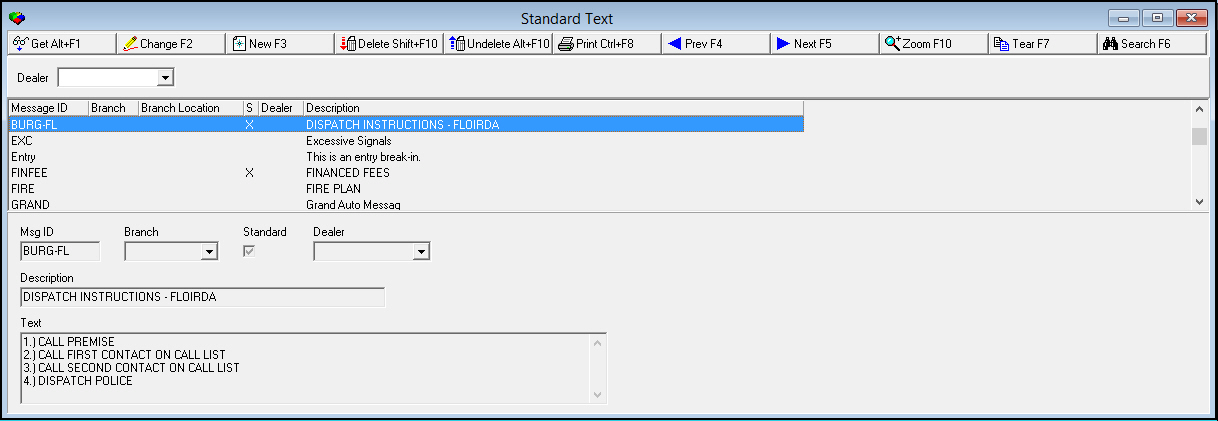
The following graphic displays Standard Text as the program opens. The upper pane displays all previously defined standard texts.
Field/Column Descriptions
The following table describes the fields and columns used in the main window of Standard Text.
Field/Column | Description |
Dealer | You may select a dealer ID to search for standard texts associated with that dealer. (This menu originates from program #1537.) |
Msg ID | Abbreviation that identifies the message. |
Branch | You can select a branch for which the selected message applies. (This menu originates from program #1530.) O If you do not select a branch, the message applies to all branches. O Monitoring operators may view only those messages for branches for which they have authorization. |
Standard | Enter a check mark in this field to denote that the selected message is a standard message. O Each customer defines the meaning of Standard and Non-standard messages. Some customers define the messages as Standard = Customer-specific message Non-standard = Client-specific message O In Dispatch (#537), Standard and Non-standard text each have their own indicator check box; when text is available for the account the box is checked and its label flashes red and blue. Right-click the flashing label to view the text. |
Dealer | Code that identifies the dealer associated with the selected standard text. (This menu originates from program #1537.) O If you select a dealer, the selected standard text applies only to that dealer. O If you leave this field blank, the selected standard text applies to all dealers. |
Description | Text description of the message. |
Text | Text of the message displayed to the Monitoring operator. Note: When creating headers and footers for email and page messages assigned in Action Plans, you may enter spaces after the header text and before the footer text. SBN inserts a line between the header, message, and footer text of alarm emails and pages for each space you enter. |
Searching for Standard Texts by Dealer ID
Use the following steps to search for standard texts by Dealer ID:
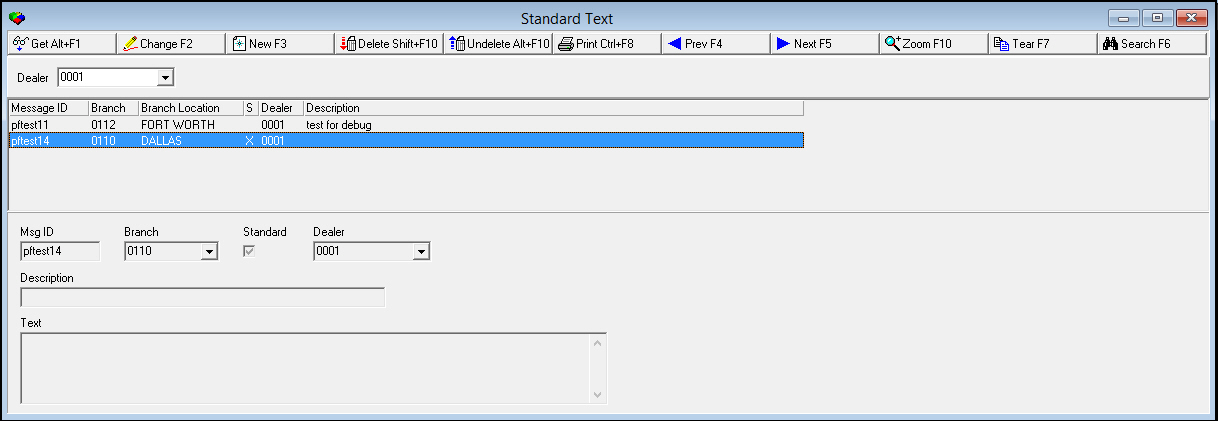
1. In the upper Dealer field, select a dealer ID.
2. Choose Search.
w All standard texts associated with that dealer display in the search results.
Printing a List of Standard Texts
You may print two types of lists of defined standard texts:
- All defined standard texts
- Standard texts associated with a specific dealer
Use the following steps to print a list of all defined standard texts:
1. Choose Print selected records.
w Your printer dialog box opens.
2. Complete the steps necessary to use your printer.
w Your printer prints a list of all defined standard texts.
Use the following steps to print a list of standard texts associated with a specific dealer:
1. Perform a search for standard texts associated with a specific dealer. See Searching for Standard Texts by Dealer ID.
2. Choose Print selected records.
w Your printer dialog box opens.
3. Complete the steps necessary to use your printer.
w Your printer prints a list of standard texts displayed in the search results.
Using Common Functions
See the reference document Common Functions in SBN for more information.
Zooming into the Sublevel
Standard Texts contains a sublevel with two tabs:
- Translations
- Change Log
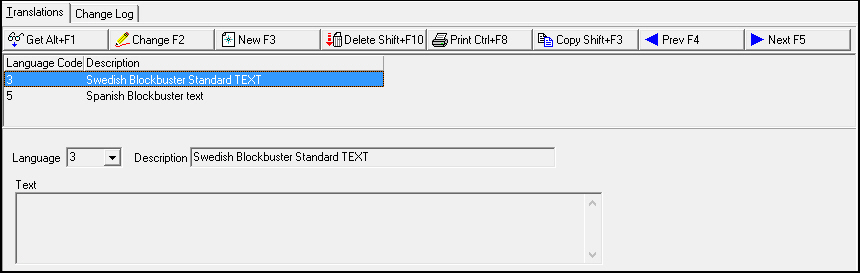
Add translations to a selected standard text in the Translations tab. The standard texts appear in SBN in the user’s language.
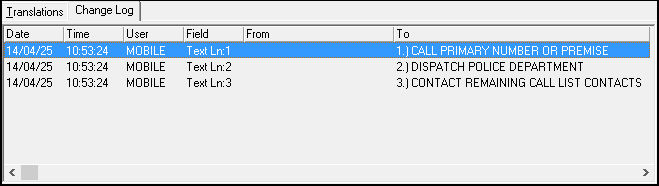
The Change Log tab displays changes made to a selected standard text.
The Translations Tab
The Translations tab appears below the main window.
Field/Column Descriptions
The following table describes the fields and columns used in the Translations tab.
Field/Column | Description |
Language | Code that identifies the language of the associated translation. O Contact IBS before using codes 11-17. |
Description | Description, in the associated language, of the selected standard text. |
Text | Text of the selected standard text. |
The Change Log Tab
The Change Log tab appears below the main window.
Column Descriptions
The following table describes the columns used in the Change Log tab.
Columns | Description |
Date | Date the change was made to the standard text. |
Time | Time the change was made to the standard text in hours, minutes, and seconds. |
User | User ID that made the change to the standard text. |
Field | Field that was changed. |
From | Data that was in the field before the change. |
To | Data that is in the field after the change. |
Button Functions
The following table displays the buttons, describes the shortcut keys, actions, and functionality.
Button | Name | Shortcut Key | Action | Description |
| Get | ALT+F1 | 1828/ 1 | Get record. |
| Change | F2 | 1828/ 2 | Change selected record. |
| New | F3 | 1828/ 3 | Create new record. |
| Delete | SHIFT+F10 | 1828/ 4 | Delete selected record. |
| Undelete | ALT+F10 | 1828/ 5 | Restore deleted record. |
| CTRL+F8 | 1828/ 6 | Print selected records. | |
| Search | F6 | 1828/ 7 | Search for existing records. |
| Zoom | F10 | 1828/ 8 | Zoom in/out of sublevel. |
| Tear | F7 | 1828/ 999 | Display Language code of selected record. |
| Previous | F4 | 1828/ 999 | Select last record. |
| Next | F5 | 1828/ 999 | Select next record. |











Modifications and Updates to Standard Text
The following table lists modifications and updates to the Standard Text document.
Mod Number | Date | Description |
n/a | 08/26/14 | Images updated. |
08.89.11383, 08.89.11382 | 06/08/18 | Both Dealer picklists can now hold sub-dealers (Specific to Company 204). |
07.91.26227, 07.91.26234, 08.91.11737, 08.91.11738 | 07/17/19 | This program is now Dealer Specific. |