
Inspections
Inspections
Inspections
Module: Account Management
Overview
Use the Inspections tab to:
Establish the inspection agency for each account
Track installed devices and their inspection histories
You can define inspections that should occur regularly by attaching the inspection authority to the installation. You can also define inspections for individual devices for the entire system. The Change Log in Data Entry tracks all additions or changes to the information in the Inspections tab.
To access this program, select Data Entry (program #559) from the main menu of SBN, and then choose the Inspections tab.
This document covers the following topics:
The Inspections Tab
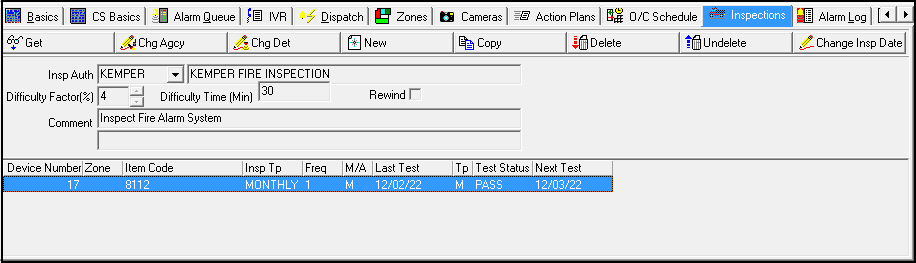
The following graphic shows the Inspections tab with inspection information displayed.
Field Descriptions
The following table describes the fields in the upper pane of the Inspections tab.
Field |
Description |
Inspections Authority |
Inspection authority code. When using the Change Agency button, this becomes a dropdown menu. |
Inspections Authority Code Description |
Name of the inspection agency that has jurisdiction for this installation. (This menu originates from program #1832.) |
Difficulty Factor (%) |
Percentage of standard inspection times to cover additional time required to access the devices, walkthrough, etc.; select zero to skip.
|
Difficulty Time (Min) |
Number of minutes to add to standard inspection times to cover additional time required to access the devices, walkthrough, etc.; type zero to skip.
|
Rewind |
If this box displays a check mark, the system requires a manual rewind after testing. |
Comment |
Comment of up to 100 characters that displays in the Test field on the Fire Inspection Service Request that program #701 generates. |
Column Descriptions
The following table describes the columns used in the lower pane of the Inspections tab.
Column |
Description |
Device Number |
SBN-assigned line index number for each device. O SBN incrementally increases this number as you add new devices to the installation. |
Zone |
Zone to which the device is attached. |
Item Code |
Item number for the device. |
Inspection Type |
Inspection type to attach to the item entered. |
Frequency |
Test frequency to attach to the item entered for the inspection authority. |
Manual/Automatic |
Type of inspection: manual, or alternating between manual and visual, to attach to the item entered for the inspection authority. |
Last Test |
Last scheduled test date for this device. |
Type |
Last type of test performed. |
Test Status |
Status of the last test: l Pass l Fail |
Next Test |
Next scheduled test date, based on the initial last test date plus the frequency, regardless of actual last test date. |
Using Common Functions
See the reference document Common Functions in SBN for more information.
Adding a Device
You may add a device to the Inspection tab for the selected account when you choose New.
Note: Inspection authority must be defined prior to adding devices.
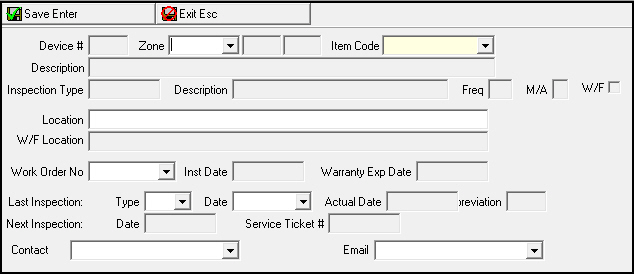
SBN opens a window for entering device information.
Field Descriptions - New Device
The following table describes the fields in this window
Field |
Description |
Device Number |
Number of the monitoring device, which requires inspection. |
Zone |
Zone number to which the device is attached. This is the zone on which SBN receives the test signals. |
Inspection Device (No label) |
Area to which the device is attached. |
Inspection Device Code (No label) |
Code to which the device is attached. |
Item Code |
Item number for the device. (This menu originates from program #1535.) |
Description |
Description for the item code selected. |
Inspection Type |
Inspection type for the item entered. |
Description |
Description of the inspection type. |
Frequency |
Test frequency that is attached to the item entered for this inspection authority. |
Manual/Alternating Inspection Type |
Test type (Manual or Alternating) that is attached to the item entered for this inspection authority. O Alternating indicates switching between manual and visual inspections. |
Water Flow |
If this box displays a check mark, water flow exists at this inspection site. |
Location |
Protected area field for the zone. |
Water Flow Location |
Physical location for the water flow Inspector Test Valve, if applicable. |
Work Order Number |
Work order number used to install this device. |
Installation Date |
Scheduled installation date for the work order entered. |
Warranty Expiration Date |
Warranty expiration date; based on the scheduled installation date plus the warranty period attached to the installation on the Contract Master. |
Last Inspection Type |
Choice of M (manual) or V (visual). This entry is required on a new entry if the last inspection date is entered. |
Last Inspection Date |
Date the inspection was scheduled to occur. |
Last Inspection Actual Date |
Actual date the last inspection occurred. |
Last Inspection Status |
Either PASS or FAIL based on information from the remove test function. |
Next Inspection Date |
Next inspection date. SBN updates this field when the last inspection date is changed and is based on the frequency. |
Service Ticket Number |
Service ticket number that was created for the next inspection. |
Contact |
Name of the customer to contact about this device. (This menu originates from the contacts listed in the Action Plans tab for this installation. You may also type in a contact name; SBN does not validate this field.) |
Email address of the customer to contact about this device. (This menu originates from the contacts listed in the Action Plans tab for this installation. You may also type in an email address; SBN does not validate this field.) Note: When you run inspection tickets in program #701, SBN automatically populates the Contact and Email fields of the generated service request with the names and email addresses of the contacts from the Inspections tab for all devices on the inspection ticket. |
.
Use the following steps to add new device information:
1. In Inspections, choose Add new record.
‰ The Device Information window opens with some fields open.
Note: When option sv078 is on, SBN does not allow changes to the Inspections tab while a service request associated with an inspection device is open.
2. Select a zone, if applicable.
3. Select an Item Code.
‰ When you select an item code, SBN defaults information into the following fields:
Description
Inspection Type
Freq
M/A
W/F
Type
Date
4. Complete additional fields, if applicable.
‰ If you select a work order number from Work Order No, SBN defaults information into the following fields:
Inst Date
Warranty Exp Date
5. Choose Save [ENTER].
‰ SBN assigns a device number to the device and adds the device to the main Inspections tab.
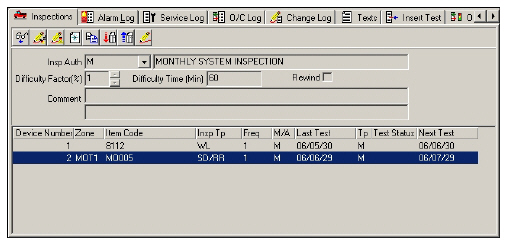
Changing Inspection Details
The Inspections tab contains three different change functions:
Changing Inspection Agency Information
Changing Detector Information
Changing Last Inspection Date for Multiple Devices
Note: When option sv078 is on, SBN does not allow changes to the Inspections tab while a service request associated with an inspection device is open.
Changing Inspection Agency Information
With the Change Inspection Agency Info function you can change or add
Inspection authority
Difficulty factors
Requirement for a manual rewind after testing
Comments that display in the Fire Inspection service request
Note: When you select an inspection authority from Insp Auth, SBN enters information into Inspections Authority Code Description (unlabeled field to the right of Insp Auth).
Use the following steps to change Inspection Agency information:
1. In the Inspections tab, select the device for which you want to change the information about the inspection agency.
2. Double-click your selection or choose Get Record.
3. Choose Change Inspection Agency Info.
‰ Fields in the tab open for changes.
Note: For information on the fields, see Field Descriptions.
4. Complete the fields, as needed.
5. Choose Save Existing Record.
Changing Detector Information
With the Change Detector Information function you can change some details about devices for a selected inspection. When you choose Change Detector Information SBN opens a new window.
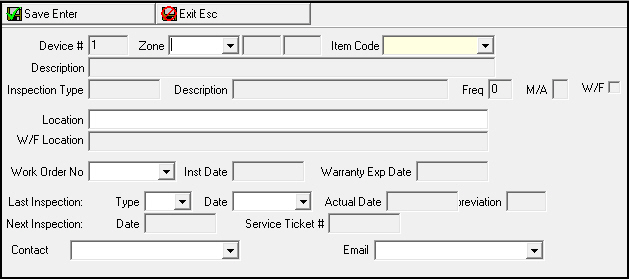
Use the following steps to change detector information:
1. In the Inspections tab, select the inspection for which you want to change device information.
2. Double-click your selection or choose Get Record.
3. Choose Change Detector Information.
‰ SBN displays the device information in a new window with selected fields open for changes.
4. Change information, as needed.
5. Choose Save Existing Record.
‰ SBN returns you to the main Inspections tab.
Changing Last Inspection Date for Multiple Devices
With the Change Inspection Date function you can change the last inspection date for multiple devices at an installation at one time.
Note: Option ba382 allows monitor status adjustment that triggers this code. This option is off by default. However, when the option is on and if the installation monitoring changes to an active status, the detector inspection dates attached to the installation update automatically to reflect the status change date.
Use the following steps to change the Last Inspection Date for multiple devices:
1. In Inspections, press and hold [Shift] and click each device for which you want to change the last inspection date
‰ SBN highlights the selected devices with blue background.
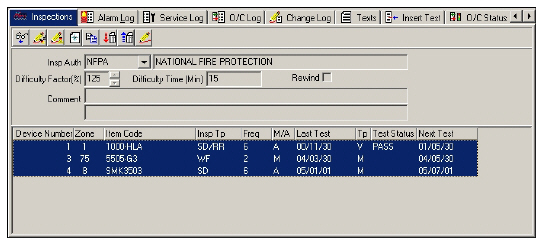
2. Choose Change Inspection Date.
‰ The Device Information window opens with the Last Inspection Date field open.
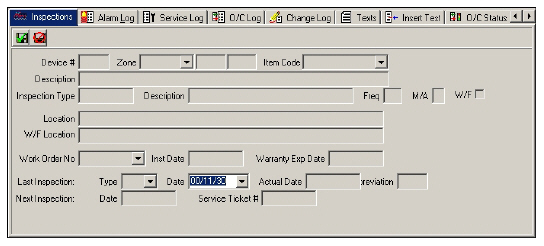
3. Select the new date.
4. Choose Save Existing Record.
‰ SBN asks if you are sure.
5. Choose Yes.
‰ SBN returns you to the main Inspections tab. All selected devices display the new date.
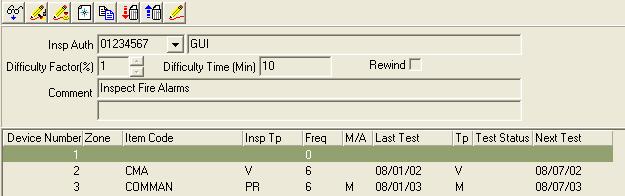
Note: Changes made to the last inspection date in the Inspections tab update to the Change Log tab as well.
Button Functions
The following table displays the buttons, describes the shortcut keys, actions, and functionality.
Button |
Name |
Shortcut Key |
Action |
Description |
|
Get Record |
alt+F1 |
559/81 |
Get record. |
|
Change Inspection Agency Info |
alt+F2 |
559/82 |
Change or add inspection authority, difficulty factors, requirement for a manual rewind after testing, and comments. |
|
Change Detector Information |
F2 |
559/83 |
Change details about devices for a selected inspection. |
|
New record |
F3 |
559/84 |
Add a device to the Inspection tab for the selected account. |
|
Copy current record |
shift+F3 |
559/85 |
Copy current record. |
|
Delete Record |
shift+F10 |
559/86 |
Delete record. |
|
Select Record to Undelete |
ctrl+F10 |
559/87 |
Select record to undelete. |
|
Change Inspection Date |
shift+F2 |
559/88 |
Change the last inspection date for multiple devices at an installation. |
|
Exit |
Esc |
559 |
Exit without saving. |
|
Save |
Enter |
559 |
Save existing record. |










Modifications and Updates to Inspections
The following table lists modifications and updates to the Inspections document.
Mod Number |
Date |
Description |
n/a |
09/11/14 |
Images updated. |