
Work Order Queue
Module: Accounting
Overview
Use the Work Order Queue to search the database of open work orders to identify records that need additional action.
Note: Based on your profile in Branch User Access (program #1740), some restrictions may apply to your search.
To access this program, select Work Order Queue (program #574) from the main menu of SBN.
The Work Order Queue
The following graphic shows the Work Order Queue after a search.
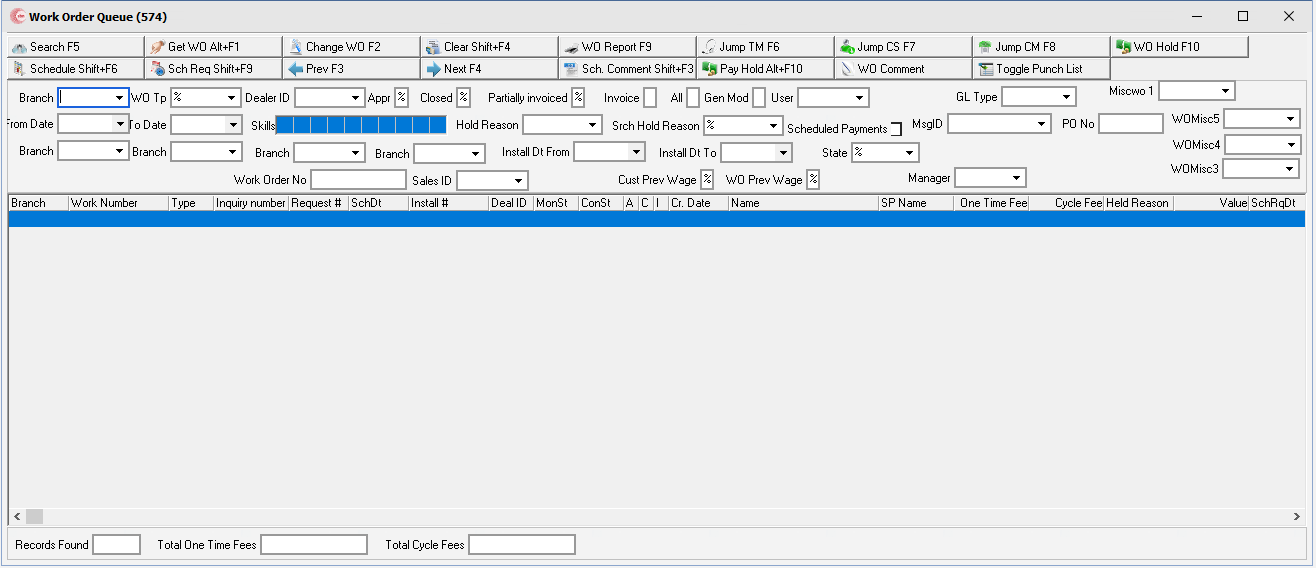
Note: The Work Order Queue restricts work orders by dealer profile on the installation as well as on branches. Applies to work orders not assigned to a contract.
Field Descriptions — Search and Detail Panes
The following table describes the search parameters in the upper pane of the window and the detail fields in the lower pane of the window.
Field |
Description |
Branch |
Specific branch to include in this search. (This menu originates from program #1530.) Note: You may enter a % in this field to include all branches in a search, or enter a partial branch number with a %, such as 01% to include branches 011, 012, and 013 in a search. |
WO Tp |
Work Order Type to include in this search. (This menu originates from program #1796.) Note: Increased field length to 10 characters. |
Dealer ID |
Specific dealer ID to include in this search. (This menu originates from program #1537.) |
Appr |
Type an X in this field to limit the search to approved work orders. O If you type a %, the search ignores the approval status. O If you leave this field blank, the search includes only unapproved work orders. |
Closed |
Type an X in this field to limit the search to closed work orders. O If you type a %, the search includes work orders regardless of the close status. O If you leave this field blank, the search includes only open work orders. |
Partially Invoiced |
Type an X in this field to limit the search to partially invoiced work orders. O This field defaults to the % wildcard. If you use the %, the search includes all work orders. O If you leave this field blank, the search includes only work orders that have not been invoiced. |
Invoice |
Type an X in this field to limit the search to totally invoiced work orders. O When you select this search parameter, the From and To dates refer to the dates in which work orders were invoiced. O If you leave this field blank, the From and To dates refer to the dates in which work orders were created. O Option ba319, when on, defines the maximum number of days you may include in your search. |
All |
Type an X is this field to include both partially and totally invoiced work orders. |
Gen Mod |
Limits the search to work orders created in various programs: l = Work orders created in Marketing l = Work orders created in Contract Master or Monitoring l = Work orders created in Service l = Work orders created in Data Entry |
User |
ID of the user who created the work order to include in this search. (This menu originates from program #1811.) |
GL Type |
Specific GL Subscriber Type on work order contracts to include in this search. (This menu originates from program #1578.) If you leave this field blank, the search includes all work orders. |
From Date |
You may select a range of dates in which work orders were created to include in this search. Select the beginning date of the range. O If you choose Invoice as a search parameter, the From and To dates refer to the dates in which work orders were invoiced. O Option ba319, when on, defines the maximum number of days you may include in your search. |
To Date |
You may select a range of dates in which work orders were created to include in this search. Select the ending date of the range. O If you choose Invoice as a search parameter, the From and To dates refer to the dates in which work orders were invoiced. O Option ba319, when on, defines the maximum number of days you may include in your search. |
Skills |
You may search with up to 10 skills of users who created work orders. (This menu originates from program #1862.) |
Hold Reason |
Hold Reason to attach to the work order. (This menu originates from program #1896.) To limit the search results by Hold Reason, use the Search Hold Reason field. |
Search Hold Reason |
Hold Reason to limit the search results. This field accepts wildcards for partial searches. |
Scheduled Payments |
Displays all work orders that contain scheduled payments. |
Msg ID |
Filter the queue by the Message ID assigned to the work orders on the work order form. Select a Message ID from the drop-down menu. (This menu originates from program #1766.) |
PO No |
You may enter a purchase order number to search for work orders associated with that purchase order. This field accepts the % wildcard. If you leave this field blank, the search includes all work orders. |
Branch |
Specific branch to include in this search. (This menu originates from program #1530.) Note: You may enter a % in this field to include all branches in a search, or enter a partial branch number with a %, such as 01% to include branches 011, 012, and 013 in a search. |
Branch |
Specific branch to include in this search. (This menu originates from program #1530.) Note: You may enter a % in this field to include all branches in a search, or enter a partial branch number with a %, such as 01% to include branches 011, 012, and 013 in a search. |
Branch |
Specific branch to include in this search. (This menu originates from program #1530.) Note: You may enter a % in this field to include all branches in a search, or enter a partial branch number with a %, such as 01% to include branches 011, 012, and 013 in a search. |
Branch |
Specific branch to include in this search. (This menu originates from program #1530.) Note: You may enter a % in this field to include all branches in a search, or enter a partial branch number with a %, such as 01% to include branches 011, 012, and 013 in a search. |
Install Dt From |
Filters search results from the scheduled installation date. |
Install DT To |
Filters search results to the scheduled installation date. |
State |
Filters installation search results by the selected state. |
Records Found |
Number of work orders found in a particular search. |
Total One-Time Fees |
Displays the total one-time fees for all work orders in the queue. |
Total Cycle Fees |
Displays the total cycle fees for all work orders in the queue. |
WOMisc3 |
Customer-defined miscellaneous field. (This menu originates from program #1704/21.) |
WOMisc4 |
Displays Customer-defined miscellaneous field associated with the work order, if any. (This menu originates from program #1704/22.) |
WOMisc5 |
Displays Customer-defined miscellaneous field associated with the work order, if any. (This menu originates from program #1704/23.) |
Work Order No |
Search for Work Order by the Work Order Number. |
Sales ID |
Select the Sales ID associated the Work Order. |
Cust Prev Wage |
Customer Prevailing Wage. (This must be set by IBS). |
WO Prev Wage |
Work Order Prevailing Wage. (This must be set by IBS). |
Manager |
Manager associated with the Work Order. |
Column Descriptions — Search Results
The following table describes the columns used in the search results pane.
Column |
Description |
Branch |
Branch associated with this installation. |
Work Order Number |
SBN-generated number that identifies this work order. |
Type |
Work order type for this work order. |
Quote No |
Inquiry number. |
Schedule Date |
Installation schedule date, if applicable. |
Installation Number |
Identification number that identifies this account. |
Dealer ID |
Dealer ID number, which represents the servicing dealer for this installation. If no installation has been set up for this customer, then SBN displays the dealer ID from the Marketing record. |
Monitoring Status |
Current monitoring status of this installation. |
Contract Status |
Current contract status of this installation. |
Approved |
If this column displays an x,this work order has been approved. |
Closed |
If this column displays an x, this work order has been closed. |
Partial Invoice |
If this column displays an x, this work order has been partially invoiced. |
Creation Date |
Date this work order was created. |
Name |
Name on this installation. O The text in this column may appear in various colors. For more information, see Defining Colors. |
Sales Person Name |
Name of the sales person for this installation. |
One Time Fee |
Total amount of one-time fees on the work order. |
Cycle Fee |
Total amount of cycle fees on the work order. |
Held Reason |
Reason that this work order is being held, if any. |
Value |
Total value of this work order, excluding taxes. |
Schedule Request Date |
Displays the reserve date when a dispatcher reserves this work order. |
User ID |
ID of the user who created the selected work order. |
Misc Date 1 |
Displays the Misc Date 1 from the selected work order. |
Misc Date 2 |
Displays the Misc Date 2 from the selected work order. |
Misc Date 3 |
Displays the Misc Date 3 from the selected work order. |
Misc Date 4 |
Displays the Misc Date 4 from the selected work order. |
Status |
Status of the selected work order. |
Tran Date |
Transaction Date. |
Comment |
Schedule comment from the work order. |
Units |
Number of units needed to complete this work order. This number originates from the work type and size entered when you schedule the job in Schedule Request. |
Allocated Units |
Number of units allocated in the schedule board for the work order. |
Unit Count |
Labor units. If items in the work order have labor units attached, this number equals the number in the Units column. |
Price List Group |
Price list group to which the installation associated with the selected work order is attached. (The text color of a Price List Group is defined in program #1771.) |
Installation Group 1 |
Installations associated with the selected work order assigned to Group 1 in Financial Groups (program #1868) display here. |
Installation Group 2 |
Installations associated with the selected work order assigned to Group 2 in Financial Groups (program #1868) display here. |
Work Order Sales ID |
ID of the salesperson associated with the selected work order. |
Email Address |
Email address where the invoice for the selected work order will be sent. |
Fax Number |
Fax number of the work order installation. |
Email Invoice |
If this column displays an x,the invoice for this work order will be e-mailed. |
Fax Invoice |
If this column displays an x,the invoice for this work order will be faxed. |
Mail Invoice |
If this column displays an x,the invoice for this work order will be printed and mailed. |
Installation Sales ID |
This ID is defined from the Basics tab of the installation the work order is assigned to. |
Contract Number |
Contract number associated with the work order. |
Account Number |
Billing account number associated with the work order. |
Close User ID |
User who closed the work order. If a work order is open, this column is blank. |
PO Number |
Purchase order number associated with the work order, if any. |
City |
City where the installation is located. |
State |
State where the installation is located. |
Last Comment |
The most recent comment added to the work order. |
Original Installer |
Records the installer ID of the "original installer". |
Follow Up Date |
Displays the date (input) from program #548 and displays within column. |
Manager ID |
Displays the name of the manager selected. |
WO Percent |
Work order percentage complete column which is taken from the actual work order. |
Mgr Percent |
Displays the percentage which the manager perceives to be complete so far of the work order. |
Manager Dropdown List |
Displays a list of managers user can select from. |
WOMisc5 |
Customer-defined miscellaneous field. (This menu originates from program #1704/23.) |
Approval Date |
Displays the approval date of a Work Order. |
WOMisc3 |
Displays Customer-defined miscellaneous field associated with the work order, if any. (This menu originates from program #1704/21.) |
WOMisc4 |
Displays Customer-defined miscellaneous field associated with the work order, if any. (This menu originates from program #1704/22.) |
Miscwo 1 |
Displays Customer-defined miscellaneous field associated with the work order, if any. (This menu originates from program #1704/49.) |
Manager 2-4 |
Displays the name of the manager selected. |
Folow Up Date 2-4 |
Displays the Follow Date the Manager selected from the Work Order. |
Percent Complete 2-4 |
Displays the Percent Complete of a Work Order that a Manager perceives as being complete. |
Labor included in Price |
Any labor wage that will be included in the price. |
Punch Item |
Latest Punch Items. |
Punch Follow Up Date |
Punch Follow Up Date. (Punches on the current date or past the current date turn red.) |
Misc2-4, 9-10 |
Misc. fields 2-4, 9-10 results. These fields are customer-specific and originate from the same free-form fields within the Work Order screen. |
Searching for Work Orders
From the Work Order Queue you can search for specific open work orders that may need additional action.
Note: Work orders on inquiries from Marketing (program #562) with no dealer ID appear in search results.
Use the following steps to search for open work orders:
1. In Work Order Queue, select your search parameters.
Note: The four additional Branch fields allow searches to include up to five branches at a time.
2. Choose Search.
w The search results appear in the middle pane of the window.
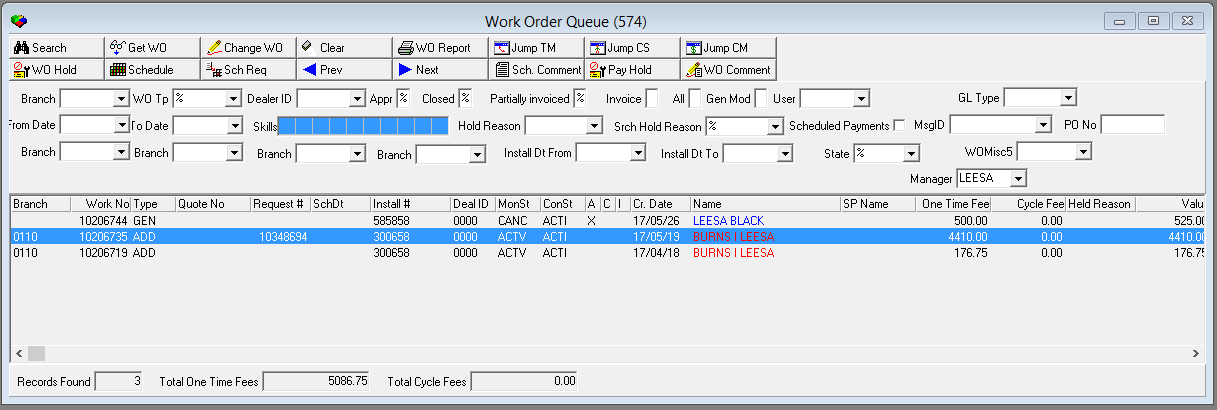
Note: If option ba107 is on, SBN displays only those work orders attached to contracts with the same contract branch that is in the user’s branch access profile. If option ba375 is on, allows Ctrl/Acc restriction in Work Order Queue. You are only able to view records in branches specified by the user profile.
3. Choose Clear Search Screen to begin a new search.
Defining Colors
You may define the following options to display text in the Name column in legal Windows colors according to the scheduling status of work orders in the queue:
woqcolns — defines the color for unscheduled work orders
woqcolsp — defines the color for work orders scheduled in the past
woqcols1 — defines the color for work orders scheduled between today and (today + X number of days)
woqcols2 — defines the color for work orders scheduled between (today + X number of days) and (today + Y number of days)
woqcols3 — defines the color for work orders scheduled after (today + Y number of days)
woqd12 — defines the X variable in these options
woqd23 — defines the Y variable in these options
ba466 — when on, SBN uses the work order schedule request date to determine the text color. When off, SBN uses the date in the Misc Date 4 field of the work order to determine the text color.
Note: You may bypass the definitions for these options in WO Held Reasons (program #1876).
Using Common Functions
See the reference document Common Functions in SBN for more information.
Note: After you search for a group of open work orders, you can view details of any work order in the search results.
Note: From the Work Order Queue, you can change information on any open work order.
Printing the Work Order Report
From the Work Order Queue you can access Work Order Report (report #2002). The Work Order Report provides detailed information about the work order, including
Equipment to install
Instructions for installation
Picking information for items
To access this report, choose Print Work Order Report. You may also access this report by choosing Work Order Report (report #2002) from the main menu of SBN.
Jumping to Other Modules
From the Work Order Queue you can jump to other modules within SBN to complete procedures that then allow you to close work orders. Before you jump to another module, you must first select a work order from the list.
To jump to Marketing, choose Jump to Marketing Basics. Action 574/4 controls access to this function.
To jump to Data Entry, choose Jump to Data Entry. Action 574/5 controls access to this function.
To jump to Contract Master, choose Jump to Contract Master. Action 574/6 controls access to this function.
To jump to Schedule Board, choose Schedule Board. Action 547/7 controls access to this function.
Holding a Work Order
From the Work Order Queue you can add or change hold reasons attached to work orders. SBN automatically removes the hold reason when you close a work order.
Note: If option ba322 is on, you can attach a hold reason to a closed work order. This function is for information only and does not prevent installation or other processing.
Use the following steps to apply a hold reason to a work order:
1. In Work Order Queue, select the work order to which you want to apply a hold reason.
2. In Hold Reason — select the hold reason you want to apply.
3. Choose Hold Work Order.
w SBN asks you to confirm that you want to place this work order on hold.
4. Choose Yes.
w SBN applies the hold reason to the selected work order. The changes to the hold status appear in both the Marketing Event Log and the Data Entry Change Log.
Scheduling a Request
From the Work Order Queue you can schedule a technician to complete work on a work order.
Use the following steps to schedule a request:
1. Select the work order you want to schedule.
2. Choose Schedule Request.
w The Schedule Request dialog box appears.
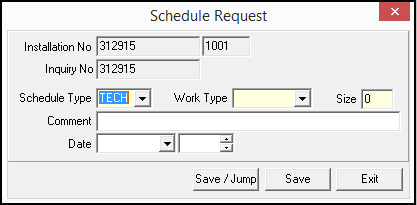
Note: The Schedule Type, Work Type, and Size fields may default from the work order. You may override the default values. If you change the Work Type, the Schedule Type will default with the Resource type associated with that work type in Work Types (program #1526.) If you change the Work Type and the unit count in the work order is blank or 0, the unit count in the Size field adjusts to the number of units associated with the new work type.
Note: If option ba333 is on, the Size field defaults with the unit count from the stdlabr calculation in the work order (if the unit count is greater than 0). If the unit count is 0 or a negative number, the Size field fills with a suggested count. If option ba333 is off, the Size field fills with a suggested count. You may override either a default unit count or a suggested count.
3. Complete the fields.
4. Choose Save or choose Save/Jump.
Note: When you select a date and choose Save, and later choose Schedule Board, the Schedule Board opens with all available resources of the selected type for the selected date.
Note: When you choose Save/Jump, SBN saves the request and opens the Schedule Board with all available resources of the selected type displayed for the selected date.
w SBN logs the schedule request in the Data Entry Change Log.
Adding or Changing a Schedule Comment
From the Work Order Queue, on a scheduled work order, you can add a schedule comment or change an existing schedule comment.
Note: Action 574/11 controls access to the Schedule Comment button.
Use the following steps to add or change a schedule comment:
1. In Work Order Queue, perform a search for open work orders.
2. From the search results, select the scheduled work order to which you want to add or change a schedule comment.
3. Choose Enter Schedule Comment.
w The Schedule Comment dialog box opens.

Note: The Comment field defaults to any current schedule comment for the work order.
4. Type a schedule comment or change the defaulted comment.
5. Choose Save.
w SBN displays the schedule comment in the Comment column of the Work Order Queue and in the marketing Event Log of the associated account.
Releasing Scheduled Payments
The Pay Hold button allows you to reset the date on the scheduled payment created using the retention profile functionality.
To update the Due Date on the Scheduled Payment:
1. In Work Order Queue, perform a search for open work orders with the Schedule Payments check box selected.
2. From the search results, select the work order you want to update the due date on the schedule payment.
3. Choose Pay Hold.
w SBN displays a confirmation message:
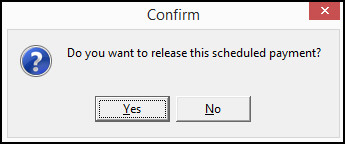
w All remaining scheduled payments now display today's date as the due date.
Defining the Work Order Queue as a Generating Source
Use option comso574 to define the Work Order Queue as a generating source for the Communication Log (program #1888). When this option is defined and the focus of SBN is on the Work Order Queue when you access the Communication Log by choosing [CTRL+W], any entry you create in the Communication Log displays 574 in the Generating Source field.
Define option comso574 with the internal number of the source for the Work Order Queue.
Run the following query in Interactive SQL (program #550) to find the internal number:
SELECT * from &communication_sources&
The internal number to use is the number in the s#scr column that corresponds with 574 in the Source column.

Toggling the Punch List
Select the Toggle Punch List button to display the Punch List screen.
Adding Punch List Items
Use the sublevel tab to add punch list items to a phase. When you add a new Punch Item to a list of existing Punch Items, SBN populates the Role1 and Role2 fields with the existing Role1 and Role2 users.
Use the following steps to add punch list items to a phase:
1. Select the phase to which you want to add punch list items.
2. Double-click your selection or choose Get.
3. Choose Zoom In/Out of Sublevel.
w The Punch List tab appears.
4. In the Punch List tab, choose New.
w The fields in the lower pane of the Punch List tab open for change.
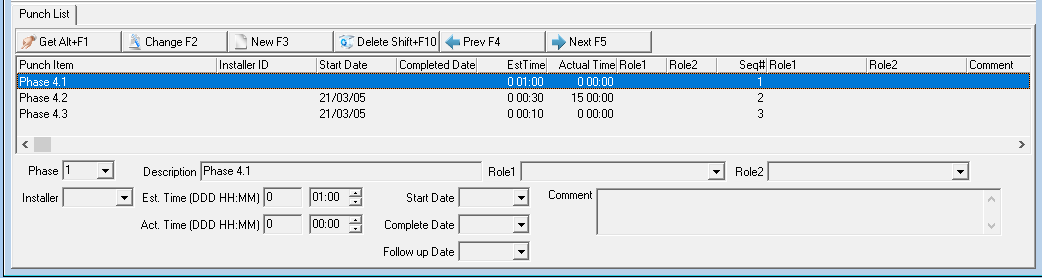
5. In Phase, choose a Punch Item from the drop-down menu.
6. Complete the remaining fields, as needed.
7. Choose Save.
Field/Column Descriptions
The following table describes the fields and columns used in the Punch List sublevel tab.
Field/Column |
Description |
Punch Item |
Phase number and Punch Item assigned to the selected phase. (This menu originates from the sublevel of program #1846.) |
Installer ID |
Installer ID attached to this punch list item. |
Start Date |
Start date for this punch list item. |
Completed Date |
Estimated date of completion for this punch list item. |
Est. Time (DDD:HH:MM) |
Estimated time marker for the installer indicating when they were en route in the Service Queue or Scheduler. |
Act. Time (DDD:HH:MM) |
Actual time the installer was en route in the Service Queue or Scheduling (program #563). |
Role 1 |
Personnel ID specified for Role 1 of this punch list item. (Specify IDs in the Role 1 check box from program #1811.) |
Role 2 |
Personnel ID specified for Role 2 of this punch list item. (Specify IDs in the Role 2 check box from program #1811.) |
Sequence # |
Identifies in what order the punch items will take place. (This menu originates in Installation Phasing, program #1846.) |
Role 1 (full name) |
First and last name of the installer specified for Role 1. (This name originates from program #1811.) |
Role 2 (full name) |
First and last name of the installer specified for Role 2. (This name originates from program #1811.) |
Comment |
Comment field for additional information (2000 characters). |
Follow Up Date |
Follow up date for this punch list item. (If no date is selected, the date will default to following day). |
Column Descriptions — Search Results
The following table describes the columns used in the search results pane.
Column |
Description |
Branch |
Branch associated with this installation. |
Work Order Number |
SBN-generated number that identifies this work order. |
Type |
Work order type for this work order. |
Quote No |
Inquiry number. |
Schedule Date |
Installation schedule date, if applicable. |
Installation Number |
Identification number that identifies this account. |
Dealer ID |
Dealer ID number, which represents the servicing dealer for this installation. If no installation has been set up for this customer, then SBN displays the dealer ID from the Marketing record. |
Monitoring Status |
Current monitoring status of this installation. |
Contract Status |
Current contract status of this installation. |
Approved |
If this column displays an x,this work order has been approved. |
Closed |
If this column displays an x, this work order has been closed. |
Partial Invoice |
If this column displays an x, this work order has been partially invoiced. |
Creation Date |
Date this work order was created. |
Name |
Name on this installation. O The text in this column may appear in various colors. For more information, see Defining Colors. |
Sales Person Name |
Name of the sales person for this installation. |
One Time Fee |
Total amount of one-time fees on the work order. |
Cycle Fee |
Total amount of cycle fees on the work order. |
Held Reason |
Reason that this work order is being held, if any. |
Value |
Total value of this work order, excluding taxes. |
Schedule Request Date |
Displays the reserve date when a dispatcher reserves this work order. |
User ID |
ID of the user who created the selected work order. |
Misc Date 1 |
Displays the Misc Date 1 from the selected work order. |
Misc Date 2 |
Displays the Misc Date 2 from the selected work order. |
Misc Date 3 |
Displays the Misc Date 3 from the selected work order. |
Misc Date 4 |
Displays the Misc Date 4 from the selected work order. |
Status |
Status of the selected work order. |
Tran Date |
Transaction Date. |
Comment |
Schedule comment from the work order. |
Units |
Number of units needed to complete this work order. This number originates from the work type and size entered when you schedule the job in Schedule Request. |
Allocated Units |
Number of units allocated in the schedule board for the work order. |
Unit Count |
Labor units. If items in the work order have labor units attached, this number equals the number in the Units column. |
Price List Group |
Price list group to which the installation associated with the selected work order is attached. (The text color of a Price List Group is defined in program #1771.) |
Installation Group 1 |
Installations associated with the selected work order assigned to Group 1 in Financial Groups (program #1868) display here. |
Installation Group 2 |
Installations associated with the selected work order assigned to Group 2 in Financial Groups (program #1868) display here. |
Work Order Sales ID |
ID of the salesperson associated with the selected work order. |
Email Address |
Email address where the invoice for the selected work order will be sent. |
Fax Number |
Fax number of the work order installation. |
Email Invoice |
If this column displays an x,the invoice for this work order will be e-mailed. |
Fax Invoice |
If this column displays an x,the invoice for this work order will be faxed. |
Mail Invoice |
If this column displays an x,the invoice for this work order will be printed and mailed. |
Installation Sales ID |
This ID is defined from the Basics tab of the installation the work order is assigned to. |
Contract Number |
Contract number associated with the work order. |
Account Number |
Billing account number associated with the work order. |
Close User ID |
User who closed the work order. If a work order is open, this column is blank. |
PO Number |
Purchase order number associated with the work order, if any. |
City |
City where the installation is located. |
State |
State where the installation is located. |
Last Comment |
The most recent comment added to the work order. |
Original Installer |
Records the installer ID of the "original installer". |
Follow Up Date |
Displays the date (input) from program #548 and displays within column. |
Manager ID |
Displays the name of the manager selected. |
WO Percent |
Work order percentage complete column which is taken from the actual work order. |
Mgr Percent |
Displays the percentage which the manager perceives to be complete so far of the work order. |
Manager Dropdown List |
Displays a list of managers user can select from. |
WOMisc5 |
Customer-defined miscellaneous field. (This menu originates from program #1704/23.) |
Approval Date |
Displays the approval date of a Work Order. |
WOMisc3 |
Displays Customer-defined miscellaneous field associated with the work order, if any. (This menu originates from program #1704/21.) |
WOMisc4 |
Displays Customer-defined miscellaneous field associated with the work order, if any. (This menu originates from program #1704/22.) |
Miscwo 1 |
Displays Customer-defined miscellaneous field associated with the work order, if any. (This menu originates from program #1704/49.) |
Manager 2-4 |
Displays the name of the manager selected. |
Folow Up Date 2-4 |
Displays the Follow Date the Manager selected from the Work Order. |
Percent Complete 2-4 |
Displays the Percent Complete of a Work Order that a Manager perceives as being complete. |
Labor included in Price |
Any labor wage that will be included in the price. |
Punch Item |
Latest Punch Items. |
Punch Follow Up Date |
Punch Follow Up Date. (Punches on the current date or past the current date turn red.) |
Button Functions
The following table displays the buttons, describes the shortcut keys, actions, and functionality.
Button |
Name |
Shortcut Key |
Action |
Description |
|
Search |
f5 |
574/ 9 |
Search for open work orders. |
|
Get Work Order |
alt+f1 |
574/ 1 |
View details of selected work order. |
|
Change Work Order |
f2 |
574/ 2 |
Change details of selected work order. |
|
Clear Search Screen |
shift+f4 |
574 |
Begin new search. |
|
Print Work Order Report |
f9 |
574/ 3 |
Access Work Order Report. |
|
Jump to Marketing Basics |
f6 |
574/ 4 |
Jump to Marketing. |
|
Jump to Data Entry |
f7 |
574/ 5 |
Jump to Data Entry. |
|
Jump to Contract Master |
f8 |
574/ 6 |
Jump to Contract Master. |
|
Hold Work Order |
f10 |
574/10 |
Apply hold reason to work order. |
|
Schedule Board |
shift+f6 |
574/ 7 |
Jump to Schedule Board. |
|
Schedule Request |
shift+f9 |
574/ 8 |
Schedule a technician to complete work on a work order. |
|
Previous Record |
f3 |
574 |
Go to previous record. |
|
Next Record |
f4 |
574 |
Go to next record. |
|
Enter schedule comment |
shift+f3 |
574/11 |
Add or change schedule comment. |
|
Hold Payment |
alt+f10 |
574/12 |
Reset date on scheduled payment. |
|
WO Comment |
N/A |
574/24 |
Add a comment to the work order, which is displayed in the Last Comment column. |
|
Exit without saving |
esc |
574 |
Exit without saving changes to selected record. |
|
Save Existing Record |
enter |
574 |
Save changes to selected record. |
|
Toggle Punch List |
|
574/25 |
When selected, the punch list will show all phasing punch list items attached to the work order selected in the work order queue grid |



















Editable Date Fields
Date fields in work orders and program 574 can be edited.
Modifications and Updates to Work Order Queue
The following table lists modifications and updates to the Work Order Queue document.
Mod Number |
Date |
Description |
08.79.09410, 07.79.22963 08.79.09405, 07.79.22956 |
9/25/13 |
Added the City, State and Last Comment columns to the grid; also added a WO Comment button. |
n/a |
8/06/14 |
Images updated. |
07.81.23560, 07.81.23529, 08.81.09747, 07.81.23521, 08.81.09745 |
9/18/14 |
Added new search fields. |
08.86.10812, 07.86.25115, 07.86.25106, 08.86.10807 |
12/06/16 |
Added new "Original Installer" tab which records the installer ID. |
07.87.25330, 08.87.11019 |
06/30/17 |
Added new column "Follow-up Date" which displays a follow-up date that was inputted through program #548 |
07.87.25342, 08.87.11025 |
07/10/17 |
Added three new columns "Manager ID, WO Percent, and Mgr Percent" and two new boxes -the work order to select a manager’s ID and for the manager to place what they perceive to be the completion of the work order. |
n/a |
07/10/17 |
Updated image to display new manager drop down list. |
07.88.25758, 08.88.11321 |
04/04/18 |
Added new "Approval Date" column within Work Order Queue. |
08.88.11310, 07.88.25740, 07.88.25787, 08.88.11336 |
04/19/18 |
Added three fields, Miscwo1, WOMisc3 and WOMisc4, to 574 grid and the same 3 dropdowns were added above the grid for searching. Changes to any of the 3 fields creates a change log entry. These fields are customer defined. |
08.88.11344, 07.88.25805, 08.88.11341, 07.88.25782 |
04/26/18 |
9 additional Manager fields in the Work Order and also in the Work Order Queue grid: Manager 2, Follow Up Date 2, Percent Complete 2, Manager 3, Follow Up Date 3, Percent Complete 3, Manager 4, Follow Up Date 4, and Percent Complete 4. GUI Messages Field Headers 16542-16550 and 16551-16559 Grid Column Headers were added within program #1606 for corresponding Manager fields. |
07.92.26507, 08.92.11905, 07.92.26520, 08.92.11914 |
10/15/20 |
New Toggle Punch List button added. When selected the punch list will show all phasing punch list items attached to the work order selected in the work order queue grid |
07.92.26584, 08.92.11954, 07.92.26601, 08.92.11960 |
10/05/21 |
New Follow up Date field in Punch List pane. New Punch Item and Punch Follow Up Date columns added to Search Results pane. |
07.93.26788, 08.93.12073, 07.93.26789, 08.93.12074, 07.93.26790, 08.93.12075 |
11/16/21 |
New Misc. Fields 2-4, 9, and 10 added as columns within Work Order Queue. (Customer-specific) |