
Operational Imports
Operational Imports
Operational Imports
Program #: 541
Module: Account Management
Overview
Use Operational Imports (program #541) to import open/close schedule changes into Import Interface (program #1889). When you post the imported records in Import Interface, SBN loads the schedule changes into the Open/Close Schedule tab of Data Entry (program #559).
You can access Operational Imports from program #1889 by choosing the Import button.
Navigating to Operational Imports
Use the following steps to navigate to Operational Imports:
1. From the main SBN toolbar, select Menu.
2. From the drop-down menu, select Go To.
3. In the Go To Program dialog box, type in "541" and press Enter.
w Operational Imports opens.
The Operational Imports Window
The following graphic shows Operational Imports as the program opens.
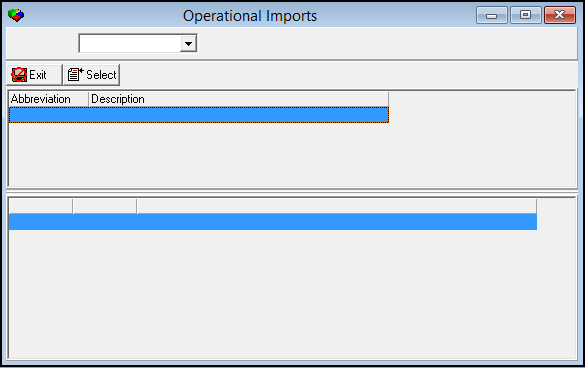
The program features a dropdown menu at the top of the window. Use the dropdown menu to select your company, and the program will then show the imports available for your company.
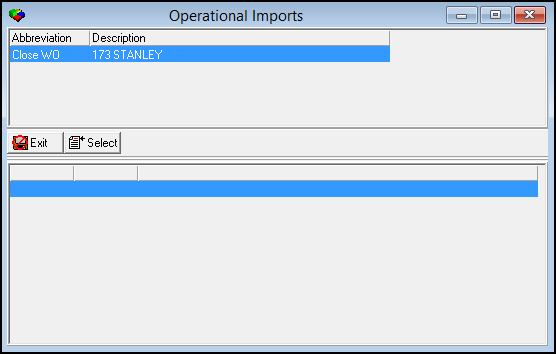
Column Descriptions
The following table describes the columns used in Operational Imports.
Column |
Description |
Abbreviation |
Displays the type of import. |
Description |
Displays the SBN-assigned system number of the import and the name of the import. |
Importing Schedule Changes
Use the following steps to import a schedule change:
1. Select the import type you want to run.
2. Choose Select Import.
w The Operational Import selection window opens.
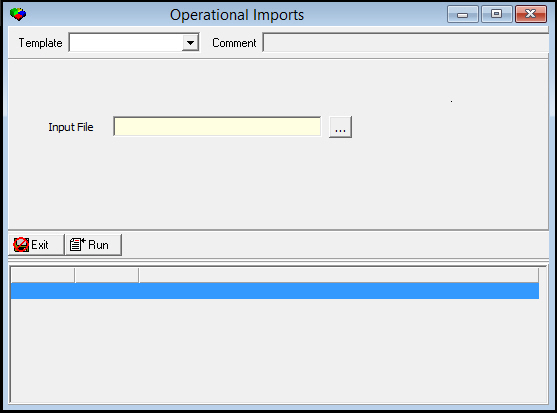
3. Type the name
of the file you want to import or choose  to search
for a file.
to search
for a file.
Note: The Template menu originates from program #1591. Templates defined for the selected import type appear in the menu.
4. Choose Run Import.
5. Choose Save.
w SBN imports the schedule changes into the Open/Close Schedule tab of Data Entry (program #559).
Import Formats
Currently SBN uses operational imports 159 Open/Close Composite Schedules and 160 Open/Close Base Schedules. Each import requires a unique format.
Import 159
When you import records using Import 159, they are visible in Import Interface (program #1889) in Composite mode. After posting imported records in program #1889, you can see the schedule changes from Import 159 in the O/C Schedule tab of program #559 in Composite Schedule view.
The following table displays the data you may enter in import 159 in a .txt file (separated by tabs).
Data |
Description |
CID |
Customer ID of the schedule you want to change. |
SCH# |
Open/close schedule number you want to change. |
DATE |
Date in the schedule you want to change. |
TYPE |
Enter letter O for Open, letter C for Close. Enter a decimal point (.) to reset to the standard schedule. |
TIME |
Enter the time for the location to open. |
MEXC |
Enter an X if you want SBN to create alarm signals for Missed Opens/Closes. |
EEXC |
Enter an X if you want SBN to create alarm signals for Early Opens/Closes. |
LEXC |
Enter an X if you want SBN to create alarm signals for Late Opens/Closes. |
Import 160
Records imported using Import 160 are visible in Basic mode of Import Interface (program #1889). After posting imported records in program #1889, you can see the schedule changes from Import 160 in the Special Periods tabs of the O/C Schedule tab of program #559.
The following table displays the data you may enter in import 160 in a .txt file (separated by tabs).
Data |
Description |
CID |
Customer ID of the schedule you want to change. |
SCHIX |
Open/close schedule number you want to change. |
SDATE |
Start date of the schedule period you want to change. |
EDATE |
End date of the schedule period you want to change. |
OTIMC |
Enter a + or leave blank. A + indicates the open time occurs on the following day but should remain attached to the current day; used for stores with an open or close time that occurs past midnight. |
OTIM |
Open time to enter in the schedule. |
CTIMC |
Enter a + or leave blank. A + indicates the close time occurs on the following day but should remain attached to the current day; used for stores with an open or close time that occurs past midnight. |
CTIM |
Close time to enter in the schedule. |
DAYSTYR |
Enter an X for each day of the week that the scheduled open/close times apply, and a space for each day of the week that the open/close times do not apply. The order for the days of the week that SBN recognizes is MTWThFSaSu. Note: This is one field with seven places, so if you want the schedule to apply to all days of the week, Monday through Sunday, you would enter XXXXXXX. If you want the schedule to apply to all days except Saturday, you would enter XXXXX X. |
MOEXC |
Enter an X if you want SBN to create alarm signals for Missed Opens. |
LOEXC |
Enter an X if you want SBN to create alarm signals for Late Opens. |
ECEXC |
Enter an X if you want SBN to create alarm signals for Early Closes. |
MCEXC |
Enter an X if you want SBN to create alarm signals for Missed Closes. |
EOEXC |
Enter an X if you want SBN to create alarm signals for Early Opens. |
LCEXC |
Enter an X if you want SBN to create alarm signals for Late Closes. |
Import 173
Work order numbers imported using Import 173 are approved and closed as they are imported. Closed work orders will be flagged as such in the Work Orders tab in Data Entry Master and Basics (program #559).
The following table displays the data you may enter into an Excel spreadsheet for Import 173:
.
Data |
Description |
Work Order Number |
Incoming work order to be approved. |
Related Programs
The following table lists programs related to Operational Imports.
Program |
Number |
Document Link |
Description |
Import Interface |
1889 |
Import Interface |
Import customer data into SBN database tables. When you import data using Operational Imports, SBN moves it into program #1889 where you may post the imported records. You can access Operational Imports from program #1889 by choosing the Import button. |
Open/Close Schedule Tab |
N/A |
Set up open/close schedules that allow SBN to track open/close statuses for zones of an installation. |
|
Data Entry Master and Basics |
559 |
Program from which you can access the Open/Close Schedule tab. View and maintain customer installation records. |
Button Functions
The following table displays the buttons, describes the shortcut keys, actions, and functionality.
Button |
Name |
Shortcut Key |
Action |
Description |
|
Exit without saving |
esc |
541 |
Exit without saving changes to selected record. |
|
Select Import |
f6 |
541 |
Import a schedule change. |


Modifications and Updates to Operational Imports
The following table lists modifications and updates to the Operational Imports document.
Mod Number |
Date |
Description |
07.02.21025 |
09/30/11 |
document created |
07.81.23510, 07.81.23509, 08.81.09681, 07.81.23419, 08.81.09669, 07.81.23403 |
07/16/14 |
Added Import 173 description and instructions. |
n/a |
09/12/14 |
Images updated. |