
Scheduled Holidays
Scheduled Holidays
Scheduled Holidays
Module: System Administration
Overview
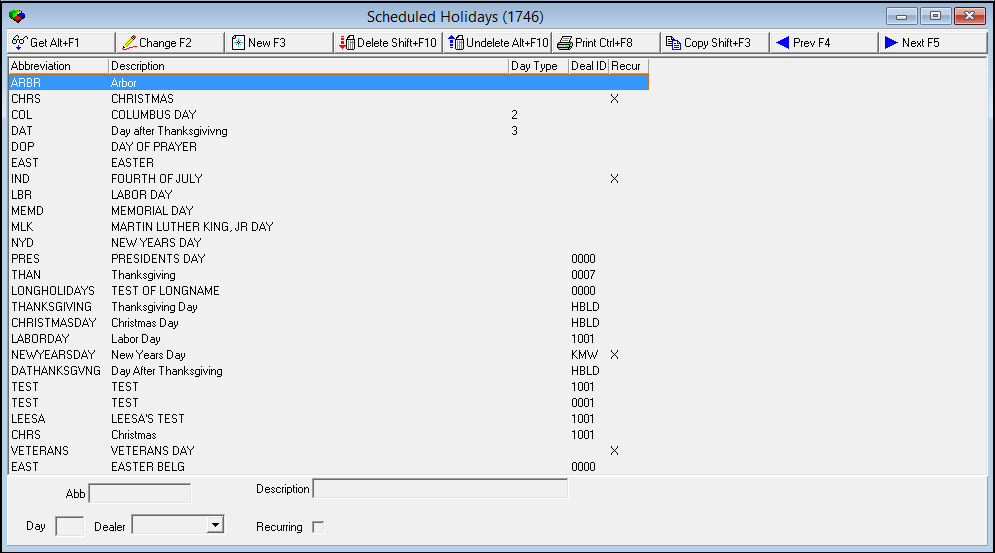
Use Scheduled Holidays (program #1746) to define scheduled holidays. The menu of defined scheduled holidays appears in the Day field of the Holiday grid in the Open/Close Schedule tab of Data Entry (program #559). If your user profile includes a dealer ID, the menu displays only those scheduled holidays
-
Associated with the same dealer ID
-
Not associated with any dealer ID
To access this program, select Scheduled Holidays (program #1746) from the main menu of SBN.
The Scheduled Holidays Window
The following graphic displays Scheduled Holidays as the program opens. The upper pane displays all previously defined scheduled holidays.
Field/Column Descriptions
The following table describes the fields and columns used in Scheduled Holidays.
|
Field/Column |
Description |
|
Abbreviation |
Abbreviation that identifies the scheduled holiday. |
|
Description |
Text description of the scheduled holiday. |
|
Day |
Identifies the type of special day schedule to use for the selected holiday. |
|
Dealer |
ID of the dealer associated with the selected scheduled holiday. |
|
Recurring |
This check box indicates whether the holiday will occur every year. Background task 81 in program #1712 creates an entry in the oc_calendar table for exactly one year from the selected holiday's date. |
Using Common Functions
See the reference document Common Functions in SBN for more information.
Note: Action 1746/5 controls access to the Undelete button and functionality.
Associating a Scheduled Holiday with a Dealer ID
Use the Dealer field to associate a scheduled holiday with a specific dealer ID. Menus of scheduled holidays display only those scheduled holidays associated with the same dealer ID as in the user’s profile and those scheduled holidays not associated with a dealer ID.
You may create duplicate scheduled holidays and associate them with different dealer IDs.
Example 1
You may want to use this functionality if the dealers for your company are from different countries and celebrate different holidays. For example, country A may celebrate a national holiday that country B does not celebrate. You could create a scheduled holiday for the national holiday of country A and associate that it with the ID of the dealer for country A.
Users whose profiles include the dealer ID for country A see the national holiday in their menu of Scheduled Holidays. However, users whose profiles include the dealer ID for country B do not see that national holiday in their menu of Scheduled Holidays.
Example 2
You may want to create duplicate scheduled holidays and associate them with different dealer IDs if the dealers for your company are from different countries. The different countries celebrate the same holiday, but on different days of the week. For example, country C celebrates Thanksgiving on a Monday and thus would use a special day schedule of 2. Country D celebrates Thanksgiving on a Thursday and would use a special day schedule of 4. You could create duplicate scheduled holidays for Thanksgiving and
-
Associate one with the ID of the dealer for company C
-
Change the code of the special day schedule in the duplicate scheduled holiday and associate it with the ID of the dealer for company D
Users whose profiles include the dealer ID for company C see Thanksgiving - defined as using Day 2 - in their menu of Scheduled Holidays. Users whose profiles include the dealer ID for company D see Thanksgiving - defined as using Day 4 - in their menu of Scheduled Holidays.
Button Functions
The following table displays the buttons, describes the shortcut keys, actions, and functionality.
|
Button |
Name |
Shortcut Key |
Action |
Description |
|
|
Get |
ALT+F1 |
1746/ 1 |
Get record. |
|
|
Change |
F2 |
1746/ 2 |
Change selected record. |
|
|
New |
F3 |
1746/ 3 |
Create new record. |
|
|
Delete |
SHIFT+F10 |
1746/ 4 |
Delete selected record. |
|
|
Undelete |
ALT+F10 |
1746/ 5 |
Restore deleted record. |
|
|
|
CTRL+F8 |
1746/ 6 |
Print selected records. |
|
|
Copy |
SHIFT+F3 |
1746/ 999 |
Copy selected field. |
|
|
Previous |
F4 |
1746/ 999 |
Select last record. |
|
|
Next |
F5 |
1746/ 999 |
Select next record. |









Modifications and Updates to Scheduled Holidays
The following table lists modifications and updates to the Scheduled Holidays document.
|
Mod Number |
Date |
Description |
|
n/a |
8/25/14 |
Images updated. |