
Signal Based Billing
Signal Based Billing
Signal Based Billing
Program #: 602
Module: Accounting
Overview
The term "signal-based billing" refers collectively to the processes involved that automatically assign accurately priced services and items to installations. This allows you to:
-
Automate billing for recurring monitoring-related services.
-
Automate billing for permits.
-
Automate billing for dispatches.
-
Automate billing when the number of events exceed a pre-established limit.
Signal-based billing includes four distinct processes:
-
Determination of usage by data and activity
-
Discovery through data and activity - immediate, nightly, or monthly
-
Pricing and placement - immediate or month-end
-
Approval
This document contains the following topics:
The Signal Based Billing Window
Toggling through Fees by Status
The Signal Based Billing Window
The following graphic shows Signal Based Billing window as the program opens. The window displays the imports available for your company.
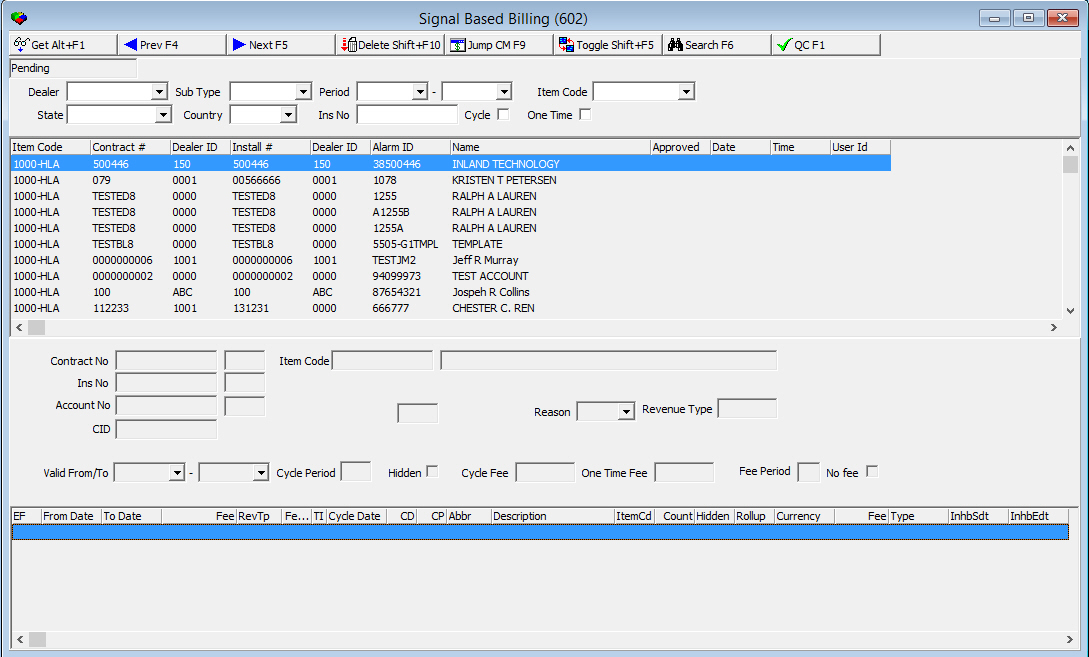
Field/Column Descriptions
The following table describes the columns shown in the search pane of the Signal Based Billing window.
|
Field |
Description |
|
Dealer |
Dealer's ID number. This list originates from program #1537. |
|
Sub Type |
Type of physical location. This list originates from program #1534. |
|
Period |
Allows you to select a date range. |
|
Item Code |
Allows you to select an item code. This list originates from program #1535. |
|
State |
Allows you to select a U.S. state. This list originates from program #1510. |
|
Country |
Allows you to select a country. This list originates from program #1865. |
|
Ins No |
Allows you to search by typing the installation number. |
|
Cycle |
Allows you to search for cycle fees. |
|
One Time |
Allows you to search for one time fees. |
The following table describes the columns used in the search results pane of the Signal Based Billing window.
|
Column |
Description |
|
Item Code |
Item code of the listed item. |
|
Contract # |
Contract number associated with the item. |
|
Dealer ID |
Dealer ID associated with the item |
|
Install # |
Installation number associated with the item |
|
Dealer ID |
Dealer ID associated with the item. |
|
Alarm ID |
Alarm ID associated with the item. |
|
Name |
Company Number |
|
Approved |
Indicates whether the item was approved. |
|
Date |
Date of approval. |
|
Time |
Time of approval. |
|
User ID |
User ID of the person who approved the item. |
The following table describes the columns shown in the item details pane of the Signal Based Billing window.
|
Field/Column |
Description |
|
End Flag |
Date that the billing cycle ends |
|
From Date |
Date that the billing cycle begins |
|
To Date |
Date that the billing cycle ends |
|
Fee |
Fee amount |
|
Revenue Type |
Revenue type |
|
Fee Period |
Time period that is covered in the fee |
|
TxInc |
Tax included |
|
Cycle Date |
Date that the cycle fee is applied |
|
Cycle Day |
Day of the month the cycle fee is created |
|
Cycle Period |
Length of the cycle fee period |
|
Abbreviation |
|
|
Description |
Description of the usage and activity |
|
Item Code |
Item code |
|
Count |
Number of items |
|
Hidden |
Indicates whether the Item is hidden |
|
Rollup |
Indicates whether there are multiple fees |
|
Currency |
Type of currency to be used for the transaction |
|
Fee |
Fee amount |
|
Type |
Indicates whether payment was on time or in arrears |
|
Inhibit Start Date |
Beginning date of a specified free period |
|
Inhibit End Date |
End data of a specified free period |
|
Contract No |
Contract number. |
|
(not labeled) |
Dealer ID number. |
|
Item Code |
Item code. |
|
Description |
Description of the selected item. |
|
Ins No |
Installation number. |
|
Dealer ID |
Dealer ID number |
|
Account No |
Account number |
|
Dealer ID |
Dealer ID number |
|
(not labeled) |
Sub type (double-check) |
|
Reason |
Allows you to select a reason for the invoice. |
|
Revenue Type |
Revenue type. |
|
Valid From/To |
Allows you to select a date range. |
|
Cycle Period |
Cycle period. |
|
Hidden |
Allows you to indicate whether the item is hidden. |
|
Cycle Fee |
Cycle fee amount |
|
Fee Period |
Allows you to type the fee period. |
|
No fee |
Check box that indicates that no fee will be charged for this invoice. |
Toggling through Fees by Status
The Signal Based Billing window defaults to the Pending status. To view the Approved, Rejected, and Pending Cancellation statuses, click the Toggle button (Shift+F5).
Searching for a Fee
To search for a fee, complete the following steps.
1. Access the Signal Based Billing window (program #602).
2. Type or select search parameter(s) in the search pane.
3. Choose the Get button.
The search results appear in the search results and item details pane.
Question: Sometimes I get an error message when entering search parameters. What are the rules for entering parameters?
Approving a Fee
To approve a fee in pending approval status, complete the following steps.
1. Perform a search on the Signal Based Billing window for the fee you want to approve.
2. Select the fee by double-clicking it in the search results pane.
The results are displayed at the bottom of the page in the item details window.
3. Choose the Quality Control button.
The following fields in the item details pane become available:
-
Valid From/To
-
Cycle Period
-
Hidden check box
-
Cycle Fee
4. Make any necessary changes to the available fields.
5. Choose the Save Enter button.
The changes are saved and SBN moves the item to the Approved window.
Rejecting a Fee
Questions: How do you reject a pending fee or one in pending cancellation status?
How do you change a fee that is pending cancellation to approved status?
What is the advantage of being able to jump to contract master?
Button Functions
The following table displays the buttons, describes the shortcut keys, actions, and functionality.
|
Button |
Name |
Shortcut Key |
Action |
Description |
|
|
Get record |
Alt+F1 |
Gets the record(s) as the results of a search. |
|
|
|
Previous |
F4 |
Takes you to the previous record. |
|
|
|
Next |
F5 |
Takes you to the return record. |
|
|
|
Delete |
Shift+F10 |
Deletes the selected record. |
|
|
|
Jump |
Shift+F10 |
Opens the Contract Master window. |
|
|
|
Toggle |
Shift+F5 |
Allows you to toggle to the Pending, Approved, Rejected, and Pending Cancellation search results. |
|
|
|
Search |
F6 |
Allows to search for records according to selected criteria. |
|
|
|
Quality Control |
F1 |
Allows you to edit fields in the selected record. |








Modifications and Updates to Signal Based Billing
The following table lists modifications and updates to the Signal Based Billing document.
|