
Payroll Periods
Payroll Periods
Payroll Periods
Module: System Administration
Overview
Payroll Periods (#1849) allows you to track all openings and closings of branch and corporate office pay periods if you have corporate-level authority. For branch users, however, existing branch restrictions apply.
You can quickly add new branches to Payroll Periods. Additionally, you can easily delete branches no longer included in payroll without restricting payroll functions.
The Payroll Periods Window
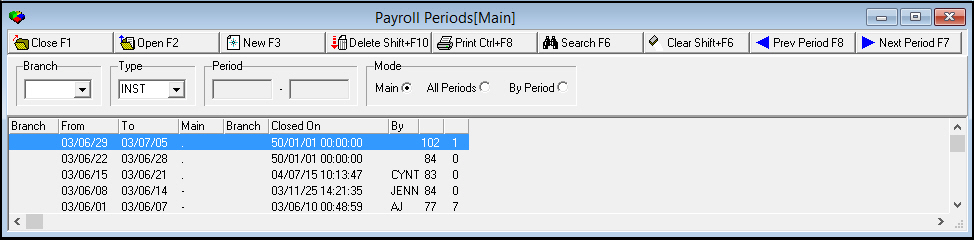
Payroll Periods contains two panes:
-
The upper pane contains fields for selecting search parameters and for sorting search results.
-
The lower pane displays search results.
The following graphic shows Payroll Periods as the program opens.
Field/Column Descriptions
The following table describes the fields and columns used in Payroll Periods.
|
Field/Column |
Description |
|
Branch |
Select a branch to view. This list originates from program #1530. O If you leave the branch field blank and have no branch access restrictions, SBN displays the corporate view for all branches. |
|
Type |
Select a personnel type to view. This list originates from program #1811. |
|
Period Range |
|
|
Date - From |
The beginning date of the pay period. |
|
Date - To |
The ending date of the pay period. |
|
Mode - Main |
Select this display mode to view available pay periods. |
|
Mode - All Periods |
Select this display mode to view all pay periods. |
|
Mode - By Period |
Select this display mode to view open pay periods. |
|
Branch |
Identifies the branch associated with the selected pay period. |
|
From |
The beginning date of the pay period. |
|
To |
The ending date of the pay period. |
|
Main |
Displays the current status of the pay period: l . = Pay period is open and available for posting entries. l - = Pay period has expired. You may not post entries. Corporate initiates this status, pending all branch closing. l + = Pay period has expired, closed, and branches have completed entries and no longer have access. Branch users initiate this status once all branch pay period entry has been completed. l X = Payment has been made. You may not post further entries. Corporate initiates this status for each personnel type and pay period. |
|
Branch Status |
Displays the current branch status for the associated pay period. SBN displays branch status in the �All Periods� and �By Period� display modes: l . = Branch pay period is open and available for posting entries. Action 286 controls access to the re-opening of a pay period. l X = Branch pay period is closed. |
|
Closed On |
Date and time the pay period was closed. |
|
By |
ID of the person who closed the pay period. |
|
Open |
Displays the total number of branches in Open status. SBN only displays this information in the �Main� display mode. |
|
Closed |
Displays the total number of branches in Closed status. SBN only displays this information in the �Main� display mode. |
Searching for Payroll Periods
Use the following steps to search for payroll periods:
1. In Payroll Periods, complete the following search parameters:
l In Branch - select the branch for which you want to search for payroll periods
l In Type - select the personnel type for which you want to search for payroll periods.
2. Choose a display mode:
l Select Main to view available pay periods.
l Select All Periods to view all pay periods.
l Select By Period to view open pay periods.
3. Choose Search.
‰ SBN displays results that match your search parameters.
4. To conduct another search, choose Clear Search Screen.
Using Common Functions
See the reference document Common Functions in SBN for more information.
Closing a Payroll Period
Action 286 controls access to the corporate use of this function.
Use the following steps to close a payroll period:
1. In Payroll Periods, complete the following search parameters:
l In Branch - select the branch for which you want to search for payroll periods
l In Type - select the personnel type for which you want to search for payroll periods.
2. Choose a display mode:
l Select Main to view available pay periods.
l Select All Periods to view all pay periods.
l Select By Period to view open pay periods.
3. Choose Search.
‰ SBN displays results that match your search parameters.
4. From the results, select the payroll period you wish to close.
5. Choose Close Pay Period.
‰ SBN asks if you are sure.
6. Choose Yes.
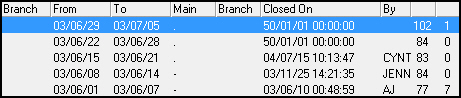
‰ SBN changes the status of the payroll period from open to closed.
Opening a Payroll Period
Action 286 controls access to the branch use of this function.
Use the following steps to open a payroll period:
1. In Payroll Periods, complete the following search parameters:
l In Branch - select the branch for which you want to search for payroll periods
l In Type - select the personnel type for which you want to search for payroll periods.
2. Choose a display mode:
l Select Main to view available pay periods.
l Select All Periods to view all pay periods.
l Select By Period to view open pay periods.
3. Choose Search.
‰ SBN displays results that match your search parameters.
4. From the results, select the payroll period you wish to close.
5. Choose Close Pay Period.
‰ SBN asks if you are sure.
6. Choose Yes.
‰ SBN changes the status of the payroll period from open to closed.
Button Functions
The following table displays the buttons, describes the shortcut keys, actions, and functionality.
|
Button |
Name |
Shortcut Key |
Action |
Description |
|
|
Get |
ALT+F1 |
1849/ 1 |
Get record. |
|
|
Change |
F2 |
1849/ 2 |
Change selected record. |
|
|
New |
F3 |
1849/ 3 |
Allocate new branch pay period. |
|
|
Delete |
SHIFT+F10 |
1849/ 4 |
Delete selected record. |
|
|
Undelete |
ALT+F10 |
1849/ 5 |
Restore deleted record. |
|
|
|
CTRL+F8 |
1849/ 6 |
Print selected records. |
|
|
Search |
F6 |
1849/ 7 |
Search for existing Agencies. |
|
|
Close |
F1 |
1849/ 8 |
Close pay period. |
|
|
Open |
F2 |
1849/ 9 |
Open pay period. |
|
|
Clear |
SHIFT+F6 |
1849/ 999 |
Clears search screen. |
|
|
Previous |
F4 |
1849/ 999 |
Select last record. |
|
|
Next |
F5 |
1849/ 999 |
Select next record. |












Modifications and Updates to Payroll Periods
The following table lists modifications and updates to the Payroll Periods document.
|
Mod Number |
Date |
Description |
|
n/a |
8/21/14 |
Images updated. |
F1 Help
| Delphi Forms | pershrsperiodsform |
| Program Numbers | 1849 |