
Work Order Report
Work Order Report
Work Order Report
Report #: 2002
Module: Account Generation
Overview
The Work Order report provides detailed information about the work order, including equipment to install, instructions for installation, and picking information for items.
Note: If a work order contains an item kit (defined in Items - program #1535), SBN saves the item kit contents when you approve the work order. The Work Order report displays item kit contents as they were when the work order was approved. If you change the item kit in program #1535 after approving the work order, your changes will not appear in the Work Order report.
To access this report, choose Print Work Order Report from the Work Order Queue (program #574) or select Work Order Report (report #2002) from the main menu of SBN.
The Work Order Report
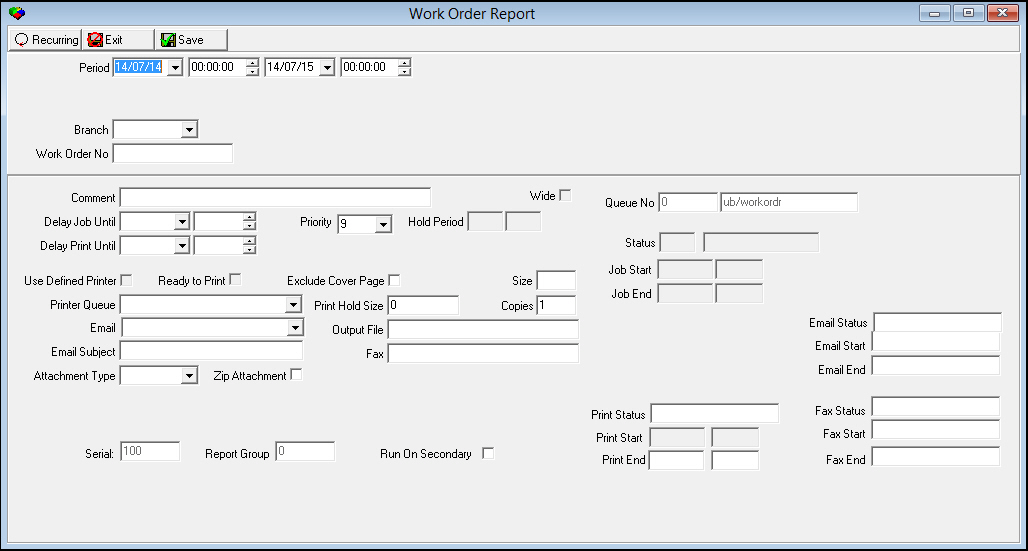
This window contains two panes: use the upper pane to define the content of the report; use the lower pane to define the job output - how, when, and where you want to print the report.
Note: See Report Parameters Pane for information on the fields in the lower pane, which are the same in every report.
Note: When option ub003 active, the work order report shows Class 12 (from Program #559).
Field Descriptions
The following table describes the fields used in the upper pane of this report.
Field |
Description |
Period |
|
Date
- From |
You may select a range of dates to limit the report to work orders created within that range. Select the beginning date of the range. O This field defaults to the current date. |
Time
- From |
You may select a range of time to limit the report to work orders created within that range. Select the beginning time of the range. O This field defaults to 0:00 (Midnight). |
Date
- To |
You may select a range of dates to limit the report to work orders created during that range. Select the ending date of the range. O This field defaults to tomorrow’s date. |
Time
- To |
You may select a range of time to limit the report to work orders created within that range. Select the ending time of the range. O This field defaults to 0:00 (Midnight). |
Branch |
You may either select a specific branch to limit the report to work orders associated with that branch or use the % wildcard to include all branches. |
Work Order No. |
You may type a specific work order number limit the report to that work order. O If you leave this field blank, SBN includes all work orders for the time period, branch, or both. |
Running and Viewing a Report
For information on running and viewing a report, see Common Functions in SBN.
Report Example
The following graphics show examples of the output of the Work Order report.
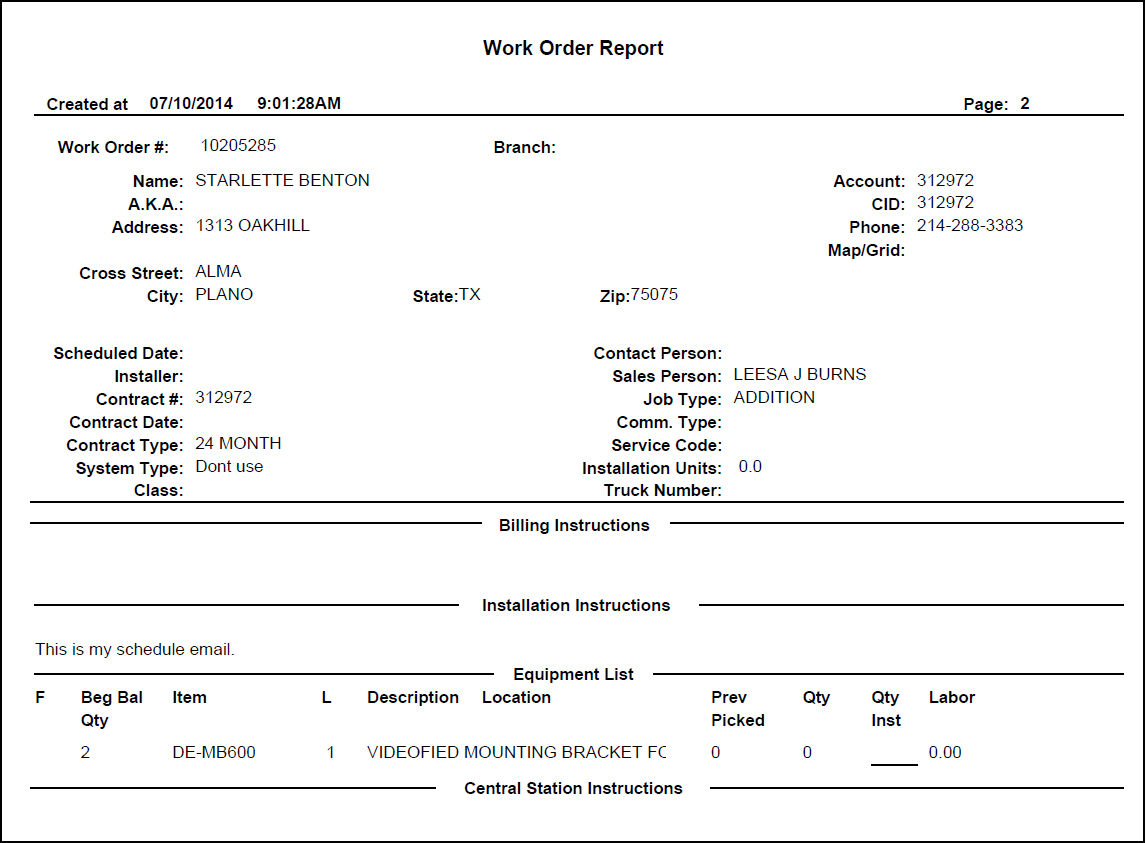
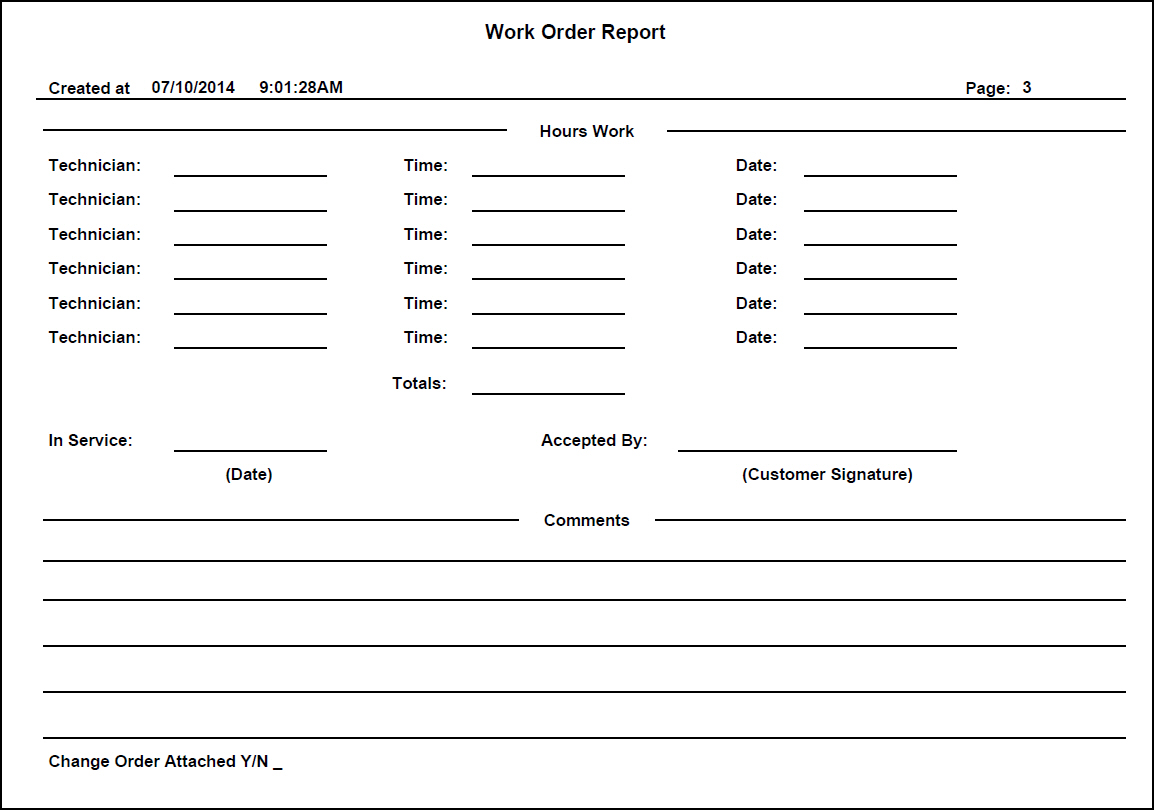
Column Descriptions
The following table describes the columns used in the output of the report.
Column |
Description |
Header Information |
|
Work Order # |
SBN-assigned work order number. |
Branch |
Service or installation branch responsible for the work order. |
Name |
Name on the installation. |
Account |
Contract number. |
A.K.A |
Additional name of the customer. |
CID |
First Customer ID (Alarm ID) listed for the installation. |
Addr |
Installation address. |
Phone |
Primary installation phone number. |
Map Grid |
Map location of customer’s address. |
X Street |
Cross street. |
City |
Installation city. |
State |
Installation state. |
Zip |
Installation zip code. |
Scheduled Date |
Schedule date from the work order. O If the work order is not scheduled, this field displays the preschedule date. |
Installer |
ID of the first installer listed in the WO Resources tab for the work order. O If the WO Resources tab does not list an installer, this field remains blank. |
Contact Person |
Installation contact person. |
Contract # |
Installation number. |
Sales Person |
Sales person ID attached to the work order. |
Contract Date |
Contract date from the contract master. |
Job Type |
Work order type. |
Contract Type |
Contract type from the contract master. |
Comm. Type |
Description taken from the Class 2 field in Data Entry. |
System Type |
Description taken from the Class 1 field in Data Entry. |
Service Code |
Description taken from the Class 3 field in Data Entry. |
Installation Units |
Total standard installation units required to install all components contained in the work order. O SBN includes installation units of items flagged as exchange in this total. |
Truck Number |
Satellite ID from the work order. |
Billing Instructions |
|
(No label) |
Billing instructions from contract master. |
Installation Instructions |
|
(No label) |
Comments from the work order. |
Equipment List |
|
F |
If this column displays an X, the item is financed. |
Beg Qty |
Total quantity of each item on the work order. |
Item |
Item code for each item on the work order. O When option ba338 is on, the output includes items not defined as physical parts. |
L |
If this column displays an X, the item is priced as a lease. |
Description |
Item description for each item on the work order. |
Location |
Physical location where you install the item. |
Prev Picked |
Quantity of items previously picked for the work order. |
Qty |
Quantity of items last picked on the work order. |
Qty Inst |
Quantity of items actually installed. |
Labor |
Labor units estimated for installation of the item. |
Central Station Instructions |
|
(No label) |
Comments from Data Entry Basics tab. |
Hours Work |
|
Technician |
Area for writing the Technician ID or name. |
Time |
Area for writing the time worked. |
Date |
Area for writing the date installed. |
In Service |
Area for writing the date when the system was actually put into service. |
Accepted By |
Area for the customer’s signature. |
Comments |
|
(No label) |
Area for comments by the technician. |
Change Order Attached |
If this column displays Yes, a change order was completed for this work order and has been attached to the work order report. |
Button Functions
The following table displays the buttons, describes the shortcut keys, actions, and functionality.
Button |
Name |
Shortcut Key |
Action |
Description |
|
Open fields for recurring/template reports |
alt+f1 |
Open fields for recurring/template reports. |
|
|
Exit without saving |
esc |
Exit without saving changes to selected record. |
|
|
Save Existing Record |
enter |
Save changes to selected record. |



Modifications and Updates to Work Order Report
The following table lists modifications and updates to the Work Order Report document.
Mod Number |
Date |
Description |
n/a |
07/15/14 |
Images updated. |