
Interactive SMS Definitions
Interactive SMS Definitions
Interactive SMS Definitions
Program #: 2510
Module: System Administration
Overview
Use Interactive SMS Definitions (as well as related programs listed at the end of this document) to send predefined alarm messages for different zone types to clients via SMS text messaging from SBN. Clients may respond to operators through text, providing valuable feedback as to what may have occurred as well as next appropriate actions the customer would like the operator to take. Next appropriate actions could include dispatching agencies such as fire, police, or medical departments.
For incidents to be able to qualify for Interactive SMS, users must select the "Allow SMS" checkbox in Dealer Profiles (program #1537). This corresponds to the Installation Dealer.
The checkbox "Allow SMS" in Zone Types (program #1733) must also be selected for in order for entries in Interactive SMS to function.
In the SBN Service Manager, the “API Mapper� service must be installed, configured, and running correctly in order to send messages out to the client.
Interactive SMS currently works with 11 messages (numbered 0-10). Every message number serves one explicit purpose. Each suite of messages is for one Dealer and Zone Type. Each suite of messages is for one Dealer and Zone Type. If a central station wants to support another Dealer and Zone Type combination, they will need another set of 11 messages.
If a user defines a suite of messages against a Dealer or a Zone Type with the "Allow SMS" checkbox unchecked, that suite of message will appear red. This allows easy identification of message that will not be processed.
This document covers the following topics:
The Interactive SMS Definitions Window
Changing or Updating SMS Definitions
The Interactive SMS Definitions Window
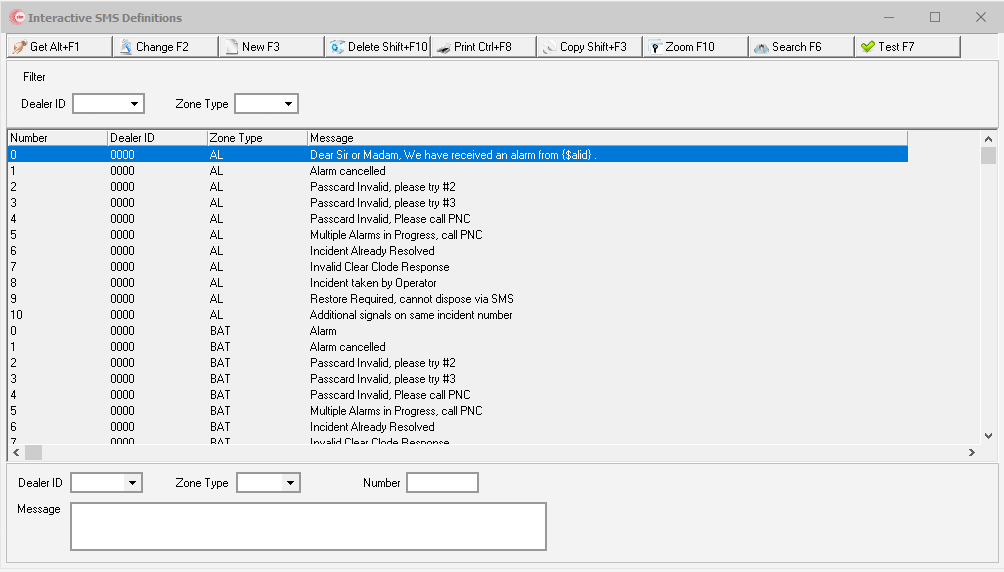
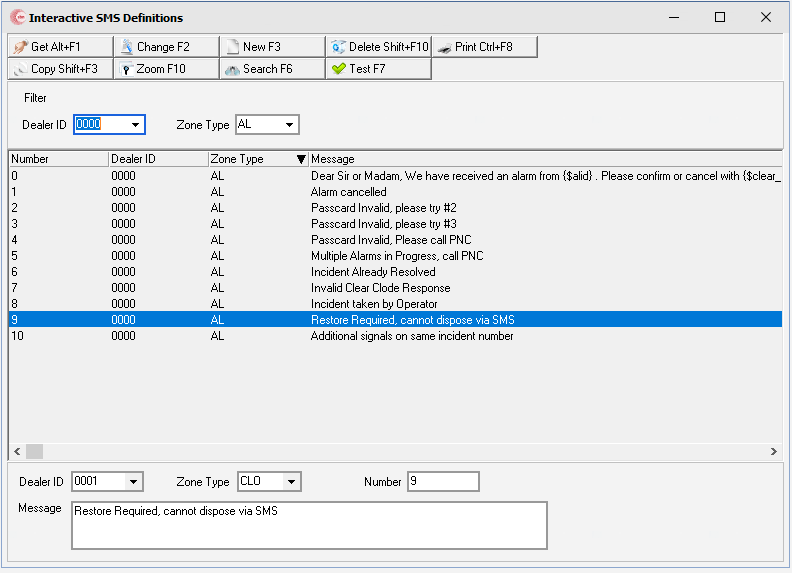
The following graphic shows Interactive SMS Definitions as the program opens.
Field/Column Descriptions
The following table describes the fields and columns used in Interactive SMS Definitions from the filter pane
Field/Column |
Description |
Dealer ID |
Search defined SMS definitions by specific Dealer ID. |
Zone Type |
Search defined SMS definitions by specific Zone Type. |
Searching for SMS Definitions
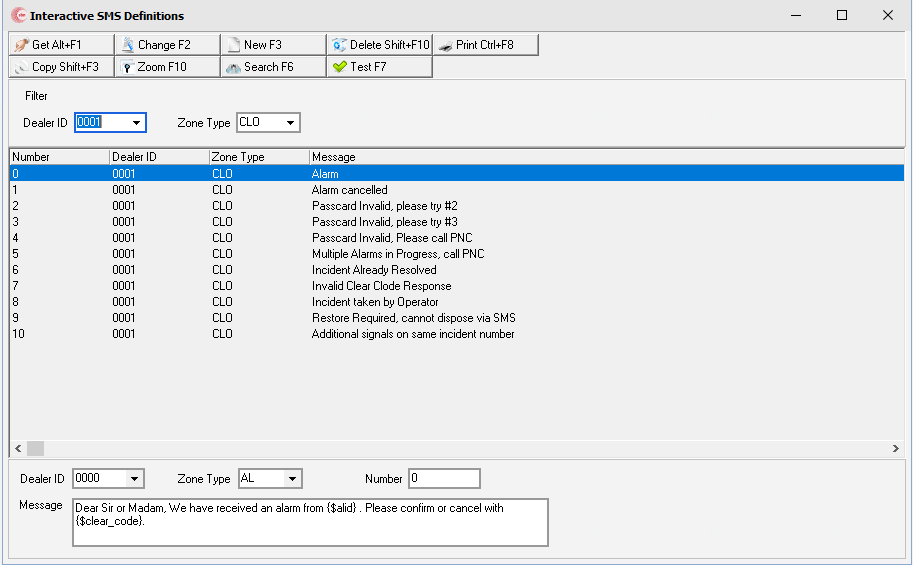
Use the Search button to search for SMS messages either by the Dealer ID, the Zone Type, or both.
Use the following steps search for SMS Definitions:
1. Open Interactive SMS Definitions. Enter in either the Dealer ID, Zone Type, or both, and select Search.
w Any results meeting your search criteria will be displayed.
Creating new SMS Definitions
Use the New button to create dealer-specific SMS messages for specific Zone Types. When a new zone type is created, 11 specific messages (numbered 0-10) are created with it.
Use the following steps to create new SMS Definitions:
1. Open Interactive SMS Definitions. Select the New button.
w Dealer ID and Zone Type fields will appear at the bottom of the screen to fill in.
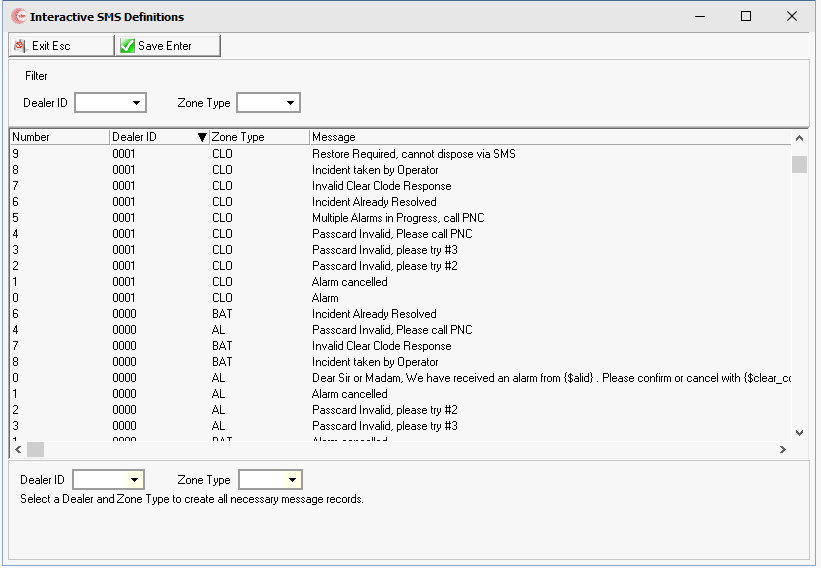
2. Select the Dealer ID the Zone Type will be made under as well as the Zone Type itself.
w Dealer ID and Zone Type fields will appear at the bottom of the screen to fill in.
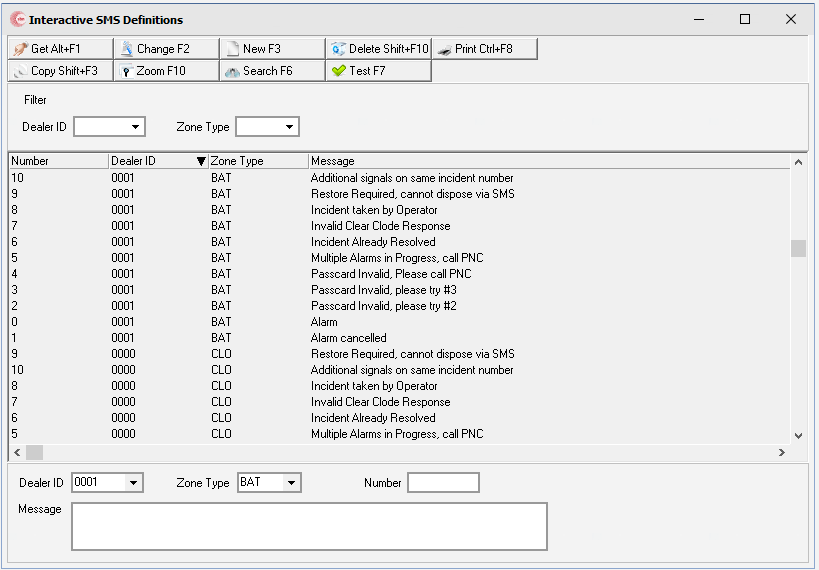
3. Select the Save button and the new zone type with its 11 messages will be saved.
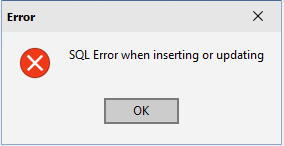
Note: If a user tries to create a Zone Type under a Dealer ID that already exists, they will be presented with a SQL Error message.
Changing or Updating SMS Definitions
Use the Change button to edit SMS Definitions.
Use the following steps to change SMS Definitions:
1. Double-click the SMS Definition you wish to edit.. Select the Change button.
w The SMS Definition becomes changeable.
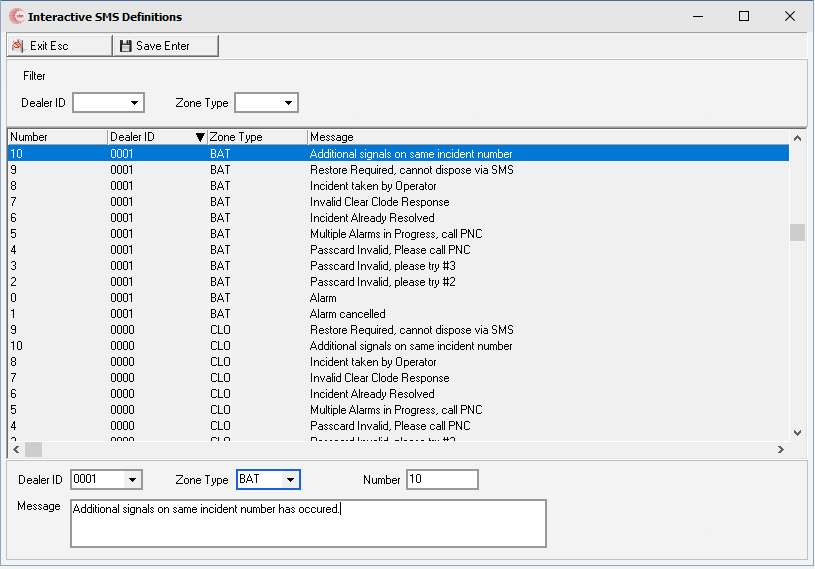
2. Change the body of the message and select Save.
w The message body has been updated to reflect your change(s).
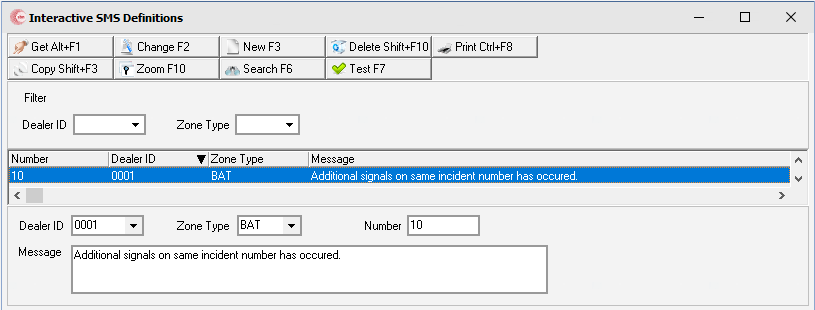
Note: Messages can be sent holding actual data such as Alarm ID {$alid} or other values as long as it is a real value and follows the {$format}.
Copying SMS Definitions
Use the Copy button to copy over SMS messages for specific Zone Types to other dealers. When a zone type is copied, all 11 specific messages (numbered 0-10) are copied over also.
Use the following steps to copy SMS Definitions:
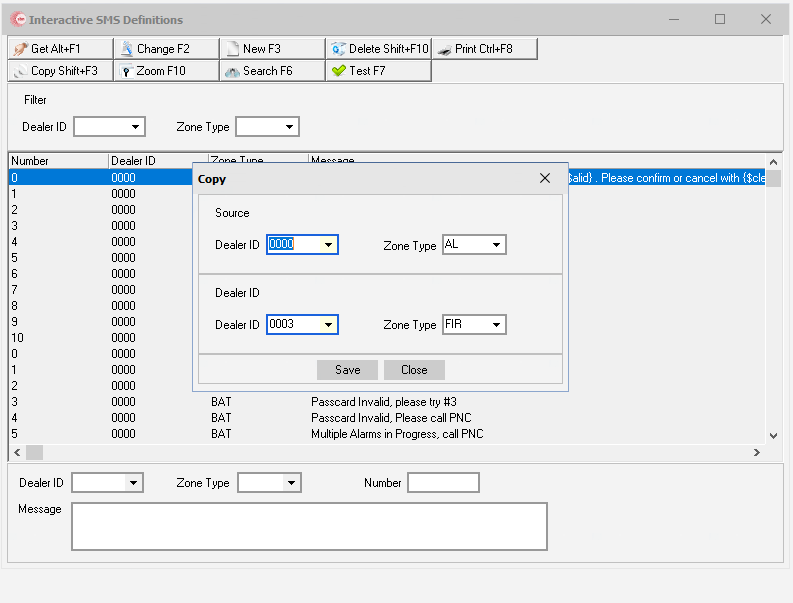
1. Select the copy button.
w A copy window opens to allow a user to select the source from which the dealer and zone type will come from and the destination where it will be copied to.
Note: Users can copy one set of messages from one zone type to another zone type. (i.e.- Dealer ID 0000, CLO => Dealer ID 0000, BAT)
Note: If a zone type being copied from one dealer to another dealer already exists, nothing will be copied when selecting Save. (i.e.- Dealer ID 0000, CLO =/ Dealer ID 0001, CLO if Dealer 0001 already has CLO defined.)
Printing SMS Definitions
Use the Print button to print a list of SMS Definitions.
Use the following steps to print SMS Definitions:
1. Users can print specific SMS Messages by selecting Dealer ID, Zone Type, or both and performing a Search.
w The SMS Definitions returned will be the only ones printed.
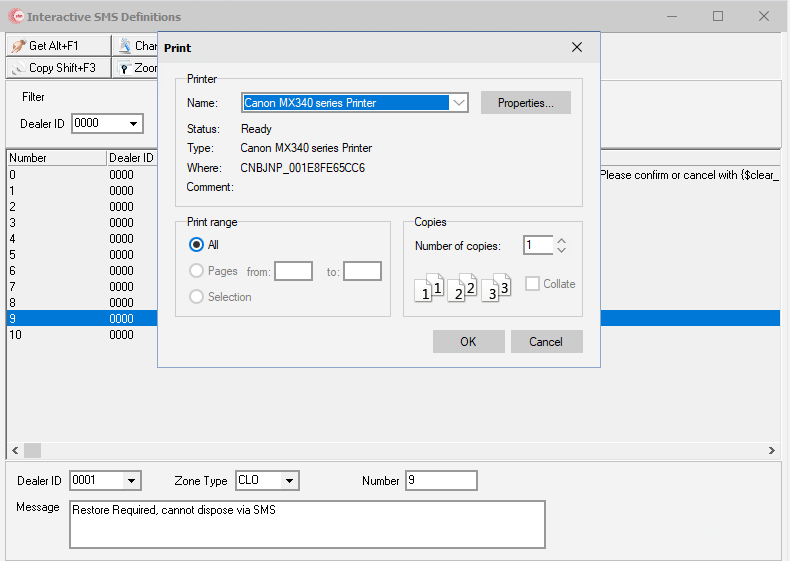
2. Select the Print button.
w The printer window will open for a user to select the printer and number of copies they wish to print.
Note: A printer must be attached to the machine you are printing from either by USB or via network. If no printer is found, nothing will print.
Zooming into Sublevels
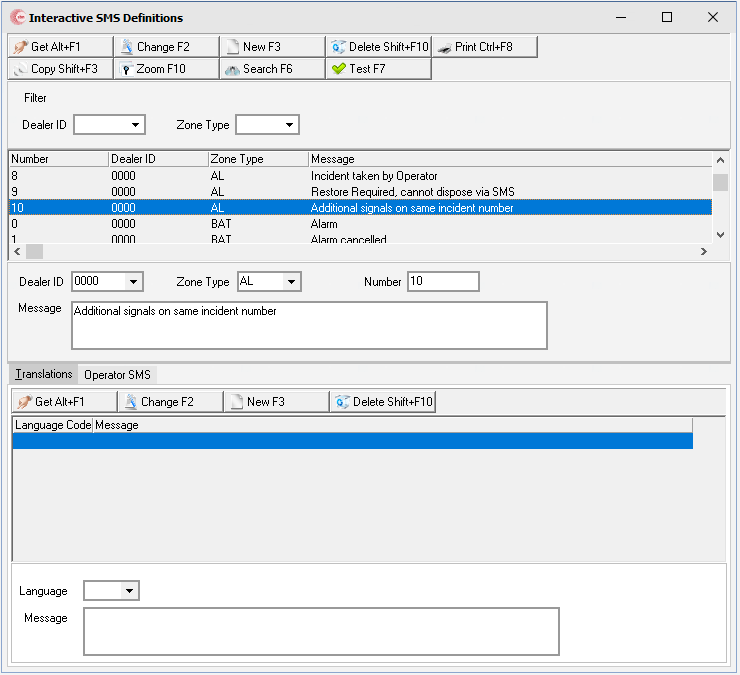
Select the Zoom button to display the sublevel of SMS Definitions.
w Users will see two tabs: Translations and Operator SMS
Translations
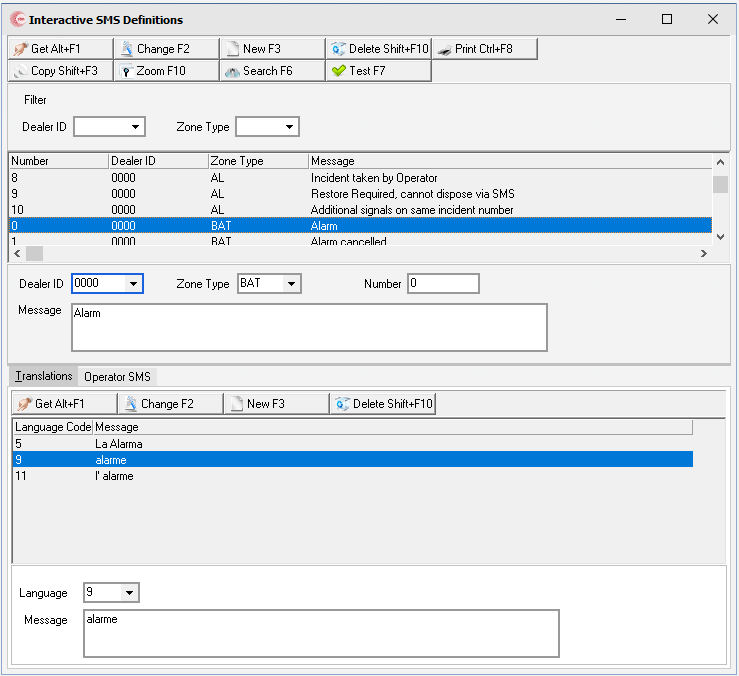
Use the Translations tab to set up specific translations for specific Zone and Message Types.
Use the following steps to define SMS Definitions in a different language:
1. Highlight a specific zone to be translated and select Zoom.
w Users will see the sublevel.
2. Select the New button in the bottom window.
3. Select the language from the dropdown and enter the translation text into the Message field.
4. Highlight a specific zone to be translated and select Zoom.
w Translations are saved.
Operator SMS
Use the Operator SMS tab to define specific messages the operator can use while handling an alarm in Dispatch (#537) using the Operator SMS button in the bottom window.
Note: For the Operator SMS to work correctly in Dispatch (#537), users must have everything properly set up within Dealer Profiles (#1537), Zone Types (#1733), and SBN Service Manager - API Mapper.
Use the following steps to define Operator SMS responses for Dispatch:
1. Highlight any zone and select Zoom.
w Users will see the sublevel.
2. Select the Operator SMS tab and select the New button.
3. Select the language from the dropdown and enter the message text in the message field.
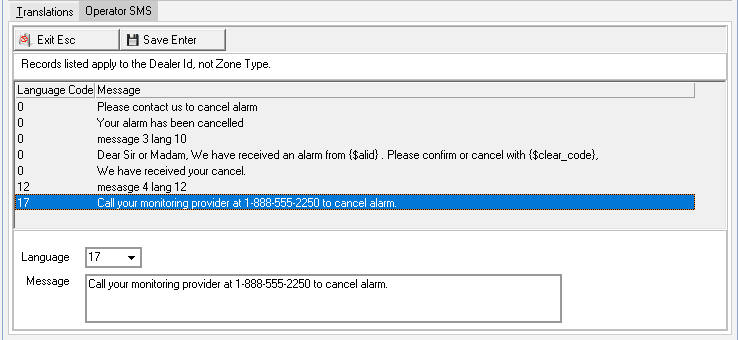
4. Select Save.
w Operator SMS response is now saved in numerical order of the language code provided.
The operator can see the Operator SMS messages when working a signal from a properly set up installation within Dispatch (#537) using the Operator SMS button.
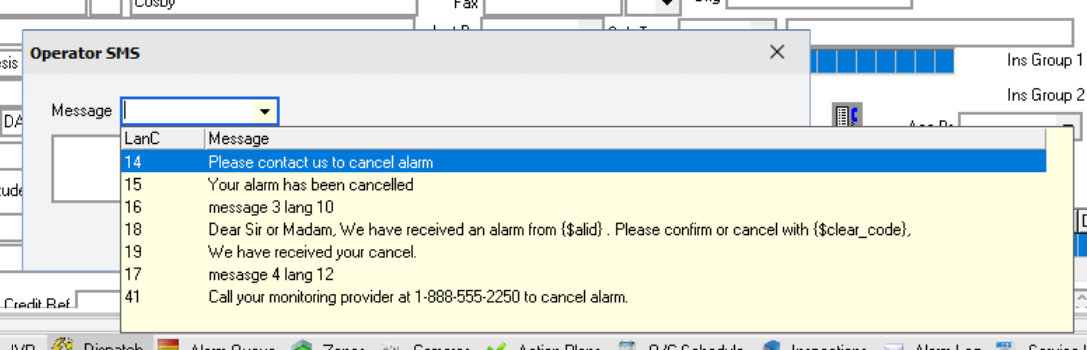
Note: For the Operator SMS to work correctly, in Dispatch (#537) an installation must have "SMS" selected for their Phone Type under the Basics tab.
Related Programs
The following table lists programs related to Interactive SMS Definitions.
Program |
Number |
Document Link |
Description |
Dealer Profiles |
1537 |
Select the "Allow SMS" checkbox.. This corresponds to the Installation Dealer. This field must be checked for an Incident to qualify for Interactive SMS. |
|
Zone Types |
1733 |
Select the "Allow SMS" checkbox.. This field must be checked in order for entries in Interactive SMS (program #2510) to function correctly. |
|
Action Profiles |
1502 |
Profiles that restrict or allow access to specific programs and functions. |
|
SBN Service Manager - API Mapper |
N/A |
The API Mapper processes SMS records. Add "v1/Twilio/SMS/Interactive" under the Additional Calls tab if using Twilio as your SMS service provider. (Additional set up through Twilio will be required.) |
Button Functions
The following table displays the buttons, describes the shortcut keys, actions, and functionality.
Button |
Name |
Shortcut Key |
Action |
Description |
|
Get |
ALT+F1 |
2510 /1 |
Get record. |
|
Change |
F2 |
2510 /2 |
Change selected record. |
|
New |
F3 |
2510 /3 |
Create new record. User selects the Dealer and Zone type they want to create, and all 11 messages are generated. |
|
Delete |
SHIFT+F10 |
2510 /4 |
Delete selected record. |
|
CTRL+F8 |
2510 /5 |
Print selected records. |
|
|
Copy |
SHIFT+F3 |
2510 /6 |
Copy selected record. |
|
Zoom |
F10 |
2510 /7 |
View the sub-level tabs. |
|
Search |
F6 |
2510 /8 |
Search for Dealer ID and/or Zone Type. |
|
Test |
F7 |
2510 /9 |
Enter different variables to see which message the system will use. Variables include Number, Dealer ID, Zone Type, Language, and the message. |
|
Close |
N/A |
2510 /999 |
Close the form. |

Modifications and Updates to Collection Agency Actions
The following table lists modifications and updates to the Collection Agency Actions document.
Mod Number |
Date |
Description |
08.92.11860, 07.92.26436 |
10/05/20 |
Document created. |