
Contract Status
Module: System Administration
Overview
Use Contract Status (program #1532) to define the status of contracts. A menu of contract statuses appears in Contract Master (program #548).
When option ba380 is on and the user does not do a search by specific contract, then a non-cancelled contract is returned before a cancelled contract.
To access this program, select Contract Status (program #1532) from the main menu of SBN.
The Contract Status Window
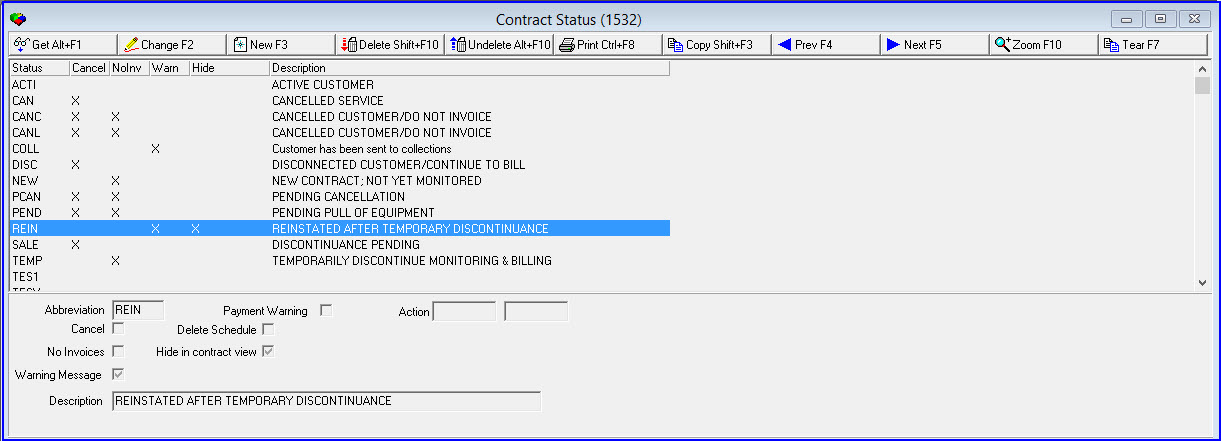
The following graphic shows Contract Status as the program opens. The upper pane displays previously defined contract statuses.
Field/Column Descriptions
The following table describes the fields and columns used in Contract Status.
Field/Column |
Description |
Status (Abbreviation) |
Abbreviation that identifies the selected contract status. |
Payment Warning |
Enter a check mark in this box to activate the payment warning message that is tied to an action in the user’s profile. |
Action |
|
Action |
You may type an action that must be in the user’s profile in order post payments on a contract with the selected status. O If the user’s profile contains the action, when the user attempts to post a payment (in program #1577) on a contract with the selected status, SBN asks if the user wants to continue. The user must respond to the question before continuing. O If the user’s profile does not contain the action, SBN displays a warning that the user cannot perform the posting. |
Sub-action |
If the action that must be in the user’s profile in order post payments on a contract with the selected status has a sub-action, type it in this field. |
Cancel |
If this box/column displays a check mark, the contract is cancelled. |
Hide in contract view |
When a user selects a contract status and puts a check in the check box, this will hide the contract marked with that status in the account tree in Program 548. |
No Invoices |
If this box/column displays a check mark, SBN should not generate cycle billing invoices for contracts with the selected contract status. O If option bl040 is off, the No Invoices flag is in effect only from the date of the status change of the contract. For example, if a customer’s scheduled billing cycle would generate an invoice for 9/1-11/1, but the status of the contract was changed on 10/1, SBN creates an invoice for the period between 9/1-10/1. |
Warning Message |
If this box/column displays a check mark, SBN displays a warning message when a user attempts to change the status of a contract to one in which the cancel flag or no invoice flag is set and the change date is less than the contract expiration date. O SBN displays the warning message only if the contract expiration date is filled by forcing an entry through the required fields program or by turning on option bl035, which recalculates the contract expiration date on save. |
Description |
Text description of the contract status. |
Using Common Functions
See the reference document Common Functions in SBN for more information.
Zooming into the Sublevel
Choose Zoom to access the sublevel tab, Translations. Use the Translations tab to attach translations to contract statuses, which then appear in SBN in the user’s language.
Note: The description of any contract status that is not translated to the user's selected language appears in the Contract Master (program #548) Status drop-down menu as the IBS default description.
The Translations Tab
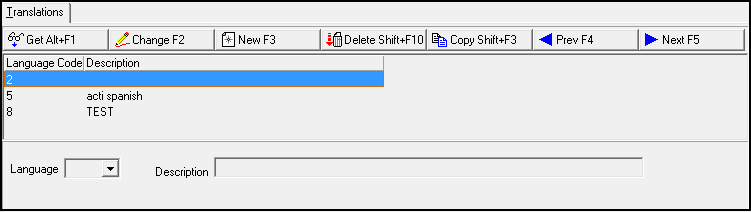
The Translations tab appears below the main window and displays previously defined translations for the selected contract status.
Field/Column Descriptions
The following table describes the fields and columns used in the Translations tab.
Field/Column |
Description |
Language Code |
Code that identifies the language of the associated translation. Contact IBS before using codes 11-17. |
Description |
Text description, in the associated language, of the selected contract status. |
Button Functions
The following table displays the buttons, describes the shortcut keys, actions, and functionality.
Button |
Name |
Shortcut Key |
Action |
Description |
|
Get |
ALT+F1 |
1532/ 1 |
Get record. |
|
Change |
F2 |
1532/ 2 |
Change selected record. |
|
New |
F3 |
1532/ 3 |
Create new record. |
|
Delete |
SHIFT+F10 |
1532/ 4 |
Delete selected record. |
|
Undelete |
ALT+F10 |
1532/ 5 |
Restore deleted record. |
|
CTRL+F8 |
1532/ 6 |
Print selected records. |
|
|
Previous |
F4 |
1532/ 1 |
Select last record. |
|
Next |
F5 |
1532/ 1 |
Select next record. |
|
Zoom in/out of sublevel |
F10 |
1532/10 |
Access sublevel tab. |
|
Tear away selected tab |
F7 |
1532/ 2 |
View selected tab in a separate window. |










Modifications and Updates to Contract Status
The following table lists modifications and updates to the Contract Status document.
Mod Number |
Date |
Description |
n/a |
8/15/14 |
Images updated. |
|
|
|