
Zip Codes
Zip Codes
Zip Codes
Module: System Administration
Overview
Use Zip Codes (program #1718) to define specific zip codes and attach them to the correct:
-
City
-
State
-
County
-
Tax profile
-
Response agency
Menus of Zip Codes appear in Marketing Basics, Marketing New, Data Entry Basics, and Billing Account windows.
When you enter new customer information and select a zip code, SBN uses the fields defined in the Zip Code Profile to create defaults for the account. When you change the zip code in an existing account, only the fields with information defined in the zip code profile override the current information.
Note: Use option ba239 to turn off the default of the State field in conjunction with the zip code.
Note: Use option ba376 to enable the zip code fields to handle a maximum of 30 characters. Without the option on, the maximum number of characters allowed is 10.
Navigating to Zip Codes
Use the following steps to navigate to Zip Codes:
1. From the main SBN toolbar, select Menu.
2. From the drop-down menu, select Go To [ALT+F1].
3. In the Go To Program dialog box, type in "1718."
w The Zip Codes program opens.
The Zip Codes Window
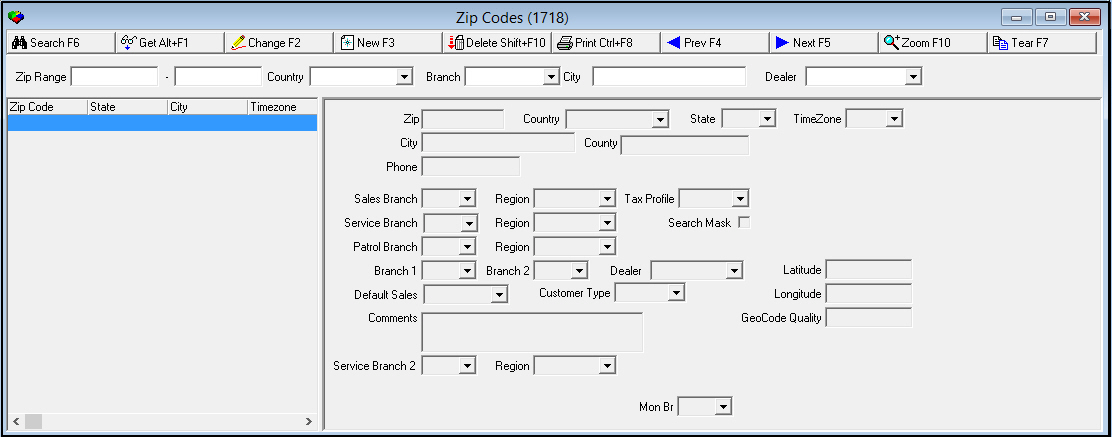
The Zip Code window contains three panes:
-
The Search pane (upper) contains fields for selecting search parameters.
-
The List pane (lower left) displays search results.
-
The Details pane (lower right) displays details of a selected zip code profile.
The following graphic shows Zip Codes as the program opens. The window remains blank until you perform a search.
Field/Column Descriptions
The following table describes the fields and columns used in Zip Code Profiles.
|
Field/Column |
Description |
|
Search Parameter Fields - Upper Pane |
|
|
Zip - From |
You must type a range of zip codes to display; type the beginning zip code of the range. |
|
Zip - To |
You must type a range of zip codes to display; type the ending zip code of the range. |
|
Country |
You may select a country to limit the search to from the drop-down menu. |
|
Branch |
You may select a branch to limit the search to from the drop-down menu. |
|
City |
You may select a city to limit the search. O If you select a city with a broad range of zip codes (for example, 0000 - 9999), SBN returns all zip codes with the selected City name. |
|
Dealer |
You may search for a zip code by the ID of the dealer associated with that zip code. (This menu originates from program #1537.) |
|
Detail Fields - Right Pane |
|
|
Country |
Select the country in which the zip code is located. |
|
Zip |
Zip code of up to 10 characters. |
|
State |
Select a state to associate with the zip code. This field holds a maximum of 60 characters. |
|
TimeZone |
Select a time zone to associate with the zip code. (This menu originates from menu #1739.) |
|
City |
Type name of city to associate with the zip code. |
|
County |
Type the name of the county to associate with the zip code. |
|
Phone |
Type the phone prefix to associate with the zip code. |
|
Sales Branch |
Select a sales branch to associate with the zip code. (This menu originates from program #1530.) |
|
(Sales) Region |
Select a sales region (sub-group of the sales branch). (This menu originates from program #1530.) |
|
Tax Profile |
Select the tax profile to associate with the zip code. (This menu originates from program #1514.) O When a user types a zip code in the New Inquiry window of Marketing (program #559), the Tax Profile field in that window defaults to the tax profile associated with that zip code. |
|
Service Branch |
Select a service branch to associate with the zip code. (This menu originates from program #1530.) |
|
(Service) Region |
Select a service region (sub-group of the service branch). (This menu originates from program #1530.) |
|
Search Mask |
Select the check box if you want to indicate that the zip code is a mask for a range of zip codes. O You can use standard wildcards to create a range. |
|
Patrol Branch |
Select a patrol branch. (This menu originates from program #1530.) |
|
(Patrol) Region |
Select a patrol region (sub-group of the patrol branch). (This menu originates from program #1530.) |
|
Branch 1 |
Select the installation branch number. (This menu originates from program #1530.) |
|
Branch 2 |
Secondary installation branch number. (This menu originates from program #1530.) Note: When a zip code contains two defined installation branches, the drop-down list in Data Entry (program #559) shows two entries to represent both branches. |
|
Dealer |
You may select a dealer to associate with a zip code. (This menu originates from program #1537.) |
|
Latitude |
Latitude coordinate of the zip code. Range is 0 to (+/-) 90. For example: 34.33896. Note: When you change a zip code in Data Entry (program #559), if the GeoCode Quality of the zip code record in program #1718 is higher than the GeoCode Quality entered for the installation, SBN automatically updates the installation latitude, longitude, and GeoCode Quality with the values entered for the zip code in program #1718. |
|
Default Sales |
Select a Sales ID for the default sales person when using the zip code in Marketing. (This menu originates from program #1811.) |
|
Customer Type |
Select a customer type to associate with the zip code. (This menu originates from program #1534.) |
|
Longitude |
Longitude coordinate of the zip code. Range is 0 to (+/-) 180. For example: -79.43433. Note: When you change a zip code in Data Entry (program #559), if the GeoCode Quality of the zip code record in program #1718 is higher than the GeoCode Quality entered for the installation, SBN automatically updates the installation latitude, longitude, and GeoCode Quality with the values entered for the zip code in program #1718. |
|
Comments |
Text area for any comments. |
|
GeoCode Quality |
Geocode quality rating of the zip code. A higher number indicates better quality. Note: When you change a zip code in Data Entry (program #559), if the number in this field is higher than the GeoCode Quality entered for the installation, SBN automatically updates the installation latitude, longitude, and GeoCode Quality with the values entered for the zip code in program #1718. |
|
Service Branch 2 |
Secondary service branch to associate with the zip code. (This menu originates from program #1530.) |
|
Region |
Default region based upon the zip code field. |
|
Mon Br |
Select the Monitoring Branch. (This menu originates from program #1530.) Note: If the zip code is assigned to the installation, the Mon Br drop-down selection copies over to the Mon Br field in Data Entry Master and Basics (program # 559) If the this drop-down remains blank, then the pre-assigned Mon Br field data within the installation does not change. |
Searching for a Zip Code Profile
In order to view or change a zip code profile, you must first search that profile.
Use the following steps to search for a zip code profile:
1. In Zip Codes, type a range of zip codes.
2. You may narrow the search results by selecting a branch or a city.
3. Choose Search.
w SBN displays the search results in the List pane.
Using Common Functions
See the reference document Common Functions in SBN for more information.
Zooming into the Sublevel
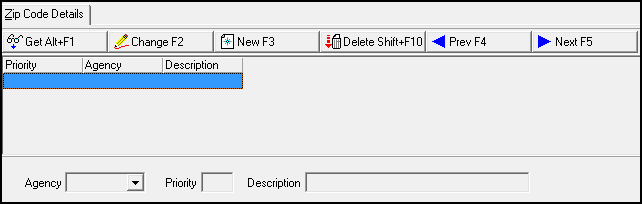
Zip Codes contains a sublevel in which you can associate agencies with a zip code profile.
The Zip Codes Details Tab
The Zip Code Details tab appears below the main window of Zip Codes.
Field/Column Descriptions
The following table describes the fields and columns used in the Zip Code Details tab.
|
Field/Column |
Description |
|
Agency |
Abbreviation that identifies the selected agency. You may either select a defined agency from the menu or type an agency abbreviation. Note: The agency type appears in the drop-down list. Agency types are:
|
|
Priority |
If you leave this field blank, it defaults with a 1. Note: When option tm006 is on, all agencies with priority 1 appear in the default action plan when creating an installation from Marketing. |
|
Description |
Text description of the selected agency. SBN fills this field based on the agency you select. |
Note: If you type an agency code that is defined for more than one type of agency - for example, patrol and medical - SBN tells you to select the agency from the menu. SBN fills the Description field based on the agency you select.
Button Functions
The following table displays the buttons, describes the shortcut keys, actions, and functionality.
|
Button |
Name |
Shortcut Key |
Action |
Description |
|
|
Search |
F6 |
1718 |
Perform a search based on the parameters you enter. |
|
|
Get |
ALT+F1 |
1718/ 1 |
Get record. |
|
|
Change |
F2 |
1718/ 2 |
Change selected record. |
|
|
New |
F3 |
1718/ 3 |
Create new record. |
|
|
Delete |
SHIFT+F10 |
1718/ 4 |
Delete selected record. |
|
|
|
CTRL+F8 |
1718/ 6 |
Print selected records. |
|
|
Zoom |
F10 |
1718/ 999 |
Zoom in/out of sublevel. |
|
|
Tear |
F7 |
1718/ 999 |
Display selected zip code details in a separate window. |
|
|
Previous |
F4 |
1718/ 999 |
Select last record. |
|
|
Next |
F5 |
1718/ 999 |
Select next record. |









Modifications and Updates to Zip Codes
The following table lists modifications and updates to the Zip Codes document.
|
Mod Number |
Date |
Description |
|
n/a |
8/27/14 |
Images updated. |
F1 Help
| Delphi Forms | bltaxprofilesform |
| Program Numbers | 1514 |