
Navision Interface Manager
Navision Interface Manager
Navision Interface Manager
Module: Utilities
Overview
The Navision Interface Manager program maintains transactions sent between Navision and SBN. Use this program to troubleshoot and manage transactions for imports and exports for Navision.
To access the Navision Interface Manager, choose program #1596 from the main menu.
When Navision Interface Manager opens, the window remains blank until you toggle to the correct mode. For each mode, the lower pane of the window displays specific information for that mode. Currently the Navision Interface Manager only supports the Items mode. (The interface can be expanded to support all modes of Navision.)
The Background Tasks (program #1712) drives the main functionality of the Navision Interface Manager. The following background tasks move information related to items in the Navision Interface:
Job 39 — moves items from the nav_items table to SBN.
Job 40 — moves work order information from SBN to the nav_alloc table.
Job 41 — moves satellite information from the nav_satellites table to SBN.
The following table shows how the status flags update during the processing of the background tasks for each table.
Item Transfer (Continued) |
Value |
Meaning |
Status Flag Values |
0 |
Not processed. |
All |
-1 |
Ok. |
All |
1 |
Bad opcode. |
^[-1, 0, 1] |
2 |
Item does not exist. |
-1 |
3 |
Item already flagged as deleted. |
-1 |
4 |
Item has count in inventory |
-1 |
5 |
Item exists. |
1 |
6 |
Item does not exist. |
0 |
7 |
Unit not found. |
0,1 |
8 |
Inventory group not found. |
0,1 |
9 |
Item Code 2 conflict. |
0,1 |
10 |
Tax code out of range. |
0,1 |
11 |
Warranty out of range |
0,1 |
Allocation Transfer Flags |
Value |
Description |
Comment |
0 |
Schedule Req |
Request to schedule. |
1 |
Schedule |
Actual schedule. |
2 |
Unschedule |
Removing from actual slot. |
3 |
Delete |
Deleting work order. |
5 |
Approve |
Approves the work order. |
6 |
Unapprove |
Unapproves the work order. |
9 |
Close |
Closing the work order. |
10 |
Unclose |
Unclosing the work order. |
Satellite Transfer |
Value |
Meaning |
Status Flag Value |
0 |
Not Processed |
All |
-1 |
Ok |
All |
1 |
Bad opcode |
^[-1,0,1] |
2 |
Satellite does not exist. |
-1 |
3 |
Satellite already flagged as deleted. |
-1 |
4 |
To be determined. |
-1 |
5 |
Satellite exists. |
1 |
6 |
Satellite does not exist. |
0 |
7, 8, 9, 10, 11 |
To be determined. |
0,1 |
The Navision Interface Manager Window
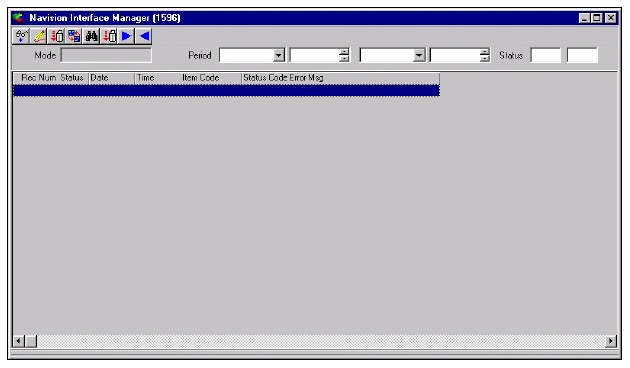
The following graphic shows the Navision Interface Manager as the program opens.
Field/Column Descriptions
The following table describes the fields and columns used in the Navision Interface Manager.
Field/Column |
Description |
Mode |
Name of different Navision modes. |
Period |
Date and time range used to search for records in the Import Data list. |
Status |
Range of status codes used to search for records in the Import Data list. |
Record Number |
Sequence number issued by the interface. |
Status |
Status of the operation. Number corresponds to the error message. |
Date |
Date record was inserted into the data list. |
Time |
Time record was inserted into the data list. |
Status Code |
Status flag sent from Navision indicating action to take. Navision sends three different status codes: l -1 delete item l update item l add item |
Error Message |
Message that corresponds to status number and indicates why specified Navision action did not occur. |
Viewing Information in the Navision Interface Manager
In order to view any information in the Navision Interface Manager, you must first toggle to a specific mode. (Currently the only mode available is Items.) Once you have toggled to the correct mode, a lower pane appears with additional data specific to that mode.
To toggle to a mode, choose Toggle Mode. The mode description and the lower pane of the window appear.
The Items Mode Window
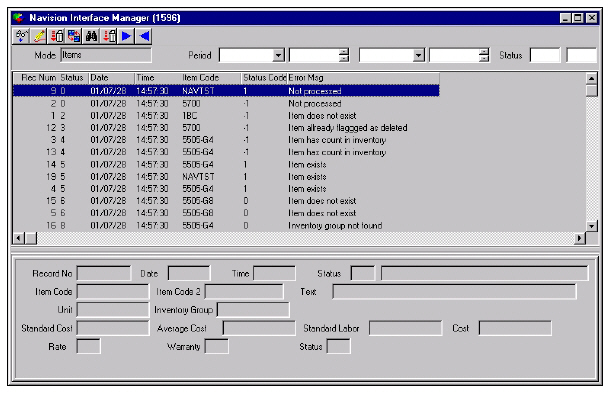
The following graphic shows Navision Interface Manager in Items mode.
Field Descriptions
The following table describes the fields used in the lower pane of Navision Interface Manager in Items mode.
Field |
Descriptions |
Record Number |
Sequence number issued by the interface. |
Date |
Date record was inserted into the Import Data list. |
Time |
Time record was inserted into the Import Data list. |
Status |
Status of the operation. Number corresponds to the error message. |
Error
Message |
Message which corresponds to status number and indicates why specified navision action did not occur. |
Item Code |
Item identifier for part or model number. |
Item Code 2 |
Additional item identifier for part or model number. |
Text |
Description of item. |
Unit |
Unit of measure used to sell item. |
Inventory Group |
Group item belongs to. |
Standard Cost |
Standard cost of the item. |
Average Cost |
Average cost of the item. |
Standard Labor |
Standard installation units for this item. Entered as part of an hour. |
Cost |
Gross cost of the item. |
Rate |
Tax rate. |
Warranty |
Number of month for vendor warranty for item. |
Status |
Status flag sent from Navision indicating action to take. Navision send three different status codes:
|
Searching for Records
You can search for records with a specific date and status.
Use the following steps to search records:
1. In Navision Interface Manager, complete the Period and Status (not required) fields.
2. Choose Search.
‰ SBN displays the records that match your parameters in the Import Data list.
Viewing a Record
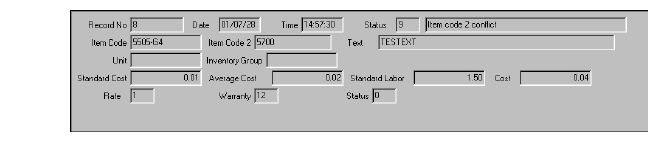
You can view information about a specific record in the sublevel window in the lower pane of Navision Interface Manager.
Use the following steps to view a record:
1. In Navision Interface Manager (program #1596), select the record for which you want to view information.
2. Double-click your selection or choose Get Record.
‰ Information for that record appears in the lower pane of the window.
Navigating through Records
You can navigate back and forth through the records in the Import Data list. As you move to a new record, information for that record displays in the sublevel window in the lower pane of Navision Interface Manager.
Use the following steps to navigate through the records:
Choose Next Record to move forward through the records in the list.
Choose Previous Record to move backward through the records in the list.
Choose [Ctrl+h] to return to the top of the list.
Changing a Record
You can change the status code for the record selected. The Status field is the only field available to change.
Use the following steps to change a records:
1. In Navision Interface Manager, select the record you want to change.
2. Choose Change Record.
3. Change the status code.
4. Choose Save Existing Record.
‰ SBN resets the status flag so that Navision tries the operation again.
Deleting a Record
You can delete a specific record from the Import Data list.
Use the following steps to delete a record:
1. In Navision Interface Manager, select the record you want to delete.
2. Choose Delete Record.
‰ A confirmation box opens asking if you want to delete the record.
3. Choose Yes.
Deleting All Posted Records Accepted by Navision
You can delete all posted records accepted by Navision.
Use the following steps to delete all posted records:
1. In Navision Interface Manager, choose Delete All Posted.
‰ A confirmation box opens asking if you want to delete the records.
2. Choose Yes.
Button Functions
The following table displays the buttons, describes the shortcut keys, actions and functionality.
Button |
Name |
Shortcut Key |
Action |
Description |
|
Get Record |
alt+f1 |
* |
View details of selected record. |
|
Change Record |
f2 |
* |
Change details of selected record. |
|
Delete Record |
shift+f10 |
* |
Delete selected record. |
|
Toggle Mode |
f5 |
* |
Change view between different modes. |
|
Search |
f6 |
* |
Search for records with specific date and status. |
|
Delete All Posted |
ctrl+f10 |
* |
Delete all posted records. |
|
Next Record |
f9 |
* |
Go to next record. |
|
Previous Record |
f10 |
* |
Go to previous record. |
|
Exit without saving |
esc |
* |
Exit without saving changes to selected record. |
|
Save Existing Record |
enter |
* |
Save changes to selected record. |









*There are no actions associated with this program.
Modifications and Updates to Navision Interface Manager
The following table lists modifications and updates to the Navision Interface Manager document.
Mod Number |
Date |
Description |
n/a |
09/02/14 |
Images updated. |