
Smart SBN
Smart SBN
Smart SBN
Module: Reference
Overview
Smart SBN is an application that allows SBN to switch quickly between primary, secondary, and tertiary servers in the event that the primary server goes down.
The About SBN window indicates when Smart SBN is enabled. (This window appears when you go to the SBN toolbar, choose Help, then choose About.)

Smart SBN Options
svlistrf – default is 60 – The value of this option determines how often, in seconds, SBN requests a server list.
svlistrq - default is 2 – Server list refresh rate during unknown ('agitated') mode.
svlistpr – default is 3600 – Procedure list refresh rate (in seconds).
How Smart SBN Works
SBN.exe receives a list of servers. SBN.exe establishes a connection with up to three different servers (primary, secondary, and tertiary). SBN.exe considers the first server the default and receives all calls not specifically redirected. Every 60 seconds (based on option svlistrf), the server requests a new server list. If there is no primary server, SBN switches to 'agitated' mode and calls the function every two seconds (based on option svlistrq). If the server list and the connection list are not the same, SBN will correct the discrepancy automatically. This provides minimal overhead during normal business hours and fast switching. Option svlistpr controls the refresh rate of the procedure list.
Primary is the preferred server. If the Primary server is not available, SBN will use the Secondary server. If the Secondary server is not available, SBN will use the Tertiary server. You may use actions to control which users can access each of the three servers.
Using Smart SBN
Within 30 seconds of issuing the make_unknown command and two seconds of issuing the make_primary command, you will get a message in the lower right corner that states 'SERVER SWITCH IN PROGRESS'.

In the lower left corner you should then see the new server name.

Smart SBN is primarily intended for replicated installations but will also work with non-replicated installations – after some additional set up.
Smart SBN also allows for load balancing. For example, with the old SBN.exe, all of the calls necessary to load program #559 run on the primary server. With SMARTSBN.exe, users decide which procedures run on which server. You are able to send more than half of the calls to load program #559 to the secondary server.
Maintaining and Ensuring Smart SBN Is Configured
When Smart SBN is installed on a server, a Smart SBN folder appears on the desktop. The Smart SBN folder contains the following files:
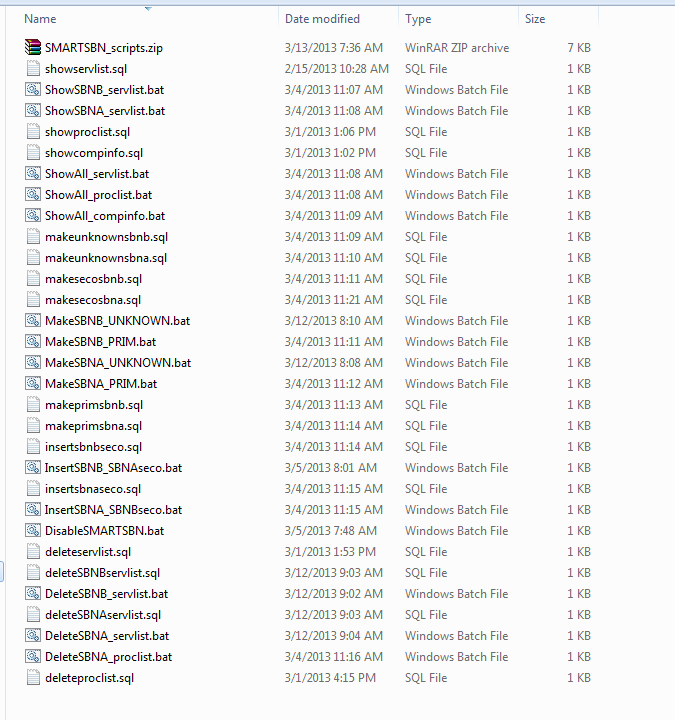
1. When you select the ShowAll_servlist.bat file in the Smart SBN folder, a Command window opens with a list of servers showing which is primary and which is secondary.
The following information appears in the Command window:
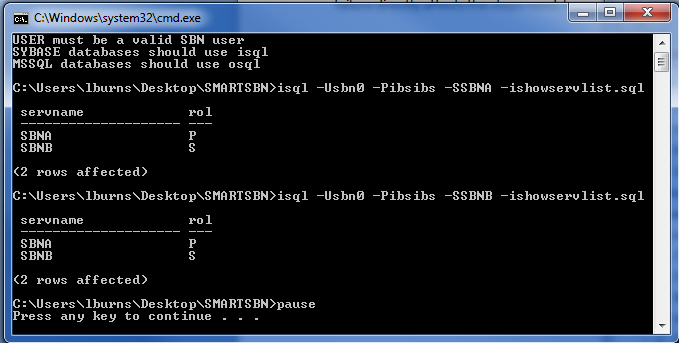
The command window indicates that Smart SBN is running with SBNA as primary and SBNB as secondary on both servers.
2. Select the ShowAll_proclist.bat file in the Smart SBN folder.
The following information appears in the Command window:
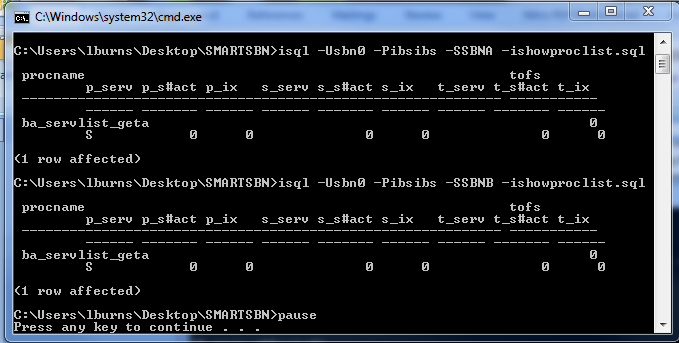
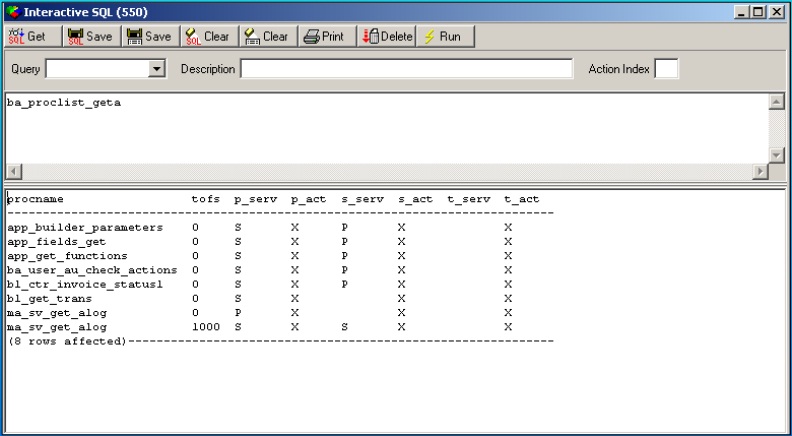
3. Add ba_servlist_geta to ba_proclist with p_serv='S' on both the SBNA and SBNB servers.
This makes the SBN executable file request a list of server roles from the secondary server. If the secondary server dies, SBN.exe will continue to use SBNA as the primary server. If the primary server dies, use the following instructions to make SBN.exe switch to the SBNB server by running the procedure against SBNB.
If you omit this step, SBN.exe will not be informed to switch to SBNB, because ba_servicelist_get is the mechanism by which SBN.exe determines which server is primary.
Controlled Switchover (SBNA to SBNB)
1. Select the MakeSBNA_UNKNOWN.bat file in the Smart SBN folder on the server desktop.
The following information appears in the SBN Status Bar on each of the workstations that are signed on to the SBNA server:

2. Select the MakeSBNB_PRIM.bat file in the Smart SBN folder on the server desktop.
The following information appears in the SBN Status Bar on the workstations:

The server switch message is cleared from the screen, and now the users are on SBNB.
Note: If you skip the Make_Unknown step, users will not see the SWITCH IN PROGRESS message.
Uncontrolled Switchover (SBNA Crash)
If you want to test the “crash� scenario with less impact, IBS recommends stopping and restarting SBNA without executing the uncontrolled switch. Because you will never have a scenario with two primary servers, this is a more practical exercise.
If SBNA Dies
(For example, the database connection to SBNA cannot be established.)
Within a few seconds, SBN.exe shows a connection problem message in the lower right corner.
Note: If SBNB dies, you receive a similar message.
1. Restart SBNA.
Note: Depending on the database size and how the server crashed, (do NOT turn power off to the server), it may take several minutes to recover.
w SBNA comes back online.
Uncontrolled Switchover (SBNA Failure)
Do not use an uncontrolled switchover as a test scenario; an uncontrolled switchover could potentially cause database corruption, leading to hours of work recovery. This is not recommended for a weekly test. If an uncontrolled switchover test is necessary, please disconnect the server from the network to produce the same results with no data corruption risk.
If SBNA Dies
(For example, the database connection to SBNA cannot be established.)
Within a few seconds, SBN.exe shows a connection problem message in the lower-right corner.
Note: If SBNB dies, you receive a similar message.
Choose the MakeSBNB_PRIM.bat file in the Smart SBN folder on the desktop of the SBNB server.
w Error messages will appear because the database cannot make a connection to SBNA.
w This action makes SBNA secondary, but the connection is not live, so the SBNA database is not being updated.
w This action tells the secondary machine to assume the primary role. Because all workstations are executing ba_servlist_geta against this server, the workstations will switch primary/secondary roles.
However, additional steps must be taken because SBNA has crashed and cannot simply be restarted.
Note: When a primary server crashes and you make the secondary server assume the primary role, if you restart SBNA without the following additional steps, SBNA will assume the primary role as well. This is a very unstable situation.
Removing SBNA from Smart SBN (after SBNA failure)
The following steps will remove SBNA from Smart SBN. You must perform this task because maintenance must take place on SBNA before it can be reinserted as the secondary server.
1. Delete SBNA from ba_servlist on SBNB. (There is no point in all the workstations trying to connect to SBNA, and you need to work on SBNA to get it back online.)
2. Run the following code against SBNB:
>isql –SSBNB
>delete ba_servlist where servname =’SBNA’
w All workstations at this stage will probably display messages stating that there were too many attempts to connect to SBNA. If the operators continued to attempt to connect to SBNA, then Smart SBN would eventually show SBNB as the primary server. The reconnection attempt time for the multi-server SBN environment is hardcoded to one hour, (in other words, not configurable by the client).
w Deleting SBNA from ba_servlist will make Smart SBN workstations stop trying to connect to SBNA. (The SBNA server will still be primary when it comes back online.)
w At this point, SBN Services have become active against SBNB because SBNB is now the primary server.
3. Stop all SBN Services connected to SBNA because when the SBNA server is restarted, it will still be primary (it was primary when it crashed). By stopping the services, you allow time to change the SBNA machine to secondary without the risk of any of the services doing uncontrolled work.
4. Stop Algen, Background Tasks, and Copytasks running on SBNA. (If these services are located on the same machine as SBNA, you must stop the services quickly.)
5. Restart SBNA.
w Depending on database sizes and why the server crashed (Do NOT turn off power to the server), it may take several minutes for SBNA to recover.
w SBNA comes back online.
w At this point, the SBNA Frontend and Concentrator thinks that SBNB is the primary server. The only indication of this is that on the Concentrator, the SBNA/SBNB display flickers back and forth – you can ignore this.
Depending on the server configuration, you may have to start the Frontend and Concentrator. If so:
6. Start the SBNA Frontend first.
7. Start the SBNA Concentrator.
Note: DO NOT start the SBNA Services yet.
8. Choose the MakeSBNB_PRIM.bat file in the Smart SBN folder on the desktop of the SBNA server. SBNB is already primary but now SBNA is synched with SBNB. There should be no connection errors at this point.
w This action guarantees that the SBNA machine you started assumes the secondary role as the very first step.
9. Insert ba_servlist where servname =’SBNA’,rol=’S’ on SBNB.
w This reintroduces SBNA into Smart SBN. (SBNA was deleted from Smart SBN in the steps above.)
10. Now start all the services on SBNA.
w The workstations reestablish their connection to SBNA.
11. Perform a normal controlled switch back to SBNA:
a. Choose the MakeSBNB_Unknown.bat file in the Smart SBN folder on both servers.
b. Choose the MakeSBNA_PRIM.bat file in the Smart SBN folder on both servers.
Modifications and Updates to Smart SBN
The following table lists modifications and updates to the Smart SBN document.
Mod Number |
Date |
Description |