
Credit Rating
Credit Rating
Credit Rating
Program #: 1674
Module: Utilities
Overview
Use Credit Rating (program #1674) to define a customer's credit score and use it on conjunction with functions in Branch Profiles (program #1530) and Marketing (program #562).
Navigating to Credit Rating
Use the following steps to access the Credit Rating program:
1. From the main SBN toolbar, select Menu.
2. From the drop-down menu, select Go To.
3. In the Go To Program dialog box, type in "1674" and press ENTER.
w The Credit Rating window opens.
The Credit Rating Window
The following graphic shows Credit Rating as the program opens.
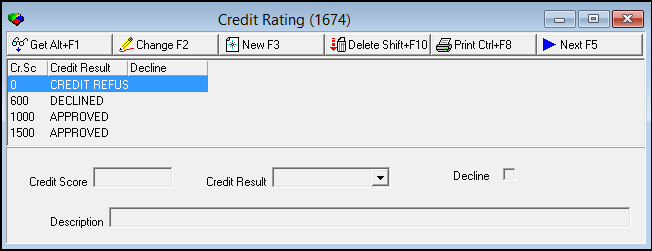
Field/Column Descriptions
The following table describes the fields and columns used in Autofeed Postpone.
|
Field/Column |
Description |
|
Credit Score |
The customer's available credit score, rounded up. The default credit scores are 0, 600, 1000, and 1500. |
|
Credit Result |
The customer's current credit result. The default four results are "CREDIT REFUS," "DECLINED," "APPROVED," and "NO MAX". This result may be modified with the Credit Result field. |
|
Decline |
.An X in this field indicates that this credit score or result will still be declined. |
|
Credit Score |
This field displays the credit score currently selected. |
|
Credit Result |
This dropdown menu allows you to modify the final result of the credit score. The choices include "APPROVED," "CREDIT HOLD," "CREDIT REFUSED," "DECLINED," "EMPTY," "FROZEN," and "NO HIT". |
|
Decline |
This checkbox allows override of any existing credit approval. If this is used with a credit score or credit result that already has a decline checkmark associated with it, a flag appears reading "Credit score decline flag already exists". |
|
Description |
This field contains any further instructions or descriptions on the credit score and result. |
Viewing Details of a Credit Score
Use the following steps to view credit score details:
1. Select the credit score you want to view.
2. Choose Get.
w The credit score details appear in the fields in the lower pane.
Creating a New Credit Score
Use the following steps to create a new credit score:
1. Choose New.
w The fields in the lower pane open for changes.
2. Enter details for the credit score.
Note: you cannot enter a credit score exceeding 1500.
3. Choose Save.
w The new credit score and result appear in the list in the upper pane.
Changing a Credit Score
Use the following steps to change a credit score:
1. From the upper pane, select the credit score you want to change by double-clicking or choosing Get.
w The reason details appear in the lower pane.
2. Choose Change.
w The fields in the lower pane open for changes.
Note: You cannot enter a credit score exceeding 1500.
3. Change credit score details as necessary.
4. Choose Save.
Deleting a Credit Score
Use the following steps to delete a credit score:
1. From the upper pane, select the credit score you want to delete by double-clicking or choosing Get.
w The reason details appear in the lower pane.
2. Choose Delete .
w A confirm dialog box opens: "Are you sure?"
3. Choose Yes.
4. SBN removes the credit score from the list in the upper pane.
Button Functions
The following table displays the buttons, describes the shortcut keys, actions and functionality.
|
Button |
Name |
Shortcut Key |
Action |
Description |
|
|
Get Record |
alt+f1 |
1674/ 1 |
View details of selected credit score. |
|
|
Change Record |
f2 |
1674/ 2 |
Change details of selected credit score. |
|
|
New Record |
f3 |
1674/ 3 |
Create new credit score. |
|
|
Delete Record |
shift+f10 |
1674/ 4 |
Delete selected credit score. |
|
|
Print Selected Records |
CTRL+F8 |
1674/ 5 |
Print selected credit score. |
|
|
Next Record |
f5 |
1674/ 1 |
Go to next credit score. |






Modifications and Updates to Credit Rating
The following table lists modifications and updates to the Credit Rating document.
|
Mod Number |
Date |
Description |
|
07.80.23266, 08.80.09586, 07.80.23260, 08.81.09584, 07.80.23247, 07.80.23245, 07.80.23236, 08.80.09572, 08.80.09521, 07.80.23155, 07.80.23153, 08.80.09520, 07.80.23146, 08.80.09518 |
04/02/14 |
Created document |