
Write off Batches
Write off Batches
Write-off Batches
Module: Accounting
Overview
Write-off Batches (program #1579) combines with Open Batches (program #1577) and Closed Batches (program #1507), to provide a complete system for posting and viewing batches of payments and write-offs.
Use Write-off Batches to
Create new batches
Add and post write-off amounts
A write-off batch remains open until all amounts that have been added to the batch have been posted to that batch.
To access this program, select Write-off Batches (program #1579) from the main menu of SBN.
The Write-off Batches Window
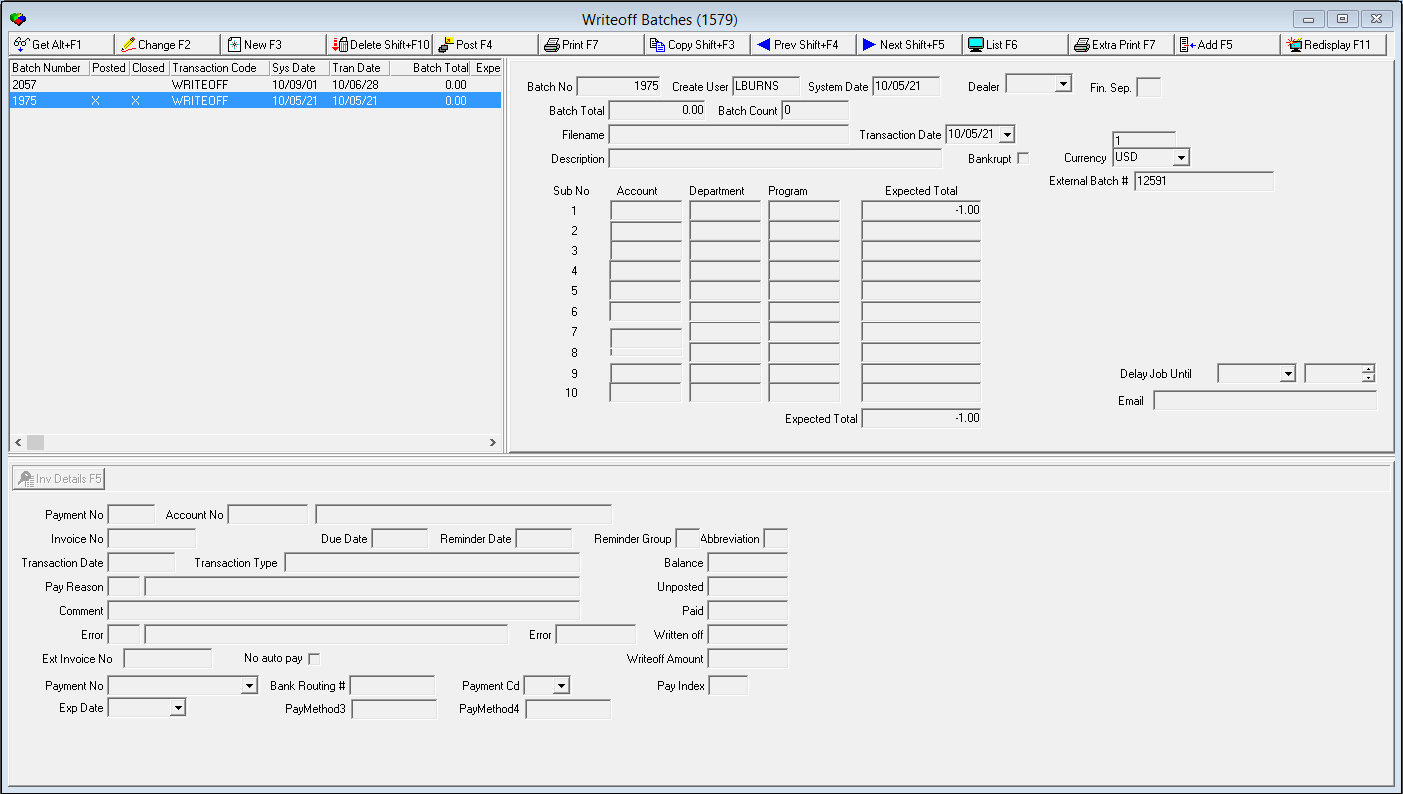
The Write-off Batches window contains three panes:
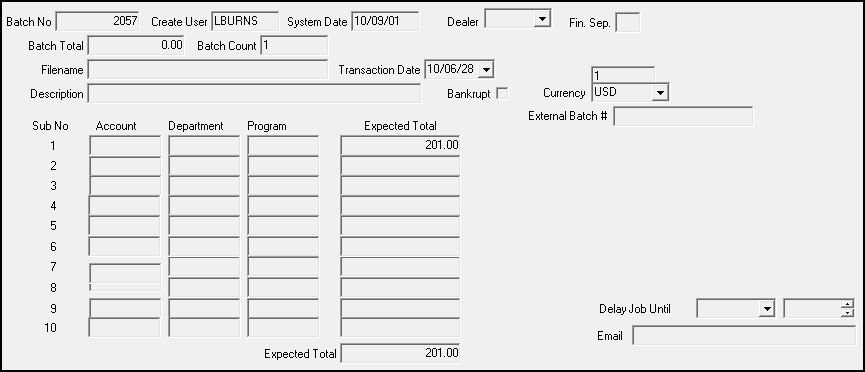
The following graphic shows the Write-off Batches window.
List of Write-off Batches
The following graphic shows the List of Write-off Batches. The columns display all existing write-off batches.

Column Descriptions — List of Write-off Batches
The following table describes the columns used in the List of Write-off Batches.
Column |
Description |
Batch Number |
SBN-assigned batch number to identify this batch of open write-offs. |
Posted |
If this column displays an X, a user attempted to post the batch but was unsuccessful. |
Closed |
If this column displays a +, the expected total and the actual total of the batch match, and are ready to post. If this column displays an X, a user attempted to post the batch but was unsuccessful. |
Transaction Code |
Identifies the type of payment/writeoff posted to the account. (For write-off batches, this appears as WRITEOFF.) |
System Date |
SBN-assigned date that this batch was created. |
Transaction Date |
User-entered date that this payment transaction occurred. |
Batch Total |
Total amount of this batch. This information comes from the Expected Total Amount field below. |
Expected Total |
Total amount expected from all sub batches together. |
Filename |
Filename of the batch data, if exported |
Description |
Free-form text description of this batch. |
Using Common Functions in the List of Write-off Batches
See the reference document Common Functions in SBN for more information.
Details of Write-off Batches
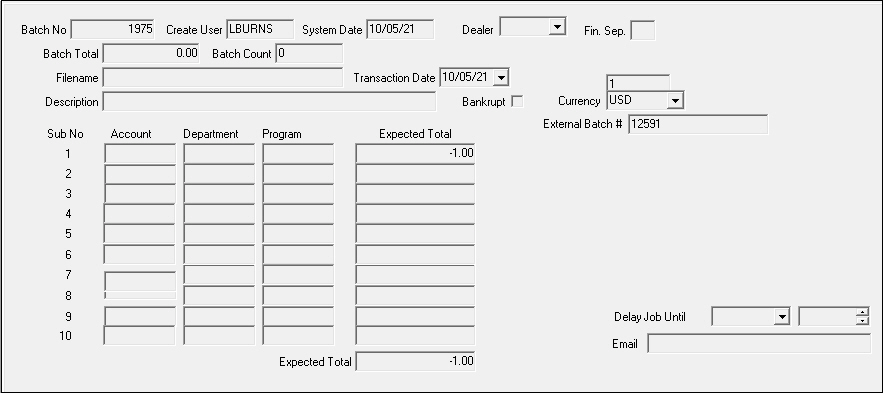
The following graphic shows the details of a selected write-off batch. This pane contains fields for entering or changing write-off batch information.
Field Descriptions — Details of Write-off Batches
The following table describes the fields used in the Details of Write-off Batches.
Field |
Description |
Batch No |
SBN-assigned batch number to identify this batch of open write-offs. |
Create User |
ID of the user who originally created this batch. |
System Date |
SBN-assigned date that this batch was created. |
Batch Total |
Total amount of this batch. This information comes from the Expected Total Amount field below. |
Batch Count |
Total amount of all transactions in the batch. |
Transaction Code |
Identifies the type of transactions included in this batch. (This menu originates from program #1586.) |
File Name |
If this batch has been exported to a file, the export file name displays. |
Transaction Date |
User-entered date that this write-off transaction occurred. |
Description |
Free-form text description of this batch. |
Sub No |
Number used to identify each sub batch. |
GL Acc # |
General ledger account number for this batch. SBN limits the account numbers in the menu to those used by Accounts Receivable. (This menu originates from program #1835.) O Option bl058 must be off for the menu to appear. |
Expected Total |
Total amount expected from each sub batch. |
Expected Total (Amount) |
Total amount expected from all sub batches together. |
Ext Pymt Batch |
Ext Pymt Batch field added in lower left-hand corner of Add screen. |
Invoice Details
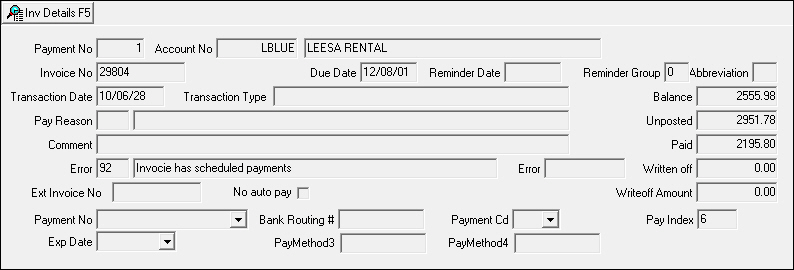
When you have information displayed in the Invoice Details pane of the Write-off Batches window, you can choose Invoice Details to open the Invoice Details window of the Invoice Status program. See Working in the Invoice Details Window.
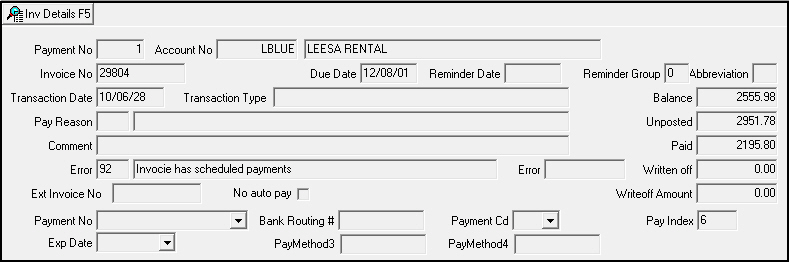
The following graphic shows the Invoice Details pane. The pane displays invoice details for a selected invoice in a write-off batch.
Field Descriptions — Invoice Details
The following table describes the fields used in the Invoice Details pane.
Field |
Description |
Payment No |
SBN-generated index number for this invoice. |
Account No |
Account number of the account this invoice is for. |
Account
Name |
Name of the primary person on the account for this invoice. |
Invoice No |
SBN-assigned invoice number for this invoice. |
Due Date |
Date that payment is due for this invoice. |
Transaction Date |
Date that this invoice transaction occurred. |
Transaction Type |
Type of transaction entered for this invoice on the transaction date. |
Pay Reason |
Identifies the reason for payment for this invoice. |
Pay Reason Text (No label) |
Free-form text to explain the pay reason. |
Comment |
Free-form text for this invoice. |
Error |
If an error occurred during posting, this field displays a numerical code that identifies the error. For more information, see Transaction Error Codes. |
Error Text |
Text description of the error code, if any. For more information, see Transaction Error Codes. |
Error (External) |
If an external error occurred during the import process, this field displays text supplied by the external application. |
Balance |
Open balance on this invoice. |
Unposted |
Amount of any unposted payments for this invoice. |
Paid |
Total of all previous payments for this invoice. |
Written Off |
Total amount previously written-off of this invoice. |
Amount |
Amount that was written-off of this invoice. |
Transaction Error Codes
The following table describes the transaction errors that may occur during posting. If a transaction error occurs, you will need to correct it.
Error Code |
Description |
-1 |
Payment is being held |
0 |
No description. No error. |
1 |
Total payout exceeds credit balance. |
2 |
Payment on a written-off invoice. |
3 |
Resulting balance on credit positive. |
4 |
Invalid invoice number. |
5 |
Invalid account number. |
6 |
Resulting balance on credit exceeds credit amount. |
7 |
Payout on invoice larger than available amount. |
8 |
Zero payment. |
9 |
The data record was flagged as bad in received file. |
10 |
A non-digit found in a digit field. |
11 |
Check-digit error. |
12 |
Write-off does not match invoice balance. |
13 |
Invoice has unposted payments. |
14 |
Cancel write-off on non-written off invoice. |
15 |
Calculated cancel write-off does not match write-off. |
16 |
Open creditson contracts to be written off. |
17 |
Written-off invoices exist. Apply payment per invoice. |
18 |
Unallocated payment. |
19 |
Payment awaiting invoice generation. |
20 |
Invoice has been paid/partially paid. |
92 |
Invoice has scheduled payments. |
Write-off Details
When you add or change write-off amounts, the Invoice Details pane changes to display Write-off Details. You may view the Write-off Details pane in one of two modes:
Account
Invoice
Account Mode
The following graphic shows Write-off Details pane in Account mode.

Field Descriptions — Account Mode
The following table describes the fields used in the Write-off Details pane in Account mode.
Field |
Description |
Account Number |
Account number to apply payment. |
Balance |
Open balance of the invoice. |
Amount |
The write-off amount to apply to the invoice. |
Reason |
Reason code for the payment. (This menu originates from program #1521.) |
Unposted |
Total amount of unposted payments for the account. |
Name |
Name of the account holder. |
Last Payment Date |
Last date a payment was received on the account. |
Comment |
Text comment to associate with the payment. |
Invoice Mode
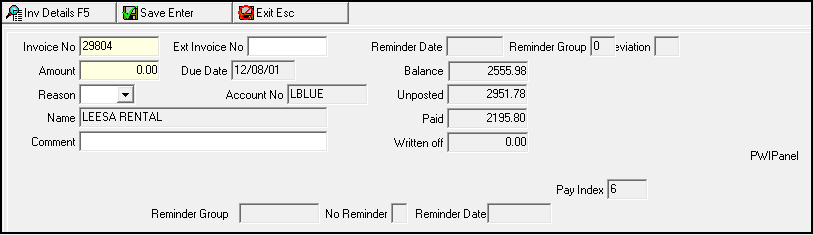
The following graphic shows the Write-off Details pane in Invoice mode.
Field Descriptions — Invoice Mode
The following table describe the fields used in the Write-off Details pane in Invoice mode.
Field |
Description |
Invoice Number |
Invoice number to which the payment applies. |
Reminder Group |
Code for the last reminder group sent to the customer. |
Reminder Date |
Last date a reminder was sent for the current invoice. |
Status |
Status of the invoice; indicates if the invoice has been sent to a collection agency. |
Amount |
Amount of the payment. |
Due Date |
Due date of the invoice. |
Balance |
Open balance of the selected invoice. |
Reason |
Reason code for the payment. (This menu originates from program #1521.) |
Account No |
Account number associated with the current invoice. |
Unposted |
Total amount of unposted payments for the account. |
Name |
Name of account holder. |
Paid |
Amount of payments previously posted to the current invoice. |
Comment |
Text comment to associate with the payment. |
Written Off |
Total amount written off the current invoice. |
PMisc4 |
Text field for defining bank information. |
Reminder Group |
Code for the last reminder group sent to the customer. |
No Reminder |
If this box displays a check mark, reminder notices were not sent with this invoice. |
Reminder Date |
Last date a reminder was sent for the current invoice. |
Using Common Functions
See the reference document Common Functions in SBN for more information.
Adding Write-offs to a Batch
You may add write-offs to existing batches
From the main window of Write-off Batches
From the Display List
Note: When you write off an invoice with scheduled payments, SBN invalidates the entire payment schedule.
Use the following steps to add a write-off to a batch from the main tab:
1. In Write-off Batches, from the List of Write-Off Batches select the batch to which you want to add a write-off.
2. Choose Add.
3. Choose Search to find any write-offs on the selected batch.
Note: If the batch you are looking for has many write-offs, you can search for a range of index numbers by typing them in the Index Search Range fields before choosing Search.
4. Select the invoice on which you want to enter a write-off.
5. Choose Add again.
‰ The New Write-off pane appears.
6. Enter the payment information.
7. Choose Save.
Posting a Batch
From the main window of Write-off Batches you can post write-offs that you have added to a batch. For more information about adding write-offs to a batch, see
Use the following steps to post a batch:
1. In Write-off Batches, in the Write-off Batches List select the batch you want to post.
2. Choose Post Batch.
‰ The Post Batch pane appears.
‰ The fields default with information. You can override the defaults, if necessary.
3. Choose Post Batch again.
‰ SBN displays the posting process.
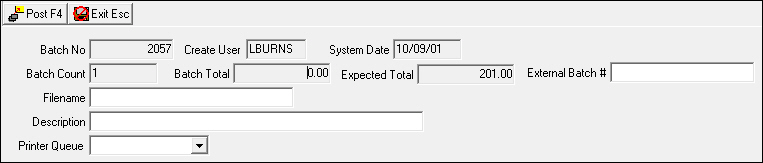
Note: The posting process shows the pending amount and number of accounts left to process in the batch.
4. Choose Exit to return to the main window of Write-Off Batches.
Using the Display List Pane
Use Display List to access additional functions for a write-off batch:
Displaying the Write-offs in a Batch
Use the following steps to display the list for a write-off batch:
1. In Write-off Batches, in the Write-off Batches List select the batch for which you want to display details.
2. Choose Display List
‰ The Display List pane appears.
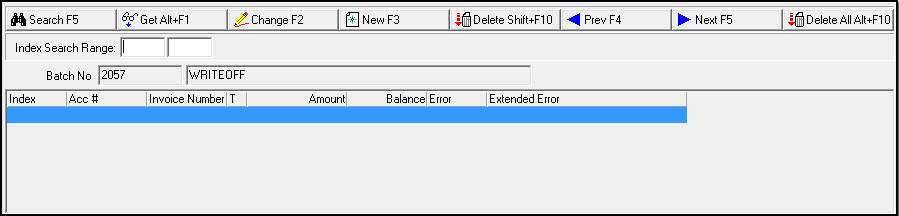
3. In Index Search Range — enter the range of index lines you want to view.
Note: If you leave these fields blank, SBN displays all indexed lines in the batch.
4. Choose Search.
‰ The results appear in the lower section of the pane.
Note: There is now a Delete All button at the end of the button row. This button is tied to action 1579/14.
Viewing Invoice Details of a Write-off
Use the following steps to view the invoice details of a write-off:
1. Display the write-offs in a batch. See Displaying the Write-offs in a Batch.
2. From the search results select the write-off for which you want to view the invoice details.
3. Double-click your selection or choose Get Record.
‰ Detailed information appears in the Invoice Details pane.
4. Choose Invoice Details.
‰ The Invoice Details window appears.
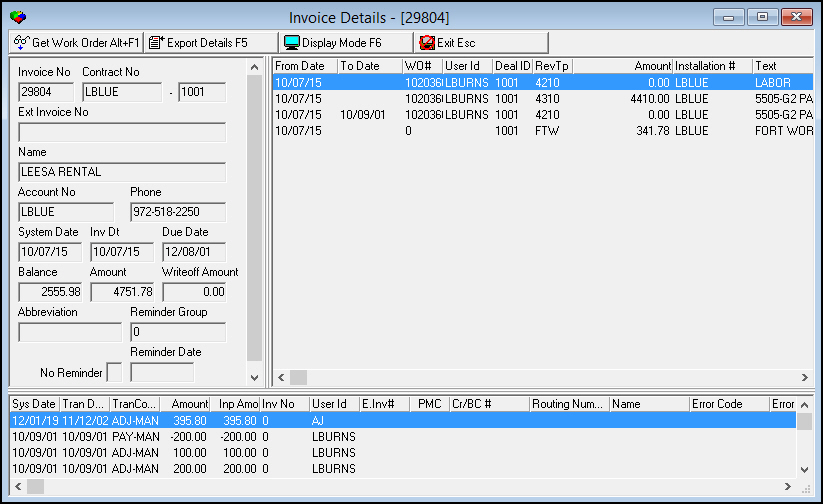
Note: See Invoice Status for more details on the functions available from this window.
5. Choose Exit to return to the main window of Write-off Batches.
Changing Payment Information for a Write-off
From the Display List pane, you can change the payment information for a write-off that has already been entered and saved in SBN.
Use the following steps to change payment information for a write-off:
1. Display the write-offs in a batch. See Displaying the Write-offs in a Batch.
2. From the search results select the account for which you want to change payment information.
3. Choose Change Record.
‰ The Change Write-off pane appears.
4. Change the payment information.
5. Choose Save.
Searching for an Account by Name
In the Change Payment pane — in Account Mode — you can search for an account by name or by known information.
Use the following steps to search for an account:
1. From the Change Payment pane choose Name Search.
Note: If the Name Search button is not available, choose By Account to toggle the view of the Change Payment pane — Account Mode.
‰ The Name Search dialog box appears.
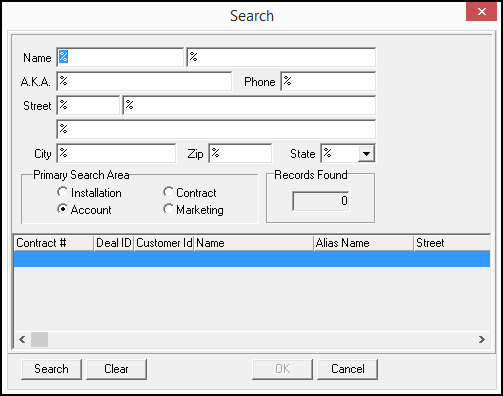
2. Type the known information for the account for which you are looking.
Note: You can use wildcard characters in all fields on the Name search dialog box. For more information on using wildcards, see Searches.
3. Choose Search.
‰ SBN displays a list of search results.
Adding a Write-off in the Display List
Use the following steps to add a write-off to an existing batch:
1. Display the write-offs in a batch. See Displaying the Write-offs in a Batch.
2. Choose New Record.
‰ The New Write-off pane appears in Invoice mode.
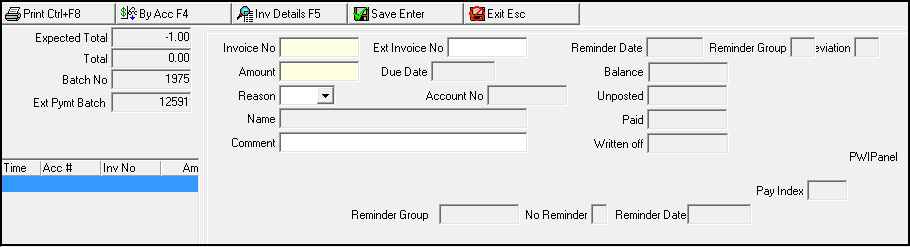
3. Choose By Acc to change to Account mode.
‰ The pane changes to account mode.
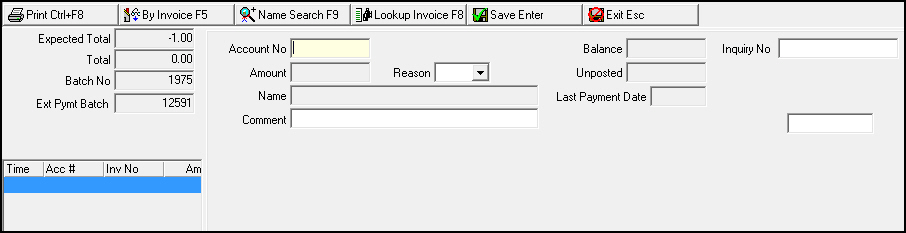
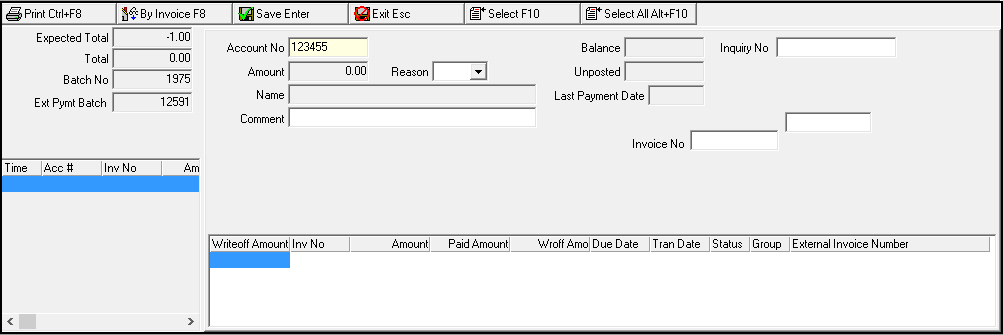
5. In Account No — type the account number to which you want to add the write-off.
6. Choose Lookup Invoice.
‰ The grid in the lower section of the pane displays invoices attached to the selected account.
7. In the grid select the invoice that you want to write-off.
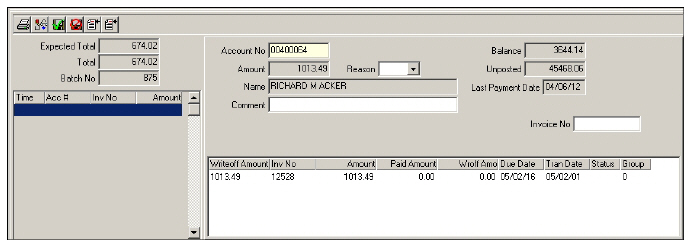
8. Choose either
l Select.
‰ SBN enters the amount of that invoice into the WriteOff Amount column and into the Amount field above the grid.
or...
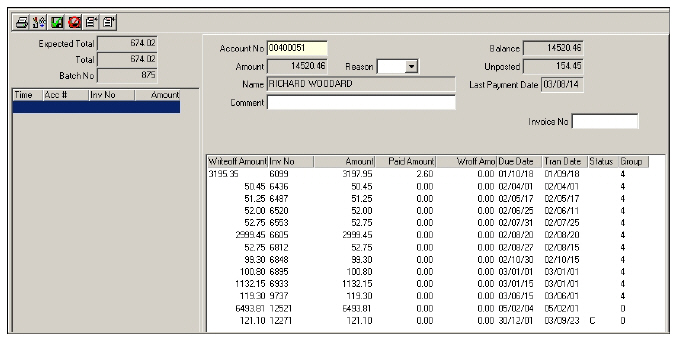
l Select All.
‰ SBN enters the amounts of all invoices into the Write Off Amount column and into the Amount field above the grid.
9. Complete the Reason and Comment fields, if needed.
10. Choose Save.
Deleting Write-offs from a Batch
From the Display List pane, you can delete write-offs from a batch.
Use the following steps to delete a write-off:
1. Display the write-offs in a batch.
2. From the search results select the write-off you want to delete.
3. Choose Delete Record.
‰ SBN asks you to confirm your selection.
4. Choose Yes.
Note: There is now a Delete All button at the end of the button row. This button is tied to action 1579/14.
Zeroing Out the Expected Amount of a Batch
Use the following steps to zero-out the expected balance of a write-off batch:
1. From the Write-off Batches List, select the batch you want to delete.
2. Double-click your selection or choose Get Record.
‰ The details appear in the Write-off Batch Details.
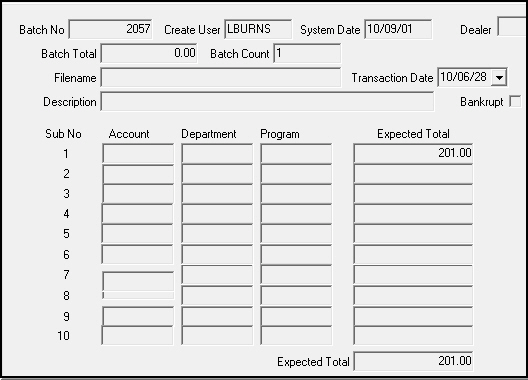
3. Choose Change Record.
‰ Fields open in the Write-off Batch Details.
4. Replace the expected amount with 0.00.
5. Choose Save.
Button Functions
The following table displays the buttons, describes the shortcut keys, actions, and functionality.
Button |
Name |
Shortcut Key |
Action |
Description |
|
Get Record |
alt+f1 |
1579/ 1 |
View details of selected batch. |
|
Change Record |
f2 |
1579/ 2 |
Change details of selected batch. |
|
New record |
f3 |
1579/ 3 |
Create new write-off. |
|
Delete Record |
shift+f10 |
1579/ 4 |
Delete selected write-off. |
|
Post Batch |
f4 |
1579/ 5 |
Post write-offs that you have added to a batch. |
|
Print selected records |
f7 |
1579/ 6 |
Print selected records. |
|
Copy current record |
shift+f3 |
Copy current record. |
|
|
Previous Record |
shift+f4 |
Go to previous record. |
|
|
Next Record |
shift+f5 |
Go to next record. |
|
|
List Details |
f6 |
Display list for write-off batch. |
|
|
Reprint Report Locally |
f7 |
1579/ 8 |
Reprint report locally. |
|
Add |
f5 |
1579/ 7 |
Add write-offs to existing batch. |
|
Redisplay Screen |
f11 |
Refresh screen. |
|
|
Exit without saving |
esc |
Exit without saving changes to selected record. |
|
|
Save Existing Record |
enter |
Save changes to selected record. |















Modifications and Updates to Write Off Batches
The following table lists modifications and updates to the Write Off Batches document.
Mod Number |
Date |
Description |
n/a |
09/09/14 |
Images updated. |