
Patrol Agencies
Patrol Agencies
Patrol Agencies
Program #: 1717
Module: System Administration
Overview
Use Patrol Agencies (program #1717) to
-
Search for patrol agencies.
-
Set up patrol contact information for multiple branches and regions, as well as specific agencies per zip code.
-
Define pricing for patrol calls for a selected agency.
-
Define a maximum time - in the main level - in which a patrol agency must respond in order to receive payment.
-
Zoom into the sublevel of an agency to define pricing for multiple intervals of patrol response times.
If you associate an agency with a specific dealer, you may only use price list groups associated with the same dealer.
This document covers the following topics:
Viewing the Details of an Agency
Changing the Details of an Agency
Using a Template for a New Agency
Navigating to Patrol Agencies
Use the following steps to navigate to Patrol Agencies:
1. From the main SBN toolbar, select Menu.
2. From the drop-down menu, select Go To [ALT+F1].
3. In the Go To Program dialog box, type in "1717."
w Patrol Agencies opens.
The Patrol Agencies Window
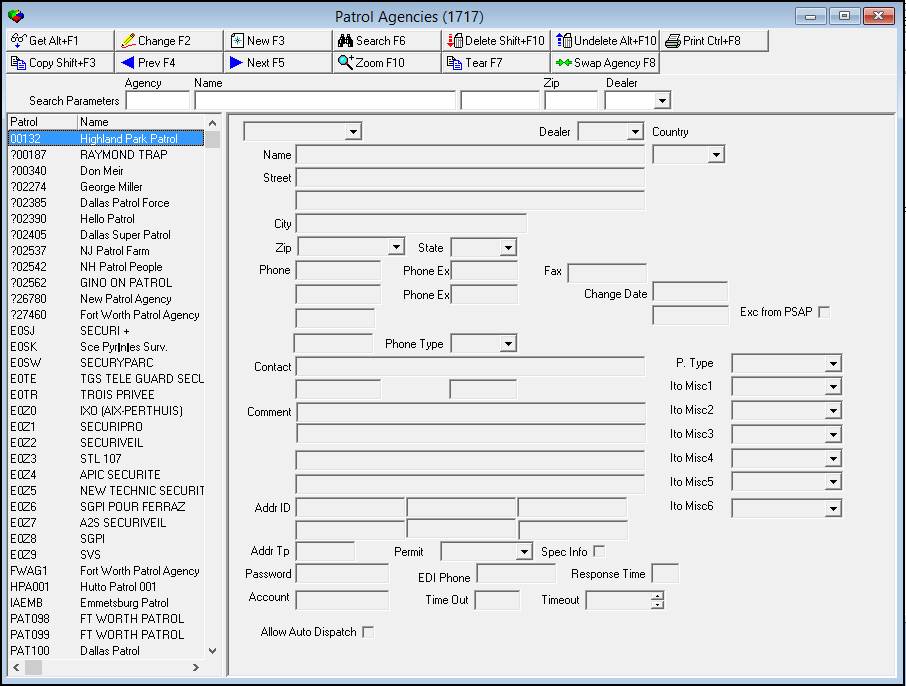
Patrol Agencies contains three panes:
-
The upper pane contains search parameters.
-
The left pane displays previously defined patrol agencies.
-
The right pane displays details of a selected patrol agency.
The following graphic shows the Patrol Agencies window as the program opens.
Field/Column Descriptions
The following table describes the fields and columns used in Patrol Agencies.
|
Field/Column |
Description |
|
Search Parameters |
|
|
Agency |
You may search for a patrol agency by agency ID. |
|
Name |
You may search for a patrol agency by name. |
|
Phone |
You may search for a patrol agency by primary phone number. |
|
Zip |
You may search for a patrol agency by zip code. |
|
Dealer |
You may search for a patrol agency by the ID of the dealer associated with that agency. (This menu originates from program #1537.)
|
|
Columns |
|
|
Patrol |
Patrol agency ID. |
|
Name |
Name of the patrol agency. |
|
Phone # |
Primary phone number for the patrol agency. |
|
City |
City where the patrol agency is located. |
|
Dealer ID |
ID of the dealer associated with the patrol agency. |
|
Detail Fields |
|
|
Agency |
Patrol agency ID. |
|
Dealer |
ID of the dealer associated with the patrol agency.
|
|
Name |
Name of the patrol agency. |
|
Street |
Street address of the patrol agency. |
|
Street 2 (No label) |
Additional line for the street address. |
|
City |
City where the patrol agency is located. |
|
Zip |
Zip code where the patrol agency is located. |
|
State |
State where the patrol agency is located. (This field holds a maximum of 60 characters.) |
|
Country |
Country where the patrol agency is located. |
|
Phone |
Primary phone number for the patrol agency. |
|
Phone |
Secondary phone number for the patrol agency. |
|
Fax |
Fax number of the patrol agency. |
|
Phone |
Paging or other special phone number for the patrol agency. |
|
Phone2 Ext. |
Extension of the secondary phone, if necessary. |
|
Change Date |
Date on which the selected patrol agency record was last changed. |
|
Phone |
Paging or other special phone number for the patrol agency. |
|
Changed By |
User ID that last made changes to the selected patrol agency record. |
|
Phone |
Paging or other special phone number for the patrol agency. |
|
Phone Type |
Type of phone number typed in the previous field. (This menu originates from program #1840.)
|
|
Contact |
Contact name at the patrol agency. |
|
Phone |
Phone number for the contact person. |
|
Phone Ext. |
Extension number for the contact person, if necessary. |
|
Comment |
Four lines for typing comments for this agency. This information appears when you zoom on the agency in Dispatch.
|
|
Spec Info |
If this box displays a check mark additional information for this patrol agency exists. This information displays in Dispatch after an operator dials a phone number, but before the Call Resolution dialog box opens. |
|
Permit |
Permit profile assigned to this agency. (This menu originates from program #1716.) |
|
Addr Tp |
Address type defines the Dispatch interface used for this agency. This field is NOT validated. Valid inputs are:
Note: When a Addr Tp is defined, all Guard actions in the Dispatch tab bypass the autodialer and transmit the dispatch event using the IP addresses defined in the Addr ID. |
|
Addr ID |
Primary IP address for special agency interference. |
|
Addr ID (No label) |
Secondary IP address for special agency interference. |
|
Addr ID (No label) |
Additional IP address for special agency interference. |
|
Addr ID (No label) |
Additional IP address for special agency interference. |
|
Addr ID (No label) |
Additional IP address for special agency interference. |
|
Addr ID (No label) |
Additional IP address for special agency interference. |
|
EDI Phone |
Phone number SBN dials to electronically transfer information directly to the agency. |
|
Account |
Vendor ID used in accounts payable. |
|
Response Time |
Maximum time, in minutes, in which this agency must respond. The Call Out Log (program #705) uses this time to calculate payments for an agency.
|
|
Password |
Password used to authenticate information being electronically sent to the agency. |
|
Timeout |
Amount of time that SBN should try transmitting the data electronically before notifying the operator there is a problem and an alternate contact method should be used. |
|
Allow Auto Dispatch |
Select this check box to make the selected patrol agency eligible for SBN to automatically execute the Guard Dispatch monitoring action in Dispatch (program #537). If you choose the automatic dial button in Dispatch for a patrol agency that has this check box selected and select one of the event extensions specified by option mo235, SBN automatically executes the Guard Dispatch monitoring action. If Option mo235 is blank, SBN does not execute the automatic Guard Dispatch monitoring action even if the patrol agency has the Allow Auto Dispatch check box selected. If Option mo240 is enabled and this flag unchecked, if the guard has been dispatched, the other guard commands (arrived, out, etc.) are not required to resolve the alarm. |
|
Exc from PSAP |
If this box is checked, PSAP will never replace this agency on an Action Plan. |
|
P Type |
You may select a panel type that the Intrado PSAP web service uses to replace the panel type of the first CID on an installation when PSAP adds the selected patrol agency to Action Plan 0. (This menu originates from program #1742.) Note: A patrol agency must exist on Action Plan 0 in order for PSAP to replace the panel type of the first CID on an installation with this data. |
|
Ito Misc1 |
You may select data that the Intrado PSAP web service adds to the Misc1 (Warranty) field of the Basics tab in program #559 when PSAP adds the selected patrol agency to Action Plan 0. Note: A patrol agency must exist on Action Plan 0 in order for PSAP to update the Basics tab of program #559 with this data. |
|
Ito Misc2 |
You may select data that the Intrado PSAP web service adds to the Misc2 (VIP) field of the Basics tab in program #559 when PSAP adds the selected patrol agency to Action Plan 0. Note: A patrol agency must exist on Action Plan 0 in order for PSAP to update the Basics tab of program #559 with this data. |
|
Ito Misc3 |
You may select data that the Intrado PSAP web service adds to the Misc3 (Pets) field of the Basics tab in program #559 when PSAP adds the selected patrol agency to Action Plan 0. Note: A patrol agency must exist on Action Plan 0 in order for PSAP to update the Basics tab of program #559 with this data. |
|
Ito Misc4 |
You may select data that the Intrado PSAP web service adds to the Misc4 (Call Out) field of the Basics tab in program #559 when PSAP adds the selected patrol agency to Action Plan 0. Note: A patrol agency must exist on Action Plan 0 in order for PSAP to update the Basics tab of program #559 with this data. |
|
Ito Misc5 |
You may select data that the Intrado PSAP web service adds to the Misc5 (Key #) field of the Basics tab in program #559 when PSAP adds the selected patrol agency to Action Plan 0. Note: A patrol agency must exist on Action Plan 0 in order for PSAP to update the Basics tab of program #559 with this data. |
|
Ito Misc6 |
You may select data that the Intrado PSAP web service adds to the Misc6 (GHQ Acc#) field of the Basics tab in program #559 when PSAP adds the selected patrol agency to Action Plan 0. Note: A patrol agency must exist on Action Plan 0 in order for PSAP to update the Basics tab of program #559 with this data. |
Searching for Patrol Agencies
Use the following steps to search for Patrol agencies:
1. In Patrol Agencies, type information into one or more of the search parameter fields.
2. Choose Search.
w The columns in the left pane display the results that match your search parameters.
Viewing the Details of an Agency
You can view the details of a Patrol Agency in the fields in the right pane.
Use the following steps to view the details of an agency:
1. In Patrol Agencies, select the agency for which you want to view details from the left pane.
2. Double-click your selection or choose Get.
w The fields in the right pane display the details of the selected agency.
Adding an Agency
Use the following steps to add a new agency:
1. In Patrol Agencies, choose New.
w The fields in the right pane open for changes.
2. Complete the Patrol, Name, and Phone fields. Complete the reaming fields, as desired.
3. Choose Save.
w SBN adds the agency to the list of defined agencies in the left pane.
Changing the Details of an Agency
Use the following steps to change the details of an agency:
1. In Patrol Agencies, select the agency you want to change from the left pane.
2. Choose Change.
w The fields that can be changed open for changes in the right pane.
3. Enter changes, as needed.
4. Choose Save.
Deleting an Agency
Use the following steps to delete an agency:
1. In Patrol Agencies, select the agency you want to delete.
2. Choose Delete.
w A Confirmation dialog box appears: "Delete XXX. Are you sure?"
3. Choose Yes.
w SBN deletes the selected agency.
Restoring a Deleted Agency
You can restore a deleted agency back into SBN.
Use the following steps to restore a deleted agency:
1. In Patrol Agencies, choose Undelete.
w The Undelete window appears.
2. In the Undelete window, find the agency you want to restore and double-click it, or choose [Enter].
w SBN restores the agency to the active list of defined entries.
Using a Template for a New Agency
You can use one agency as a template for another agency.
Use the following steps to use one agency as a template for new agency:
1. In Patrol Agencies, select the agency you want to use as a template.
2. Choose Copy Current Record.
w Fields in the left pane fill with the details of the selected agency, but remain open for changes.
3. Change any information needed for the new agency.
4. Choose Save.
w SBN adds the new agency to the list of defined entries.
The Agency Pricing Tab
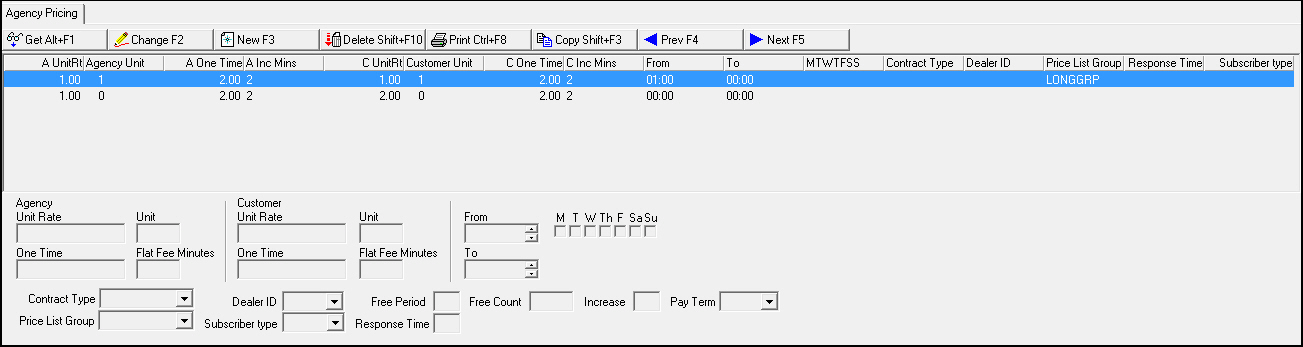
Choose Zoom to view the Agency Pricing tab in the sublevel of Patrol Agencies.
The following graphic shows the Agency Pricing tab.
Field/Column Descriptions
The following table describes the fields and columns used in the Patrol Agency Pricing tab.
|
Field/Column |
Description |
|
Agency |
|
|
Unit Rate |
Rate in dollars this agency charges for each unit of time on site. |
|
Unit |
Number of minutes in one unit. |
|
One Time |
Base fee this agency charges for responding within the contract defined time period. |
|
Flat Fee Minutes |
Number of initial minutes covered by the One Time fee. |
|
Customer |
|
|
Unit Rate |
Rate in dollars the customer is charged for each unit of time on site. |
|
Unit |
Number of minutes in one unit. |
|
One Time |
Base fee charged to the customer for responding within the contract defined time period. |
|
Flat Fee Minutes |
Number of initial minutes covered by the One Time fee. |
|
From |
Start of the time period that this rate is in effect. |
|
To |
End of the time period that this rate is in effect. |
|
MTWThFSaSu |
Days of the week that this rate is in effect. |
|
Contract Type |
Contract type used to match prices with customer. |
|
Dealer ID |
Dealer ID used to match prices with the installation. |
|
Free Period |
Not yet used. |
|
Free Count |
Not yet used. |
|
Increase |
Not yet used. |
|
Pay Term |
Not yet used. |
|
Price List Group |
Select a price list group to use as the default for the selected patrol agency. (This menu originates from program #1771.) O This menu displays only l Those price list groups associated with the same dealer ID that is associated with the selected agency l Those price list groups not associated with a dealer ID O These price list groups appear in the Call Out Log on tickets created for this agency. O When you access Quality Control, the price list group defaults to the one set for this agency. |
|
Subscriber Type |
Select a subscriber type to use as the default for the selected patrol agency. (This menu originates from program #1534.) |
|
Response Time |
Maximum time, in minutes, in which this agency must respond. The Call Out Log (program #705) uses this time to calculate payments for an agency. O You may either define one response time in the main level or define multiple intervals of response time in the sublevel. Do not define response time in both the main level and sublevel. |
Defining Multiple Intervals of Response Time
You may define multiple intervals of response time so that an agency is paid according to which interval its response time matches. Intervals must be unique. For an event associated with the selected agency, the Call Out Log (program #705) uses the pricing definition of the lowest interval that is greater than or equal to the actual response time.
Example
The Agency Pricing tab for patrol agency ABC contains 4 response time intervals defined with different rates:
|
Time Interval |
One Time Rate |
|
0 - 5 minutes |
$75.00 |
|
6 - 10 minutes |
$50.00 |
|
11 - 15 minutes |
$45.00 |
|
15 + minutes |
$0.00 |
Patrol agency ABC responded to an event in 8 minutes. The Call Out Log uses the interval defined as 6 - 10 minutes, with a rate of $50.00, to calculate the payment for patrol agency ABC.
Button Functions
The following table displays the buttons, describes the shortcut keys, actions, and functionality.
|
Button |
Name |
Shortcut Key |
Action |
Description |
|
|
Get |
ALT+F1 |
1717/ 1 |
Get record. |
|
|
Change |
F2 |
1717/ 2 |
Change selected record. |
|
|
New |
F3 |
1717/ 3 |
Create new record. |
|
|
Delete |
SHIFT+F10 |
1717/ 4 |
Delete selected record. |
|
|
Undelete |
ALT+F10 |
1717/ 5 |
Restore deleted record. |
|
|
|
CTRL+F8 |
1717/ 6 |
Print selected records. |
|
|
Search |
F6 |
1717/ 7 |
Search for agencies based upon entered parameters. |
|
|
Copy |
SHIFT+F3 |
1717/ 999 |
Copy current agency to use as a template. |
|
|
Previous |
F4 |
1717/ 999 |
Select last record. |
|
|
Next |
F5 |
1717/ 999 |
Select next record. |
|
|
Zoom in/out of Sublevel |
F10 |
Access the Permits tab. |
|
|
|
Tear Away Selected Tab |
F7 |
View the Permits tab in a separate window. |
|
|
|
Swap Agency |
F8 |
1717/17 |
Replaces the agency with another selected agency on Action Plans on all installations with that agency. |











Modifications and Updates to Patrol Agencies
The following table lists modifications and updates to the Patrol Agencies document.
|
Mod Number |
Date |
Description |
|
08.79.09370, 07.79.22898 08.79.09326, 07.79.22843 |
09/04/13 |
Added option mo235 and Allow Auto Dispatch check box. |
|
08.79.09476, 07.79.23077 08.79.09473, 07.79.23073 |
03/25/13 |
Added information on Option mo240. |
|
08.81.09732, 07.81.23481, 07.81.23478, 07.81.23477, 07.81.23475, 08.81.09699, 07.81.23446 |
07/28/14 |
Added PSAP fields and Swap Agency button. |
|
n/a |
08/20/14 |
Images updated. |