
Offers Reasons
Offers Reasons
Offers Reasons
Program #: 1687
Module: Utilities
This document is new. All text and screen shots are new.
Overview
Use Offers Reasons (program #1687) to define the drop-down menu of the Reason field in the Customer Offers tab of Contract Master (program #548).
This program is client-specific for Company 106.
Navigating to Offers Reasons
Use the following steps to access the Offers Reasons program:
1. From the main SBN toolbar, select Menu.
2. From the drop-down menu, select Go To.
3. In the Go To Program dialog box, type in "1687" and press ENTER.
w The Offers Reasons window opens.
The Offers Reasons Window
The following graphic shows Offers Reasons as the program opens.
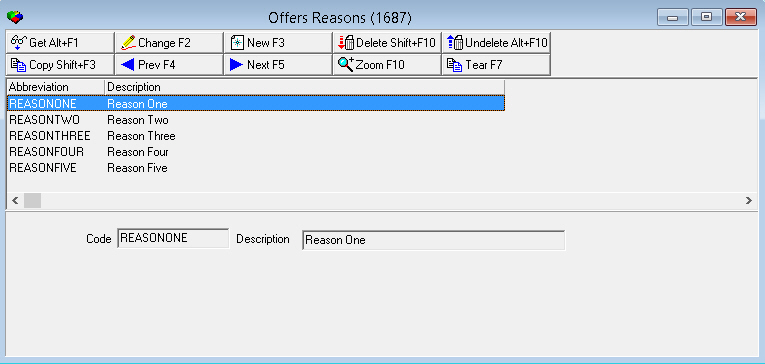
Field/Column Descriptions
The following table describes the fields and columns used in Offers Reasons.
|
Field/Column |
Description |
|
Code |
ID code of the offer reason. |
|
Description |
Text description of the offer reason. |
Creating an Offer Reason
Use the following steps to create an offer reason:
1. Choose New Record.
w The fields in the lower pane open for changes.
2. Enter details for the offer reason.
3. Choose Save.
w The new offer reason appears in the list in the upper pane.
Changing an Offer Reason
You can change the details of an existing offer reason.
Use the following steps to change an offer reason:
1. From the upper pane, select the offer reason you want to change by double-clicking or choosing Get Record.
w The offer reason details appear in the lower pane.
2. Choose Change Record.
w The fields in the lower pane open for changes.
3. Change as necessary.
4. Choose Save.
Deleting an Offer Reason
Use the following steps to delete an offer reason:
1. Select the offer reason you want to delete.
2. Choose Delete Record.
w A confirm dialog box opens: "Are you sure?"
3. Choose Yes.
w The offer reason no longer appears in the list in the upper pane.
Restoring a Deleted Offer Reason
Use the following steps to restore a deleted offer reason:
1. Choose Select Record to Undelete.
w The Undelete window appears.
2. In the Undelete window, find the offer reason you want to restore and double-click it, or choose [ENTER].
w SBN restores the offer reason to the list in the upper pane.
Zooming into the Sublevel
Offers Reasons contains a sublevel in which you may attach multiple language translations to a reason. That reason then appears according to the user's language setting.
The Translations Tab
The following graphic shows the Translations tab. The tab displays translations previously attached to the selected offer reason.
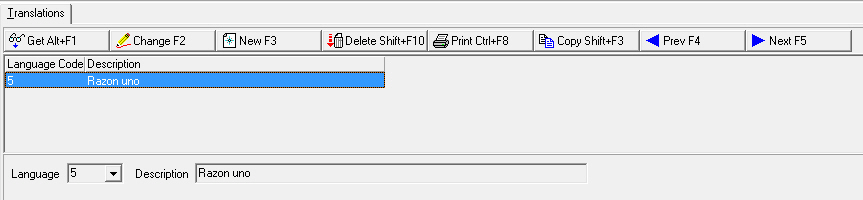
Field/Column Descriptions
The following table describes the fields and columns used in the Translations tab.
|
Field/Column |
Description |
|
Language Code |
Code that identifies the language of the attached translation. Note: Contact IBS before using codes 11-17. |
|
Description |
Alternate description text in the selected language. |
Button Functions
The following table displays the buttons, describes the shortcut keys, actions and functionality.
|
Button |
Name |
Shortcut Key |
Action |
Description |
|
|
Get Record |
alt+f1 |
1687/ 1 |
View details of selected record. |
|
|
Change Record |
f2 |
1687/ 2 |
Change details of selected record. |
|
|
New Record |
f3 |
1687/ 3 |
Create new record. |
|
|
Delete Record |
shift+f10 |
1687/ 4 |
Delete selected record. |
|
|
Undelete |
alt+f10 |
1687/ 5 |
Restore deleted record. |
|
|
Copy Current Record |
shift+f3 |
1687/ 1 |
Copy current record. |
|
|
Previous Record |
f4 |
1687/ 1 |
Go to previous record. |
|
|
Next Record |
f5 |
1687/ 1 |
Go to next record. |
|
|
Zoom in/out of sublevel |
f10 |
1687/ 1 |
Zoom into the sublevel to enter Translation information. |
|
|
Tear Away Selected Tab |
f7 |
1687/ 1 |
View selected tab in a separate window. |










Modifications and Updates to Offers Reasons
The following table lists modifications and updates to the Offers Reasons document.
|
Mod Number |
Date |
Description |
|
08.81.09740, 07.81.23516 |
08/07/2014 |
Created document |
|
n/a |
09/22/2014 |
Images updated. |