
Telemarketing Queue
Telemarketing Queue
Telemarketing Queue
Module: Account Generation
Overview
Use the Telemarketing (TM) Queue tab to search for marketing records. You may prefer to use the TM Queue to search marketing records (rather than a Basic or Advanced SBN Search) when you have marketing information to search by, such as marketing status or associated sales ID, but no specific inquiry numbers. The search results include:
Marketing accounts associated with the dealer ID included in your user access profile
Marketing accounts not associated with a dealer ID
This document covers the following topics:
Navigating to the TM Queue Tab
Searching for a Marketing Record
Viewing Marketing Record Details
Navigating to the TM Queue Tab
Use the following steps to access the TM Queue tab:
1. From the main SBN toolbar, select Menu.
2. From the drop-down menu, select Go To.
3. In the Go To Program dialog box, type in "562" and press Enter.
w Marketing and Marketing Basics opens.
4. Choose the TM Queue tab in the lower pane of Marketing.
The TM Queue Tab
The following graphic shows the TM Queue tab with example search parameters and search results displayed. The upper pane of the window contains fields for selecting search parameters. The lower pane of the window displays the results generated from the search.
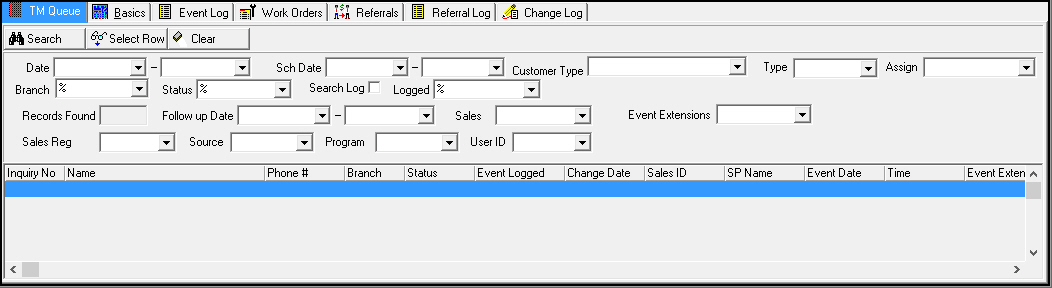
Note: Option tmmaxque controls the maximum number of records that display in the TM Queue.
Field Descriptions
The following table describes the fields used in the TM Queue tab.
Field |
Description |
Creation Date Range |
|
Date - From |
You may select a range of creation dates to include in the search; select the beginning date of the range. Note: To generate search results, you must select a range of creation dates or a range of scheduled dates. |
Date - To |
You may select a range of creation dates to include in the search; select the ending date of the range. Note: To generate search results, you must select a range of creation dates or a range of scheduled dates. |
Scheduled Date Range |
|
Sch Date - From |
You may select a range of scheduled dates to include in the search; select the beginning date of the range. Note: To generate search results, you must select a range of creation dates or a range of scheduled dates. |
Sch Date - To |
You may select a range of scheduled dates to include in the search; select the ending date of the range. Note: To generate search results, you must select a range of creation dates or a range of scheduled dates. |
Customer Type |
You may perform a search to locate inquiries matching data assigned in Marketing and Marketing Basics. Within this drop-down, you can search for one or all customer types. (This menu originates from program #1534.) Note: Use a blank field when searching for all customer types. You can use the Customer Type search parameter in conjunction with other parameters. Example: You may select the customer type ’PERS’, sales ID 'xxx', combined with the status 'INQUIRY' in order to perform a more specific search. |
Assign |
You may select or type a specific assigned sales associate. |
Branch |
You may select or type a sales branch. (This menu originates from program #1530.) |
Status |
You may select or type a current marketing lead status. |
Search Log |
If you select this box, SBN searches the event log for the specific event entered in the Logged field. Note: You must select this box to use the Follow-up Date fields for searches. Note: You must select this box to display the follow-up dates and event extensions associated with marketing events taken in the main Marketing window. |
Logged |
Select or type a specific marketing event. Note: You must select the Search Log box to access this field. |
Records Found |
Number of records located in the search. This field is read-only. |
Follow-up Date Range |
|
Follow-up Date -From |
You may select a range of follow-up dates to include in the search; select the beginning follow-up date of the range. (You enter a follow-up date when you take the Pending Decision action in the main Marketing window.) Note: If you select only a From date, the results display those marketing events that occurred after that date. |
Follow-up
Date - To |
You may select a range of follow-up dates to include in the search; select the ending follow-up date of the range. (You enter a follow-up date when you take the Pending Decision action in the main Marketing window.) Note: If you select only a To date, the results display those marketing events that occurred before that date. |
Sales |
You may select a sales person ID to search for marketing inquiries associated with that sales person. (This menu originates from program #1539.) |
Event Extensions |
You may select or type a specific marketing event extension. |
Sales Region |
You may select a specific sales region to limit the search. (This menu originates from the Sales Regions subtab of program #1530.) Note: Sales Regions are tied to branches; you must select a branch before selecting a Sales Region. |
Source |
You may select a specific marketing source to limit the search. (This menu originates from program #1710.) |
Program |
You may select a specific program to limit the search. (This menu originates from program #1701.) |
User ID |
You may select a user ID who entered the information to limit the search. |
Column Descriptions
The following table describes the columns used in the TM Queue tab.
Column |
Description |
Inquiry No |
Inquiry number for the selected marketing account. |
Name |
Name of the primary person on the selected marketing account. |
Phone # |
Primary phone number for the selected marketing account. |
Branch |
Sales branch assigned to the selected marketing account. |
Status |
Current status of the selected marketing account. |
Event Logged |
Event log type for the selected marketing account. |
Change Date |
Date of the last change made to the selected marketing account. |
Sales ID |
ID of the sales person associated with the selected marketing account. |
SP Name |
Name of the sales person associated with the selected marketing account. |
Event Date |
Date a user selected the event extension in Marketing Actions. |
Time |
Time a user selected the event extension in Marketing Actions. |
Event Extension |
Event extension selected in Marketing Actions. |
Dealer ID |
ID of the dealer associated with the selected account. |
Inst Sched Date |
Requested schedule date for Installers. |
Sales Dt |
Requested schedule date for Sales People. |
Tech Dt |
Requested schedule date for Technicians. |
Customer Type |
Customer type of the selected marketing account. |
Sales Region |
Sales region of the selected marketing account. |
Source |
Marketing source of the selected marketing account. |
Program |
Marketing program of the selected marketing account. |
User ID |
ID of the user who made the change on the selected marketing account. |
Install No |
Installation number associated with the selected marketing account. If no installation has been created for the selected marketing account, this column is blank. |
Searching for a Marketing Record
You can perform a general search for marketing accounts by leaving search fields blank, or you can narrow the search results by selecting specific parameters. The more fields you fill in, the more specific the results will be. If no records match your search parameters, SBN displays a message: "No records found."
Use the following steps to search for a record:
1. Select date ranges for the inquiry or schedule date, if needed.
2. Complete the remaining fields, as needed.
3. Click Begin Search to perform the search.
w SBN displays the results in the lower pane of the window.
4. To clear the search parameter fields and perform another search, choose Clear Search Screen.
w SBN clears all information from the TM Queue tab.
Viewing Marketing Record Details
You can view the details of a marketing account by selecting a record from the search results.
Use the following steps to view marketing account details:
1. After performing a search, select the marketing account in the results pane that you want to view.
2. Choose Select Row, or double-click on the row in which the account appears.
w SBN displays the account details in the main Marketing window.
Related Programs
The following table lists programs related to the Telemarketing Queue tab.
Program |
Number |
Document Link |
Description |
Marketing |
562 |
View telemarketing account details. |
|
Sources |
1710 |
Define and maintain a list of marketing sources. |
|
Programs |
1701 |
Define and maintain a list of sales programs. |
|
Sales Person |
1539 |
N/A |
Define and maintain a list of sales people. You may also maintain this list in Personnel (program #1811.) |
Event Log |
N/A |
View marketing event history for a selected account. |
|
Subscriber Types |
1534 |
Define the Customer Type menu of the TM Queue tab. |
|
Branch Profiles |
1530 |
Define and maintain a list of branches used throughout SBN. Define sales regions in the Sales Regions tab. |
Button Functions
The following table displays the buttons, describes the shortcut keys, actions, and functionality.
Button |
Name |
Shortcut Key |
Action |
Description |
|
Begin Search |
f2 |
562/22 |
Search for records. |
|
Select Row |
enter |
562 |
View details of selected record. |
|
Clear Search Screen |
alt+f1 |
562/21 |
Clear search parameter fields. |



Modifications and Updates to Telemarketing Queue
The following table lists modifications and updates to the Telemarketing Queue document.
Mod Number |
Date |
Description |
n/a |
09/18/08 |
document rewritten |
07.02.18621, 08.03.06862 |
06/29/09 |
Added Sales Region, Source, Program, and User ID search parameters and columns. |
07.02.20224 |
12/02/10 |
Added Install No column. |
n/a |
07/15/14 |
Updated images. |