
Non Billable Installations with Active Cycle Fees Report
Non Billable Installations with Active Cycle Fees Report
Non-Billable Installations with Active Cycle Fees Report
Module: Accounting
Overview
Use the Non-Billable Installations with Active Cycle Fees Report to view all installations that have
A contract
Active cycle fees
A monitoring status that is flagged in program #1540 with
q X - No billing
q + - Bill one-time charges only
To access this report, select Non-Billable Installations with Active Cycle Fees (report #1164) from the main menu of SBN.
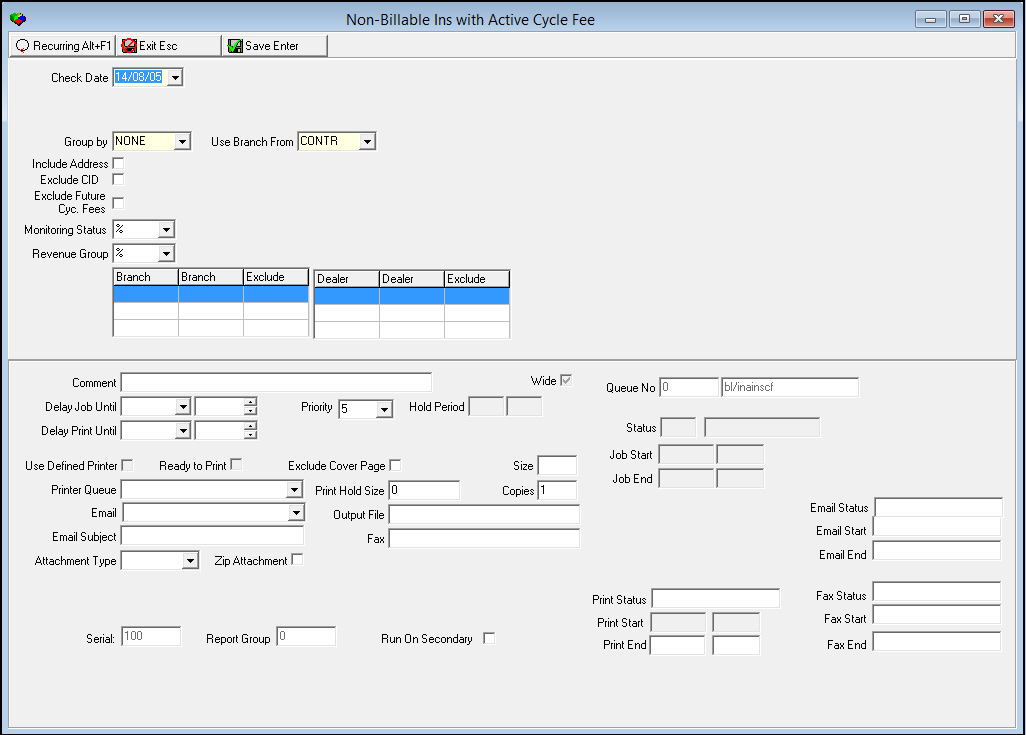
The Non-Billable Installations with Active Cycle Fees Report
This window contains two panes: use the upper pane to define the content of the report; use the lower pane to define the job output - how, when, and where you want to print the report.
Note: See Report Parameters Pane for information on the fields in the lower pane, which are the same in every report.
Field Descriptions
The following table describes the fields used in the upper pane of the Non-Billable Installations with Active Cycle Fees Report.
Note: You can use wildcard characters in selected fields. For more information on using wildcards, see Searches.
Field |
Wildcards Accepted |
Description |
Check Date |
No |
Select the date of the latest installation you want to include in the report. SBN uses this date to determine if a contract existed and had valid cycle fees on or before this date. O This field defaults to today’s date. |
Group By |
No |
You must select a Group by parameter for this report: l Branch l Dealer l None O This field defaults to None. |
Use Branch From |
No |
You must select a type of branch to limit the report to records associated with that type. O This field defaults to CONTR. |
Include Address |
No |
Enter a check mark in this box to include the installation address on the report. |
Exclude CID |
No |
Enter a check mark in this box to exclude the CID from the report. |
Exclude Future Cyc Fees |
No |
Enter a check mark in this box to exclude future cycle fees from the report. |
Monitoring Status |
Yes |
You may either select a specific monitoring status to limit the report to installations with that monitoring status, or use the % wildcard to include all monitoring statuses. |
Revenue Group |
Yes |
You may either select a specific revenue group to limit the report to installations associated with that revenue group, or use the % wildcard to include all revenue groups. |
Branch Ranges |
||
Branch |
No |
You may select up to three ranges of branches to limit the report to branches within the ranges. Select the beginning branch number of a range. (These menus originate from program #1530.) O If you leave these fields blank, the report includes all branches in your user profile. O The first branch range defaults to the user’s branch profile. |
Branch |
No |
You may select up to three ranges of branches to limit the report to branches within the ranges. Select the ending branch number of a range. (These menus originate from program #1530.) O If you leave these fields blank, the report includes all branches in your user profile. O Branch restrictions apply. |
Exclude |
No |
You may exclude ranges of branches from the report by selecting the ranges and then entering a check mark in the corresponding Exclude box. |
Dealer Ranges |
||
Dealer |
No |
You may select up to three ranges of dealer IDs to limit the report to dealer IDs within the ranges. Select the beginning dealer ID of a range. (These menus originate from program #1537.) O If you leave these fields blank, the report includes all dealers in your user profile. O Branch restrictions apply. |
Dealer |
No |
You may select up to three ranges of dealer IDs to limit the report to dealer IDs within the ranges. Select the ending dealer ID of the range. (These menus originate from program #1537.) O If you leave these fields blank, the report includes all dealers in your user profile. O Branch restrictions apply. |
Exclude |
No |
You may exclude ranges of dealer IDs from the report by selecting the ranges and then entering a check mark in the corresponding Exclude box. |
Running and Viewing a Report
For information on running and viewing a report, see Common Functions in SBN.
Report Example
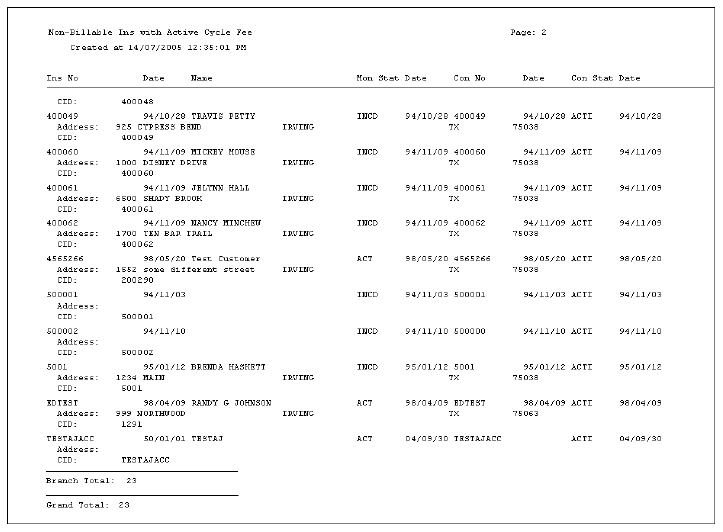
The following graphic shows an example of the output of the Non-Billable Installations with Active Cycle Fees report.
Column Descriptions
The following table describes the columns used in the output of the report.
Column |
Description |
Ins No |
Installation number. This number may appear more than once if the installation has multiple contracts with active cycle fees. |
Date |
Installation date. |
Name |
Full name for the selected installation. |
Mon Stat |
Code that identifies the monitoring status. |
Date |
Date on which the monitoring status became active for the selected installation. |
Con No |
Contract number. |
Date |
Date on which this contract became valid. |
Con Stat |
Code that identifies the contract status. |
Date |
Date on which the contract status became active. |
CID |
Displays each CID attached to the selected installation. O If you checked the Exclude CID field, this column remains blank. |
Address |
If you checked the Include Address box, this column displays installation address, city, state, and zip code. |
Button Functions
The following table displays the buttons, describes the shortcut keys, actions, and functionality.
Button |
Name |
Shortcut Key |
Action |
Description |
|
Open fields for recurring/template reports |
alt+f1 |
Open fields for recurring/template reports. |
|
|
Exit without saving |
esc |
Exit without saving changes to selected record. |
|
|
Save Existing Record |
enter |
Save changes to selected record. |



Modifications and Updates to Non Billable Installations with Active Cycle Fees Report
The following table lists modifications and updates to the Non Billable Installations with Active Cycle Fees Report document.
Mod Number |
Date |
Description |
n/a |
8/05/14 |
Images updated. |