
Certificate Number Generator
Certificate Number Generator
Certificate Number Generator
Program #: 1654
Module: Utilities
Overview
Use the Certificate Number Generator (program #1654) to generate certificate numbers that may be assigned to CIDs in the Certificates tab of Data Entry (program #559).
Navigating to the Certificate Number Generator
Use the following steps to navigate to the Certificate Number Generator:
1. From the main SBN toolbar, select Menu.
2. From the drop-down menu, select Go To.
3. In the Go To Program dialog box, type in "1654" and press Enter.
w The Certificate Number Generator opens.
The Certificate Number Generator Window
The following graphic shows the Certificate Number Generator.
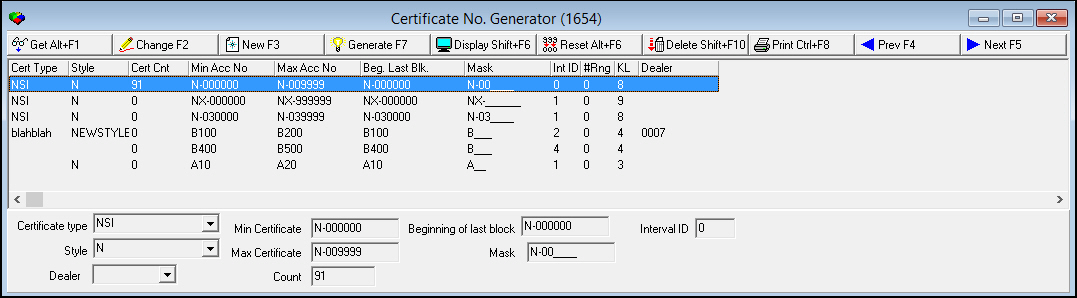
Field/Column Descriptions
The following table describes the fields and columns used in the Certificate Number Generator.
|
Field/Column |
Description |
|
Certificate Type |
Certificate type for the selected range of certificate numbers. (This menu originates from program #1653, and includes certificate types for the selected dealer and those with no dealer assigned.) |
|
Style |
Certificate style for the selected range of certificate numbers that determines the fields that appear on certificates. (Define styles for certificate types in program #1653.) |
|
Certificate Count |
Quantity of certificate numbers available for issue. |
|
Min Certificate |
Lowest certificate number in the selected range. |
|
Max Certificate |
Highest certificate number in the selected range. |
|
Beginning of Last Block |
For a new mask, this is the starting number of the series. For an existing mask, this is the beginning number in the last pool that the generator uses until it issues all numbers. |
|
Mask |
Defines the mask to use when creating a certificate number. Use underscores ( _ ) to identify where to add the actual number. |
|
Interval ID |
ID number used to create various sets of numbers for the same certificate type/dealer combination. Note: The initial mask should have interval 0 and backup masks should have sequential numbers. (See Using Interval IDs.) |
|
Number Range |
0 (zero) indicates that certificate numbers for the selected interval are available. -1 indicates that all certificate numbers for the selected interval have been used. |
|
Key Length |
Number of characters in the minimum and maximum certificate numbers. |
|
Dealer |
Dealer associated with the selected range of certificate numbers. (This menu originates from program #1537.) |
Creating a Range of Certificate Numbers
Use the following steps to create a range of certificate numbers:
1. Choose New Record.
w The fields open for changes.
2. Enter details of the new certificate number range.
3. Choose Save.
Using Interval IDs
You can set up ranges of certificate numbers of the same type and dealer to be generated sequentially by interval ID. For example, you might set up a range of numbers from 100-200 as interval 0, a range of numbers from 300-500 as interval 1, and a range of numbers from 600-800 as interval 2. When SBN generates the last number in interval 0 (200 in this example), it deletes this interval, renames interval 1 to interval 0, and begins using numbers from the new interval 0 (300 in this example). It also moves up the other interval ranges: interval 2 becomes 1, 3 becomes 2, and so on. When SBN runs out of certificate numbers, it displays a warning message that SBN cannot issue a certificate number for this certificate type/dealer combination.
Changing a Range of Certificate Numbers
Use the following steps to change a range of certificate numbers:
1. Select the number range you want to change by double-clicking on it, or choose Get Record.
w Some fields open for changes.
Note: You cannot edit the Certificate Type, Style, or Dealer for an existing certificate number range.
2. Enter changes.
3. Choose Save.
Deleting a Range of Certificate Numbers
Use the following steps to delete a range of certificate numbers:
1. Select the number range you want to delete.
2. Double-click your selection or choose Get Record.
3. Choose Delete Record.
w A confirm dialog box opens.
4. Choose Yes.
w SBN removes the number range from the list.
Viewing Available Certificate Numbers
Use the following steps to view available certificate numbers in a range:
1. Select the number range for which you want to display available certificate numbers.
2. Choose Display.
w SBN displays the list of available certificate numbers in the lower pane.

Note: When SBN generates and assigns a number in the Certificates tab of Data Entry (program #559), the number no longer appears on this list. If SBN generates a number in the Certificates tab of program #559 and does not assign the number to an account, the number returns to this list. SBN treats the number as though it is at the bottom of the list, calling all the other available numbers in the Certificates tab before calling it again.
3. When you finish viewing the list, choose Exit without Saving.
Generating Certificate Numbers
You can generate a batch of certificate numbers so they are ready to be assigned.
Note: When you generate a batch of certificate numbers, IBS does not recommend that you generate large batches (greater than 1000) as this can be time consuming and can defeat the intended purpose of this feature. When you create small batches, the unused numbers are recycled.
Use the following steps to generate certificate numbers:
1. Select the certificate number range mask that you want to use for the generated numbers.
2. Choose Generate.
w SBN creates the certificate numbers and makes them available for assignment.
Resetting (Stopping) the Generate Process
Occasionally, if you accidentally generate an extremely large batch of numbers or if your computer malfunctions, the generate process may stall. If this occurs, you will see repeated messages informing you that the certificate generator is not available because it is in use. If you see these messages repeatedly over an extended period of time, you can stop the generate process, which unlocks and resets the program.
Warning: Because the reset option stops the generate process, make sure this is necessary before you use it.
Use the following steps to reset the generate process:
1. Choose Reset.
w SBN asks if you are sure.
2. Choose Yes.
w The certificate number generation process stops.
Button Functions
The following table displays the buttons, describes the shortcut keys, actions and functionality.
|
Button |
Name |
Shortcut Key |
Action |
Description |
|
|
Get Record |
ALT+F1 |
1654/ 1 |
Get record. |
|
|
Change Record |
F2 |
1654/ 2 |
Change selected record. |
|
|
New Record |
F3 |
1654/ 3 |
Create new record. |
|
|
Generate |
F7 |
1654/ 4 |
Generate certificate numbers. |
|
|
Display |
shift+F6 |
1654/ 5 |
Display available certificate numbers. |
|
|
Reset |
alt+F6 |
1654/ 6 |
Stop the generate process to unlock and reset the program. |
|
|
Delete Record |
SHIFT+F10 |
1654/ 7 |
Delete selected record. |
|
|
Print Selected Records |
CTRL+F8 |
1654/ 8 |
Print selected records. |
|
|
Previous Record |
F4 |
1654/ 1 |
Go to previous record. |
|
|
Next Record |
F5 |
1654/ 1 |
Go to next record. |










Modifications and Updates to Certificate Number Generator
The following table lists modifications and updates to the Certificate Number Generator document.
|
Mod Number |
Date |
Description |
|
n/a |
8/28/14 |
Images updated. |
F1 Help
| Delphi Forms | macertificatenoform |
| Program Numbers | 1654 |