
User Notice
User Notice
User Notice
Program #: 1503
Module: System Administration
Overview
In User Notice (program #1503), you may attach a notice to a specific user ID that displays whenever the user logs into SBN. You may also create a global notice that displays for all users when they log into SBN, and you may create global notices for specific dealers that display for all users associated with that dealer in program #1811 when they log in. Once a user accepts their personal notice, the user will not receive another notice until you create a new one or change the user's existing notice in User Notice. Option chknotic must be on in order for a notice to display upon user login. If option lognotic is on, SBN displays a user notice every time the user logs into SBN, regardless of how many times the user accepts the notice.
Navigating to User Notice
Use the following steps to access the User Notice program:
1. From the main SBN toolbar, select Menu.
2. From the drop-down menu, select Go To.
3. In the Go To Program dialog box, type in "1503" and press Enter.
w The User Notice program opens.
The User Notice Window
The following graphic shows User Notice as the program opens. The window contains two panes:
-
The User ID pane - in which a list of user ID's appears
-
The Notice Text pane - which displays the notice text attached to the selected user or dealer ID
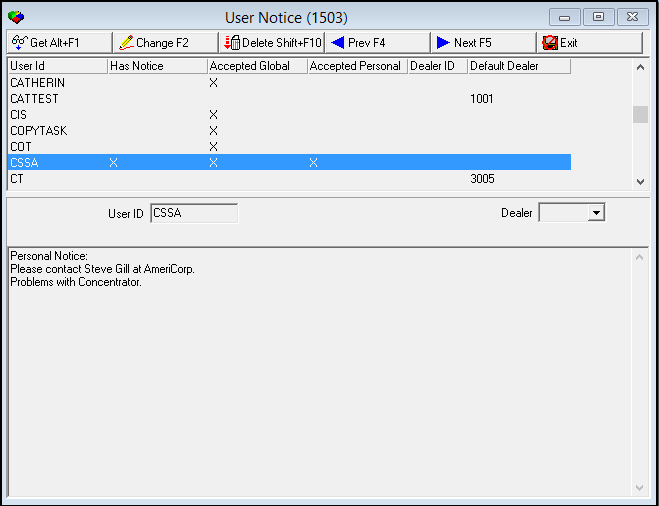
Field/Column Descriptions
The following table describes the fields and columns used in User Notice.
|
Field/Column |
Description |
|
User ID |
SBN user ID. |
|
Has Notice |
An X in this column indicates that the selected user or dealer ID has a notice attached. |
|
Accepted Global |
An X in this column indicates the user logged into SBN and chose OK after seeing the global notice for all users, or the global notice for the user's dealer. |
|
Accepted Personal |
An X in this column indicates the user logged into SBN and chose OK after seeing their personal notice. |
|
Dealer ID |
Dealer ID associated with the selected notice. Note: You may only assign a dealer to a global notice, not to a personal notice. |
|
Default Dealer |
Dealer ID associated with the user ID in Personnel (program #1811). The user will see the global notice for their dealer when logging into SBN. |
|
Notice Text |
Notice text that displays when a user logs into SBN. |
Creating a User Notice
You can attach a notice to a specific user or create a notice to display for all users. A user will only receive one notice when he or she logs on to SBN, in the following order of precedence:
-
If there is a notice defined for a user, the user will receive a personal notice upon login.
-
If there is no notice defined for a user, but there is one defined for the dealer assigned to his/her user ID in Personnel (program #1811), the user will receive a dealer notice upon login.
-
If there is no notice defined for a user or the user's dealer, or if the user has no dealer assigned in program #1811, the user receives the global notice for all users when logging into SBN.
At the top of the user list in the User Notice window is a blank user ID. If you attach notice text to the blank user ID, the global notice displays for all users when they log into SBN. If you select a dealer ID for the blank user ID entry, the notice displays only for those users associated with the selected dealer.
If a user has both an unread personal notice and an unread global notice, the user only receives the personal notice upon login. When the user accepts the personal notice, SBN flags the Accepted Personal column for the user ID, and the user will not receive another notice until you create a new one or change the user's existing notice.
Note: If option lognotic is on, SBN displays a user notice every time the user logs onto SBN, regardless of how many times the user accepts the notice.
Use the following steps to create or change a user notice:
1. Select a user ID to which you want to attach a notice by double-clicking it or choose Get.
w The lower pane displays the existing notice text attached to the user ID, if any.
2. Choose Change.
4. Type new notice text, or alter existing text as needed.
5. Press ENTER on your keyboard to save changes to the notice text box and close it.
6. Choose Save Existing Record.
w An X appears in the Has Notice column of the user ID pane.
When the user logs into SBN after viewing the notice, an X appears in the Accepted Personal column. If you change existing notice text while the user is logged in, the X in the Accepted Personal column clears until the user logs in again and sees the new notice.
Deleting a User Notice
Use the following steps to delete a user notice:
1. Select a user ID with a notice you want to delete by double-clicking it or choose Get.
w The lower pane displays the existing notice text attached to the user ID.
2. Choose Change.
3. Choose Notice Text. (This button is only active in change mode.)
w The notice text box opens for changes.
4. Delete all text in the notice text box.
5. Press ENTER on your keyboard to save changes to the notice text box and close it.
6. Choose Save Existing Record.
w The X in the Has Notice column of the user ID pane is removed.
Deleting a User ID
Use the following steps to delete a user ID from the User Notice program:
1. Select a user ID you want to delete by double-clicking it or choose Get.
2. Choose Delete.
w A confirm dialog box opens: "Delete XX. Are you sure?"
3. Choose Yes.
w SBN removes the user ID from the list in the upper pane.
Button Functions
The following table displays the buttons, describes the shortcut keys, actions, and functionality.
|
Button |
Name |
Shortcut Key |
Action |
Description |
|
|
Get Record |
ALT+F1 |
1503/1 |
View notice text for the selected user. |
|
|
Change Record |
f2 |
1503/2 |
Change notice text for the selected user. |
|
|
Delete Record |
shifT+F10 |
Delete the selected user ID. |
|
|
|
Previous Record |
F4 |
Go to previous user. |
|
|
|
Next Record |
F5 |
Go to next user. |
|
|
|
Exit without saving |
esc |
Exit without saving changes to record. |
|
|
|
Save Existing Record |
enter |
Save changes to record. |







Modifications and Updates to User Notice
The following table lists modifications and updates to the User Notice document.
|
Mod Number |
Date |
Description |
|
n/a |
08/15/08 |
document created |
|
08.03.06631, 07.02.18234 |
04/07/09 |
Both unread personal and global notice functionality. |
|
07.02.20696, 07.02.20697, 08.03.08194 |
04/20/11 |
Added Dealer ID field and column. Added Accepted Global, Accepted Personal, and Default Dealer columns. |
|
n/a |
8/26/14 |
Images updated. |
F1 Help
| Delphi Forms | balogonnoticeform |
| Program Numbers | 1503 |