
Clear Queues
Clear Queues
Clear Queues
Module: System Administration
Overview
In Clear Queues, users with necessary authorization can move alarms from one queue to another queue or can remove alarms from a selected queue.
To access this program, select Clear Queues (program #567) from the main menu of SBN.
The Clear Queues Window
The following graphic shows Clear Queues as the program opens.
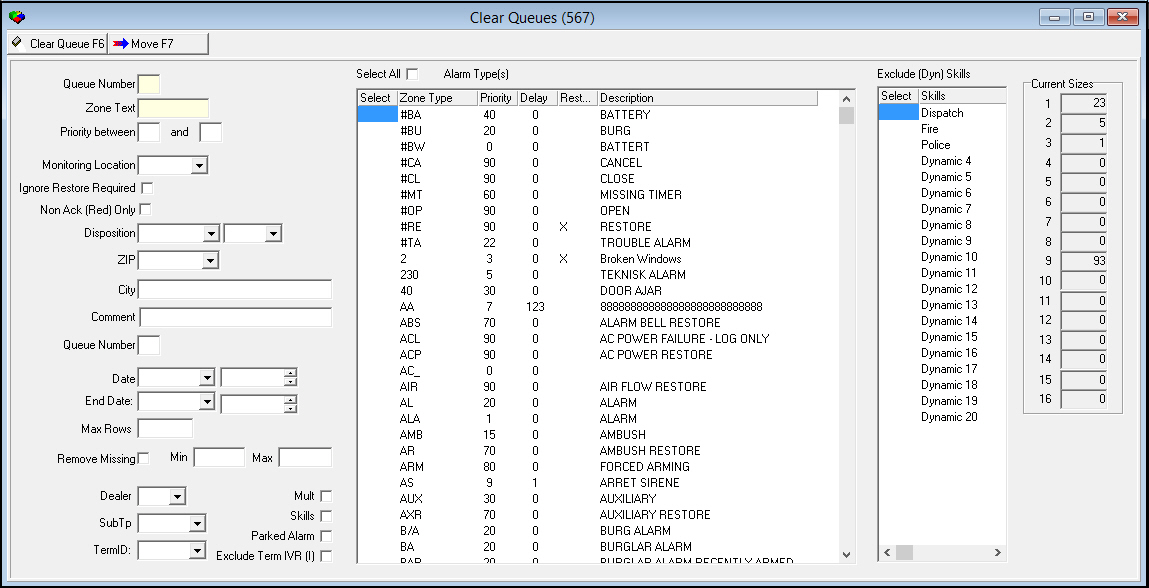
Field Descriptions
The following table describes the fields used in Clear Queues.
|
Field |
Description |
|
Queue Number |
Select the Alarm Queue from which you want to move or remove alarms. |
|
Select All |
Select this check box to select all the zone types in the Alarm Types grid. All selected types will be cleared from the queue. |
|
Alarm Type(s) |
Select one or more zone types in this grid to include them in the Clear or Move action. |
|
Current Sizes |
Indicates the number of alarms in each of the 16 queues. O If you move or remove alarms, SBN updates the Current Sizes fields for the queue or queues you selected. Note: if a user has a particular Dealer ID assigned to him/her in the Users Tab in Personnel (program #1811), the user will only be able to see alarms assigned to that Dealer ID in this column. |
|
Zone Text |
Type up to 10 characters of the Zone Description. This field is required. O This field accepts the % wildcard. |
|
Priority between ___and ___ |
Select a range of Alarm priorities to move or remove. You can type priority numbers 1 through 100. |
|
Monitoring Location |
Select the monitoring location of the alarms that you want to move or remove. (This menu originates from program #1530.) Note: This field accepts the % and_ wildcards. |
|
Ignore Restore Required |
Select to move or remove alarms from zones that are marked Restore Required. O If you leave this box blank and any zones in the same Monitoring Group are marked Restore Required, SBN does not move or remove alarms in the group from the queue. |
|
Non Ack (Red) Only |
Select to move or remove only those alarms in the queue that meet the selection parameters and have not been acknowledged by an operator. O If you leave this box blank, SBN moves or removes all alarms that meet the selection parameters whether an operator has acknowledged the alarm or not. |
|
Disposition |
You can select a disposition to enter into the alarm log. O If you do not select a disposition, SBN enters SYS REMO in the Alarm Log. Note: This field is mandatory only when you press the Clear button. |
|
Event Extension |
You can select an event extension to enter into the alarm log. Note: This field is mandatory only when you press the Clear button. |
|
ZIP |
Select the zip code where alarms that you want to move or remove are located. (This menu originates from program #1718.) This field accepts the % wildcard. |
|
City |
Type the city where alarms that you want to move or remove are located. This field accepts the % wildcard. |
|
Comment |
Type a comment that appears in the Alarm Log of the CID for each alarm when you move or remove alarms. |
|
Queue Number |
Type the number of the queue to which you want to move alarms. |
|
Date |
You may select a range of dates in which you want to move or remove alarms. Select the beginning date of the range. |
|
Start Time (No label) |
You may select a range of time in which you want to move or remove alarms. Select the beginning time of the range. Note: The time reflects operator time, not customer time. |
|
End Date |
You may select a range of dates in which you want to move or remove alarms. Select the ending date of the range. |
|
End Time (No label) |
You may select a range of time in which you want to move or remove alarms. Select the ending time of the range. Note: The time reflects operator time, not customer time. |
|
Max Rows |
You may define the maximum number of rows to move. |
|
Remove Missing |
Select to remove all missing signals that have had other alarms received on the same CID within the time specified in the Min / Max fields. |
|
Min |
Minimum number of seconds used for the Remove Missing functionality. |
|
Max |
Maximum number of seconds used for the Remove Missing functionality. |
|
Dealer |
You may select a dealer to move or remove all alarms on installations associated with that dealer. If this field is blank, alarms for all dealers are moved or removed. (This menu originates from program #1537.) |
|
Multiple (Exclude) |
Select this check box to exclude incidents with multiple alarms from being moved or removed. |
|
Parked Alarm |
Select this check box to move or remove only alarms in Parked status. |
|
SubType |
You may select a subscriber type to move or remove all alarms on installations associated with that subscriber type. If this field is blank, alarms for all subscriber types are moved or removed. (This menu originates from program #1534.) |
|
Skills |
Select this check box to move or remove only alarms on installations with Skills defined in the Basics tab of program #559. |
|
Terminal ID |
You may select a terminal ID to move or remove all alarms assigned to that terminal. (This menu originates from program #1861.) |
|
Exclude Term IVR (I) |
Select this check box to exclude alarms assigned to Interactive Voice Response (IVR) terminals from being moved or cleared. Note: A terminal is designated as IVR by having type I assigned in program #1861. |
|
Exclude (Dyn) Skills |
Select one or more check boxes in this grid to exclude all alarms with the specified dynamic skill(s) (as defined on the Dispatch tab of program #559) from being moved or cleared. Note: If you do not select any check boxes in this grid, all dynamic skills are included when you move or clear alarms. |
Moving Alarms to Another Queue
Use the following steps to move alarms from one queue to another queue:
1. In Clear Queues, fill in the fields.
Note: The first Queue Number field is the queue from which you want to move alarms. The second Queue Number field is the queue to which you want to move alarms.
2. Choose Move Alarms.
‰ SBN moves the alarms that match your selected parameters.
Note: If you have a specific Dealer ID assigned to you in the Users Tab of Personnel (program #1811), you will be able to move only alarms also assigned to that Dealer ID. Any alarms in the queue not assigned to your Dealer ID will not be visible, and cannot be moved.
Clearing Alarms from a Queue
Use the following steps to remove alarms from a queue without moving them to another queue:
1. In Clear Queues, fill in the fields except the second Queue Number field.
2. Choose Clear Queue.
‰ SBN removes alarms from the selected queue.
Note: If you have a specific Dealer ID assigned to you in the Users Tab of Personnel (program #1811), you will be able to clear only alarms also assigned to that Dealer ID. Any alarms in the queue not assigned to your Dealer ID will not be visible, and cannot be cleared.
Button Functions
The following table displays the buttons, describes the shortcut keys, actions, and functionality.
|
Button |
Name |
Shortcut Key |
Action |
Description |
|
|
Clear Queue |
F6 |
567/ 1 |
Removes the current queue entry. |
|
|
Move Alarms |
F7 |
567/ 2 |
Moves the alarms in an alarm queue to another queue. |


Modifications and Updates to Clear Queues
The following table lists modifications and updates to the Clear Queues document.
|
Mod Number |
Date |
Description |
|
08.03.08735, 07.02.21710 08.03.08662, 07.02.21600 |
04/08/13 |
Added Alarm Type(s) grid, Exclude Term IVR (I) check box, and Exclude (Dyn) Skills grid. |
|
08.79.09274, 08.79.09247 |
6/28/13 |
Added Select All check box. |
|
n/a |
8/15/14 |
Images updated. |
|
07.81.23643, 07.81.23678 |
10/01/14 |
Added notices about Dealer ID affecting seeing, moving, or clearing queues. |