
Price Lists
Price Lists
Price Lists
Program #: 1533
Module: System Administration
Overview
Use Price Lists (program #1533) to create and maintain price lists and item prices to use in SBN. After you create a price list, add items to the price list and specify one time fees, cycle fees, revenue types, tax factors, and fee periods. You can also use the Price Lists program to apply global price changes to items for a specific price list.
If your user profile contains dealer restrictions, you only see the price lists associated with the same dealers included in your profile and price lists not associated with any dealer. The price lists created in this program appear in the Price List Groups (program #1771). Also, in the Details tab of the sublevel, you only see items associated with the same dealer included in your profile and items not associated with any dealer.
If option ba354 is defined, you may create a template item and attach that template item to price lists within your dealer profile. Then, SBN automatically adds new items to the same price lists as are associated with the template item within your dealer profile.
Navigating to Price Lists
Use the following steps to navigate to Price Lists:
1. From the main SBN toolbar, select Menu.
2. From the drop-down menu, select Go To.
3. In the Go To Program dialog box, type in "1533" and press Enter.
w The Price Lists program opens.
The Price Lists Window
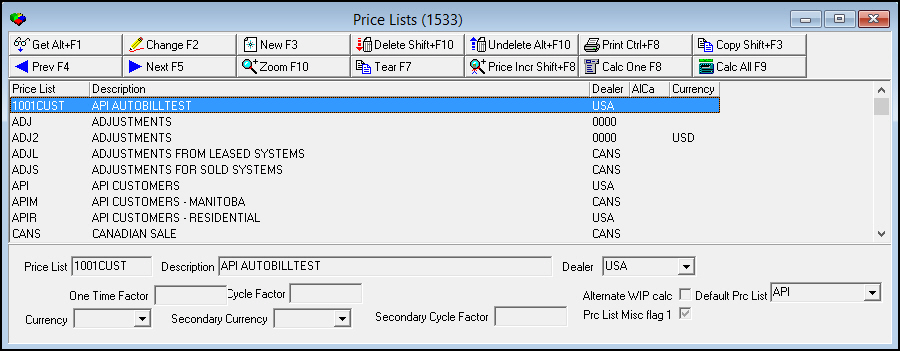
The following graphic shows Price Lists as the program opens. The upper pane displays previously defined price lists.
Field/Column Descriptions
The following table describes the fields and columns used in the main window of Price Lists.
|
Field/Column |
Description |
|
Price List |
Abbreviation of the selected price list. |
|
Description |
Text description of the selected price list. |
|
Dealer |
ID of the dealer that is associated with the selected price list. Note: When you associate a dealer ID with a selected price list, only users with that dealer ID in their user profiles can access the selected price list. |
|
Partner Price List |
Abbreviation for a Securitas Partner price list. Note: The field default is set to invisible for most customers. |
|
One Time Factor |
Cost factor for one-time fees for the selected price list. Note: When you choose Calculate One or Calculate All, SBN bases calculations on the following parameters: l SBN uses the value of this field if the One Time Factor field in the Details tab is blank. l If the One Time Factor field in the Details tab is defined, it overrides the value defined in this field. l If you leave this field blank, SBN uses the value of the One Time Factor field in the Details tab. |
|
Cycle Factor |
Cost factor for primary cycle fees for the selected price list. Note: When you choose Calculate One or Calculate All, SBN bases calculations on the following parameters: l SBN uses the value of this field if the Cycle Factor field in the Details tab is blank. l If the Cycle Fee Factor field in the Details tab is defined, it overrides the value defined in this field. l If you leave this field blank, SBN uses the value of the Cycle Factor field in the Details tab. |
|
Default Prc List |
Add a default price list to the selected price list. When you create a new work order, items attached to the default price list appear along with the items attached to the selected price list in the Item drop-down menu. Note: The Default Price List menu only includes price lists that are not associated with a dealer. |
|
Alternate WIP Calc |
If this check box is selected, SBN uses the Standard Labor field in Items (program #1535) to calculate labor for all items in the WIP tab of work orders associated with the selected price list. SBN also displays this labor calculation in the Estimated Labor column of Completed Job Analysis (report #2043) and Completed Job Summary (report #2045). Note: This check box overrides the individual Labor flag settings in program #1535 for each item on the work order. |
|
Currency |
Currency in which one time fees and primary cycle fees for the selected price list appear. Note: You can only use the selected price list on work orders that have the same currency and secondary (cycle) currency defined in the Currency and Cycle Currency fields of the work order as are defined for the price list. SBN does not allow you to save a work order if the price list does not match the work order currency types. If you do not assign a contract or billing account to a work order, the work order Currency field defaults to the currency defined in the Currency field of program #1533 for the sale price list of the work order's Price List Group (defined in program #1771). If the sale price list has no primary currency defined, then the Cycle Currency field of the work order is blank, and the work order Currency field defaults to the currency defined in the user's profile in Personnel (program #1811). |
|
Secondary Currency |
Currency in which secondary cycle fees for the selected price list appear. Note: You can only use the selected price list on work orders that have the same currency and secondary (cycle) currency defined in the Currency and Cycle Currency fields of the work order as are defined for the price list. SBN does not allow you to save a work order if the price list does not match the work order currency types. If you do not assign a contract or billing account to a work order, the work order Cycle Currency field defaults to the currency defined in the Secondary Currency field of program #1533 for the sale price list of the work order's Price List Group (defined in program #1771). If the sale price list has no primary currency defined, then the Cycle Currency field of the work order is blank, and the work order Currency field defaults to the currency defined in the user's profile in Personnel (program #1811). |
|
Secondary Cycle Factor |
Cost factor for secondary cycle fees for the selected price list. Note: When you choose Calculate One or Calculate All, SBN bases calculations on the following parameters: l SBN uses the value of this field if the Secondary Cycle Factor field in the Details tab is blank. l If the Secondary Cycle Factor field in the Details tab is defined, it overrides the value defined in this field. l If you leave this field blank, SBN uses the value of the Secondary Cycle Factor field in the Details tab. |
Using Common Functions
See the reference document Common Functions in SBN for more information.
Creating a New Price List
Use the following steps to add a new price list:
1. In Price Lists, choose New.
w The fields in the bottom pane open.
2. Complete the following fields:
-
Price List
-
Description
-
Dealer
-
One Time Factor
-
Cycle Factor
3. Choose Save.
Copying Price List Data
In some cases, you may wish to make a new price list comprised of information from a previous list.
Use the following steps to copy an Item:
1. From Price Lists (program #1533), select an existing price list.
2. Click Copy from the top row. This will clear the Price List field at the bottom and highlight it.
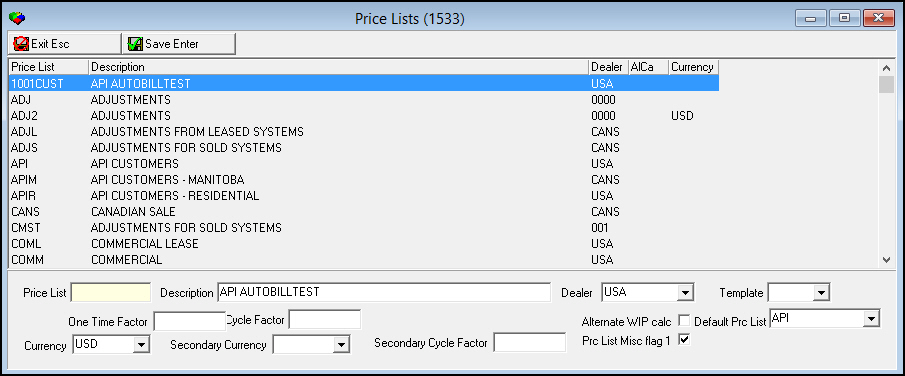
3. Enter a new price list name into the Price List. Make sure that this new price list name does not match one already listed.
4. Click Save. This will open a popup window asking "Do you want to copy the item data?" Click Yes to copy the price list data.
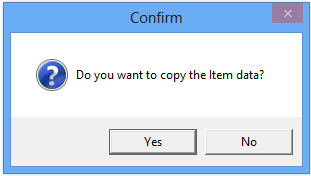
5. The new Price List now appears in the window. All of the information from the original price list will now be visible at the bottom of the window.
Calculating Fees with Factors
After you type a one-time factor, cycle factor, or secondary cycle factor you must choose a Calculate button for SBN to recompute the one time or cycle fees:
-
Choose Calculate One to recalculate the one-time or cycle fees by the entered factors for the single item highlighted in the Details tab of the selected price list.
-
Choose Calculate All to recalculate the one-time or cycle fees by the entered factors for all items in the Details tab for the selected price list.
Note: When you choose either the Calculate One or Calculate All buttons to recalculate the one-time or cycle fees by an entered factor, the Price Change Log tab displays the change.
Note: Actions 1533/8-9 control access to the Calculate buttons in Price Lists (program #1533).
Zooming into the Sublevel of Price Lists
The sublevel of the Price Lists contains three tabs:
-
Details tab - in which you manage items associated with the selected price list by assigning item fees, revenue types, and fee periods.
-
Global Price Increases tab - in which you increase item prices for a particular price list by fixed amount or percentage
Note: You can also access this tab by choosing Global Price Increase.
-
Price Change Log tab
The Details Tab
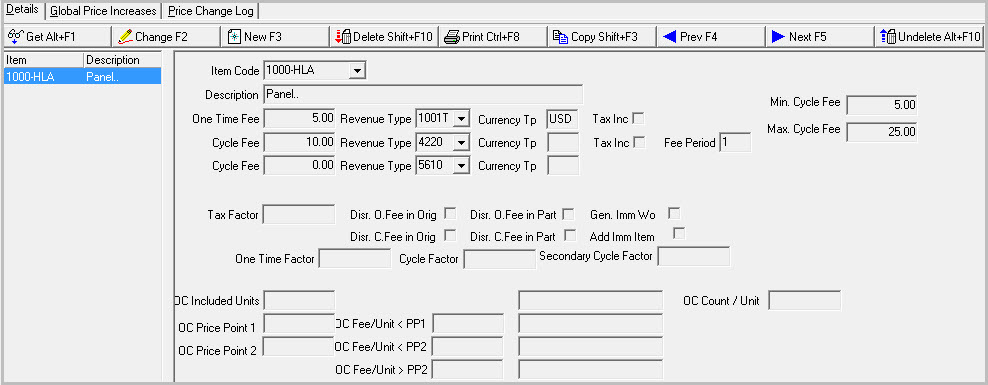
The following graphic shows the Details tab. The tab displays items previously associated with the selected Price List.
Note: Action 1533/15 controls access to the Select Record to Undelete button and functionality.
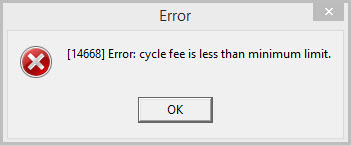
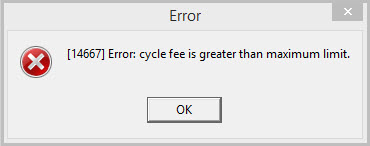
Note: When entering a Cycle fee amount that is higher or lower than the Min or Max Cycle fees, SBN will return an error message indicating that the cycle fee amount entered is not within the cycle fee limits.
Field/Column Descriptions
The following table describes the fields and columns used in the Details tab.
|
Field/Column |
Description |
|
Item Code |
Item code for the item included in the price list. User's dealer restrictions apply. (This menu originates from program #1535.) Note: Item descriptions appear in the user's selected language when defined in the program #1535 Translations tab. |
|
Description |
Text description of the item. |
|
One Time Fee |
The one time fee to charge for this item on this price list, based on (Standard Cost) * (One Time Factor). O If option bl139 is on, the One Time Fee is based on (Average Cost) * (One Time Factor). O See Items (program #1535) for Standard and Average Costs of an item. |
|
Revenue Type |
Menu of revenue types to apply to the one time fees. (This menu originates from program #1512.) O This menu displays: l Only those revenue types that are either associated with the same dealer as defined in the selected price list and the dealers in the user’s profile. l Those revenue types that are not associated with a dealer. |
|
Currency Type |
This read-only field displays the currency type associated with the selected revenue type for one time fees in program #1512. |
|
Tax Inc |
A check mark indicates that the price entered for the one-time fee includes the tax. O This causes SBN to reduce the one-time revenue by the amount of tax calculated and redirects that portion to taxes. |
|
Cycle Fee |
The primary cycle fee to charge for this item on this price list based on (Cycle Fee) * (Cycle Factor). Note: If a primary currency is defined for this price list (in the Currency field), the amount of this cycle fee is in the primary currency. When you assign this price list to a work order, SBN uses this cycle fee amount for this item if the work order cycle currency type matches the price list primary currency type. |
|
Revenue Type |
Menu of revenue types to apply to the primary cycle fees. (This menu originates from program #1512.) Note: This menu displays: l Only those revenue types that are either associated with the same dealer as defined in the selected price list and the dealers in the user’s profile. l Those revenue types that are not associated with a dealer. |
|
Currency Type |
This read-only field displays the currency type associated with the selected revenue type for primary cycle fees in program #1512. |
|
Tax Inc |
A check mark indicates that the price entered for the primary cycle fee includes the tax. O This causes SBN to reduce the one-time revenue by the amount of tax calculated and redirects that portion to taxes. |
|
Fee Period |
Number of months covered by the cycle fee entered. O For example, if the cycle fee is $10.00 annually, you would type $10.00 in the Cycle Fee field, and 12 in the Fee Period field. |
|
Min. Cycle Fee |
This field allows the user to set the Minimum limit on the cycle fee amount for a price listing. If a user enters a cycle fee amount lower than the set Min. fee limit, SBN will return an error message regarding the set limit. |
|
Max. Cycle Fee |
This field allows the user to set the Maximum limit on the cycle fee amount for a price listing. If a user enters a cycle fee amount higher than the set Max. fee limit, SBN will return an error message regarding the set limit. |
|
Cycle Fee |
The secondary cycle fee to charge for this item on this price list based on (Secondary Cycle Fee) * (Secondary Cycle Factor). Note: If a secondary currency is defined for this price list (in the Secondary Currency field), the amount of this cycle fee is in the secondary currency. When you assign this price list to a work order, SBN uses this cycle fee amount for this item if the work order cycle currency type matches the price list secondary currency type. |
|
Revenue Type |
Menu of revenue types to apply to the secondary cycle fees. (This menu originates from program #1512.) Note: This menu displays: l Only those revenue types that are either associated with the same dealer as defined in the selected price list and the dealers in the user’s profile. l Those revenue types that are not associated with a dealer. |
|
Currency Type |
This read-only field displays the currency type associated with the selected revenue type for secondary cycle fees in program #1512. |
|
Tax Factor |
When option tax06 is on, SBN uses this factor to convert the item cost contained in the item master into a retail price. |
|
Disr. O.Fee in Orig |
The billing procedure disregards one-time fees for items with this flag. O Use with Securitas Partner Invoicing. |
|
Disr. O.Fee in Part |
The work order creation procedure disregards one-time fees for items with this flag. O Use with Securitas Partner Invoicing. |
|
Gen. Imm Wo |
SBN creates an immaterial work order if any item in the originating work order has this flag. O Use with Securitas Partner Invoicing. |
|
Disr. C.Fee in Orig |
The billing procedure disregards cycle fees for items with this flag. O Use with Securitas Partner Invoicing. |
|
Disr. C.Fee in Part |
The work order creation procedure disregards cycle fees for items with this flag. O Use with Securitas Partner Invoicing. |
|
Add Imm Item |
SBN adds all items with this flag to the immaterial work order. O Use with Securitas Partner Invoicing. |
|
One Time Factor |
Cost factor for one-time fees for the selected item on the selected price list. Note: When you choose Calculate One or Calculate All, SBN bases calculations on the following parameters: l If you leave this field blank, SBN uses the value of the One Time Factor field in the main window. l If you define this field, it overrides the One Time Factor field in the main window. l If you define this field with a value of 0 (zero), SBN does not apply a cost factor. |
|
Cycle Factor |
Cost factor for primary cycle fees for the selected item on the selected price list. Note: When you choose Calculate One or Calculate All, SBN bases calculations on the following parameters: l If you leave this field blank, SBN uses the value of the Cycle Factor field in the main window. l If you define this field, it overrides the Cycle Factor field in the main window. l If you define this field with a value of 0 (zero), SBN does not apply a cost factor. |
|
Secondary Cycle Factor |
Cost factor for secondary cycle fees for the selected item on the selected price list. Note: When you choose Calculate One or Calculate All, SBN bases calculations on the following parameters: l If you leave this field blank, SBN uses the value of the Secondary Cycle Factor field in the main window. l If you define this field, it overrides the Secondary Cycle Factor field in the main window. l If you define this field with a value of 0 (zero), SBN does not apply a cost factor. |
|
OC Included Units |
Number of free units covered by the base cycle fee for the selected item. |
|
OC Included Unit Range (No label) |
Range of free units covered by the base cycle fee for the selected item. |
|
OC Price Point 1 |
Maximum number of units of the selected item covered by the fee in the OC Fee/Unit < PP1 field. |
|
OC Fee/Unit < PP1 |
Fee that a customer is charged for units of the selected item within the OC Price Point 1 Range. |
|
OC Price Point 1 Range (No label) |
Range of units of the selected item covered by the fee in the OC Fee/Unit < PP1 field. |
|
OC Price Point 2 |
Maximum number of units of the selected item covered by the fee in the OC Fee/Unit < PP2 field. |
|
OC Fee/Unit < PP2 |
Fee that a customer is charged for units of the selected item within the OC Price Point 2 Range. |
|
OC Price Point 2 Range (No label) |
Range of units of the selected item covered by the fee in the OC Fee/Unit < PP2 field. |
|
OC Fee/Unit > PP2 |
Fee that a customer is charged for units of the selected item beyond the OC Price Point 2 Range. |
Note: When you add a new item, the One Time Factor, Cycle Factor, and Secondary Cycle Factor fields default as blank fields. Unless you define these factors in the Details tab, the fields inherit the values defined in the factor fields in the main window.
Note: Action 1533/15 controls access to the Select Record to Undelete button and functionality.
Calculating Fees with Factors
After you define a one-time factor or cycle fee factor, you must choose a Calculate button for SBN to recompute the one time or cycle fees:
-
Choose Calculate One to recalculate the one-time or cycle fees by the entered factors for the single item highlighted in the Details tab of the selected price list.
-
Choose Calculate All to recalculate the one-time or cycle fees by the entered factors for all items in the Details tab for the selected price list.
Note: When you choose either the Calculate One or Calculate All buttons to recalculate the one-time or cycle fees by a factor defined in the Details tab:
-
the Price Change Log of each affected item tracks the change, and
-
the One Time Factor and Cycle Factor fields in the Item Price List tab of Items (program #1535) display the defined factors for the selected item in the selected price list.
Note: Actions 1533/8-9 control access to the Calculate buttons in Price Lists (program #1533).
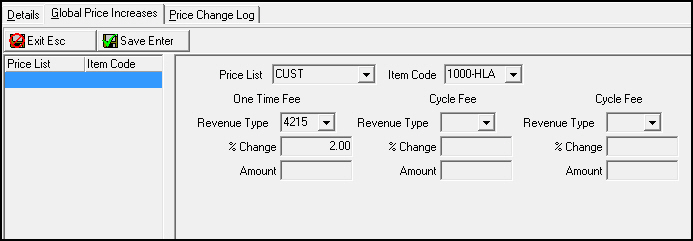
The Global Price Increase Tab
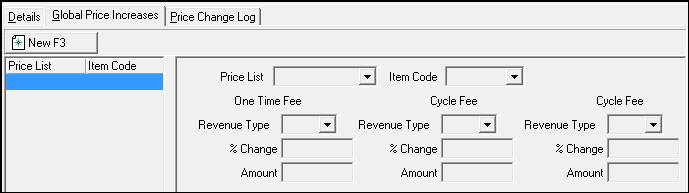
Use the Global Price Increase tab to increase item prices for a particular price list by fixed amount or percentage. The following graphic shows the Global Price Increase tab.
Field/Column Descriptions
The following table describes the fields and columns used in the Global Price Increase tab.
|
Field/Column |
Description |
|
Price List |
Menu used to select the price list for the price change. (This menu displays all price lists entered in this program.) |
|
Item Code |
Menu of item codes to select the item for the price change. (This menu originates from program #1535.) |
|
One Time Fee Revenue Type |
Menu of revenue types to use when applying one-time fees. (This menu originates from program #1512.) Note: This menu displays only those revenue types that are associated with the same dealer who is associated with the selected price list. |
|
Primary Cycle Fee Revenue Type |
Menu of revenue types to use when applying primary cycle fees. (This menu originates from program #1512.) Note: This menu displays only those revenue types that are associated with the same dealer who is associated with the selected price list. |
|
Secondary Cycle Fee Revenue Type |
Menu of revenue types to use when applying secondary cycle fees. (This menu originates from program #1512.) Note: This menu displays only those revenue types that are associated with the same dealer who is associated with the selected price list. |
|
One Time Fee % Change |
Percentage to use to increase existing one-time fee. |
|
Primary Cycle Fee % Change |
Percentage to use to increase the existing primary cycle fee. |
|
Secondary Cycle Fee % Change |
Percentage to use to increase the existing secondary cycle fee. |
|
One Time Fee Amount |
Flat rate amount to use to increase the existing one-time fee. |
|
Primary Cycle Fee Amount |
Flat rate amount to use to increase the existing primary cycle fee. |
|
Secondary Cycle Fee Amount |
Flat rate amount to use to increase the existing secondary cycle fee. |
Creating a Global Price Increase
You can increase prices for specific items or for all items on a certain price list using the Global Price Increase tab. Use this tab to increase the one-time or cycle fees by fixed amounts or by a percentage. You can also change the revenue type for either the one-time or cycle fees.
Use the following steps to create a global price increase:
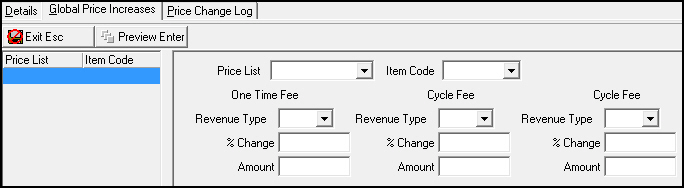
1. In the Global Price Increase tab, choose New.
w The fields in the right pane of the tab open.
2. Complete the following fields:
-
Select either a Price List or an Item Code to which you want to apply the price change.
-
In Revenue Type - type the existing or a new revenue type for the fee you are changing.
-
In either % Change or Amount - type the percent change or the dollar amount of the change.
3. Choose Preview Changes.
w The affected items or price lists appear on the left with the existing one-time and cycle fees followed by the adjusted one-time and cycle fees.
4. Review your changes.
5. If you want to discard your changes, choose Exit without Saving. Otherwise, choose Save.
w If you save your changes, the changes appear in the affected price lists.
Price Change Log Tab
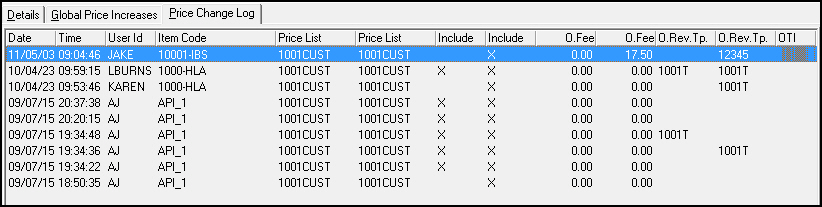
The following graphic shows the Price Change Log tab. The tab displays changes made to the Price List.
Note: Action 1533/20 controls access to this tab.
Column Descriptions
The following table describes the columns used in the Price Change Log tab.
|
Column |
Description |
|
Date |
Date the price of the selected item was changed. |
|
Time |
Time the price of the selected item was changed. |
|
User ID |
ID of the user who changed the price of the selected item. |
|
Item Code |
Identifies the selected item. |
|
Price List (1) |
Price list to which the selected item was attached before it was changed. |
|
Price List (2) |
Price list to which the selected item was attached after it was changed. |
|
Include (1) |
If this column displays an X, the price included tax before it was changed. |
|
Include (2) |
If this column displays an X, the price included tax after it was changed. |
|
One-Time Fee (1) |
Amount of one-time fee included in the price before it was changed. |
|
One-Time Fee (2) |
Amount of one-time fee included in the price after it was changed. |
|
One-Time Revenue Type (1) |
Revenue type for the one-time fee before the price was changed. |
|
One-Time Revenue Type (2) |
Revenue type for the one-time fee after the price was changed. |
|
One-Time Fee Tax Included (1) |
If this column displays an X, the price included the tax on the one-time fee before it was changed. |
|
One-Time Fee Tax Included (2) |
If this column displays an X, the price included the tax on the one-time fee after it was changed. |
|
Cycle Fee (1) |
Amount of the cycle fee included in the price before it was changed. |
|
Cycle Fee (2) |
Amount of the cycle fee included in the price after it was changed. |
|
Cycle Revenue Type (1) |
The revenue type for the cycle fee before the price was changed. |
|
Cycle Revenue Type (2) |
The revenue type for the cycle fee after the price was changed. |
|
Cycle Fee Tax Included (1) |
If this column displays an X, the price included the tax on the cycle fee before it was changed. |
|
Cycle Fee Tax Included (2) |
If this column displays an X, the price included the tax on the cycle fee after it was changed. |
|
Factor (1) |
The tax factor for the item before it was changed. |
|
Factor (2) |
The tax factor for the item after it was changed. |
Button Functions
The following table displays the buttons, describes the shortcut keys, actions, and functionality.
|
Button |
Name |
Shortcut Key |
Action |
Description |
|
|
Get |
ALT+F1 |
1533/ 1 |
Get record. |
|
|
Change |
F2 |
1533/ 2 |
Change selected record. |
|
|
New |
F3 |
1533/ 3 |
Create new record. |
|
|
Delete |
SHIFT+F10 |
1533/ 4 |
Delete selected record. |
|
|
Undelete |
ALT+F10 |
1533/ 5 |
Restore deleted record. |
|
|
|
CTRL+F8 |
1533/ 6 |
Print selected records. |
|
|
Copy |
SHIFT+F3 |
1533/ 999 |
Copy selected agency. |
|
|
Zoom |
F10 |
1533/ 999 |
Zoom in/out of sublevel. |
|
|
Tear |
F7 |
1533/ 999 |
Lists details of selected field. |
|
|
Previous |
F4 |
1533/ 999 |
Select last record. |
|
|
Next |
F5 |
1533/ 999 |
Select next record. |
|
|
Global Price Increase |
SHIFT+F8 |
1533/ 7 |
Access Global Price Increases tab. |
|
|
Calculate One |
F8 |
1533/ 8 |
Recalculate the one-time or cycle fees. |
|
|
Calculate All |
F9 |
1533/ 9 |
Recalculate all one-time or cycle fees. |
|
|
Preview Changes |
ENTER |
1533/ 999 |
Preview changes affected by a new record. |
|
|
Exit |
ESC |
1533/ 999 |
Exit without saving. |
|
|
Save |
ENTER |
1533/ 999 |
Save the entered information. |

















Modifications and Updates to Price Lists
The following table lists modifications and updates to the Price Lists document.
|
Mod Number |
Date |
Description |
|
08.80.09553, 07.80.23208, 07.80.23193, 08.80.09548 |
03/26/14 |
Added new procedures for copying a Price List. |
|
n/a |
8/22/14 |
Images updated. |