
Satellite Warehouses
Satellite Warehouses
Satellite Warehouses
Module: System Administration
Overview
Use Satellite Warehouses (program #1605) to define inventory locations that are sub-sites of the branch inventory. Two options affect the functionality of this program:
-
Option sys015 - when this option is on, you may use the functions within this program.
-
Option in002 - when this option is on, this program is read-only. You may not use the functions within the program.
The Satellite Warehouses Window
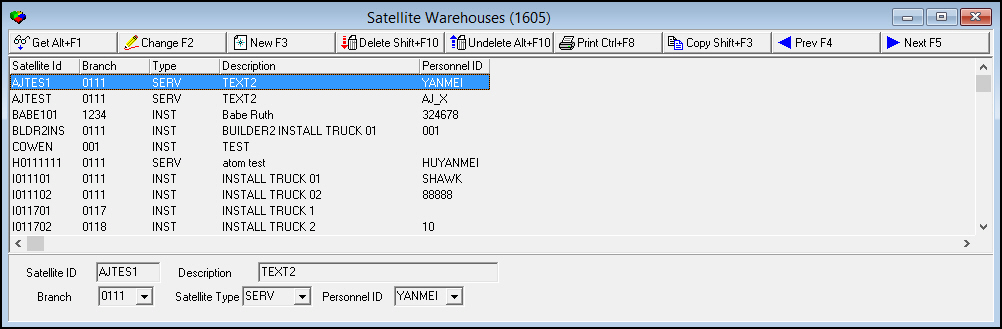
The following graphic shows Satellite Warehouses as the program opens. The upper pane displays previously defined satellite warehouses.
Field/Column Descriptions
The following table describes the fields and columns used in Satellite Warehouses.
|
Field/Column |
Description |
|
Satellite ID |
Code that identifies the satellite warehouse. |
|
Branch ID |
Code that identifies the inventory branch to which the satellite warehouse is attached. (This menu originates from program #1530.) |
|
Satellite Type |
Code that identifies the type of satellite warehouse type. (This menu originates from program #1604.) |
|
Description |
Text description of the satellite warehouse. |
|
Personnel ID |
Personnel resource attached to the satellite warehouse. (This menu originates from program #1811.) O You can attach satellite warehouses to personnel, or attach personnel to satellite warehouses. When you update personnel or satellite warehouses, SBN updates the other. |
Using Common Functions
See the reference document Common Functions in SBN for more information.
Adding a Satellite Warehouse
When you add a satellite warehouse, two additional fields open for copying inventory setup information from one satellite warehouse to another:
-
Copy From
-
Base
Use the following steps to add a satellite warehouse:
1. In Satellite Warehouses, choose New Record.
‰ The fields in the lower pane open.

2. Fill in the following fields:
l In Satellite ID - type up to eight letters and numbers.
l In Description - type a text description of the satellite warehouse.
l In Branch - select the correct Inventory Branch.
l In Satellite Type - select the correct type.
l In Personnel ID - select the resource for the satellite warehouse, if needed.
l In Copy From - select another Satellite Warehouse you want to copy information from into the new Satellite Warehouse.
l In Base - enter a check mark in this box if you want to copy the items, minimum, and maximum amount information from the branch warehouse.
3. Choose Save.
Button Functions
The following table displays the buttons, describes the shortcut keys, actions, and functionality.
|
Button |
Name |
Shortcut Key |
Action |
Description |
|
|
Get |
ALT+F1 |
1605/ 1 |
Get record. |
|
|
Change |
F2 |
1605/ 2 |
Change selected record. |
|
|
New |
F3 |
1605/ 3 |
Create new record. |
|
|
Delete |
SHIFT+F10 |
1605/ 4 |
Delete selected record. |
|
|
Undelete |
ALT+F10 |
1605/ 5 |
Restore deleted record. |
|
|
|
CTRL+F8 |
1605/ 6 |
Print selected records. |
|
|
Copy |
SHIFT+F3 |
1605/ 999 |
Copy selected field. |
|
|
Previous |
F4 |
1605/ 999 |
Select last record. |
|
|
Next |
F5 |
1605/ 999 |
Select next record. |









Modifications and Updates to Satellite Warehouses
The following table lists modifications and updates to the Satellite Warehouses document.
|
Mod Number |
Date |
Description |
|
n/a |
8/25/14 |
Images updated. |
F1 Help
| Delphi Forms | basattypesform, basatwarehousesform |
| Program Numbers | 1604, 1605 |