
Collection Database
Collection Database
Collection Database
Module: Accounting
Overview
Use Collection Database (program #1731) to view the collection accounts by a variety of parameters. When the program opens, the window appears blank. The window displays data after you perform a search.
The Collection Database contains two panes:
The upper pane — which contains search parameters
The lower pane — which contains four tabs for displaying information:
q Detail
q Days
q Branch
q Log
Note: The Days and Branch tabs display totals of the collection entries for the number of days and for the included branches.
To access this program, select Collection Database (program #1731) from the main menu of SBN.
The Collection Database Window
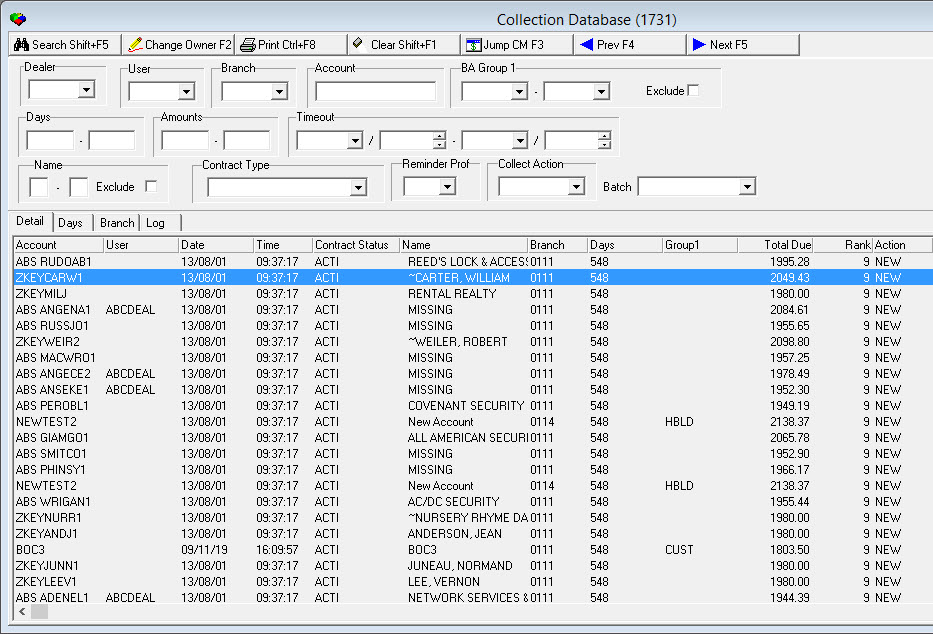
The following graphic shows the Collection Database window with information displayed after a search.
Field Descriptions — Search Parameters
The following table describes the search parameters used in the upper pane of this window.
Field |
Description |
Dealer |
Dealer ID attached to the collection record. Note: If your user ID has a dealer assigned in the Users tab of Personnel (program #1811), only that dealer appears in the drop-down menu. Only accounts associated with the dealer assigned to your user profile appear in a search. |
User |
ID of the user attached to the collection record. |
Branch |
Billing branch ID. Note: If your user ID has a branch assigned in the User Details tab of Collection Users (program #1730), only accounts associated with your branch and dealer (assigned to your user profile in program #1811) appear in a search. |
Account |
Account number. |
BA Group 1 |
Range of billing account group 1 types. (This menu originates from program #1868.) O These group fields can be defined by Collection User in program #1730. |
Exclude |
Enter a check mark in this box if you want to exclude the range of Group 1 types from the search. |
Days |
Range of number of days past due. |
Amounts |
Type a range of account balances to search for collection records with account balances within the range. O If option ba329 is on, these amounts refer to past due amounts for the specific aging period. |
Timeout |
Beginning and ending date and time that accounts are available to the user. |
Name |
Range of first letter of last names. |
Exclude |
Enter a check mark in this box if you want to exclude the range of letters from the search. |
Contract Type |
Contract type. (This menu originates from program #1531.) |
Reminder Profile |
Enter a reminder profile ID code to search for. (This menu originates from program #1562.) |
Collector Action |
Code that identifies which collection action is being taken on this account. (This menu originates from program #1793.) |
Batch |
You may select a specific invoice batch to include in the search. (This menu originates from program #1557.) |
Column Descriptions — Details Tab
The following table describes the columns used in the Details tab.
Column |
Description |
Account |
Billing account number. |
User |
ID of the user attached to the collection record. |
Date |
The next date the account becomes available to a collection agent using the Get Next function in Collections. |
Time |
The next time the account becomes available to a collection agent using the Get Next function in Collections. |
Contract Status |
Defines the status of contracts from the grid in Program #1731 |
Name |
The first and last name of the account holder |
Branch |
Billing account branch number. |
Days |
Age in number of days for the oldest record on the account. |
Group 1 |
Billing account Group 1, if applicable. |
Total Due |
Total aged amount for the account. |
Rank |
An overall ranking for presentation to a collection agent when using the Get Next function in Collections. |
Action |
Code that identifies which collection action is being taken on this account. |
Reminder Profile |
If the customer receives reminder notices, this column contains the ID code for the reminder profile. |
Contract Type |
Contract type associated with the account. |
Level 1 |
Amount due at customer-defined aging level 1. (Customer defines number of days in each aging level at which reminders will be sent for uncollected funds.) |
Level 2 |
Amount due at customer-defined aging level 2. (Customer defines number of days in each aging level at which reminders will be sent for uncollected funds.) |
Level 3 |
Amount due at customer-defined aging level 3. (Customer defines number of days in each aging level at which reminders will be sent for uncollected funds.) |
Level 4 |
Amount due at customer-defined aging level 4. (Customer defines number of days in each aging level at which reminders will be sent for uncollected funds.) |
Level 5 |
Amount due at customer-defined aging level 5. (Customer defines number of days in each aging level at which reminders will be sent for uncollected funds.) |
Level 6 |
Amount due at customer-defined aging level 6. (Customer defines number of days in each aging level at which reminders will be sent for uncollected funds.) |
Contract Status |
The status of the contract. |
Name |
Name on the account. (Note:Only displays the last name associated with the account.) |
Column Descriptions — Days Tab
The following table describes the columns used in the Days tab.
Column |
Description |
Days |
Ranges of number of days past due. |
Count |
Number of collection records in SBN within the selected range of days past due. |
Total Due |
Total amount due on collection records for the selected range of days past due. |
Column Descriptions — Branch Tab
The following table describes the columns used in the Branch tab.
Column |
Description |
Branch |
Billing account branch number. |
Count |
Number of collection records in SBN for the selected branch. |
Total Due |
Total amount due on all collection records for the selected branch. |
The Collection Database Log Tab
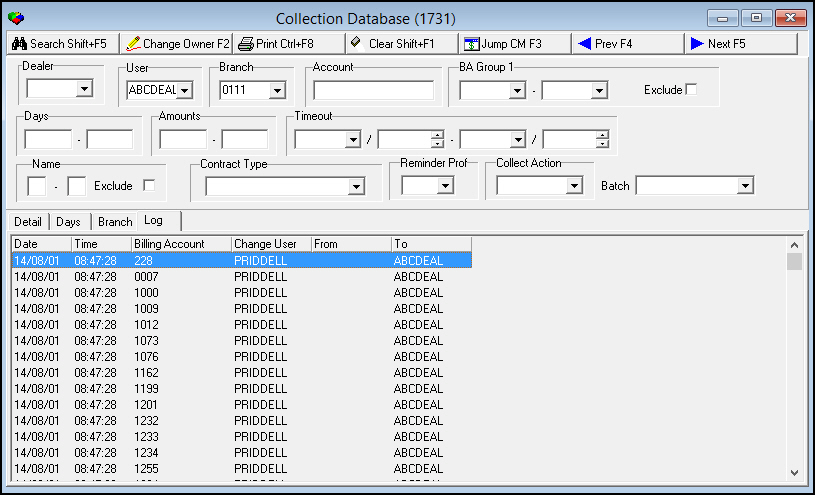
A collection account is assigned to a collector, who is responsible for collecting on that account until the balance is no longer delinquent, or until it is assigned to another collector. Use Change Owner to assign an account to a different collector. Use the Log tab to view ownership changes of collection accounts.
An account that has been paid in full appears in the log as if it was reassigned, but no User ID appears in the Changed To column.
The following graphic shows the Log tab with information displayed.
Column Descriptions — Log Tab
The following table describes the columns used in the Log tab.
Column |
Description |
Date |
Date account was assigned a new owner. |
Time |
Time account was assigned a new owner. |
Billing Account |
Account whose ownership changed. |
Change User |
User ID that changed the account ownership. |
From |
User that owned the account before the change. |
To |
User that owns the account after the change. |
Searching for Collection Accounts
You may search for collection accounts by a variety of parameters.
Use the following steps to search for collection accounts:
1. In Collection Database, select your search parameters.
2. Choose Search.
‰ SBN displays the collection accounts that match your search parameters in the Details tab.
Changing the Collection Owner
You may change the ownership of a group of collection records. Action 1731/7 controls access to the Change mode of this program.
Use the following steps to change the ownership of the collection record:
1. In Collection Database, in User — select the ID of the current owner of the records.
2. Select additional search parameters, as needed.
3. Choose Search.
4. Choose Change Owner.
‰ The Change Ownership of Records dialog box appears.
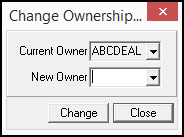
5. In New Owner — select the ID of the user you want to be the new owner.
6. Choose Change.
‰ All records for the current owner
q Display the new owner in the User ID column
q Belong to the new owner
Using Common Functions
See the reference document Common Functions in SBN for more information.
Jumping to Contract Master
From any collection account in the Collection Database, you can jump to the Contract Master to view additional information.
Use the following steps to jump to the Contract Master:
1. In Collection Database, select the collection account for which you want to view the Contract Master.
2. Choose Jump to Contract Master.
‰ The Contract Master and Collections tab open and display details of the selected account.
Note: If you include a number in the Batch field in your collection account search, when you jump to Contract Master, SBN limits the Collections tab to display only transactions within the selected invoice batch.
Button Functions
The following table displays the buttons, describes the shortcut keys, actions, and functionality.
Button |
Name |
Shortcut Key |
Action |
Description |
|
Search |
shift+f5 |
1731/ 2 |
Search for collection accounts. |
|
Change Owner |
f2 |
1731/ 4 |
Change ownership of collection record. |
|
Print selected records |
ctrl+f8 |
1731/ 6 |
Print selected records. |
|
Clear Search Screen |
shift+f1 |
1731/ 3 |
Clear search parameters. |
|
Jump to Contract Master |
f3 |
Jump to Contract Master. |
|
|
Previous Record |
f4 |
Go to previous record. |
|
|
Next Record |
f5 |
Go to next record. |
|
|
Exit without saving |
ESC |
Exit without saving changes. |
|
|
Save New Record |
ENTER |
Save existing changes to record. |









Modifications and Updates to Collection Database
The following table lists modifications and updates to the Collection Database document.
Mod Number |
Date |
Description |
n/a |
08/1/14 |
Images updated. |
07.89.26033 |
10/19/18 |
Added note about Name column under Detail tab only showing the last name of the Account holder. |