
Autofeed Status
Autofeed Status
Autofeed Status
Program #: 1668
Module: Utilities
Overview
Use Autofeed Status (program #1668) to maintain autofeed status codes, which determine whether SBN activates the alarm autofeed feature in Dispatch (program #537). If you select a status in the Autofeed Status field of Dispatch that has the Autofeed Enabled check box selected in program #1668, SBN activates alarm autofeed.
Navigating to Autofeed Status
Use the following steps to navigate to Autofeed Status:
1. From the main SBN toolbar, select Menu.
2. From the drop-down menu, select Go To.
3. In the Go To Program dialog box, type in "1668" and press Enter.
w Autofeed Status opens.
The Autofeed Status Window
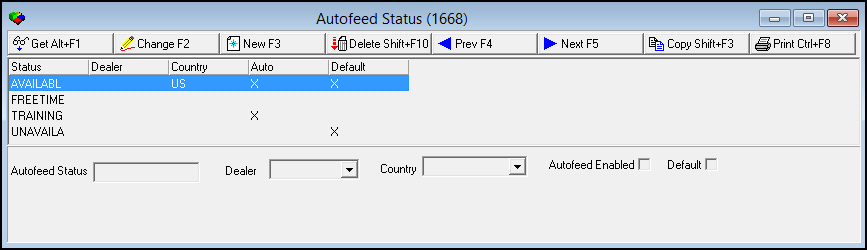
The following graphic shows Autofeed Status.
Field/Column Descriptions
The following table describes the fields and columns used in Autofeed Status.
Field/Column |
Description |
Autofeed Status |
Autofeed status code. |
Dealer |
Dealer. Leave this field blank to include all dealers. |
Country |
Country. Leave this field blank to include all countries. |
Autofeed Enabled |
Select this check box to enable autofeed. |
Default |
Select this check box to indicate that this code is the default. |
Creating an Autofeed Status Code
Use the following steps to create a new autofeed status code:
1. Choose New Record.
w The fields open for changes.
2. Enter details of the new autofeed status code.
3. Choose Save.
Changing an Autofeed Status Code
Use the following steps to change an autofeed status code:
1. Select the autofeed status code you want to change by double-clicking it, or choose Get Record.
w The fields open for changes.
2. Enter changes.
3. Choose Save.
Deleting an Autofeed Status Code
Use the following steps to delete an autofeed status code:
1. Select the autofeed status code you want to delete.
2. Double-click your selection or choose Get Record.
3. Choose Delete Record.
w A confirmation dialog box opens.
4. Choose Yes.
w SBN removes the autofeed status code from the list.
Copying an Autofeed Status Code
Use the following steps to copy an autofeed status code:
1. Select the autofeed status code you want to copy.
2. Double-click your selection or choose Get Record.
3. Choose Copy Record.
w The fields open for editing.
4. Type a name in the Autofeed Status field, and then complete the other required fields as needed.
w SBN saves the new autofeed status code.
Button Functions
The following table displays the buttons, describes the shortcut keys, actions and functionality.
Button |
Name |
Shortcut Key |
Action |
Description |
|
Get Record |
alt+f1 |
1668/1 |
View details of selected record. |
|
Change Record |
f2 |
1668/2 |
Change selected record. |
|
New Record |
f3 |
1668/3 |
Create new record. |
|
Delete Record |
shift+f10 |
1668/4 |
Delete selected record. |
|
Previous |
f4 |
1668/1 |
Scroll to previous record. |
|
Next |
f5 |
1668/1 |
Scroll to next record. |
|
Copy Record |
SHIFT+F3 |
1668/3 |
Copy selected record |
|
Print Selected Records |
ctrl+f8 |
1668/5 |
Print displayed records. |
|
Exit without saving |
esc |
1668/3 |
Exit without saving changes to selected record. |
|
Save Existing Record |
enter |
1668/3 |
Save changes to selected record. |










Modifications and Updates to Autofeed Status
The following table lists modifications and updates to the Autofeed Status document.
Mod Number |
Date |
Description |
08.79.09423, 07.79.22983, 08.79.09416, 07.79.22975, 08.79.09415, 07.79.22974, 08.79.09413, 07.79.22972 |
10/8/13 |
Document created. |
n/a |
8/27/14 |
Images updated. |