
Return to Manufacturer Report
Return to Manufacturer Report
Return to Manufacturer Report
Report #: 2175
Module: Account Generation
Overview
Use the RTM (Return to Manufacturer) Report to generate individual Return Merchandise Authorization request forms to send items back to manufacturers or vendors. Create RTM's (Return to Manufacturer orders) in Purchasing (program #571) or Branch Inventory (program #1757) when you discover items that you need to return after receiving purchase orders.
To access this report, select RTM (Report #2175) from the main menu of SBN.
The Return to Manufacturer Report
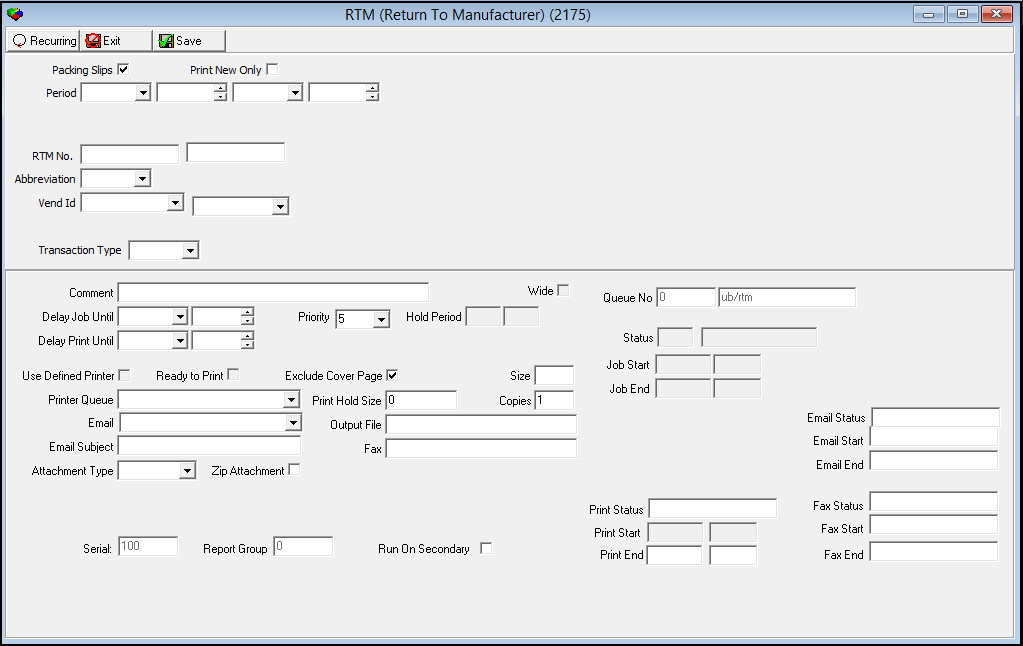
This window contains two panes: use the upper pane to define the content of the report; use the lower pane to define the job output - how, when, and where you want to print the report.
Note: See Report Parameters Pane for information on the fields in the lower pane, which are the same in every report.
Field Descriptions
The following table describes the fields in the upper pane of the Return to Manufacturer Report.
Field |
Description |
Packing Slips |
Select this check box to print the RMA Return Count for each item in the Quantity column of the report output. Leave this check box blank to print the Posted Return Count (updated when a user chooses Receive RTM in Programs #1757 or #571) for each item in the Quantity column of the report output. |
Print New Only |
Select this check box to print only those Return Merchandise Authorization forms that have not yet been printed. |
Period |
|
Date
- From |
You may select a range of dates to print RMA's for only RTM's changed within that range. Select the beginning date of the range. |
Time
- From |
You may select a range of time to print RMA's for only RTM's changed within that range. Select the beginning time of the range. |
Date
- To |
You may select a range of dates to print RMA's for only RTM's changed within that range. Select the ending date of the range. |
Time
- To |
You may select a range of time to print RMA's for only RTM's changed within that range. Select the ending time of the range. |
RTM Number Range |
|
RTM No. (From) |
You may select a range of RTM numbers to print RMA's for only RTM's within that range. Select the beginning number of the range. Note: If you leave these fields blank, SBN prints RMA's for all RTM's that match the other report parameters. |
RTM No. - To (No label) |
You may select a range of RTM numbers to print RMA's for only RTM's within that range. Select the ending number of the range. Note: If you leave these fields blank, SBN prints RMA's for all RTM's that match the other report parameters. |
Abbreviation |
You may select an abbreviation for a status code to print RMA's for only RTM's with that status code. Note: If you leave this field blank, SBN prints RMA's for all RTM's that match the other report parameters. |
Vendor ID Range |
|
Vend ID (From) |
You may select a range of vendor IDs to print RMA's for only RTM's associated with vendors within that range. Select the beginning vendor ID of the range. (This menu originates from program #1758.) Note: If you leave these fields blank, the report includes all vendors. If the selected vendor has an email address entered in Vendor Master (program #1758), the Email field in the lower pane of the report parameters fills with that email address. |
Vend ID - To (No label) |
You may select a range of vendor IDs to print RMA's for only RTM's associated with vendors within that range. Select the ending vendor ID of the range. (This menu originates from program #1758.) Note: If you leave these fields blank, the report includes all vendors. If the selected vendor has an email address entered in Vendor Master (program #1758), the Email field in the lower pane of the report parameters fills with that email address. |
Transaction Type |
You may select a transaction type to print RMA's for only RTM's with that transaction type. Note: If you leave this field blank, SBN prints RMA's for all RTM's that match the other report parameters. |
Adding an Electronic Signature
Use the following steps to add an electronic signature to the output of this report:
Note: Previously, Crystal Reports would look for files with the .gif extension but now Crystal Reports no longer supports the .gif file extensions. SBN now looks for filenames matching the following file extensions in this order: BMP, PNG, or JPG.
1. Create a .bmp, .png, or .jpg file of the signature of the user who runs this report.
2. Name the .bmp, .png, or .jpg file with the SBN user name of the user. For example, if the SBN user name is JOHNDOE, name the .bmp file JOHNDOE.bmp.
3. Add the bmp, .png, or .jpg file to SBN Service Directory.
4. Run the Return to Manufacturer report with your selected parameters.
w SBN searches the SBN Service Directory for a bmp, .png, or .jpg file that matches the user name of the user running the report. When SBN finds a matching file, it inserts the file into the Authorized Signature field.
Note: If SBN does not find a matching file, the Authorized Signature field remains blank.
Running and Viewing a Report
For information on running and viewing a report, see Common Functions in SBN.
Report Example
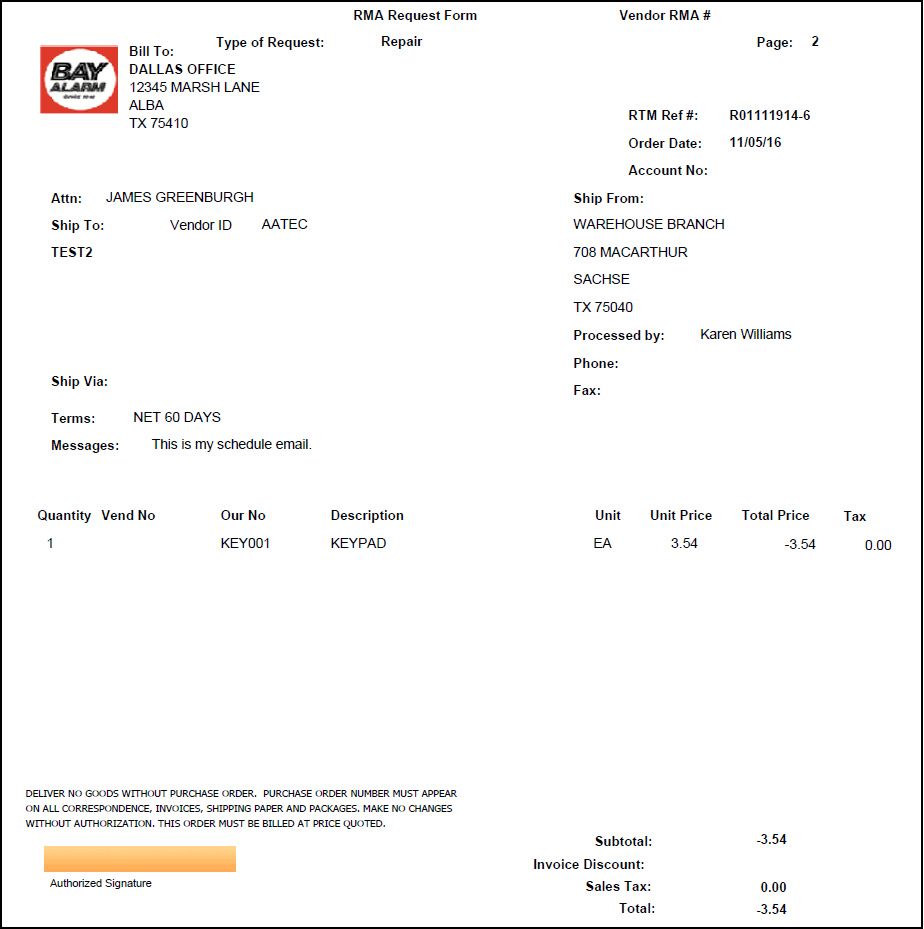
The following graphic shows an example of the output of the Return to Manufacturer Report.
Column Descriptions
The following table describes the columns used in the report output.
Column |
Description |
Header Information |
|
(No label) |
Blank space at the top of the Return Merchandise Authorization form to display your company logo, name, and address. |
Bill To |
Name and address of the branch to bill for the return. |
Type of Request |
RMA transaction type selected by a user who chose Receive RTM in Purchasing (program #571) or Branch Inventory (program #1757). |
Vendor RMA # |
The vendor's Return Merchandise Authorization number. |
Page |
Page number of the report. |
RTM Ref # |
Return to Manufacturer order number assigned by SBN when the RTM was created in Purchasing (program #571) or Branch Inventory (program #1757). |
Order Date |
Date the RTM was created. |
Account No |
GL account number for the return, if applicable. |
Attn |
Vendor employee to whose attention the RMA should go. |
Ship From |
Name and address of the location from which you are returning the items. |
Ship To |
Name and address of the branch, dealer, or personnel that receives the shipment. |
Vendor ID |
ID of the vendor associated with this return. |
Processed By |
Name of the user who created the RTM in Purchasing (program #571) or Branch Inventory (program #1757). |
Phone |
Phone number of the user who created the RTM. |
Fax |
Fax number of the user who created the RTM. |
Ship Via |
Shipping company that will return the items to the manufacturer. |
Terms |
Terms of payment. |
Messages |
Notes to the vendor regarding the returned items. |
Item Information |
|
Qty |
Quantity of the selected item returned. This is the RMA Return Count for the item when the Packing Slips check box is selected in the report parameters. When the Packing Slips check box is blank, this is the Posted Return Count (updated when a user chooses Receive RTM in Programs #1757 or #571) for the item. |
Vend No |
Vendor’s item code. |
Our No |
Item code of the selected item. |
Description |
Text description of the selected item. |
Text3 (No label) |
Additional text a user entered for the selected item in the Text3 column of the RTM in Purchasing (program #571) or Branch Inventory (program #1757). |
Unit |
Unit of measure of the selected item. |
Unit Price |
Unit price of the selected item. |
Total Price |
Total price of items returned. |
Tax |
Tax of items returned. |
Comments |
Up to six lines of text entered in the Comment field of the RTM appear in the report output. |
Subtotal |
Total amount of returned items before discounts and tax. |
Invoice Discount |
Discount applied to the return. |
Sales Tax |
Tax included. |
Total |
Total amount of the return. |
(Authorized Signature) |
Line for authorized signature. You may add an electronic signature to this report. See Adding an Electronic Signature. |
Button Functions
The following table displays the buttons, describes the shortcut keys, actions, and functionality.
Button |
Name |
Shortcut Key |
Action |
Description |
|
Open fields for recurring/template reports |
alt+f1 |
Open fields for recurring/template reports. |
|
|
Exit without saving |
esc |
Exit without saving changes to selected record. |
|
|
Save Existing Record |
enter |
Save changes to selected record. |



Modifications and Updates to Return to Manufacturer Report
The following table lists modifications and updates to the Return to Manufacturer Report document.
Mod Number |
Date |
Description |
n/a |
07/14/14 |
Images updated. |
08.85.10708, 08.85.10707 |
10/16/17 |
Documented that Crystal Reports only allows images of BMP, PNG, or JPG file format and SBN looks for matching filename in that order. |