
Referrals
Referrals
Referrals
Module: Account Generation
Overview
Use the Referrals tab in Marketing (program #562) to save contact information for and issue payments to individuals who refer marketing leads. This tab only appears if you have chosen a source in the main Marketing window that allows referrals. (Marketing sources are defined in program #1710.)
When entering new inquiry information for a marketing lead into program #562, you may link the individual(s) who referred the lead in the Referrals tab. If the lead has a security system installed, you may pay a referral fee to the individual(s) who referred the new customer.
You may enter two referrals per marketing inquiry. Payment methods vary according to referral type: Employee, Customer, or Other.
This document covers the following topics:
Navigating to the Referrals Tab
Navigating to the Referrals Tab
You may access the Referrals tab by:
Using the Basic search tab with a known inquiry number
Using the Advanced search tab to find an inquiry number
Use the following steps to access the Referrals tab with a known inquiry number:
1. From the main SBN toolbar, select Menu.
2. From the drop-down menu, select Go To.
3. In the Go To Program dialog box, type in "562" and press Enter.
w Marketing and Marketing Basics opens.
4. Choose Find Customer.
w The Basic tab of Searches opens.
5. In Inquiry No type the inquiry number to which you want to add a referral.
6. Choose OK.
w SBN loads the details of the selected inquiry in the Marketing window.
7. Choose the Referrals tab.
Note: The Referrals tab only appears if the selected inquiry in the main Marketing window is assigned a source that allows referrals.
Use the following steps to access the Referrals tab without a known inquiry number:
1. Choose Marketing (program #562) from the main menu of SBN.
2. Choose Find Customer.
w The Basic tab of Searches opens.
3. Choose the Advanced tab.
4. Type your known information in the appropriate field(s).
Note: For more information on using wildcards in these fields, see Searches.
5. Select the Marketing radio button.
6. Choose Search.
7. From the search results, double-click the record you want to access.
w SBN loads the details of the selected inquiry in the Marketing window.
8. Choose the Referrals tab.
The Referrals Tab
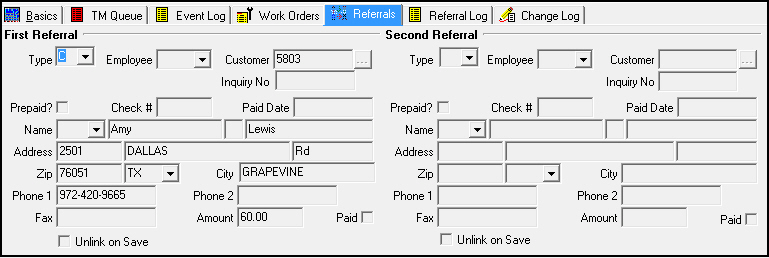
The following graphic shows the Referrals tab with information displayed.
Field Descriptions
The following table describes the fields used in the Referrals tab.
Field |
Description |
Type |
Type of referral. Based on the referral type, SBN moves the cursor to the appropriate field for selecting the customer or employee who referred the lead. (This menu originates from program #1879.) If the referral is not based on a type, type the name and address of the lead in the appropriate fields. |
Employee |
Employee who referred the lead. |
Customer |
Blank field with a browse button to search for the customer who referred the lead. |
Inquiry Number |
If this field displays an inquiry number, the person referring the lead is also an inquiry. Note: This field is only available if the referral type selected is customer. |
Prepaid? |
Select this check box to indicate that you have paid the referral fee. Note: Selecting this box allows you to access the Check # and Paid Date fields. |
Check # |
Check number used for prepayment of the referral fee. Note: You must select the Prepaid box to access this field. |
Paid Date |
Date on which prepayment of the referral fee was made. Note: You must select the Prepaid box to access this field |
Name |
Four fields containing the name of the person referring the lead:
|
Address |
Three fields containing the address of the person referring the lead:
|
Zip |
SBN-entered zip code based on the Employee or Customer field. If not an employee or customer referral, you may type the zip code of the person referring the lead. |
State |
SBN-entered state based on the Employee or Customer field. If not an employee or customer referral, you may type the state of the person referring the lead. |
City |
SBN-entered city based on the Employee or Customer field. If not an employee or customer referral, you may type the city of the person referring the lead. |
Phone 1 |
SBN-entered primary phone number based on the Employee or Customer field. If not an employee or customer referral, you may type the primary number of the person referring the lead. |
Phone 2 |
SBN-entered secondary phone number based on the Employee or Customer field. If not an employee or customer referral, you may type the secondary number of the person referring the lead. |
Fax |
SBN-entered fax number based on the Employee or Customer field. If not an employee or customer referral, you may type the fax number of the person referring the lead. |
Amount |
The amount of the referral fee. |
Paid |
If this box displays a check mark, the referral fee has been paid out. (This is a read-only box.) |
Unlink on Save |
Select this check box to unlink this referral from the selected inquiry when you choose Save. Note: After you choose Save, the abbreviation REFULNK appears in the Referral log. |
Adding a Referral
You may add a referral to a marketing inquiry.
Use the following steps to add a referral:
1. In Marketing (program #562), open an inquiry record assigned a source that allows referrals. (See Navigating to the Referrals Tab.)
2. Select the Referrals tab.
3. Choose Change Record in the Marketing main window.
w The fields in the Referrals tab open.
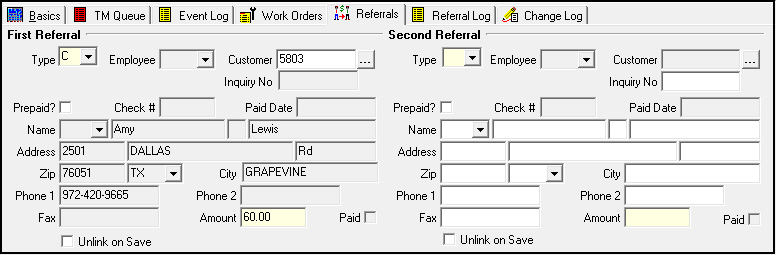
4. In the First Referral section, complete the following fields:
In Type, select the type of referral.
Note: Available fields vary, based on the referral type.
Select Prepaid if the referral fee has been paid.
Note: You must enter a check mark in this box to access to the Check # and Paid Date fields.
In Amount, type the amount of the referral payment.
5. Complete any additional fields for the selected referral type.
6. Repeat steps 4-5 to enter a referral in the Second Referral section, if necessary.
7. Choose Save Existing Record in the Marketing main window.
Removing a Referral
You may remove a referral from an inquiry.
Use the following steps to remove a referral:
1. In Marketing (program #562), open an inquiry with a referral you want to remove.
2. Select the Referrals tab.
3. Choose Change Record in the Marketing main window.
w Some fields in the Referrals tab open for changes.
4. Select the Unlink on Save check box for the referral you want to remove from the tab.
5. Choose Save Existing Record in the Marketing main window.
Paying Referrals
The Pay Referral 1 and Pay Referral 2 buttons appear after you take the INSTALLE marketing action on the inquiry. SBN does not activate these buttons until the system for this inquiry has been installed and the marketing process is complete. (The inquiry status, which is updated as you take marketing actions, appears in the Abbreviation field of the Marketing main window.)
Use the following steps to pay referrals:
1. Select the Pay Referral 1 or Pay Referral 2 button.
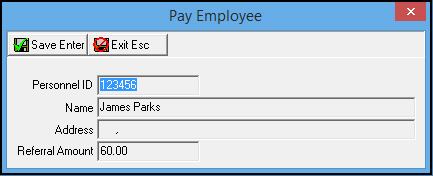
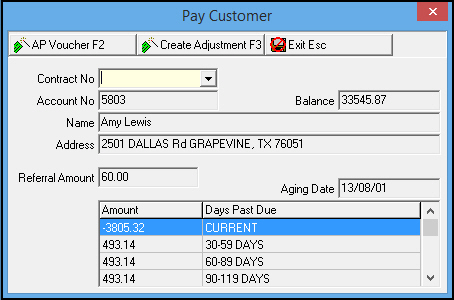
w The Pay Referral window opens. This window differs depending on the type of referral being paid (employee or customer).
or
2. For Employee referrals, choose Save. The system creates a voucher for referral payment.
For customer referrals, select either Create AP Vouchers or Create Adjustment. The Create AP Vouchers button creates an open voucher for payment in program #1837. The Create Adjustment button creates a credit transaction on the selected contract/account.
Related Programs
The following table lists programs related to Referrals.
Program |
Number |
Document Link |
Description |
Marketing |
562 |
Add referrals to marketing inquiries. |
|
Referral Log Tab |
n/a |
Referral information for potential customers appears in the Referral Log. |
|
Sources |
1710 |
Define the Source menu of Marketing. The Referrals tab is only available for marketing inquiries with sources that allow referrals. |
|
TM Referral Types |
1879 |
Define the Type menu of the Referrals tab. |
|
AP Open Vouchers |
1837 |
Create a voucher for a referral payment. |
Button Functions
The following table displays the buttons, describes the shortcut keys, actions, and functionality.
Button |
Name |
Shortcut Key |
Action |
Description |
|
Pay Referral 1 |
f2 |
562/61 |
Issue a referral payment to the person who referred the lead in the First Referral section. |
|
Pay Referral 2 |
f3 |
562/62 |
Issue a referral payment to the person who referred the lead in the Second Referral section. |
|
Create AP Voucher |
f2 |
562/80 |
Create an open voucher to pay a referring customer. |
|
Create Adjustment |
f3 |
562/81 |
Create a credit adjustment to the referring customer's account. |
|
Exit without saving |
esc |
Exit without saving changes to selected record. |
|
|
Save Existing Record |
enter |
Save changes to selected record. |






Modifications and Updates to Referrals
The following table lists modifications and updates to the Referrals document.
Mod Number |
Date |
Description |
n/a |
07/29/08 |
document rewritten |
n/a |
07/14/14 |
Images updated. |