
Linked Billing Accounts
Linked Billing Accounts
Linked Billing Accounts
Module: Accounting
Overview
Use the Linked Billing Accounts tab to add or change information on accounts that are linked to a selected contract. You can also link billing accounts to each other and unlink billing accounts.
In the Work Orders tab of program #548, you can attach billing accounts that are linked to a selected contract to a work order.
To access this program, select Contract Master (program #548) from the main menu of SBN, and then choose the Linked Billing Accounts tab.
The Linked Billing Accounts Tab
The following graphic shows the Linked Billing Accounts tab in view mode. The columns display all billing accounts that are linked to this contract.
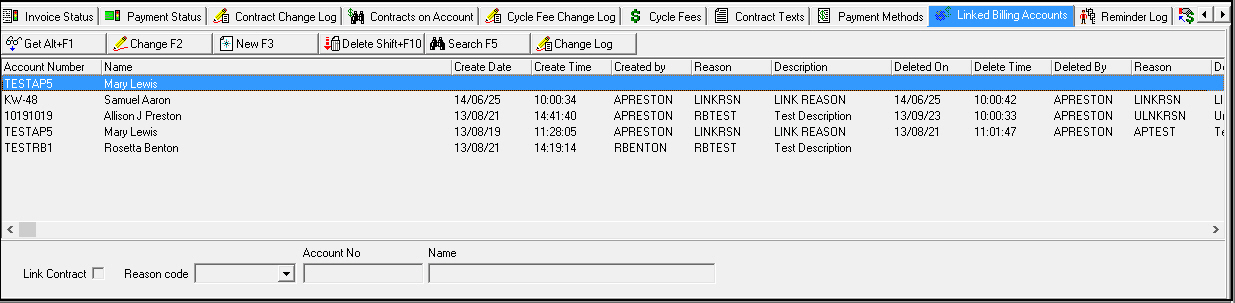
Field/Column Descriptions
The following table describes the fields and columns used in this tab.
|
Field/Column |
Description |
|
Account Number |
Account number of the billing account to link. Type up to a 10 digit account number. |
|
Name |
Primary name of the account holder. |
|
Create Date |
Date that the link to the selected billing account was created. |
|
Create Time |
Time that the link to the selected billing account was created. |
|
Created by |
User ID of the person who created the link to the selected billing account. |
|
Reason |
Reason code selected for creating the link to the selected billing account. This code comes from the list of reasons in Link/Unlink Reasons (program #1662). |
|
Description |
Description of the reason selected for creating the link to the selected billing account. |
|
Deleted on |
Date that the link to the selected billing account was deleted. |
|
Delete Time |
Time that the link to the selected billing account was deleted. |
|
Deleted by |
User ID of the person who deleted the link to the selected billing account. |
|
Reason |
Reason that the link to the selected billing account was deleted. This code comes from the list of reasons in Link/Unlink Reasons (program #1662). |
|
Description |
Description of the reason for which the link to the selected billing account was deleted. |
|
Link Contract |
Select this check box to link the contracts associated with the billing accounts as well as the billing accounts. Note: The Reason Code field is protected and not required when you select this check box. To link only the billing accounts, do not select this check box. |
|
Reason Code |
Select a reason code for linking or unlinking a billing account. (This menu originates from program #1662.) |
|
Account No |
Account number of the billing account you want to link to the selected billing account. |
|
Name |
This field populates with the name associated with the billing account you want to link to the selected billing account. |
Linking a Billing Account to Another Billing Account
Use the following steps to link a billing account to another billing account:
1. Open Contract Master (program #548) and choose the Linked Billing Accounts tab.
2. In the Linked Billing Accounts tab, choose New.
3. Select a link reason code from the Reason Code drop-down menu.
4. Type the account number of the billing account you want to link to the selected billing account in the Account No field.
5. Select the Link Contract check box to link the contracts associated with the billing accounts as well as the billing accounts. (The Reason Code field is protected and not required when you select this check box. To link only the billing accounts, do not select the Link Contract check box.)
6. Choose Save.
w The linked billing account appears in the Linked Billing Accounts tab.
Note: SBN creates an entry in the Communication Log (program #1888) if the Link Reason Code you choose has the Communication Log fields defined in Link/Unlink Reasons (program #1662).
Unlinking a Billing Account From Another Billing Account
Use the following steps to unlink a billing account from another billing account:
1. Open Contract Master (program #548) and choose the Linked Billing Accounts tab.
2. In the Linked Billing Accounts tab, select the billing account you want to unlink and choose Delete.
3. Select an unlink reason code from the Reason Code drop-down menu.
4. Choose Save.
w The unlinked billing account displays the details of when it was unlinked in the Linked Billing Accounts tab.
Note: SBN creates an entry in the Communication Log (program #1888) if the Unlink Reason Code you choose has the Communication Log fields defined in Link/Unlink Reasons (program #1662).
Using Common Functions
See the reference document Common Functions in SBN for more information.
Button Functions
The following table displays the buttons, describes the shortcut keys, actions, and functionality.
|
Button |
Name |
Shortcut Key |
Action |
Description |
|
|
Get Record |
ALT + F1 |
548/200 |
View details of selected record. |
|
|
Change Record |
F2 |
548/201 |
Change details of selected record. |
|
|
New Record |
F3 |
548/202 |
Create new record. |
|
|
Delete Record |
SHIFT+F10 |
548/203 |
Delete selected record. |




Modifications and Updates to Linked Billing Accounts
The following table lists modifications and updates to the Linked Billing Accounts document.
|
Mod Number |
Date |
Description |
|
07.79.22865, 08.79.09341 07.79.22859, 08.79.09339 07.79.22858, 07.79.22857 |
08/22/13 |
Added Create Date, Create Time, Created by, Reason, Description, Deleted on, Delete Time, and Deleted by columns, a Reason Code drop-down menu, and a Link Contract check box. |
|
n/a |
08/05/14 |
Images updated. |