
Import/Export Templates
Import/Export Templates
Import/Export Templates
Program #: 1591
Module: Accounting
Overview
Use Import/Export Templates (program #1591) to create import and export templates to use when importing or exporting data in Invoice Manager (program #1557), Open Batches (program #1577), Billing Imports (program #549), or any export programs (#543 or #579).
Navigating to Import/Export Templates
Use the following steps to access the Import/Export Templates program:
1. From the main SBN toolbar, select Menu.
2. From the drop-down menu, select Go To.
3. In the Go To Program dialog box, type in "1591" and press Enter.
w Import/Export Templates opens.
The Import/Export Templates Window
The following graphic displays the Import/Export Templates window with a template selected. The left pane displays a list of previously defined templates. The right pane displays details of the selected template.
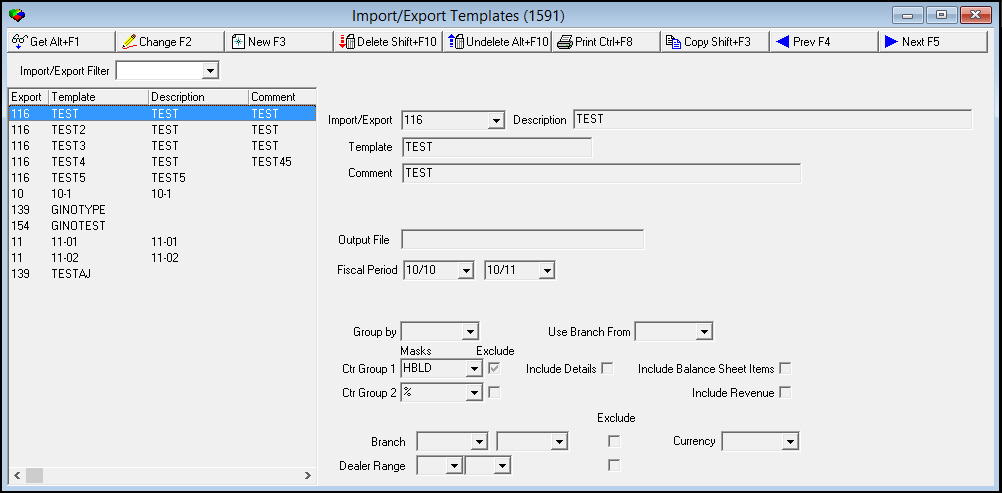
Field/Column Descriptions - Templates List
The following table describes the field and columns in the left pane.
|
Field |
Description |
|
Import/Export Filter |
You may select an import or export type to limit the template list to only that type. If this field is blank, SBN displays all previously defined templates. |
|
Export |
Number that identifies the template import or export type. |
|
Template |
Template ID. |
|
Description |
Template description. |
|
Comment |
Comment about the template. |
Field Descriptions - Template Details
The fields that appear in the Details pane vary depending on the import or export selected. The following table describes the fields that appear in the right pane for all imports and exports.
|
Field |
Description |
|
Import/Export |
Number that identifies the template import or export type. |
|
Description |
Template description. |
|
Template |
Template ID. |
|
Comment |
Comment about the template. |
Filtering Templates
The Import/Export Filter allows you to select an import or export type to limit the template list. If this field is blank, SBN displays all previously defined templates.
Use the following steps to filter templates by type:
1. Select an import or export type from the menu in the Import/Export Filter field, or enter an import or export type number.
2. Click anywhere in the program window outside of the Import/Export Filter field.
w SBN displays only templates of the type you selected. If there are no templates of that type defined, the template list is blank.
Viewing a Template
Double-click a template in the list or highlight a template and choose Get Record to view the template details in the right pane.
Creating a Template
Use the following steps to create a new template:
1. Choose New Record.
w The fields in the right pane open for changes.
2. Choose an import or export type for the template you will create from the Export drop-down menu.
w Fields for the selected import or export appear in the right pane.
3. Enter a template ID for your new template in the Template field.
Note: If you enter a template ID that already exists, SBN displays an error message and does not allow you to save the template.
4. Enter data in any other fields as needed.
5. Choose Save New Record.
w SBN adds the new template to the list in the left pane.
Changing a Template
You may change the details of an existing template, except for the Export and Template fields.
Use the following steps to change a template:
1. Double-click the template you want to change, or choose Get Record.
2. Choose Change Record.
w All fields except the Export and Template fields open for changes.
3. Make changes as needed.
4. Choose Save Existing Record.
Deleting a Template
Use the following steps to delete a template:
1. Double-click the template you want to delete, or choose Get Record.
2. Choose Delete Record.
w A Confirm dialog box opens: "Are you sure?"
3. Choose Yes.
w SBN removes the template from the list in the left pane.
Restoring a Deleted Template
Use the following steps to restore a deleted template:
1. Choose Select Record to Undelete.
w The Undelete window opens, displaying a list of deleted templates.
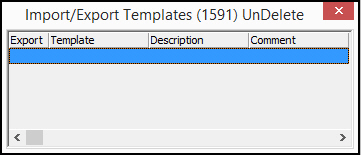
2. Double-click the template you want to restore.
w SBN returns the template to the list in the left pane.
3. Close the Undelete window.
Related Programs
The following table lists programs related to Import/Export Templates.
|
Program |
Number |
Document Link |
Description |
|
Invoice Manager |
1557 |
Generate customer invoices; export invoice batch details out of SBN. |
|
|
Open Batches |
1577 |
Post payments to billing accounts; import payment batch details into SBN and export batch details out of SBN. |
|
|
Billing Imports |
549 |
Import payment batches without accessing Open Batches (program #1577). |
|
|
Export I |
543 |
N/A |
Export invoice or payment batches without accessing Invoice Manager (program #1557) or Open Batches (program #1577). |
|
Export II |
579 |
N/A |
Export invoice or payment batches without accessing Invoice Manager (program #1557) or Open Batches (program #1577). |
Button Functions
The following table displays the buttons, describes the shortcut keys, actions, and functionality.
|
Button |
Name |
Shortcut Key |
Action |
Description |
|
|
Get Record |
ALT+F1 |
1591/ 1 |
View details of the selected template. |
|
|
Change Record |
F2 |
1591/ 2 |
Change details of the selected template. |
|
|
New Record |
F3 |
1591/ 3 |
Create a new template. |
|
|
Delete Record |
SHIFT+F10 |
1591/ 4 |
Delete the selected template. |
|
|
Select Record to Undelete |
ALT+F10 |
1591/ 5 |
Restore a deleted template. |
|
|
Print Selected Records |
CTRL+F8 |
1591/ 6 |
Print the list of existing templates. |
|
|
Copy Current Record |
shift+F3 |
Copy the selected template. |
|
|
|
Previous Record |
F4 |
Go to the previous template in the list. |
|
|
|
Next Record |
F5 |
Go to the next template in the list. |
|
|
|
Save Record |
enter |
Save changes to the selected record. |
|
|
|
Exit Without Saving |
ESC |
Exit without saving changes to the selected record. |











Modifications and Updates to Import/Export Templates
The following table lists modifications and updates to the Import/Export Templates document.
|
Mod Number |
Date |
Description |
|
n/a |
8/04/14 |
Images updated. |