
Insert Test
Module: Account Management
Overview
Use the Insert Test tab to insert installations into Test or Runaway mode. When you place zones from an installation into test, SBN logs in the Alarm Log the time the zone went into test and the zone number that went into test. Alarms received from the zones in test are logged in the Alarm Log only; they do not appear in the Alarm Queue.
From the Insert Test tab you can:
- Insert a zone or group into test immediately
- Set a future date and time to insert a zone or group into test
- Remove an existing account from the test queue
- View the previous test record or the next test record
- Toggle the queue mode from Test to Runaway
- Change the monitoring status for the installation
- View the test results for specific zones or groups
- Put multiple accounts into test
This document covers the following topics:
Viewing the Pending Test Window
Removing Zones and Groups from Test
Viewing All Events for a Specific Incident
Navigating to Insert Test
Use the following steps to navigate to the Insert Test tab:
1. From the main SBN toolbar, select Menu.
2. From the drop-down menu, select Go To.
3. In the Go To Program dialog box, type in "559" and press Enter.
w Data Entry Master and Basics opens.
4. Choose the Insert Test tab in the lower pane of Data Entry.
The Insert Test Tab
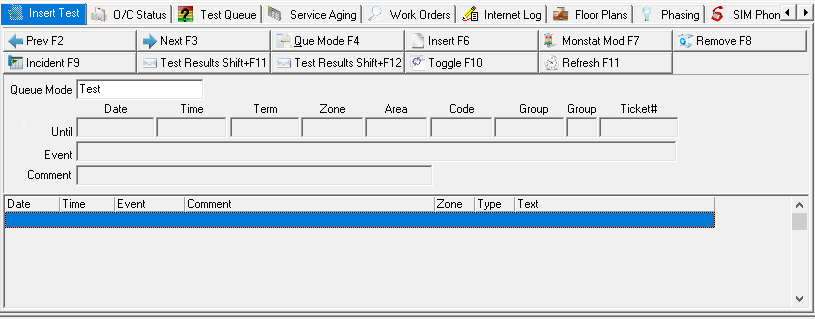
The following graphic shows the Insert Test tab.
Field Descriptions - Insert Test Tab
The following table describes the fields in the upper pane of the Insert Test tab.
Field | Description |
Queue Mode | Determines whether this customer is in test or runaway mode. Queue mode defaults to Test queue mode when entering tab. |
Date | Date this customer is scheduled to come out of the test or runaway mode. |
Time | Time, if any, this customer is scheduled to come out of the test or runaway mode. |
Terminal | Terminal ID number of the operator that placed the customer in test or runaway mode. |
Zone | Zone that is in test or runaway mode. Note: Place either a zone or group in test, not both. |
Area | Area number attached to a zone that is in test or runaway mode. |
Code | Code attached to a zone that is in test or runaway mode. The code identifies the type of signal that the zone generates. |
Group | Test group that is in test or runaway mode. Note: Either a group or a zone to place in test, not both. Note: Groups are set up in Zones. |
Subgroup | Subgroup number for the customer in test or runaway mode. Note: This number is set up in Zones. |
Ticket Number | Inspection ticket number for the customer in test or runaway mode, if applicable. Note: If you right-click on this field and choose Service Log |
Event | An abbreviated code for the test event and the time it was placed in test. |
Comment | Original comment for the customer being placed in test or runaway mode. |
 , SBN takes you to that ticket in the Service Log.
Column Descriptions - Insert Test Tab
The following table describes the columns used in the lower pane of the Insert Test tab.
Column | Description |
Date | Date on which the customer is scheduled to come out of test mode or runaway mode. |
Time | Time, if specified, at which the customer is scheduled to come out of test mode or runaway mode. |
Event | Code that identifies the test event. |
Comment | Comment typed when the customer was placed in test mode or runaway mode. |
Zone | Zone that is in test mode or runaway mode. |
Type | Type of zone. |
Text | Description of the zone. |
Using the Insert Zone Window
Use Insert Record to open the Insert Zone window for inserting a new zone or test group into either the test or runaway queue. If you do not specify a zone or test group, SBN places all zones for the installation in test.
Note: When the No Test check box is selected in the Data Entry Basics tab of an installation, SBN does not allow you to insert that installation into the test or runaway queue unless you have action 559/218 enabled in your action profile.
The Max Test Days field of your action profile in program #1502 determines how long you can put an installation into Test or Runaway mode. If your user ID has multiple action profiles assigned, SBN uses the action profile with the highest number of Max Test Days to determine how long you can put an installation into Test mode. If you attempt to put an installation in Test longer than the Max Test Days defined in your action profile, SBN displays an error message: "The maximum test time for your profile has been exceeded. Please reduce the time."
Insert Zone Options
- Option mo172 - if on, SBN only accepts codewords, not passcards, to insert a zone or group into Test or Runaway mode.
- Option mo222 - If on, an Email Send dialog box opens when you insert a zone or group into Test or Runaway mode. In the Email Send dialog, select whether to email action plan contacts when the selected zone or group goes into Test or Runaway mode, when the zone or group comes out of Test or Runaway mode, or both.
- Option sv046 - If on, when an installer or technician inserts an installation in test, SBN updates all open service tickets for the customer with the installer or technician ID. This option is not compatible with schedule board functionality.
- Option sv050 - If on, when a user inserts an installation in test, SBN checks for open service requests for the installation. If the installation has no open service requests, SBN opens the Service Log and prompts the user to create a new service request. After the user creates a new service request, the user must return to the Insert Test tab and choose Insert Record again.
- Option sv073 - If on, a grid displaying all zones for the selected installation and an All Zones in Test check box appear in the Insert Zone window. You may select specific zones in the grid to insert into the test or runaway queue. When you choose Save, the zones in the grid that are successfully inserted into the queue turn green, and those that are not turn red. If you insert a monitoring group into Test mode when option sv073 is on, SBN ignores all settings in the Installation Zones Grid and hides the grid and the All Zones in Test check box. When option sv073 is off, the Zones grid and check box do not appear.
- Option sv083 - If on and option sv073 is off, you can put multiple accounts in test at the same time when they have the same Master CID in Data Entry (program #559) on the Basics tab. Option sv083 is on by default. However, if you choose a specific Zone, SBN will only put the selected account in test even when option sv083 is on. In addition, you cannot put multiple accounts in test by Master CID when option sv073 is on. Option sv050 must also be off to use this option.
- Option tqnse - Defines the maximum time that a Low Level Access Operator can insert an account/zone/group into the test or runaway queue. A Low Level Access Operator does not have action 559/214 enabled in their action profile in program #1502. If a Low Level Access Operator attempts to insert an account/zone/group into the test or runaway queue for a longer period of time than defined by option tqnse, SBN displays the following error message: 'You are not authorized to place in test/runaway for that period.'
- Option ma030 - the value is the default user ID that SBN uses to insert installations into the Test of Runaway Queue when no user can be identified. When this option contains a value and action 559/214 is on, you can insert installations into the Test or Runaway Queue for longer than the amount of time defined by option tqnse. When this option contains a value and action 559/214 is off, you cannot insert installations in to the Test or Runaway Queue for longer than the amount of time defined by option tqnse. When the value of option ma030 is blank, you cannot insert installations in to the Test or Runaway Queue for longer than the amount of time defined by option tqnse.
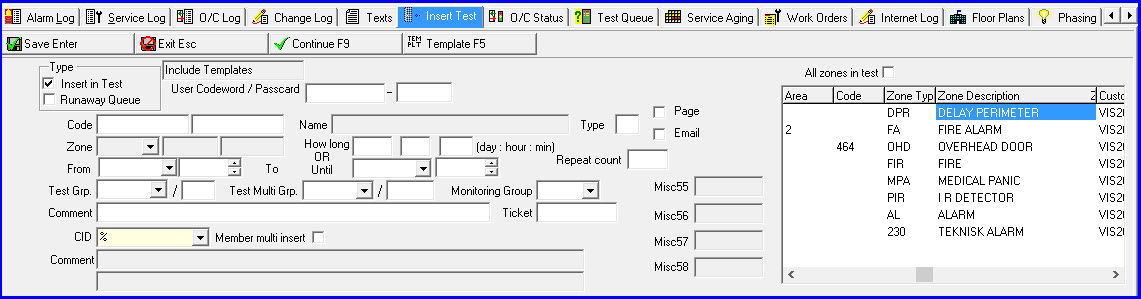
The following graphic displays the Insert Zone window.
Field Descriptions - Insert Zone
The following table describes the fields in the Insert Zone window.
Field | Description |
Include/Exclude Templates | The Template button toggles between including and excluding template zones that appear in the Zone drop-down menu. The current setting appears in the Include/Exclude Templates field. (This is a read-only field.) Note: If you toggle the Include/Exclude Templates button in the Insert Zone window to include templates, all monitoring groups appear in the Monitoring Group drop-down menu, including those assigned to templates. If you toggle the Include/Exclude Templates button to exclude templates, only the monitoring groups associated with the installation appear in the Monitoring Group drop-down menu. |
Insert in Test | Enter a check mark in this box to place the account in the test queue. Note: The Insert in Test and Runaway Queue check boxes cannot both be cleared at the same time. If you clear one check box, SBN automatically selects the other. Note: When an item is in test mode, the signals show up in the Alarm Log, but not the Alarm Queue. Note: When an Insert Test is linked to a Service Request and the Service Request is closed, the associated test will automatically be removed. |
Runaway Queue | Enter a check mark in this box to place the account in the runaway queue. Note: The Insert in Test and Runaway Queue check boxes cannot both be cleared at the same time. If you clear one check box, SBN automatically selects the other. Note: When an item is in runaway mode, the signals do not show up in the Alarm Log or the Alarm Queue. |
User Codeword/Passcard | Type the codeword of a contact on the Action Plan associated with the zone in the first field, or an Action Plan contact's passcard in the first field and its extension in the second field to authorize putting this account in the test or runaway queue. (Enter codewords and passcards for contacts in the Action Plans tab.) Note: If you typed the passcard number and extension in the Basic Search dialog box, the passcard number and extension default into this field from that dialog box. If option mo172 is on, SBN only accepts codewords, not passcards, to insert a zone into Test or Runaway mode. |
Passcard Extension (No label) | Extension to go with the passcard. Note: If you typed the passcard number and extension in the Basic Search dialog box, the passcard number and extension default into this field from that dialog box. |
All Zones in Test | Select this check box to put all zones for the selected installation in the test or runaway queue. Note: This check box only appears when option sv073 is on. |
Installation Zones Grid Note: This grid only appears when option sv073 is on. If you insert a monitoring group into Test mode when option sv073 is on, SBN ignores all settings in the Installation Zones Grid and hides this grid and the All Zones in Test check box. | |
In Test | Place an X in this column for each zone you want to insert into the test or runaway queue. |
Zone | Unique number that identifies each zone of the selected installation. |
Area | Abbreviation for a designated area within a zone. |
Code | Code that identifies the type of signal that a zone generates. |
Zone Type | Alarm type generated for a zone. (Zone types are defined in program #1733.) |
Zone Description | SBN-generated description of a zone, based on its zone type. |
Customer ID | Identifies the CID to which a zone is attached. If this column displays a %, the selected zone is a global zone, attached to all CIDs. |
Template | If this column displays an X, the selected zone is a template zone. |
Code | Installer’s numeric VRU code. (Enter VRU codes in the Users tab of program #1811.) |
VRU Passcode (No label) | Installer’s VRU passcode. (Enter VRU passcodes in the Users tab of program #1811.) |
Name | Installer’s full name. Note: This field defaults to the name typed in Personnel (program #1811). |
Type | Type 1-8. This determines the format of the text sent to the technician. See Tstpag Options 1-8. |
Page | Enter a check mark in this box to send all alarm signals that occur during the test to the technician’s pager. Note: Tstpag Options: 1-8, in combination with the Type in the Insert Test window, determine the format of the text sent in the page. |
Enter a check mark in this box to email all alarm signals that occur during the test to the technician. Note: Tstpag Options: 1-8, in combination with the Type in the Insert Test window, determine the format of the text sent in the email. | |
Zone | Drop-down menu that designates a specific zone to put in the test or runaway queue. If you leave this field blank, SBN places all zones into test. Note: This menu includes template zones only when the panel associated with the installation is flagged for template zones in Panel Types (program #1742). Note: This menu includes template zones only if the Include/Exclude Templates field is set to Include Templates. If the Include/Exclude Templates field is set to Exclude Templates, no zone templates appear in this menu. |
Area (No label) | Area attached to the zone. |
Code (No label) | Code attached to the zone. |
From Date | Date that SBN puts this zone into test or runaway mode. Note: If you leave this field blank enter a date in the past, it defaults to the current date. Note: When action 559/728 is on, you may enter a date in this field. When 559/728 is off, this field is read-only. |
From Time | Time that SBN puts this zone into test or runaway mode. SBN uses the Premises Time to insert the zone into test or runaway mode, which depends on the Time Zone defined for the selected installation in Data Entry Master (program #559). Note: If you leave this field blank or set it in the past, it defaults to the current time. Note: When action 559/728 is on, you may enter a time in this field. When 559/728 is off, this field is read-only. |
How Long - Day | Time in days you want the zone or group to remain in test or runaway mode. Note: When completing these fields, you either complete the Day, Hour, and Minute fields or the Until Date/Time fields. The Max Test Days field of your action profile in program #1502 determines how long you can put an installation into Test or Runaway mode. If your user ID has multiple action profiles assigned, SBN uses the action profile with the highest number of Max Test Days to determine how long you can put an installation into Test or Runaway mode. |
How Long - Hour | Time in hours you want the zone or group to remain in test or runaway mode. |
How Long - Minute | Time in minutes you want the zone or group to remain in test or runaway mode. |
Repeat Count | The user will be allowed to schedule a specific time period in the future for the test, then use the “Repeat Count� box to indicate the number of days the test is to be repeated. The test will be repeated for X-days at the same time each day. Note: When scheduling the test period, the “From� and “To� must be under a 24 hour period. |
Until Date | Date that SBN removes this zone or group from test or runaway mode. Note: When completing these fields, you either complete the Day, Hour, and Minute fields or the Until Date/Time fields. The Max Test Days field of your action profile in program #1502 determines how long you can put an installation into Test or Runaway mode. If your user ID has multiple action profiles assigned, SBN uses the action profile with the highest number of Max Test Days to determine how long you can put an installation into Test or Runaway mode. |
Until Time | Time that SBN removes this zone or group from test or runaway mode. SBN uses the Premises Time to remove the zone from test or runaway mode, which depends on the Time Zone defined for the selected installation in Data Entry Master (program #559). |
Misc55 | Data entered in the Misc55 field of the Basics tab of program #559 for the selected installation. (This is a read-only field.) |
Test Group | Test group to put in the test or runaway queue. |
Test Subgroup | Used to place a portion of the group in test |
Test Multi Group | Used to place all accounts with this group/subgroup in test. Note: Accounts that are placed into test are based on the main branch or service branch restrictions for the user. |
Test Subgroup | Used to place a portion of the group in test. |
Monitoring Group | Monitoring group to place in test. Note: If you toggle the Include/Exclude Templates button in the Insert Zone window to include templates, all monitoring groups appear in the Monitoring Group drop-down menu, including those assigned to templates. If you toggle the Include/Exclude Templates button to exclude templates, only the monitoring groups associated with the installation appear in the Monitoring Group drop-down menu. |
Misc56 | Data entered in the Misc56 field of the Basics tab of program #559 for the selected installation. (This is a read-only field.) |
Comment | Comment about the zone or group placed in test or runaway mode. |
Ticket | SBN-entered ticket number. SBN generates tickets in Maintenance Ticket Generation (program #701). Note: If option ba400 is on and the Insert button is selected for the Insert Test tab, the service req # is not copied to the Ticket field; otherwise, the copy is made if the # is available/known. |
CID | Specify a CID to put into test. Note: A menu is available with all CIDs for the account listed. To put all CIDs in test, use the % wildcard. |
Member Multi Insert | When checked, inserts all zones in CIDs associated with the member number for the current installation into test. |
Misc57 | Data entered in the Misc57 field of the Basics tab of program #559 for the selected installation. (This is a read-only field.) |
Comment | First line of the Comment field from the Data Entry Basics tab. |
Comment 2 (No label) | Second line of the Comment field from the Data Entry Basics tab. |
Misc58 | Data entered in the Misc58 field of the Basics tab of program #559 for the selected installation. (This is a read-only field.) |
Inserting a Zone or Group into Test
Use the following steps to insert a zone or group into test:
1. Choose Insert Record.
w The Insert Zone window opens.
Note: If the selected installation has the No Test check box selected in the Data Entry Basics tab and you do not have action 559/218 enabled in your action profile, the following message appears when you attempt to insert the installation into the test or runaway queue: 'This person is not authorized to insert in test/runaway.'
2. Select either the Insert in Test check box to place the item in test or the Runaway Queue check box to place the item in runaway queue.
Note: The Insert in Test and Runaway Queue check boxes cannot both be cleared at the same time. If you clear one check box, SBN automatically selects the other.
3. Complete the From Date and From Time fields to insert the zone or group into test in the future. If you leave these fields blank, they default to the current date and time.
Note: If you insert a zone or group into Test in the future, Background Job 66 from program #1712 must be active to insert the item into the Test Queue at the designated time.
Note: When action 559/728 is on, you may enter a date and time in the From Date and From Time fields. When action 559/728 is off, these fields are read-only.
4. Select a CID from the drop-down menu. (This field defaults to %.)
5. Complete the remaining fields, as needed.
6. Choose Save New Record.
w SBN asks if you are sure you want to insert into test.
Note: If option sv073 is on and you do not select the All Zones in Test check box or a zone in the Installation Zones Grid, a message appears asking if you want to insert all zones into Test mode. If you insert a monitoring group into Test mode when option sv073 is on, SBN ignores all settings in the Installation Zones Grid and hides the grid and the All Zones in Test check box.
7. Choose Yes to insert in test or No to cancel.
Note: If the Misc38 field in Data Entry Basics tab displays a selection that restricts VRU access, SBN displays a message that the technician may not insert this installation into test. If you enter an invalid codeword or passcard/extension, SBN displays an error message and does not put the zone or group into Test or Runaway mode.
Note: If your action profile includes action 559/211, SBN displays a message: "Technician/Installer has other accounts in test. Insert Anyway?" Choose Yes continue or No to cancel.
Note: If user selects ‘Yes’ SBN calls SetupDeviceInput service provided by DL-Core. The authentication information will be passed in http header. The authentication information is provided by the Options dlc_p and dlc_u.
w If the Installer does not have the correct branch profile, SBN displays an error message and does not put the system into test: "This person is not authorized to insert into test/runaway."
w If the branch profile is correct, SBN acknowledges that the zone or group has been put into test.
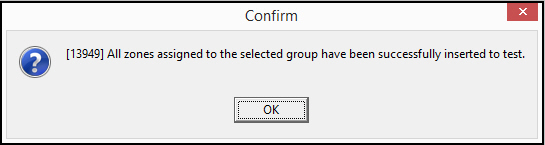
8. Choose OK.
w SBN returns you to the Insert Test tab.
or...
w If option sv051 is on, the Service Request Number dialog box opens.
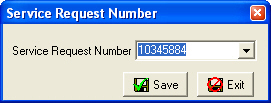
- From the Service Request Number menu, select the service request associated with the test.
- Choose Save.
w If option mo222 is on, the Email Send dialog box opens.
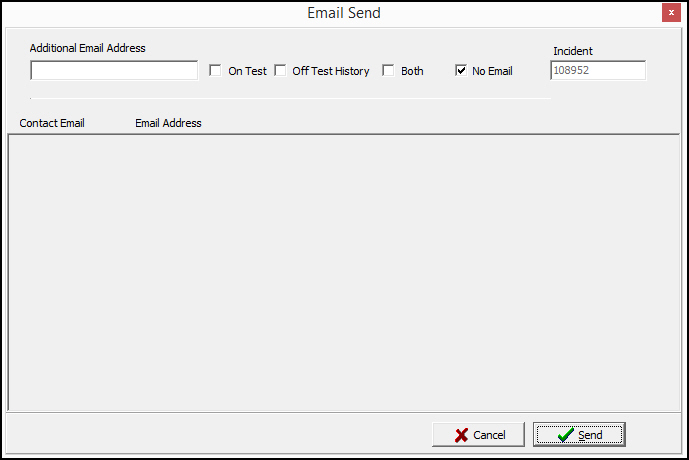
- For each action plan contact email address, select the On Test, Off Test History, Both, or No Email check box. You may enter an additional email address if you wish.
- Select either Cancel or Send.
w SBN returns you to the Insert Test tab.
Note: If a zone is not specified when inserting an installation into test, the passcard check is run against the base action plan, not against the zone. This will return an "Invalid Codeword/Passcard" error if the Zone field is completed.. Specifying a zone makes the passcard check determine which action plan corresponds to the zone.
The Email Send Dialog Box
When option mo222 is on, an Email Send dialog box opens when you insert a zone or group into Test or Runaway mode. This dialog box displays the email addresses of all contacts on Action Plan 0 of the installation with an email address entered in the Action Plans tab. If a contact has more than one email address entered in the Action Plans tab, SBN lists each email address for the contact on a separate line. You may enter an additional email address (or list of email addresses) at the top of the dialog box if you wish.
For each email address, you may select whether to send notification when the selected zone or group goes into Test or Runaway mode, when the zone or group comes out of Test or Runaway mode, or both. You may also choose not to send notification to a specific email address.
Field Descriptions - Email Send
The following table describes the fields used in the Email Send dialog box.
Field | Description |
Additional Email Address | You may enter an additional email address or list of email addresses to which SBN sends notification when a zone or group is inserted into Test or Runaway, when a zone or group comes of Test or Runaway, or both. To enter multiple email addresses, enter a semicolon (;) between each address. |
On Test | Select this check box to send notification to the additional email address(es) when a zone or group is inserted into Test or Runaway mode. |
Off Test History | Select this check box to send notification to the additional email address(es) with a list of activity while the zone or group was in Test or Runaway when a zone or group comes out of Test or Runaway mode. |
Both | Select this check box to send notification to the additional email address(es) both when:
|
No Email | Select this check box if you do not want to send any notifications to the additional email address(es). (This check box is selected by default.) |
Incident | Incident number that SBN creates in the Alarm Log when you insert the selected zone or group into Test or Runaway mode. |
Contact Email | Name of each contact on Action Plan 0 of the installation with an email address entered in the Action Plans tab. If a contact has more than one email address, SBN lists each email address on a separate line. |
Email Address | Email address of each contact on Action Plan 0 of the installation. |
On Test | Select this check box to send notification to the selected contact email when a zone or group is inserted into Test or Runaway mode. |
Off Test History | Select this check box to send notification to the selected contact email with a list of activity while the zone or group was in Test or Runaway when a zone or group comes out of Test or Runaway mode. |
Both | Select this check box to send notification to the selected contact email both when:
|
No Email | Select this check box if you do not want to send any notifications to the selected contact email. (This check box is selected by default.) |
Inserting Multiple Accounts into Test
You can insert multiple accounts into test if they have the same Master CID. To do so, complete the following steps.
Note: To perform this task, option sv083 must be active, and option sv073 and option sv050 must be inactive.
1. Perform a search for the accounts you want to insert into test by their Master CID.
2. Access the Insert Test tab of Data Entry (program #559).
3. Choose the New button on the Insert Test tab.
w The All Installation W/Master CID check box appears.
4. Select the All Installation W/Master CID check box.
5. Choose Save.
w A confirmation box appears.
6. Choose Yes.
The All Installation W/Master CID dialog box appears with all the accounts selected.
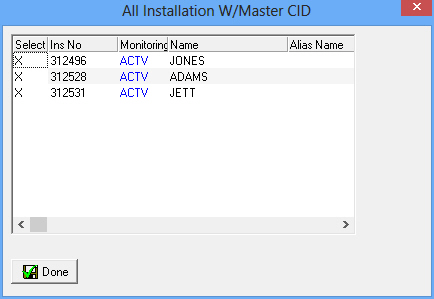
Note: The check boxes indicate that the selected accounts will be placed into test. You can clear an X for an account so that it will not be placed into test.
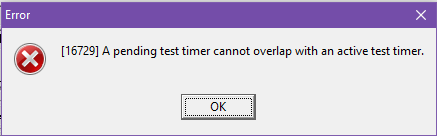
Note: If a user's CID is already on test for a specified time period, and user tries to insert an additional test on same CID, the following error will appear.
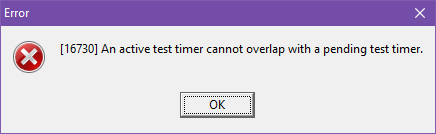
Note: If a user has a future test period set and they try to activate an additional test which runs within the specified time period, they will receive the following error:
7. Choose the Done button.
w SBN places the selected accounts into test and displays the following message:
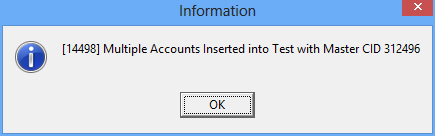
8. Choose OK.
Removing Multiple Accounts from Test
To take multiple accounts out of test by their Master CID, complete the following steps.
1. Perform a search for the accounts you want to remove from test by their Master CID.
2. Access the Insert Test tab of Data Entry (program #559).
3. Choose the Remove from Test button.
w A confirmation message appears.
4. Choose Yes.
w The All Installation W/Master CID dialog box appears with all the check boxes cleared.
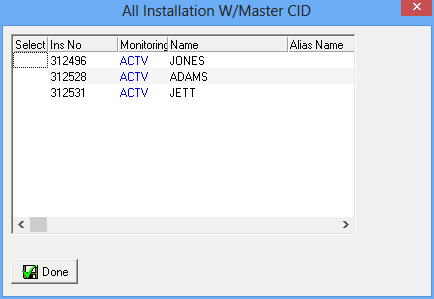
5. Select each account that you want to remove from test by placing an X in the Select column for the corresponding account.
6. Choose the Done button.
w SBN removes the selected accounts from test and displays the following message:
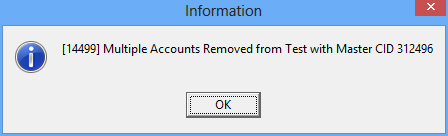
7. Choose OK.
Viewing the Pending Test Window
Use Toggle Active/Inactive to move between the Insert Zone window and the Pending Test window. The Pending Test window shows the zones or test groups for the selected installation that SBN has not inserted into Test mode because they are set to enter Test mode in the future. When you insert a zone or group into Test in the future, Background Job 66 from Background Tasks (program #1712) must be active to insert the item into the Test or Runaway Queue.
When you enter the Pending Test window, only the Insert New, Remove from Test, and Toggle Active/Inactive buttons are available.
Note: If you insert a zone or group into Test or Runaway in the future using a valid Action Plan contact codeword, SBN will insert the zone or group into Test or Runaway at the designated time even if you change the codeword in the Action Plan before the zone or group goes into Test or Runaway mode.
The Pending Test Window
The following graphic displays the Pending Test window with pending zones displayed.

Column Descriptions - Pending Test
The following table describes the columns used in the Pending Test window.
Column | Description |
Start Date | Date SBN will enter the zone or group in test. |
Start Time | Time SBN will enter the zone or group in test. SBN uses the Premises Time to insert the zone or group into test or runaway mode, which depends on the Time Zone defined for the selected installation in Data Entry Master (program #559). |
End Date | Date SBN will remove the zone or group from test. |
End Time | Time SBN will remove the zone or group from test. SBN uses the Premises Time to remove the zone or group from test or runaway mode, which depends on the Time Zone defined for the selected installation in Data Entry Master (program #559). |
Terminal ID | Terminal ID number of the operator that placed the customer in test or runaway mode. |
Customer ID | The CID the user selected to place into test. |
Primary CID | Primary CID for the installation that the user placed into test. |
Test Group | Test group that is in test or runaway mode. |
Test Subgroup | Subgroup number for the customer in test or runaway mode. (This is defined in the Zones tab.) |
Area | Area attached to the zone. (This is defined in the Zones tab.) |
Code | Code attached to the zone. (This is defined in the Zones tab.) |
Request Number | Inspection ticket number for the customer in test or runaway mode, if applicable. |
Installation Number | Installation number for the CID that the user placed into test or runaway mode. |
Comment | Original comment for the customer being placed in test or runaway mode. |
User ID | ID of the user who placed the zone or group into test or runaway mode. |
Removing Zones and Groups from Pending Test
Use the following steps to remove an item from the Pending Test window:
1. In the Pending Test window, select the zone or group you want to prevent from entering Test or Runaway mode.
2. Choose Remove from Test.
w SBN removes the item from the Pending Test window.
Moving Between Tests
You can move forward and backward between entries in test in the insert test list by using Previous Record and Next Record. These buttons only work if more than one entry appears in the Insert Test List for the selected customer.
Use the following steps to move forward and backward between tests:
1. In Insert Test, choose Previous Record to move to the preceding entry in test.
w Information for the selected entry appears in the upper pane of the Insert Test tab.
2. Choose Next Record to move forward to the next entry in test.
Toggling the Queue Mode
Use Toggle Queue Mode to toggle between the Test and Runaway queues. Place an incident in test to notify the central station that you are going to test all of the customer or a subset of zones and to ignore all alarms. Place an item in runaway to notify the central station that a device has a problem and you are going to test the device.
Note: When an item is in test mode, the signals show up in the test queue and the Alarm Log. When an item is in runaway mode, the signals do not show up in the alarm queue.
Use the following steps to toggle between queues:
1. In Insert Test, choose Toggle Queue Mode.
w The current queue displays in the Queue Mode field.
2. Choose Toggle Queue Mode again to return to the previous queue.
Changing Monitoring Status
Use Change Monitoring Status to change the current monitoring status of this account. Any change made to the monitoring status appears in the alarm log.
Use the following steps to change the monitoring status:
1. In Insert Test, choose Change Monitoring Status.
w A Change Monitoring Status dialog box appears.
2. Complete the Change Monitoring Status field.
3. Choose Save New Record.
w SBN asks if you are sure.
4. Choose Yes.
Removing Zones and Groups from Test
You can manually remove zones and test groups from testing before the date and time that SBN is scheduled to automatically remove them. Use different procedures for removing zones or groups. The following sections explain each procedure. Once you remove a zone or group from test, the Insert Test list automatically refreshes.
Note: Zones and groups require restores before you can remove them from testing. (For more information on how to restore a zone or group, see Zones.)
Removing a Zone
When you remove a zone or a whole account from test, SBN prompts you to enter a service request number, after which a sublevel window appears. In this window, you add or change a line in the service request.
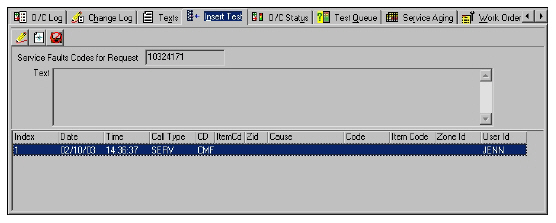
Field/Column Descriptions - Removing a Zone
The following table describes the fields and columns used on this window.
Field/Column | Description |
Service Faults Codes for Request | Service request number. |
Text | Read-only text about the service request. Note: This information comes from the Text field in Service Log. |
Index | SBN-entered number assigned to this problem line. |
Date | Date the service request was entered in SBN. |
Time | Time, in hours, minutes, and seconds, when the problem was entered. |
Call Type | Abbreviation and description for this problem line. |
Code | Problem code. |
Item Code | Item code for this problem. |
Zone ID | Zone ID for this problem. |
Cause | Abbreviation and description of the cause of the signal sent to SBN. |
Code | Code that describes how the inspector resolved the problem. (This menu originates from program #1523.) |
Item Code | Abbreviation and description of the type of item that is sending a signal to SBN. (This menu originates from program #1523.) |
User ID | ID of the person changing the service request. |
Before you remove the zone from test, you can add or change a line in the service request. The following procedure explains how to change a line in the service request, add a line to the service request, and remove a zone from test.
Use the following steps to remove a zone or a whole account from test:
1. In Insert Test, select the line for the zone you want to remove from test.
2. Choose Remove from Test.
w SBN asks if you are sure.
3. Choose Yes.
w If option sv005 is on, a Service Request dialog box appears. The first number in the Service Request menu automatically displays in the Service Request Number field.
Note: If SBN finds no open service requests, this dialog box does not appear.
4. If you do not want to make a change to the service request, choose Exit Without Saving.
w SBN removes the zone or account from the test or runaway queue.
5. If you do want to make a change to the service request, select a service request number.
Note: Option sv005 determines if SBN displays a window asking for a Service Request number. When this option is set, SBN prompts you to attach a Service Request number, and then provides a list of all open requests. If SBN finds no open service requests, the window does not appear.
Note: Option sv026 sends you directly to the Service Request Change dialog box after you choose Save. For information on this procedure, see Step 12.
Note: You can create new Service Requests in the Service Log tab, or in program #701.
6. Choose Save Existing Record.
w A sublevel window appears in which you enter a new line or change an existing line on the service request.
7. If you want to change an existing line in the service request, choose Change Record.
8. If you want to add a new line to the service request, choose New Record.
9. If you add or change a line in the service request, choose Save New Record.
w The new or changed line in the service request has been saved.
10. Choose Exit Without Saving.
w SBN asks if you are sure.
11. Choose Yes.
w SBN returns you to the main Insert Test tab and removes the chosen zone or group.
12. If option sv026 is on, the Service Request Change dialog box appears, in which you add information to the service request and outdate the request at the same time.
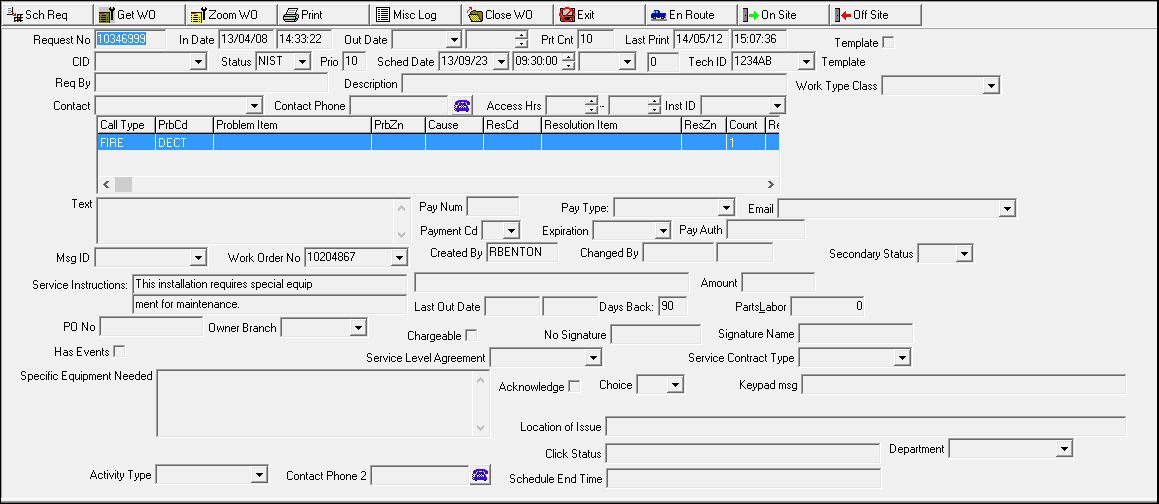
13. Enter information to service request as required, and choose Save Existing Record.
Failing all Tests
The Fail All function allows you to manually fail all listed incidents at once.
Use the following steps to fail all incidents at once:
1. From the Insert Test Tab, select the desired event.
2. Click Insert.
3. From the CID dropdown, select the appropriate customer ID.
4. Click Incident.
5. Select the desired Zone.
6. Click Remove.
7. From the first Confirm popup, click No.
8. From the second Confirm popup, click No.
9. Click Fail All. The Status column changes all listed incidents from PASS to FAIL.
Removing a Test Group
Remove a group from test for fire tickets only. A sublevel window appears that displays information about the group that was in test. In the sublevel window you can update specific zones within the group before removing the group from test/runaway mode.

Field Descriptions - Removing a Test Group
The following table describes the fields used in this window.
Field | Description |
Queue Mode | Queue mode (test or runaway) for this item. |
Date | Date the alarm comes out of test or runaway mode. |
Time | Time the alarm comes out of test or runaway mode. |
Terminal | Terminal ID of the operator. |
Zone | Zone number that is in test or runaway mode. |
Area | Zone area that is in test or runaway mode. |
Code | Code for the zone that is in test or runaway mode. |
Group | Test group or fire inspection ticket number. |
Sub | Test subgroup. |
Ticket Number | Inspection ticket number for the request. |
Event | An abbreviated code for the test event and the time it was placed in test. |
Update All | If this box displays a check mark, SBN updates all lines in the zone test window. |
Update Successful | If this box displays a check mark, SBN updates all lines that have received enough signals. |
With Inspection ID | Updated with the inspection ID. |
Multi Group | If this box displays a check mark SBN removes all entries with the same group. |
Use the following steps to remove a group from test:
1. In Insert Test, select the line for the group you want to remove from test.
2. Choose Remove from Test.
w A sublevel window appears.
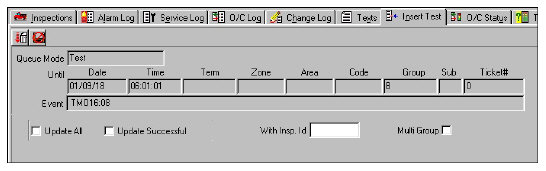
3. Complete the fields, as needed.
4. Choose Continue with Remove.
w SBN checks for restore required only for the zones that are included in the selected test.
w SBN returns you to the main Insert Test tab and removes the chosen zone or group.
Viewing All Events for a Specific Incident
Use All Events for Specific Incident to view test records based on incident number. In this window, the data on zones refers only to those zones included in the specific incident number.
Note: You can choose this view as the default by setting option sv027 to 1.
The following graphic shows the All Events window with information for a specific event displayed.
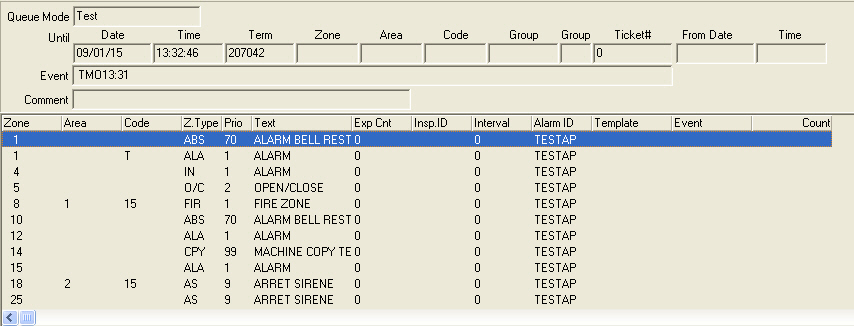
Field Descriptions - Events for a Specific Incident
The following table describes the fields used in the upper pane of this window.
Field | Description |
Queue Mode | Queue mode (test or runaway) for this item. |
Date | Date the alarm comes out of test or runaway mode. |
Time | Time the alarm comes out of test or runaway mode. |
Terminal | Terminal ID of the operator. |
Zone | Zone number that is in test or runaway mode. |
Area | Zone area that is in test or runaway mode. |
Code | Code for the zone that is in test or runaway mode. |
Group | Test group or fire inspection ticket number. |
Group | Test subgroup. |
Ticket Number | Inspection ticket number for the request. |
Event | An abbreviated code for the test event and the time it was placed in test. |
Comment | Displays comments typed in the Simulate Alarm dialog box in Dispatch. |
Column Descriptions - Events for a Specific Incident
The following table describes the columns used in the lower pane of this window.
Column | Description |
Zone | Zone number that is in test or runaway mode. |
Area | Zone area that is in test or runaway mode. |
Code | Code for the zone that is in test or runaway mode. |
Zone Type | Code that identifies the type of zone. |
Priority | Zone priority. |
Text | Description of zone type. |
Expected Count | Displays the number of signals expected, based on the number of pieces of equipment put into test. |
Inspection ID | Inspector ID number for the inspector putting this item in test. O This field pertains to Fire Test only. |
Interval | Test interval for the zone. This data originates from the Zone test window. |
Alarm ID | Identifies the CID associated with the specific incident. O If this column displays a %, the selected zone is a global zone. |
Template | If this column displays an X, the selected zone is a template zone. |
Event | Identifies the latest event for the selected zone. |
Count | Identifies the number of signals received while the selected zone was in test mode. O This column can support multi-digit numbers. |
Test Results
SBN displays test results with blocks of color that identify the status of the test. To view the test results, you must first create Test Templates for the selected CID in Zones. Then, after you insert a CID in test, you may view the test results by choosing one of the following from the main Insert Test window:
- Test Results [SHIFT+F11] - displays a compressed view of test signals of all CIDs for the selected installation
or...
- Test Results [SHIFT+F12] - displays test signals for all zones, by each CID, for the selected installation
Note: Action 559/215 controls access to the Test Results button and functionality. Action 559/216 controls access to the Test Results button and functionality.
Note: Choose the button again to toggle the view back to the main window of Insert Test.
You may apply test templates from one installation to another by entering the installation number with the test template masks you want to use as the value of option sdi017 and the dealer ID for the installation as the value of option sdi023. Select the Signal Test check box in Panel Types (program #1742) for any panel types associated with installations to which you want to apply the test template. Finally, for specific zones to which you want to apply test template masks, enter the same item code associated with the zone from which you are copying the test template. SBN does not display the masks in the Test Template Zones window of the installation you copied to, but after alarm tests, it displays the test results in the Insert Test tab according to the masks you applied to the zone.
Test Results Windows
The following graphics show the Test Results window that SBN displays when you choose Test Results.
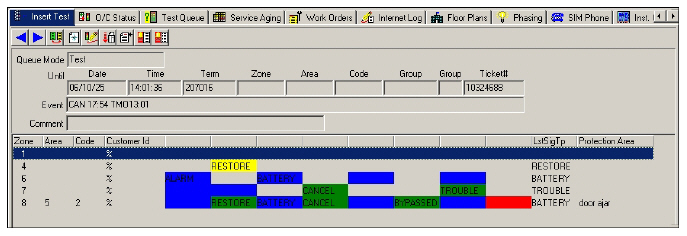
or...
Test Results [SHIFT+F12].
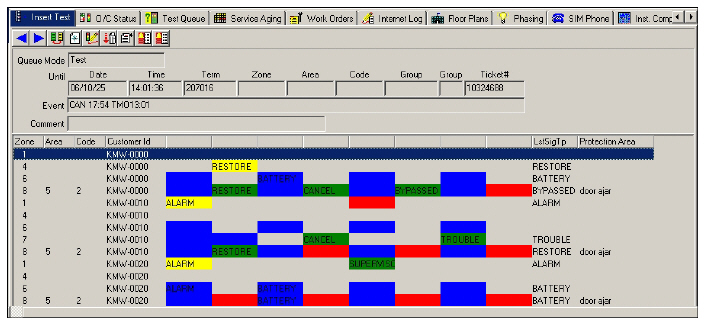
Field Descriptions - Test Results
The following table describes the fields used in the upper pane of this window.
Field | Description |
Queue Mode | Queue mode (test or runaway) for this item. |
Date | Date the alarm comes out of test. |
Time | Time the alarm comes out of test. |
Terminal | Terminal ID of the operator. |
Zone | Zone number that is in test. |
Area | Zone area that is in test. |
Code | Code for the zone that is in test. |
Group | Test group or fire inspection ticket number. O If autopopulate is ON, the service req # is NOT copied to the Ticket field when the Insert button is selected for the Insert Test tab; otherwise, the copy is made if the # is available/known. |
Group | Test subgroup. |
Ticket Number | Inspection ticket number for the request. |
Event | An abbreviated code for the test event and the time it was placed in test. |
Comment | Displays comments typed in the Simulate Alarm dialog box in Dispatch. |
Column Descriptions - Test Results Window 1
The following table describes the columns used in the lower pane of this window.
Column | Description |
Zone | Zone number that is in test or runaway mode. |
Area | Zone area that is in test or runaway mode. |
Code | Code for the zone that is in test or runaway mode. |
CID | Displays the CID of the zones in test. O If this column displays %, the zone is a global zone. |
Signal Type - Alarm (No label) | Displays the test results of an Alarm signal on the selected zone. |
Signal Type - Restore (No label) | Displays the test results of a Restore signal on the selected zone. |
Signal Type - Battery (No label) | Displays the test results of a Battery signal on the selected zone. |
Signal Type - Cancel (No label) | Displays the test results of a Cancel signal on the selected zone. |
Signal Type - Supervisor (No label) | Displays the test results of a Supervisor signal on the selected zone. |
Signal Type - Bypassed (No label) | Displays the test results of a Bypassed signal on the selected zone. |
Signal Type - Trouble (No label) | Displays the test results of a Trouble signal on the selected zone. |
Signal Type - Logging (No label) | Displays the test results of a Logging signal on the selected zone. |
Last Signal Type | Displays the last signal received on the selected zone. |
Protection Area | Location of the premises protected under this zone. |
Test Results Colors
SBN uses colors blocks to indicate the status of the test results.
- Green - Passes test
- Red - Fails test
- White (or background color) - Not defined
- Yellow - Possible error in testing mask in Zones (for example, you did not define the mask for the signal as allowed, but SBN received the signal)
- Blue - Error in testing mask in Zones (for example, you defined the masks for the signal as both allowed and disallowed)
Color Logic
The following table describes the logic that SBN uses to display the test results in color blocks. SBN examines
- The three masks for the selected zone for each of the eight signal types
q Allow
q Disallow
q Required
- Whether the signal was received
These four checks, illustrated with 0s and 1s in the following table, determine the color bar that SBN displays.
- 0 = the position in the mask contains a .
- 1 = the position in the mask contains an X
Allow | Disallow | Required | Received | Color |
0 | 0 | 0 | 0 | 0000 - White |
0 | 0 | 0 | 1 | 0001 - Yellow |
0 | 0 | 1 | 0 | 0010 - Red |
0 | 0 | 1 | 1 | 0011 - Green |
0 | 1 | 0 | 0 | 0100 - White |
0 | 1 | 0 | 1 | 0101 - Red |
0 | 1 | 1 | 1 | 0111 - Blue |
1 | 0 | 0 | 0 | 1000 - White |
1 | 0 | 0 | 1 | 1001 - Yellow |
1 | 0 | 1 | 0 | 1010 - Red |
1 | 0 | 1 | 1 | 1011 - Green |
1100 - 1111 |
| |||
Button Functions
The following table displays the buttons, describes the shortcut keys, actions, and functionality.
Button | Name | Shortcut Key | Action | Description |
| Previous Record | F2 | 559/201 | Go to previous record. |
| Next Record | F3 | 559/202 | Go to next record. |
| Toggle Queue Mode | F4 | 559/203 | Toggle between test and runaway queues. |
| Insert Record | f6 | 559/204 | Open a sublevel window for inserting a new zone or test group into either the test or runaway queue. |
| Change Monitoring Status | F7 | 559/205 | Change the current monitoring status of this account. |
| Remove from Test | F8 | 559/206 | Remove a zone or group from test. |
| All events for specific incident | F9 | 559 | View test records based on incident number. |
| Test Results | shift+F11 | 559/215 | Display a compressed view of test signals of all CIDs for the selected installation. |
| Test Results | shift+F12 | 559/216 | Display test signals for all zones, by each CID, for the selected installation. |
| Toggle Active/Inactive | F10 | 559/677 | View the Pending Test window with zones waiting to go into Test mode. |
| Refresh | F11 | 559/219 | Refresh the Insert Test screen. |
| Template | F5 | 559/217 | Toggles between Include/Exclude Templates. Note: Option intmp controls the default mode of this button. If the option is on, the button defaults to Include Templates. If off, the button defaults to Exclude Templates. |












Modifications and Updates to Insert Test
The following table lists modifications and updates to the Insert Test document.
Mod Number | Date | Description |
08.78.09085, 07.78.22326, 08.78.09024, 07.78.22278 | 03/20/13 | Added option sv083 to allow testing of multiple accounts by Master CID |
07.79.22755, 08.80.09290, 08.80.09283, 07.79.22745 | 07/09/13 | Added action 559/728 to allow users to schedule a test for a future date. |
07.79.22770, 07.79.22765 | 07/24/13 | Added option ma030 to allow users to override option tqnse. |
08.79.09327, 08.79.09321 | 08/06/13 | Insert in Test and Runaway Queue check boxes cannot both be cleared or both selected; SBN automatically checks only one. |
07.79.22755, 08.80.09290, 08.80.09283, 07.79.22745 | 10/07/13 | Added action 559/728 to determine whether the From Date/Time fields are read-only. |
n/a | 07/18/14 | Images updated. |
n/a | 03/17/15 | Added note involving receiving error message when inserting a specific zone into test. |
07.84.24591 | 02/16/16 | New DL-Core Options - dlc_p and dlc_u |
08.85.10436 | 02/16/16 | Set DL Core for http Header |
08.89.11456, 08.89.11455 | 07/24/18 | The Insert Test tab's lower pane window has been increased to display up to 2500 zones. Previously, it would only show 1000 zones. |
07.89.26004, 07.89.26006 | 10/02/18 | New error messages created. If a user's CID is already on test for a specified time period, they will receive the following error: "[16729] A pending test timer cannot overlap with an active test timer." If a user has a future test period set and they try to activate a test which runs within that time period then they will receive the following error message: "[16730] An active test timer cannot overlap with a pending test timer." |
07.89.26043 | 01/08/19 | Note placed within "Insert Test In" field: When an Insert Test is linked to a Service Request and the Service Request is closed, the associated test will automatically be removed. |
07.93.26684, 08.93.12000, 07.93.26686, 08.93.12003 | 10/09/21 | New Refresh button added. New action 559/219. Images updated. |