
Service Queue
Program #: 547
Module: Account Management
Overview
Use the Service Queue as a central location for:
Tracking and updating the status of open service requests
q Marking employees en route, onsite, or offsite
Performing scheduling functions
Linking to different areas of SBN:
q Jumping to the Schedule Board
q Viewing installation information in Data Entry Master
q Viewing the Service Log
When you have performed a search, you can perform several actions on each request such as, marking employees en route, onsite, or offsite, paging employees, and changing, outdating or closing service requests.
This document covers the following topics:
Navigating to the Service Queue
Searching for Open Service Requests
Assigning Service Requests to a Resource
Accessing the Service Request Report
Viewing Installation Information
Viewing the Miscellaneous Service Log
Outdating/Closing Service Requests
Attaching a Timer to a Service Request
Navigating to the Service Queue
Use the following steps to navigate to the Service Queue:
1. From the main SBN toolbar, select Menu.
2. From the drop-down menu, select Go To.
3. In the Go To Program dialog box, type in "547" and press Enter.
w The Service Queue opens.
Service Queue Options
You can manipulate the Service Queue window and functionality by using a number of options. The settings of the following options control different aspects of the Service Queue and how it relates to other tabs and programs. For detailed information on an option and its default setting, see SBN Options.
Option ba153 - When on and you use the On-Site or Off-Site function, SBN automatically displays the Insert Test window.
Option ba287 - When on, users own service requests in the Service Queue from the time they choose Change for that service request until they choose Save.
Options ba413 and 415 - This option is specific for Company 150. Controls customer-defined text that appears in the Message box when paging in Service Queue.
Option sv043 - When on, you may select multiple service requests in the Service Queue to assign to a technician.
Option sv075 - When on, SBN does not return internal contract and account numbers when a user performs a search in the Service Queue. When off, SBN returns all data when a user performs a search in the Service Queue.
Option sv076 - When on and a user chooses the On Site button, the Alarm Log tab records that the resource is on site. When this option is off and a user chooses the On Site button, the Alarm Log tab records that the resource has been dispatched.
Option svqtimer - Defines the color that appears in the Status column of the Service Queue (program #547) when a service request has an expired timer.
Option temp156 - When on, the Work Type Class search parameter does not accept the % wildcard character.
The Service Queue
The following graphic shows the Service Queue as the program opens.
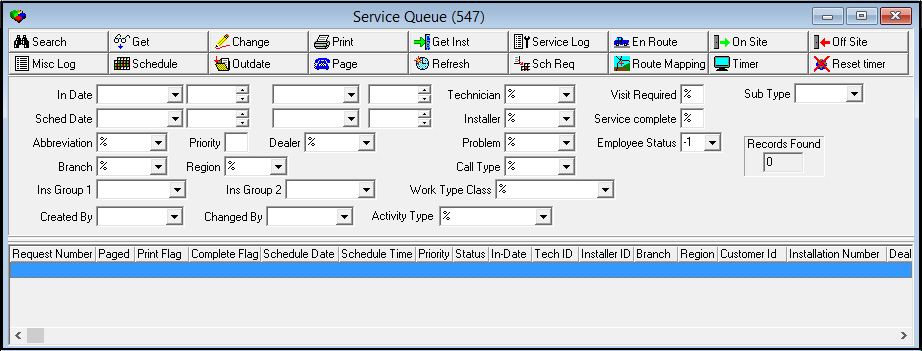
Field Descriptions - Search Parameters
The following table describes the fields in the upper pane of the Service Queue.
Field |
Description |
In Date |
You may select a date to search for service requests with an In Date that occurred on or after this date. |
In Time (No label) |
You may select a time to search for service requests that were entered at or after this time on the selected date. |
End Date (No label) |
You may select a date to search for service requests with an End Date that occurred on or before this date. |
End Time (No label) |
You may select a time to search for service requests that were entered at or before this time on the selected date. |
Technician |
You may either use the % wildcard to search for requests associated with all technicians or you may select a technician ID to limit the search to service requests associated with that technician. (This menu originates from program #1864.) |
Visit Required |
You may either use the % wildcard to search for all requests or enter an X to limit the search to service requests with the Visit Required field flagged on the Request Status Code (program #1525). |
Start Sched Date |
You may select a date to search for service requests with a schedule date that occurred on or after this date. |
Start Sched Time (No label) |
You may select a time to search for service requests with a schedule time that occurred at or after this time on the schedule date. |
End Sched Date (No label) |
You may select a date to search for service requests with a schedule date that occurred on or before this date. |
End Sched Time (No label) |
You may select a time to search for service requests with a schedule time that occurred at or before this time on the schedule date. |
Installer |
You may either use the % wildcard to search for service requests associated with all installers or you may select an installer ID to limit the search to service requests associated with that installer. (This menu originates from program #1543.) |
Service Complete |
You may either use the % wildcard to search for all requests or enter an X to limit the search to service requests that have the Service Complete flag. |
Abbreviation |
You may either use the % wildcard to search for all service requests or you may select a status to limit the search to service requests with that status. (This menu originates from program #1525.) |
Priority |
You may type a specific priority number to search for service requests with that priority or leave this field blank to search all requests. |
Dealer |
There are three ways to enter a dealer parameter in this field:
|
Problem |
You may either use the % wildcard to search all service requests or you may select a specific problem code to limit the search to service requests with that problem code. (This menu originates from program #1522.) |
Employee Status |
You may select an employee status to search for service requests by the status of the employees: l Enroute l Onsite l Offsite |
Branch |
You may either use the % wildcard to search all service requests or select a specific service branch to limit the search to service requests associated with that branch. (This menu originates from program #1530.) |
Region |
You may either use the % wildcard to search all service requests or you may select a specific service region to limit the search to service requests associated with that service region. (This menu originates from program #1530.) |
Call Type |
You may either use the % wildcard to search all service requests or you may select a specific call type to limit the search to service requests associated with that call type. (This menu originates from program #1524.) |
Records Found |
Identifies how many results match your search parameters. |
Installation Group 1 |
You may select a financial group to limit the search to service requests for installations associated with the group. (This menu originates from program #1868.) |
Installation Group 2 |
You may select a financial group to limit the search to service requests for installations associated with the group. (This menu originates from program #1868.) |
Work Type Class |
You may select a work type class to limit the search to service requests of work types associated with the selected work type class in program #1526. (This menu originates from program #1590/71.) Use the % wildcard character to search for service requests of all work types (including those with blank work types). (When option temp156 is on, this field does not accept the % wildcard.) If you leave this field blank, SBN limits the search to service requests with a blank work type. |
Created By |
Use this dropdown menu to select the name of the operator who created the record. |
Changed By |
Use this dropdown menu to select the name of the operator changing the record. |
Activity Type |
You may select an activity type class to limit the search to service requests of activity types associated with the selected activity type class. Use the % wildcard character to search for service requests of all activity types (including those with blank activity types). If you leave this field blank, SBN limits the search to service requests with a blank activity type. |
Column Descriptions - Search Results
The following table describes the columns used in the lower pane of the Service Queue.
Column |
Description |
Request Number |
Unique number for each request. |
Paged |
If this column displays an X the technician or installer has been paged. SBN resets this flag when you reschedule the request using the Request to Schedule window. |
Print Flag |
If this column displays an X the service request has been printed. |
Complete Flag |
If this column displays an X, when the technician or installer was entered as offsite, the operator indicated that the service was complete. |
Schedule Date |
Displays the date on which the service is scheduled to occur, if applicable. |
Schedule Time |
Displays the time at which the service is scheduled to occur, if applicable. |
Priority |
Priority number of the service request. |
Status |
Displays the Request Status Code for the service request. Note: The status color changes to the color defined by option svqtimer when a timer attached to a service request expires. |
In-Date |
Displays the date the service request was created. |
Technician ID |
ID of the technician assigned to this service request. |
Installer ID |
ID of the installer assigned to this service request. |
Branch |
Service branch for the service request. |
Region |
Service region for this service request, if applicable. |
Customer ID |
The CID number attached to this service request. |
Installation Number |
Installation number attached to this service request. |
Dealer ID |
ID of the dealer attached to this service request. |
Name |
Displays the combined installation name from the account. |
City |
Displays the installation city from the account. |
Term |
If option ba287 is on, this column displays the terminal of the user who last changed the selected service request. |
Address |
Displays the installation address. |
Zip |
Displays the installation zip code. |
In-Time |
Service request creation time. |
(No Label) |
This column is blank and used only to control multi-column sort order of the service queue list. This sorts by ascending schedule date and then descending service request number. |
Installation Group 1 |
Displays installations assigned to Group 1 in Financial Groups (program #1868). |
Installation Group 2 |
Displays installations assigned to Group 2 in Financial Groups (program #1868). |
Timer Expired |
Displays an X when a timer attached to a service request expires. |
Class |
Work type class associated with the service request work type in program #1526. |
Activity Type |
Displays the contents of the Activity Type field in the Service Log tab of the Service/Data Entry program (program #559). |
Click Status |
Displays the contents of the Activity Type field in the Service Log tab of the Service/Data Entry program (program #559). |
Schedule End Time |
Displays the time the service request was completed. |
Created By |
Displays who created the Service Request. |
Changed By |
Displays who edited the Service Request. |
Work Order Type |
Displays the type of work order. |
Work Count |
Displays the Work Count from the Service Request screen in Service/Data Entry program (program #559). |
Follow-Up Date |
Add a future date to follow up on Service Requests. |
Follow-Up Time |
Add a time to go with the Follow-Up Date chosen. |
Status |
The Status column originates from Communication Log (#1881). Status's are defined in Status Codes (#1721). |
Service Type |
Displays the service type for the installation - This originates from the Basics tab in 559 for the installation (Misc 35) |
UL Grade |
Displays the UL Grade for the installation - This originates from the Basics tab in 559 for the installation (Misc 42) |
Montioring Status |
Displays the monitoring status of the installation - This originates from the Basics tab in 559 for the installation |
Service Instructions Line 1 |
Displays the Service Instructions Line 1 for the Basics tab in 559 for the installation |
Service Instructions Line 2 |
Displays the Service Instructions Line 2 for the Basics tab in 559 for the installation |
Service Instructions Line 3 |
Displays the Service Instructions Line 3 for the Basics tab in 559 for the installation |
Working in the Service Queue
Use the Service Queue to perform several important service and scheduling functions and to link to different areas of SBN:
Searching for Open Service Requests
Use the following steps to search for open service requests:
1. In Service Queue (program #547) select your search parameters.
Note: For more information, see Field Descriptions - Search Parameters.
2. Choose Search.
w The search results appear in the lower pane of the window.
Note: When option sv075 is on, SBN does not return internal contract and account numbers when a user performs a search in the Service Queue. When option sv075 is off, SBN returns all data when a user performs a search in the Service Queue.
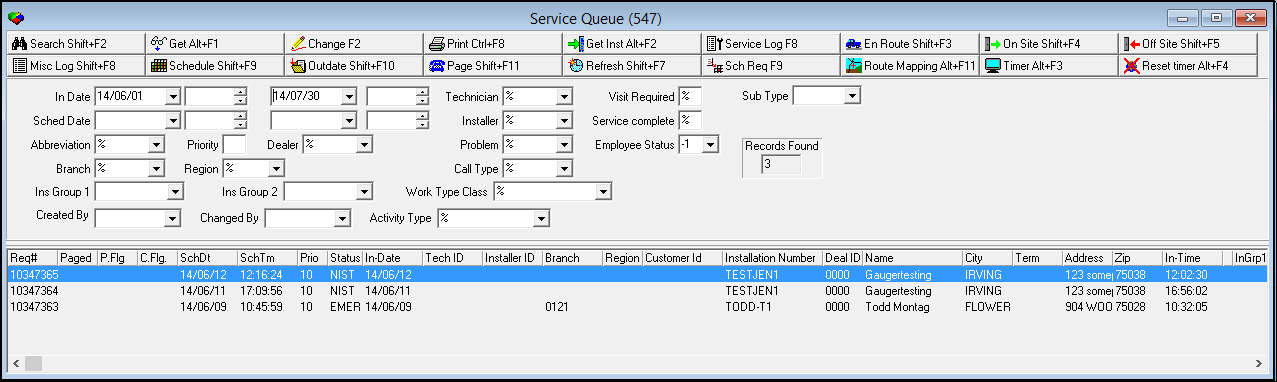
Note: If you change search parameters, you must choose Search again to display the new results.
Assigning Service Requests to a Resource
Use the following steps to assign a service request to a resource:
1. In Service Queue (program #547) search for open service requests.
2. From the search results, select the service request you want to assign to a technician.
Note: If option sv043 is on, you can select multiple service requests to assign to one technician. Use [SHIFT + DOWN/UP] arrows or your mouse to highlight a block of service requests. Before you select a block of multiple requests to assign, you may want to sort the service requests by address or zip code.
3. Choose Schedule Request.
w The Schedule Request dialog box opens.
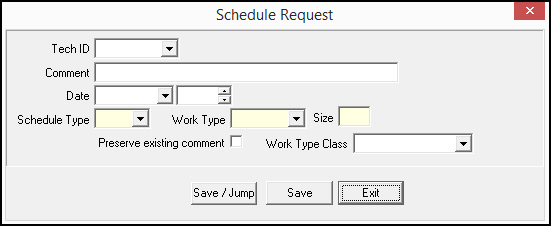
4. Complete the fields.
Note: The selection in the Work Type Class field limits the Work Type drop-down menu to types associated with the work type class and types associated with no work type class in program #1526.
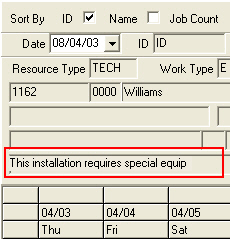
If the Preserve Existing Comment box is checked, the original service Description field text is copied over to the Schedule Request in program # 563. If this box is not checked, text entered into the Comment field of the Schedule Request popup is copied over to the Schedule Request.
`
5. Choose Save [ENTER].
Note: When you select a date and choose Save, and later choose Schedule Board, the Schedule Board opens with all available resources of the selected type for the selected date.
w SBN logs the schedule request in the Data Entry Change Log.
or...
Choose Save / Jump.
w SBN saves the request and opens the Schedule Board with all available resources of
q The selected type
q For the selected date
q For the selected branch
w SBN logs the schedule request in the Data Entry Change Log.
Accessing the Service Request Report
Use the following steps to access the Service Request Report (report #2008) to print service requests:
1. In Service Queue (program #547), search for open service requests.
2. From the search results, select the service request you want to print.
3. Choose Print.
w The Service Request Report opens with the selected service request number.
4. Select a Sort By code.
5. Choose Save.
w SBN sends the report to the Report Queue (program #1558).
Note: For more information see:
Viewing Installation Information
Use the following steps to view installation information for the service request:
1. In Service Queue (program #547), search for open service requests.
2. From the search results, select the service request for which you want to view installation information.
3. Choose Get Installation.
w The Data Entry Master opens with the installation information for the request selected.
4. Close the Data Entry Master to return to the Service Queue.
Owning a Service Request
You can own a service request while you make changes. Ownership prevents other users from accessing the service request while you work on it. Use option ba287 to activate ownership of service requests.
Use the following steps to own a service request:
1. In Service Queue (program #547), search for open service requests.
2. From the search results, select the service request you want to own.
3. Choose Change Service Request.
w You now own the service request.
Note: No other user can access this request until you choose Save.
4. Make any changes necessary.
5. Choose Save.
w SBN releases the service request from ownership.
Note: Other users can now access the service request.
Viewing the Service Log
You can view the Service Log tab for any service request by selecting the request and choosing Display Service Log. The Service Log opens. From the Service Log you can update or view the details of the service request. For more information, see Service Log.
Marking the Status of a Technician
You can use the Service Request to flag a technician’s status as enroute, onsite, or offsite. Once you flag the technician’s status the service request changes color to indicate the location of the technician. The colors appear as follows:
Status |
Color |
En Route |
Red |
On Site |
Blue |
Off Site |
Green |
When option ba153 is on and you flag a technician as On Site or Off Site, the Insert Test tab automatically opens. The following steps show the process with the option on.
Use the following steps to flag the status of a technician:
1. In Service Queue (program #547), search for open service requests.
2. From the search results, select the service request you want to update.
3. Choose En Route, On Site, or Off Site.
w The Change Status dialog box opens.
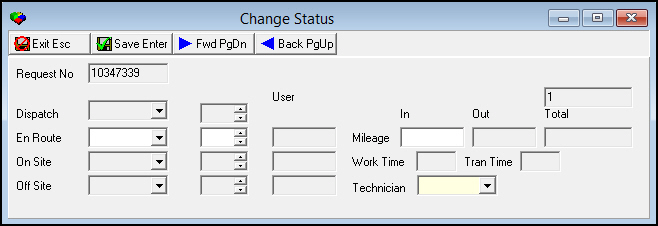
4. In Technician - select the ID of the employee servicing the request.
5. SBN defaults the date and time to the current system date and time when you choose Save. You can override these defaults.
6. When marking them En Route or On Site you can type the mileage reading in the In and Out fields.
7. Choose Save.
w When you mark a technician as Off Site, SBN asks if the service is complete.
8. Choose Yes or No.
Note: When you choose Yes, SBN sets the Complete flag in the Service Queue.
Viewing the Miscellaneous Service Log
The Miscellaneous Service Log displays the technician ID and times for the service request. This log supports multiple lines for multiple trips and multiple resources. To access the Miscellaneous Service Log, choose Miscellaneous Service Log.
The following graphic shows the Miscellaneous Service Log with information displayed.

Jumping to the Schedule Board
If you have access to Scheduling (program #563), choose Schedule Board to jump to Scheduling to view the available resources for a specific branch:
When you select a date and choose Save, and later choose Schedule Board, the Schedule Board opens with all available resources of the selected type for the selected date.
When you have a selected a specific service request, the Schedule Board appears with the initial search completed for the resource, branch, and start date from the request.
Note: For more information on the Schedule Board, see Scheduling.
Outdating / Closing the Service Request
Use Outdate/Close Request to go directly to the selected service request in the Service Log to outdate the request and enter closing information. For more information on outdating and closing service requests, see Service Log.
Paging a Resource
When you page a resource from Service Queue, SBN updates the service request with the Personnel IDs defined in Personnel (program #1811). Sales ID, Installer ID, and Technician ID are all updated, if defined.
Note: Use option ba413 and ba415 to define text that appears in the Message field when paging.
Note: Updating the service request will reassign the ticket to the person doing the updating. The only way to prevent this is by revoking the ability for the operator to page out.
Use the following steps to page a resource directly from the Service Queue:
1. In Service Queue (program #547), search for open service requests.
2. From the search results, select the service request about which you want to page the resource.
3. Choose Paging.
w The Paging dialog box opens.
Note: If Technician or Installer IDs have been specified in the Service Request, the paging dialog box defaults with the correct ID.
Note: For more information about the fields in this window, see Sending a Paging Message.
4. Select the Personnel ID, Sales ID, Installer ID, or Technician ID (if not defaulted) of the resource to whom you want to send the page.
5. Type any additional information in the Message field.
6. Choose Save.
Setting the Refresh Interval
You can set the refresh interval for the service request screen, so that SBN automatically refreshes the screen with the latest information. To set, choose Refresh Interval. From the menu, select the number of seconds between each refresh.
Note: Action 547/15 controls access to the Refresh function.
Mapping a Route
You can map a route for tracking in Service Queue (program #547).
1. From the search results, select the request number you want to map.
2. Choose Route Mapping. Google Maps tracking software opens.
Attaching a Timer To a Service Request
You can attach timers to service requests. When a timer expires, the Request Status Code of the selected request changes to the color defined by option svqtimer, and an X displays in the Timer Expired column.
Use the following steps to attach a timer to a service request:
1. From the search results, select the service request to attach a timer.
2. Choose Timer.
w The Attach Timer window opens.
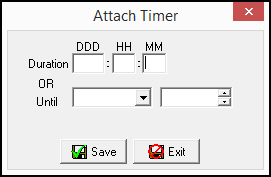
3. Enter the number of days, hours, and minutes until the timer expires, or enter a specific date and time for the timer to expire.
4. Choose Save.
Removing/Resetting a Service Request Timer
You can remove an existing timer from a request, or reset an expired timer using the Reset Timer button.
Use the following steps to reset a timer to a service request:
1. Select a service request with an existing or expired timer.
2. Choose Reset Timer.
w SBN resets the timer on the selected request.
Function Button Descriptions
The following table displays the buttons, describes the shortcut keys, actions, and functionality.
Button |
Name |
Shortcut Key |
Action |
Description |
|
Search |
shift+F2 |
547/ 6 |
Search for open service requests. |
|
View Service Request |
alt+F1 |
547/ 2 |
View details on a service request. |
|
Change Service Request |
F2 |
547/ 3 |
Own the selected service request and make changes. |
|
Print selected records |
ctrl+F8 |
547/ 4 |
Print service request. |
|
Get Installation |
alt+F2 |
547/ 1 |
View installation information for the selected request. |
|
Display Service Log |
F8 |
547/ 5 |
View the Service Log tab. |
|
Mark En Route |
shift+F3 |
547/ 7 |
Change the status of a technician to en route. |
|
Mark On Site |
shift+F4 |
547/ 8 |
Change the status of a technician to on site. |
|
Mark Off Site |
shift+F5 |
547/ 9 |
Change the status of a technician to off site. |
|
Miscellaneous Service Log |
shift+F8 |
547/10 |
View Miscellaneous Service Log. |
|
Schedule Board |
shift+F9 |
547/11 |
Open Schedule Board. |
|
Outdate/Close Request |
shift+F10 |
547/12 |
Outdate the selected request and enter closing information. |
|
Paging |
shift+F11 |
547/13 |
Page a resource directly from the Service Queue. |
|
Refresh Interval |
shift+F |
547/15 |
Select the number of seconds between each refresh. |
|
Schedule Request |
F9 |
547/14 |
Assign a service request to a resource. |
|
Route Mapping |
alt+F11 |
547/16 |
Map a route for tracking. |
|
Timer |
alt+F3 |
547/17 |
Attach a timer to the selected service request. |
|
Reset Timer |
alt+F4 |
547/18 |
Remove a timer from the selected service request, or reset an expired timer. |
|
Exit |
Esc |
547 |
Exit without saving. |
|
Save |
Enter |
547 |
Save existing record. |




















Phone-Call Events in the Service Queue
A phone-call event raised from the service-ticket queue is handled as a call, not labeled as an alarm.
Modifications and Updates to Service Queue
The following table lists modifications and updates to the Service Queue document.
Mod Number |
Date |
Description |
07.02.21148 |
08/22/11 |
Added option sv076. |
07.02.20945 |
09/01/11 |
Added option sv075. |
07.02.21926, 08.03.08840 |
09/28/12 |
Added a Work Type Class search parameter and result column. |
08.79.09470, 07.79.23063, 08.79.09453, 07.79.23028 |
04/03/14 |
Added the Activity Class, Click Status, and Schedule End Time columns. |
08.81.09680, 07.81.23418, 07.81.23411, 08.81.09677 |
06/06/14 |
Added the Activity Type fields. |
n/a |
07/29/14 |
Images updated. |
n/a |
03/12/15 |
Added note that paging attempts will reassign the ticket to the paging operator. |
07.81.23380, 08.81.09654, 08.81.09650, 07.81.23369 |
10/13/16 |
Added the Created By and Changed By |
07.85.24894 |
10/13/16 |
Added the Work Order Type column. |
07.88.25685, 07.88.25684 |
02/22/18 |
Added column for Work Count to bottom half of Service Queue. |
07.89.25908, 07.89.25922 |
07/02/18 |
Added Follow up Date and Follow up Time in the grid. |
07.89.26048 |
01/09/19 |
Added Status column in the grid. |