
Directory Types and Locations
Directory Types and Locations
Directory Types and Locations
Module: Utilities
Overview
Use Directory Types and Locations (program #1656) to define the directory paths in the drop-down menus of the Directory fields in the Directories tab of SBN Client Options. (To access SBN Client Options from any program in SBN, choose View > Options or press [CTRL+O].)
-
The Directory fields of SBN Client Options contain drop-down menus when action 1656/16 is disabled in a user's action profile
-
The Directory fields of SBN Client Options allow you to type in or browse for directory paths when action 1656/16 is enabled; the fields do not contain drop-down menus
There is a directory type defined in program #1656 for each of the Directory fields in the Directories tab of SBN Client Options. The directory paths defined in program #1656 for a directory type appear in the drop-down menu of the corresponding Directory field in SBN Client Options. For example, the directory paths defined for the Report Directory Type in program #1656 appear in the Report Directory field of SBN Client Options when action 1656/16 is disabled.
Navigating to Directory Types and Locations
Use the following steps to navigate to Directory Types and Locations:
1. From the main SBN toolbar, select Menu.
2. From the drop-down menu, select Go To.
3. In the Go To Program dialog box, type in "1656" and press enter.
w The Directory Types and Locations program opens.
The Directory Types and Locations Window
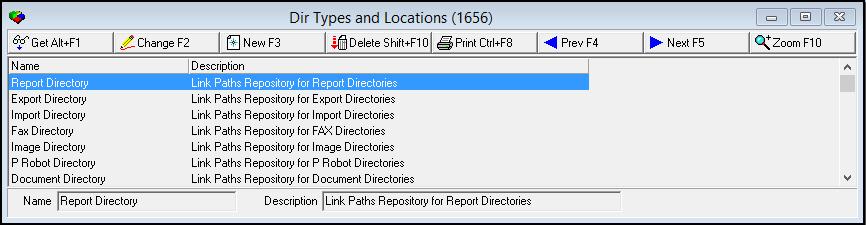
The following graphic displays Directory Types and Locations as the program opens. The window displays previously defined directory types.
Field/Column Descriptions
The following table describes the fields and columns used in Directory Types and Locations.
|
Field/Column |
Description |
|
Name |
Name of the selected directory type. |
|
Description |
Description of the selected directory type. |
Viewing Details of a Directory Type
Use the following steps to view directory type details:
1. Select the directory type you want to view.
2. Choose Get Record.
w The directory type details appear in the fields in the lower pane.
Creating a Directory Type
Use the following steps to create a new directory type:
1. Choose New Record.
w The fields in the lower pane open for changes.
2. Enter details for the directory type.
3. Choose Save.
w The new directory type appears in the list in the upper pane.
Changing a Directory Type
Use the following steps to change a directory type:
1. From the upper pane, select the directory type you want to change by double-clicking or choose Get Record.
w The directory type details appear in the lower pane.
2. Choose Change Record.
w The fields in the lower pane open for changes.
3. Change details as necessary.
4. Choose Save.
Deleting a Directory Type
Use the following steps to delete a directory type:
1. From the upper pane, select the directory type you want to delete by double-clicking or choose Get Record.
w The directory type details appear in the lower pane.
2. Choose Delete Record.
w A confirm dialog box opens: "Are you sure?"
3. Choose Yes.
4. SBN removes the directory type from the list in the upper pane.
Zooming to the Sublevel
Choose Zoom to view the Directories tab in which you can attach directory paths to directory types. If you enter an invalid directory path (such as a folder that does not exist), SBN displays an error message and does not allow you to save the entry.
The Directories Tab
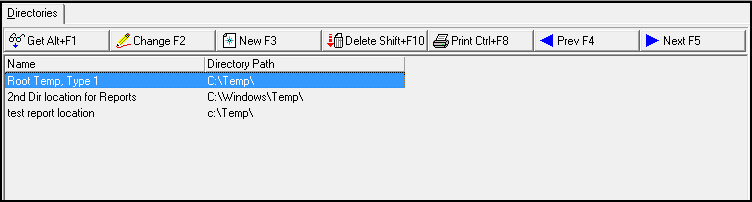
The following graphic shows the Directories tab.
Field/Column Descriptions
The following table describes the fields and columns used in the Directories tab.
|
Field/Column |
Description |
|
Name |
Name of the selected directory path. |
|
Directory Path |
Directory path where files will be stored. |
Button Functions
The following table displays the buttons, describes the shortcut keys, actions and functionality.
|
Button |
Name |
Shortcut Key |
Action |
Description |
|
Directory Types and Locations Main |
||||
|
|
Get Record |
ALT+F1 |
1656/ 1 |
View details of selected directory type. |
|
|
Change Record |
F2 |
1656/ 2 |
Change details of selected directory type. |
|
|
New Record |
F3 |
1656/ 3 |
Create new directory type. |
|
|
Delete Record |
shift+f10 |
1656/ 4 |
Delete selected directory type. |
|
|
Print Selected Records |
ctrl+f8 |
1656/ 6 |
Print displayed directory types. |
|
|
Previous |
f4 |
1656/ 1 |
Go to previous directory type. |
|
|
Next |
f5 |
1656/ 1 |
Go to next directory type. |
|
|
Zoom in/out of sublevel |
F10 |
1656/10 |
Access Directories tab in sublevel. |
|
|
Tear Away Selected Tab |
F7 |
1656/10 |
View Directories tab in separate window. |
|
Directories Tab |
||||
|
|
Get |
ALT+F1 |
1656/11 |
View details of selected directory path. |
|
|
Change |
f2 |
1656/12 |
Change details of selected directory path. |
|
|
New |
f3 |
1656/13 |
Add new directory path. |
|
|
Delete |
shift+f10 |
1656/14 |
Delete selected directory path. |
|
|
Print Selected Records |
CTRL+F8 |
1656/15 |
Print displayed directory paths. |
|
|
Previous |
f4 |
1656/11 |
Go to previous directory path. |
|
|
Next |
f5 |
1656/11 |
Go to next directory path. |









Modifications and Updates to Directory Types and Locations
The following table lists modifications and updates to the Director Types and Locations document.
|
Mod Number |
Date |
Description |
|
n/a |
8/28/14 |
Images updated. |
F1 Help
| Delphi Forms | dirtypeslocform |
| Program Numbers | 1656 |