
Event Log
Event Log
Event Log
Module: Account Generation
Overview
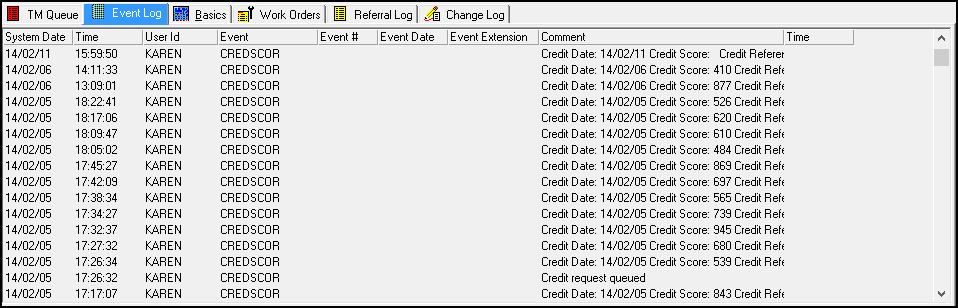
Use the Event Log to view a list of events for a selected Marketing account. SBN automatically logs events based on actions taken for the account. SBN lists the events in descending order, by date. This tab is read-only.
SBN logs events from three primary areas:
Marketing (program #562)
Scheduling (program #563)
Work Orders
When you add a comment to a slot in Scheduling (program #563) and an associated account exists in Marketing (program #562), the comment appears in the Event Log of the associated account. Changes to work orders with associated marketing inquiries also appear in the Event Log. When you send a page (or an email using the Paging dialog box) from Marketing, SBN records the page in the Event Log.
When you choose Jump to Data Entry/Customer Service from a Marketing inquiry, the inquiry defaults to the status defined by option tm005 and SBN records the status in the Event Log.
Navigating to the Event Log
Use the following steps to access the Event Log:
1. From the main SBN toolbar, select Menu.
2. From the drop-down menu, select Go To.
3. In the Go To Program dialog box, type in "562" and press Enter.
w Marketing and Marketing Basics opens.
4. Choose the Event Log tab in the lower pane of Marketing.
Note: If you have not selected an inquiry record in the main Marketing window, the Event Log will be blank.
The Event Log Tab
The following graphic shows the Event Log tab with events displayed.
Column Descriptions
The following table describes the columns used in the Event Log tab.
Column |
Description |
System Date |
Date you entered the event into SBN. |
Time |
Time you entered the event into SBN. |
User ID |
ID of the user who entered the action for this event. |
Event |
SBN-defined event, based on the action taken. |
Event # |
Code for additional information about the event, if applicable. For example, sales consultant ID, installer ID, technician ID. Note: If the event is WOHOLD or WOCLOSE, this column displays the associated work order number. |
Event Date |
Scheduled event date, if applicable. For example, the date scheduled for a sales visit, an installation, or a service call. |
Event Extension |
Code for further event identification that you selected from a menu for a specific event. For example, the type of sales literature requested, or the reason that a sales presentation failed. Note: If the event is WOHOLD, this column displays the hold reason. Note: If the event is WOCLOSE, this column displays an X. |
Comment |
Comments and linking information, such as the customer or employee number of the person who referred the lead. Note: If the event is WOCLOSE, this field displays any comment added when you closed the work order. |
Time |
Time you scheduled the event to occur. |
Related Programs
The following table lists programs related to the Event Log.
Program |
Number |
Document Link |
Description |
Marketing |
562 |
Take actions on Marketing accounts (such as inquiry calls, sales presentations and installation requests) that appear in the Event Log. |
|
Scheduling |
563 |
Schedule sales visits for prospective customers and installations for new customers that appear in the Event Log. |
|
Work Orders Tab |
n/a |
Set up and track the progress of installations and maintenance work calls. Changes in work order status appear in the Event Log. |
|
Marketing Events |
1856 |
Define marketing events and actions that appear in the Event Log. |
Modifications and Updates to the Event Log
The following table lists modifications and updates to the Event Log document.
Mod Number |
Date |
Description |
n/a |
07/18/08 |
document rewritten |
n/a |
10/07/10 |
The Event Log records emails sent from the Paging dialog box of Marketing. |
n/a |
07/11/14 |
Images updated. |