
User Trace
User Trace
User Trace
Program #: 553
Module: System Administration
Overview
Use User Trace (program #553) to view the time users have spent in Monitoring, Telemarketing, Customer Service, Data Entry, or Contract Master. You can print the information that displays in User Trace in the User Activity Report (program #1989).
Note: User Trace (program #553) and User Activity Report (program #1989) produce no data if option ba103 is off.
To access this program, select User Trace (program #553) from the main menu of SBN.
The User Trace Window
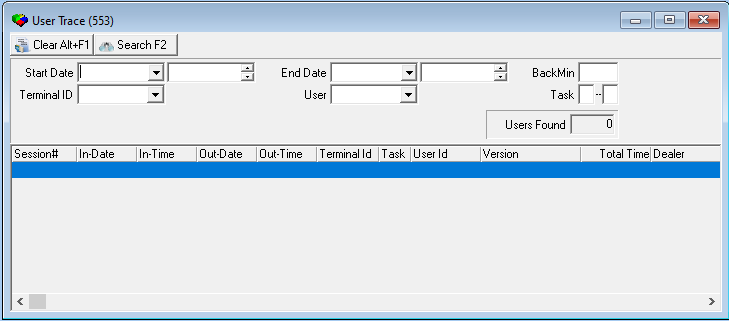
The following graphic shows User Trace as the program opens. All fields remain empty until you perform a search.
Field/Column Descriptions
The following table describes the fields and columns used in User Trace.
Field/Column |
Description |
Start Date |
You can search for user times during a range of dates. Select a beginning date for the range. |
Start
Time |
You can search for user times during a range of times. Select a beginning time for the range. |
End Date |
You can search for user times during a range of dates. Select an ending date for the range. |
End
Time |
You can search for user times during a range of times. Select an ending time for the range. |
BackMin |
Number of minutes the search should cover. |
Terminal ID |
You can search for user times by ID of the user’s terminal. O Used only for terminals used for Monitoring. |
User |
You can search for user times by ID of the user. |
Task Range |
|
Task - From |
You can search for user times by task (module). You can type a specific task or a range of tasks. If you search for times by a range of tasks, type a beginning task. Valid tasks include: l 0 = Monitoring l 1 = Data Entry l 2 = Customer Service l 3 = Contract Master l 4 = Telemarketing l 9 = Service Module Note: The Service Module tracks how long a user (SBN login) is in a section of SBN. It also tracks the overall times someone is logged in. When opening program #559 (Valid Task = 1) the user gets a start time, and the user gets a end time when they close Program #559. According to source code #9, it logs the time the user logs in and out of SBN. |
Task - To |
If you search for user times by a range of tasks, type an ending task. |
Users Found |
Number of users that match your search parameters. O SBN displays a maximum of 500 users. |
Session # |
Identifies the session number. |
In-Date |
Start date of the session. |
In-Time |
Start time of the session. |
Out-Date |
End date of the session. |
Out-Time |
End time of the session. |
Terminal ID |
ID of the user’s terminal. O Used only for terminals used for Monitoring. |
Task |
Identifies the task (module) in which user times occurred. |
User ID |
ID of the user. |
Version |
Software version/release number. Note: You can block old builds from coming in. If you do not block old builds, use this column to see if users are using the correct executable. |
Total Time |
Total session time, in seconds. (This column remains blank for a user until the user logs off of SBN.) |
Dealer |
Dealer ID associated with return user (if dealer is defined). |
Searching for User Sessions in User Trace
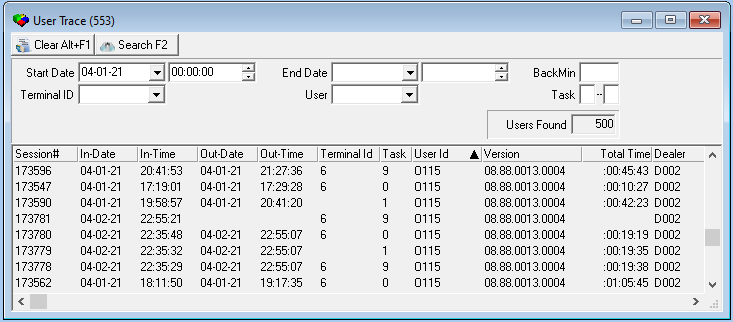
Use the following steps to search for user sessions in User Trace:
1. Select your search parameters.
2. Choose Search.
‰ The columns in the lower pane display the records that match your search parameters.
3. To conduct another search, choose Clear Search Screen.
‰ SBN clears the search parameters if the upper pane.
4. Repeat steps 1-2.
Button Functions
The following table displays the buttons, describes the shortcut keys, actions, and functionality.
Button |
Name |
Shortcut Key |
Action |
Description |
|
Clear Search |
ALT+F1 |
553/ 1 |
Clear search fields. |
|
Search |
F2 |
553/ 2 |
Display technicians based upon search parameters. |


Modifications and Updates to User Trace
The following table lists modifications and updates to the User Trace document.
Mod Number |
Date |
Description |
n/a |
08/26/14 |
Images updated. |
07.92.26636 |
04/12/21 |
Added new Dealer column within the results window. Images updated. |