
Cancellation Tracking Report
Cancellation Tracking Report
Cancellation Tracking Report
Report #: 2172
Module: Account Management
Overview
Use the Cancellation Tracking Report to track any monitoring contracts that have been canceled or are marked for cancelation within a specified period. You can limit the report by branch.
This document covers the following topics:
Navigating to Cancellation Tracking
The Cancellation Tracking Report
Navigating to Cancellation Tracking
Use the following steps to access the Cancellation Tracking Report:
1. From the main SBN toolbar, select Menu.
2. From the drop-down menu, select Go To [ALT+F1].
3. In the Go To Program dialog box, type in "2172."
w The Cancellation Tracking Report window opens.
Cancellation Tracking Options
You can manipulate the Cancellation Tracking Report functionality through the use of the following options. For detailed information on an option and its default setting, see SBN Options.
Option fe007 - When this option is on, SBN enables the fax gateway, allowing you to fax reports.
Option fe009 - When this option is on, select a valid email address in the Email field to which SBN emails the report.
The Cancellation Tracking Report
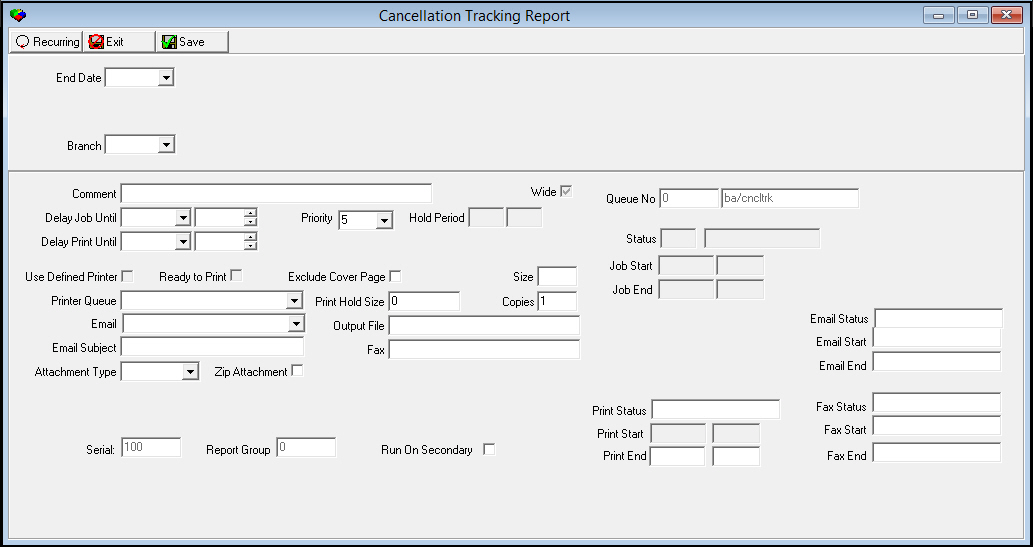
This report contains two panes. Use the upper pane to define the content of the report; use the lower pane to define the job output - how, when, and where you want to print the report.
Field Descriptions - Report Content
The following table describes the fields used in the upper pane of the Cancellation Tracking Report.
Field |
Description |
End Date |
Select the end date (approximately 30 days in the past) to track cancellations. |
Branch |
You may limit the report to a single branch. |
Field Descriptions - Report Parameters Pane
Every report in SBN contains the same lower pane with fields for selected parameters. The following table describes the fields used in the lower pane of the Cancellation Tracking Report.
Field |
Description |
Comment |
Type a description of the job that appears in the Report Queue (program #1558). |
Wide |
This box displays a check mark if the report requires wide paper, landscape printing, or condensed print. |
Delay Job Until |
Select a date and time to use as the minimum start time for processing the report. Note: The report may remain held after this time if the priority requires the report to print at a certain time. |
Priority |
Defaults to the priority of the report defined in Report Default Parameters. You can override the default by selecting a priority from the drop-down menu. |
Hold Period |
If the priority defined for the report causes SBN to hold the report, these fields display the beginning and ending of the hold time. |
Delay Print Until |
Select a date and time to use as the minimum start time for printing the report. |
Status |
Displays the current status of the job. This is a read-only field. |
Status
Description |
Displays the description of the status of the job. This is a read-only field. |
Use Defined Printer |
If you have no report defined in the Reports tab of the Client Options window, this box appears grayed out. Select this check box to use the defined printer regardless of the printer selected in Printer Queue. This box defaults with a check mark if: l You have a default printer defined in the Reports tab of the Client Options window. l The Use Defined Printer check box is selected in Report Default Parameters. You may select a different printer by leaving this check box blank and selecting a different printer in Printer Queue. Note: If you leave this box blank, SBN uses the printer that defaults or that you select in Printer Queue to print the report. |
Ready to Print |
This box displays a check mark when the report is ready to print. |
Exclude Cover Page |
Select this check box to remove the cover page from the print job. |
Size |
Displays the actual size of the report in pages. |
Printer Queue |
Defaults to the printer queue defined for the report in Report Default Parameters. You can override the default by selecting a different printer queue from the menu. (This menu originates from program #1559.) Note: The menu displays only those printers flagged as In Use for the printer profile associated with the report in Report Default Parameters (program #1559). |
Print Hold Size |
Defaults to the print hold size defined for the report in Report Default Parameters. You can override the default by typing the maximum number of pages to print automatically. If the number of report pages exceeds the hold size, SBN l Holds the report in the Report Queue l Does not print the report l Does not migrate the report to the Done Queue Note: SBN holds a report with a hold size of 0 (zero) in the Report Queue and NEVER prints the report. Note: SBN will only email or fax reports l Defined with a hold size > 0 l With a print size that is less than or equal to the hold size |
Copies |
Defaults to the number of copies of the report to print defined in Report Default Parameters. You can override the default. |
When option fe009 is on, you may select a valid email address to which SBN emails the report. Processing the report with a value in this field hands the report off to your email system. If the report size is larger than the hold size, SBN sends the report to the Report Queue and keeps the report on hold until you release it. Note: The email function does not support wide reports. Note: If the report equals 0 pages, excluding cover page, the email will state: �No Data Received.� Note: SBN will only email or fax reports l Defined with a hold size > 0 l With a print size that is less than or equal to the hold size |
|
Output File |
You may type the name of the destination file for output, if desired. The file path must be a directory known to the file server that generates the output. |
Email Subject |
You may type a subject that appears in the subject line of the email. |
Fax |
When option fe007 is on and Fax Gateway has been installed on your server, you can type a fax number to which SBN faxes the report. Processing the report with a value in this field hands the report off to the Fax system. If the report size is larger than the hold size, SBN sends the report to the Report Queue and keeps the report on hold until you release it. Note: If the report equals 0 pages, excluding cover page, the fax will state: �No Data Received.� Note: SBN will only email or fax reports l Defined with a hold size > 0 l With a print size that is less than or equal to the hold size |
Attachment Type |
You may select the format from the drop-down menu to which SBN converts the report when it exports with the email. When you select TXT2, SBN embeds the text of the report into the body of the email. Note: If you leave this field blank, the report scheduler will use the PDF format. |
Zip Attachment |
Select this check box to convert the report attachment to a .zip file. |
Job Start |
Displays the date and time the report began processing. |
Job End |
Displays the date and time the report finished processing. |
Print Start |
Displays the date and time the report began printing. |
Queue Number |
Displays the queue number assigned from the Report Queue. |
Report
Name |
Displays the program name of the report, if applicable. |
Running and Viewing a Report
Use the following steps to run and view a report:
1. In Cancellation Tracking, define the parameters in the upper and lower panes of the report.
2. Choose Save to save the report to the Report Queue.
3. In Report Queue (program #1558), choose Own to display the report list.
4. In the report list, locate the Cancellation Tracking Report.
5. When SBN displays 'DON' in the Status column, the report is ready.
6. Double-click on the Cancellation Tracking Report.
w The Cancellation Tracking window opens.
7. Choose Display Report.
w The Print Preview window opens.
Report Example
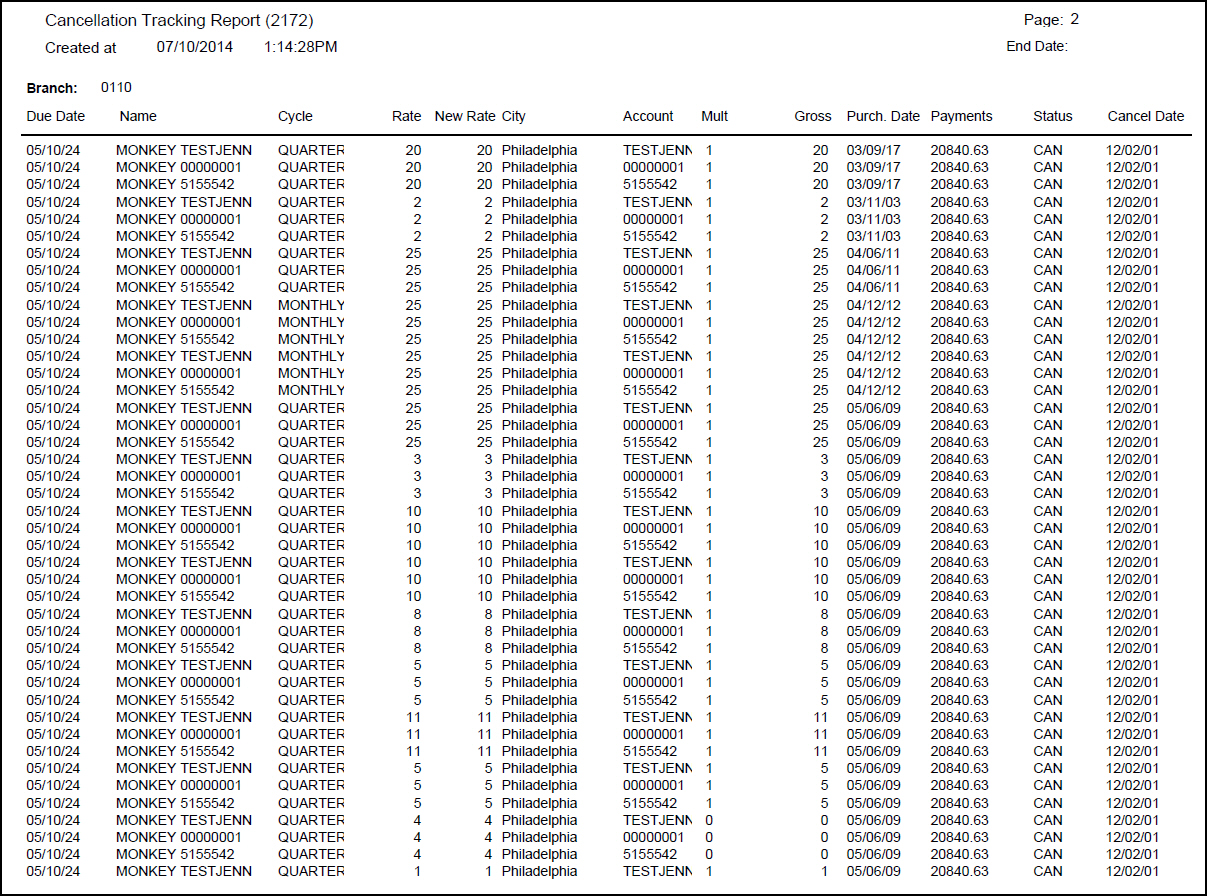
The following graphic shows an example of the Cancellation Tracking report.
Related Programs
The following table lists programs related to Cancellation Tracking Report.
Program |
Number |
Document Link |
Description |
Branch Profiles |
1530 |
Limit the report to specific Branches that are listed in this program. |
|
Report Queue |
1558 |
Use this program to view the status of the report you are running. View the report description. |
|
Printer Profile Updates |
1559 |
Use a defined printer in this program to print reports. |
|
Report Default Parameters |
1561 |
Use this program to set the default parameters for each report. |
|
Report Priorities |
1509 |
Use this program to set the report priority default. |
Button Functions
The following table displays the buttons, describes the shortcut keys, actions, and functionality.
Button |
Name |
Shortcut Key |
Action |
Description |
|
Open fields for recurring/template reports |
alt+f1 |
2172 |
Open fields for recurring/template reports. |
|
Exit without saving |
esc |
2172 |
Exit without saving changes to selected record. |
|
Save Existing Record |
enter |
2172 |
Save changes to selected record. |



Modifications and Updates to Cancellation Tracking
The following table lists modifications and updates to the Cancellation Tracking document.
Mod Number |
Date |
Description |
n/a |
02/09/09 |
Document created |
n/a |
07/17/14 |
Images updated. |